Subscribe, change or cancel
Pay for the Pro or Business plan through Stripe, switch between them, update your card or cancel, and see what happens when a subscription ends.
Only an owner can subscribe, change the plan or cancel. Office members can open Plan and billing and read it. Technicians do not see it.
You do all of this on the web, at https://app.tradesender.co.uk. The iPhone and Android apps have no plan section and sell nothing: sign in on the web, on the phone's browser if you like.
Payment is by Stripe, on Stripe's own pages. TradeSender never sees or stores your card.
Subscribe
-
Open the menu under your name, choose Settings, then Plan and billing.
-
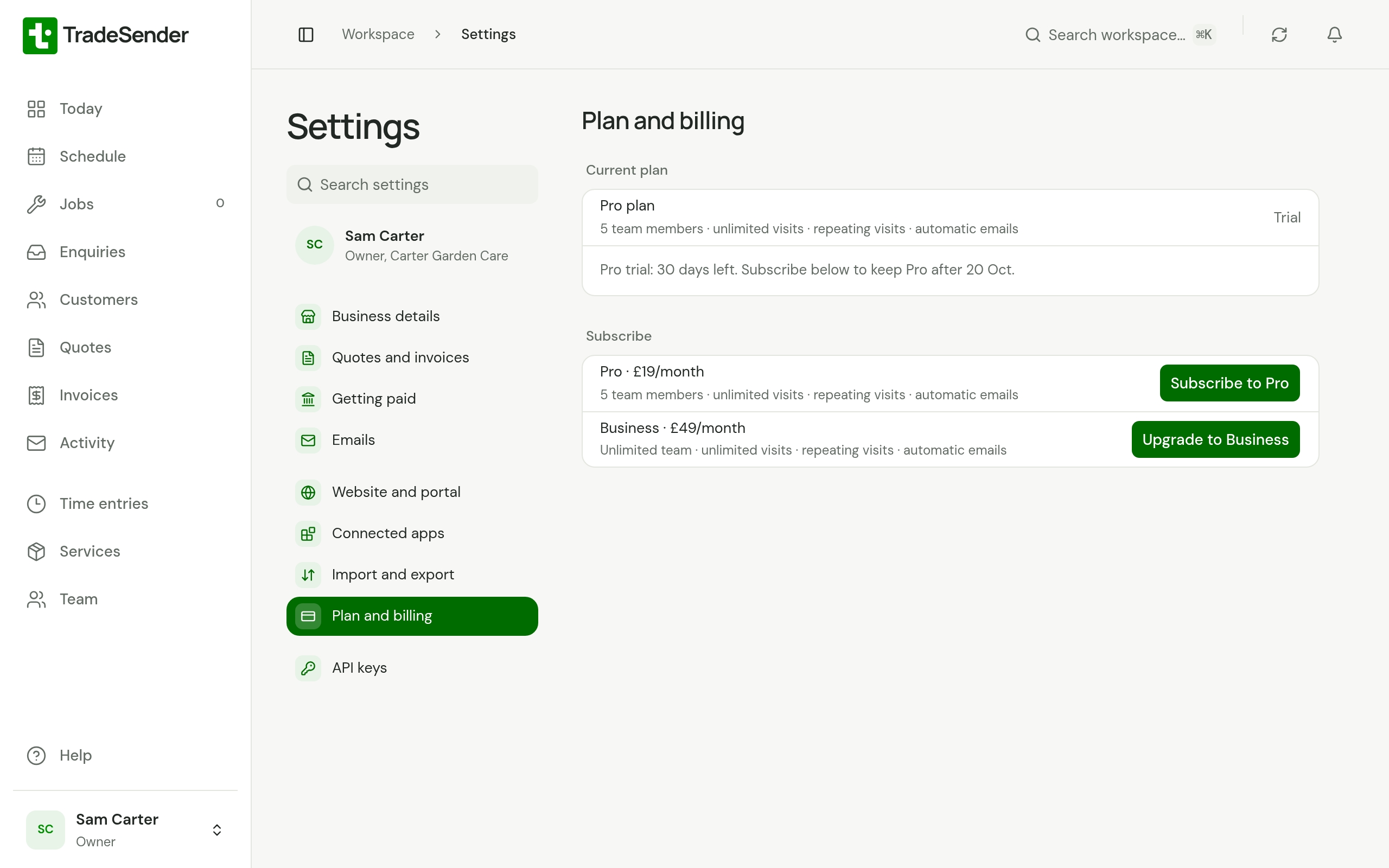
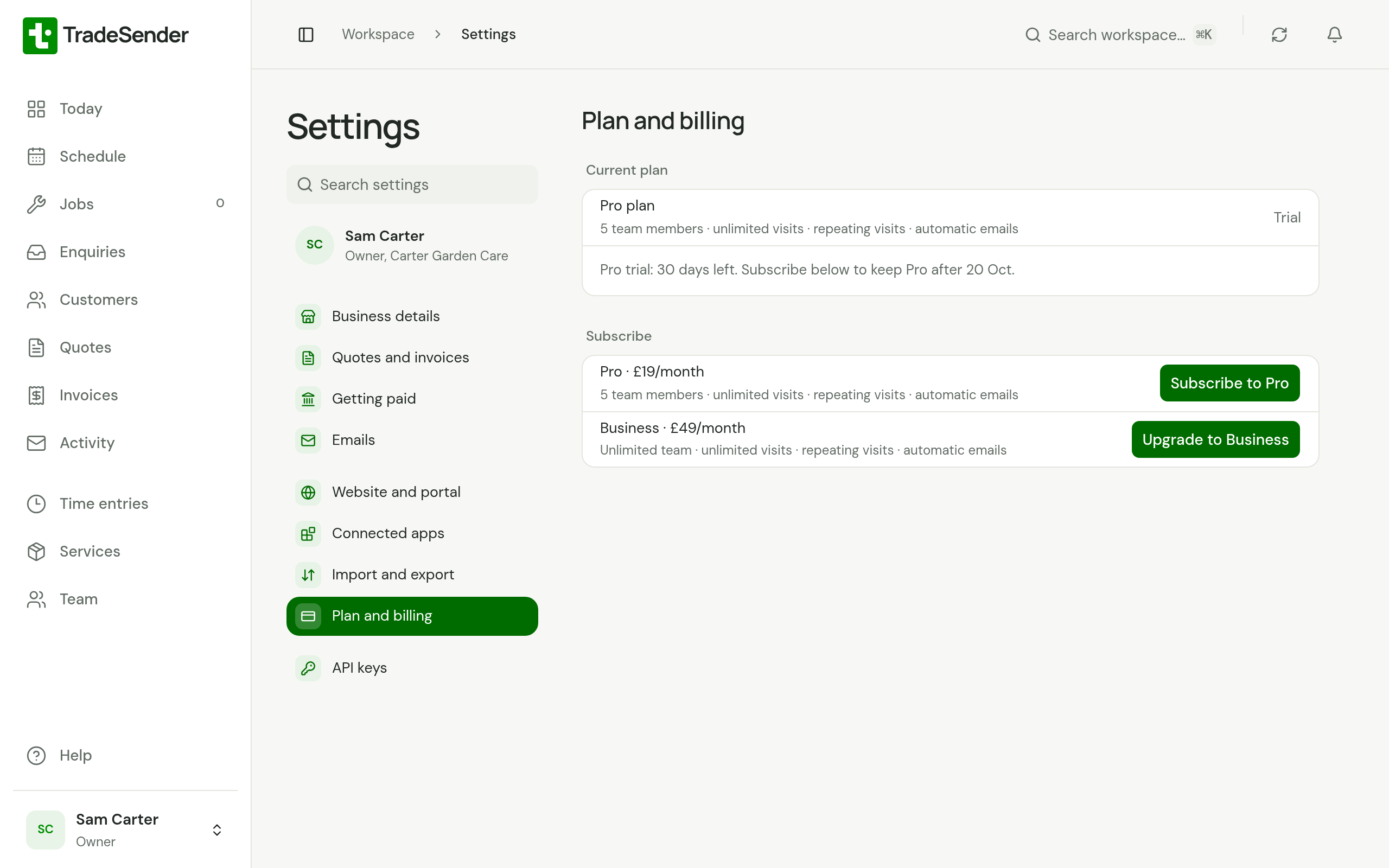
Under Subscribe, choose the button for the plan you want: Subscribe to Pro at £19 a month or Upgrade to Business at £49 a month. During your first 30 days of Pro the group reads the same, with "Pro trial: 30 days left" above it. On the Free plan the group is headed Upgrade and the buttons read Upgrade to Pro and Upgrade to Business.
-
The button reads Opening Stripe… and Stripe's checkout page opens in the same tab. Enter your payment details there and confirm.
-
Stripe sends you back to Plan and billing. If the plan has not caught up, you see "Thanks. Your plan will update as soon as Stripe confirms it." The page checks again after a few seconds. If it still shows the old plan, reload it.
If you leave Stripe's page without paying, you come back to Plan and billing and nothing has changed.
Plans and limits sets out what each plan allows.
Change your plan or your card
Once you have a subscription, Current plan shows the date it renews and a Manage subscription button.
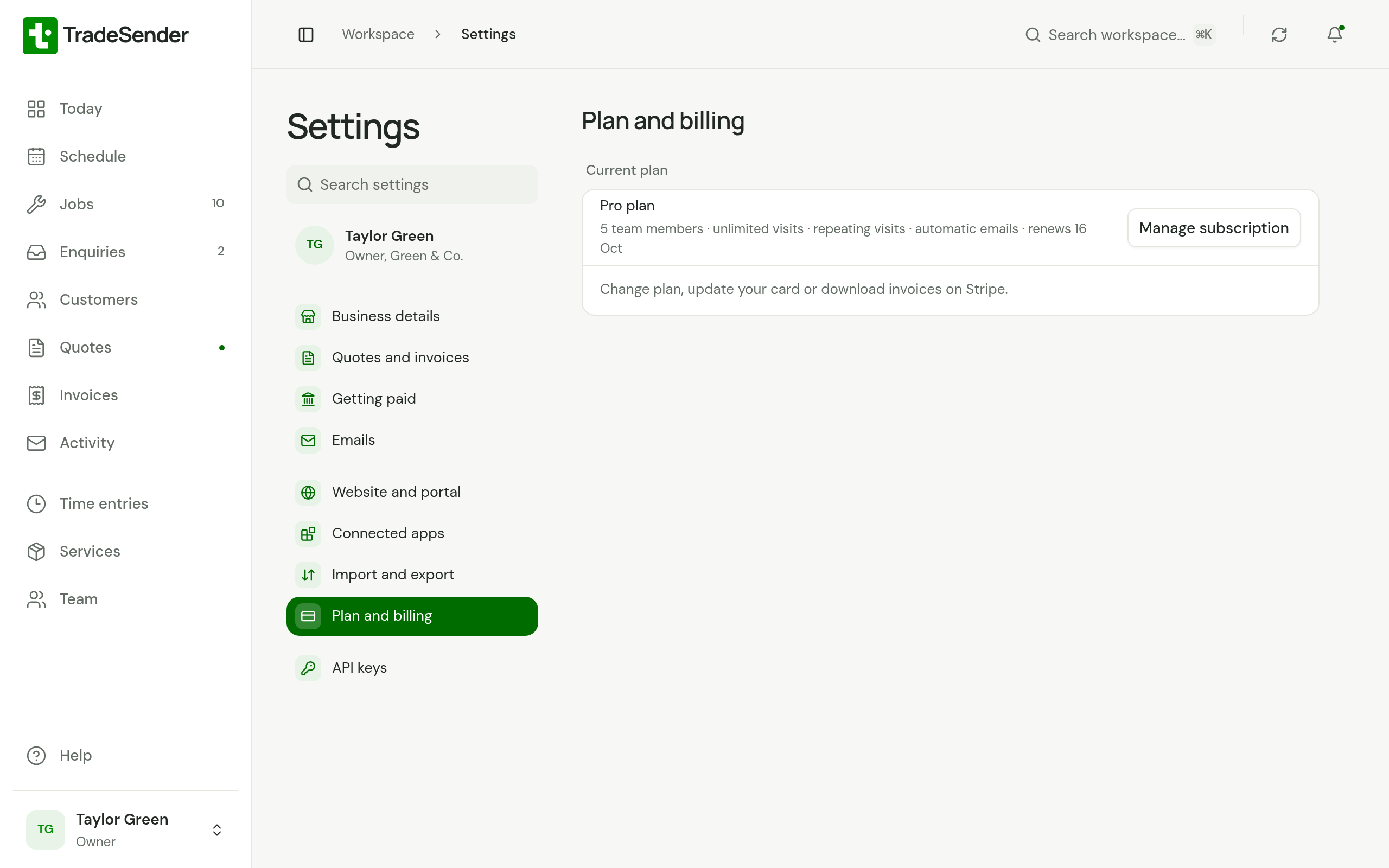
Choose Manage subscription. Stripe's billing page opens, where you can:
- move between Pro and Business
- change the card you pay with
- see and download your invoices from Stripe
- cancel
When you are done, use Stripe's link back to TradeSender. A change of plan shows in Plan and billing once Stripe confirms it.
Cancel
Choose Manage subscription and cancel on Stripe's page.
You keep your plan to the end of the period you have paid for. Plan and billing says so, with the date: "Cancels on 21 Oct 2026. You keep Pro until then." Until that date you can change your mind: choose Manage subscription again and restart the plan on Stripe.
On that date the workspace moves to the Free plan.
When a subscription ends
The same happens when your first 30 days of Pro end without a subscription. Your workspace and everything in it stay. On Free:
- Team members you already have keep their access. You cannot invite anyone new.
- Visits already booked stay booked. Free allows 30 visits booked in a calendar month, and the ones you booked earlier in the month count. Visits your repeating jobs book for you do not.
- Repeating jobs already running stay, and keep booking their visits. You cannot make anything new repeat.
Subscribe again from Plan and billing to lift the limits.
If a payment fails
While Stripe is still trying to take a payment, you keep your plan and Plan and billing says "Your last payment didn’t go through. Update your card to keep your plan." Choose Manage subscription and change the card.
If the payment is never made and Stripe ends or suspends the subscription, the workspace moves to Free, as it does after you cancel.
Good to know
- A workspace has one subscription. To move between Pro and Business, use Manage subscription.
- Deleting a workspace cancels its subscription at once. See Leave or delete a workspace.
- If Plan and billing says "TradeSender set this plan for you, so there is nothing to pay.", there is no subscription to manage.
Checked against the app on 29 October 2026. Still stuck? Ask usAsk us.