Enquiries from your website
Give people a form to ask you for work, and read what they send, with their photos, in TradeSender.
Every workspace has an enquiry form. Someone fills it in on your website, or from a link you gave them, and what they wrote lands in Enquiries in TradeSender with their photos. TradeSender emails you to say so.
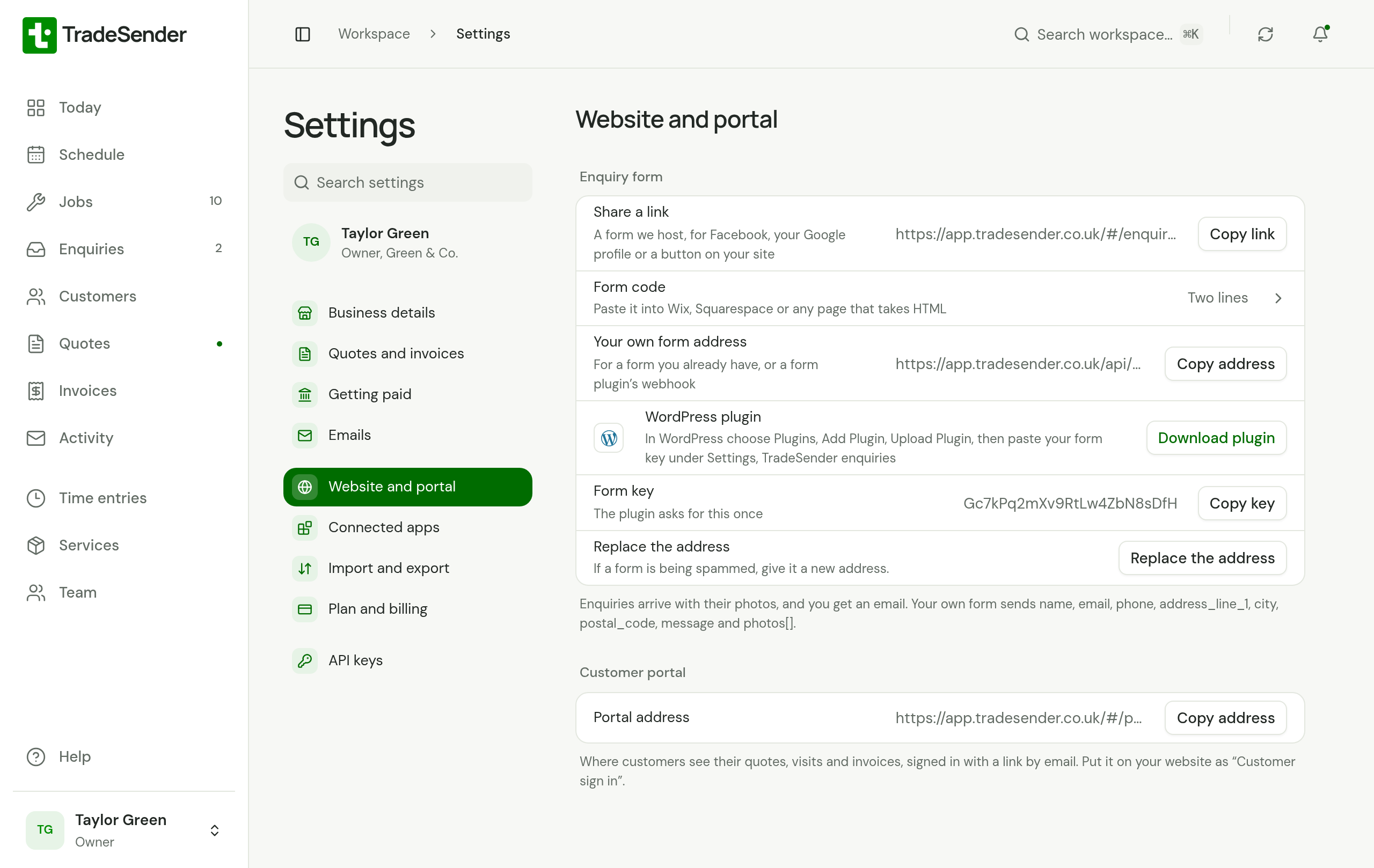
Owners and office members set the form up in Settings, then Website and portal. Every workspace has it.
Four ways to use it
All four send to the same place. Use whichever suits your website, or more than one. Your existing customers do not use this form: Request work in their customer portal has a shorter one of its own, and what they send arrives under Enquiries too.
| You have | Use |
|---|---|
| No website, or somewhere that only takes a link | Share a form link |
| A website you can paste code into | Add the form to your website |
| A WordPress website | The WordPress plugin |
| A contact form you want to keep | Use a form you already have |
What arrives
An enquiry holds what the person sent:
- their name
- a phone number, an email address, or both
- the address where the work is: first line, town and postcode
- their message
- up to 5 photos
- the page the form was on, and when they sent it
TradeSender's form asks for a name and either a phone number or an email address. The rest is optional. Photos can be JPEG, PNG, WebP or HEIC, up to 10 MB each, and the message can run to 4,000 characters.
An enquiry is a record of its own. It joins your customers only when you choose Create customer, so junk and duplicates stay out of your customer list. Nobody can edit an enquiry: it stays as the person sent it.
The person sees a thank-you on the page. TradeSender does not email them, so the reply comes from you.
How you are told
- An email. "New enquiry from Morgan Hughes" goes to your Business email in Settings, then Business details. With no business email set, it goes to each owner. It gives their phone number, email address, address and message, says how many photos they attached, and links to the enquiry. Reply to it and your reply goes to the person who enquired, when they gave an email address.
- The sidebar. Enquiries shows how many are new.
- Today. Each new enquiry sits first under Needs attention as New enquiry, until you make it a customer or delete it.
- Your phone. Owners and office members with the iPhone or Android app see New enquiry, with the person's name and the first line of what they wrote. A customer's request from their portal says Work request. See Notifications on your iPhone and on Android.
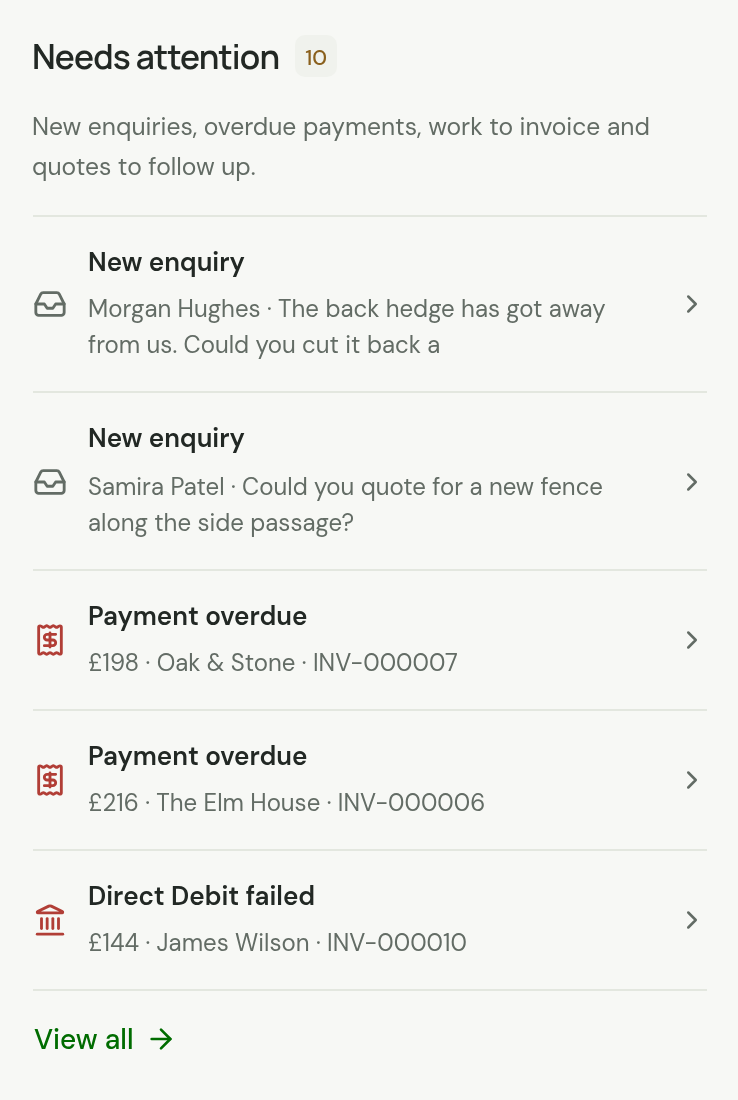
The email is the alert to rely on. It reaches you wherever you read your mail, whether or not TradeSender is open. A phone switched off for more than a day can miss its notification.
Who sees enquiries
Owners and office members see Enquiries and the Website and portal settings. Technicians see neither. Only the owner can replace the form's address. See Roles.
AI assistants cannot read or act on enquiries. Strangers write them, so TradeSender keeps assistants away from them. See Connect your AI assistant.
In the iPhone and Android apps, tap the account button. Enquiries are in Settings, under Your business. Website and portal, further down, has the same rows as the web: Share the link and Copy the link, Form code, Your own form address, WordPress plugin, which shares the download link, Form key and, for the owner, Replace the address.
Limits
| What | Limit |
|---|---|
| Photos with one enquiry | 5, of 10 MB each |
| Enquiries a workspace can receive | 100 in any 24 hours |
| Enquiries from one internet connection | 10 in 15 minutes |
The limits are the same for every workspace. They are there to hold back a flood of junk: see Stop unwanted enquiries.
When one arrives
Work an enquiry covers reading it, making the person a customer and deleting what you do not want.
Checked against the app on 29 October 2026. Still stuck? Ask usAsk us.