Connect Claude Code
Add TradeSender to Claude Code with one command, sign in from the /mcp menu, and work on your records from a terminal.
Claude Code is Anthropic's assistant for the terminal. You need it installed on your computer, and your TradeSender sign-in. For Claude on claude.ai, in the desktop app or on your phone, follow Connect Claude.
Connect
-
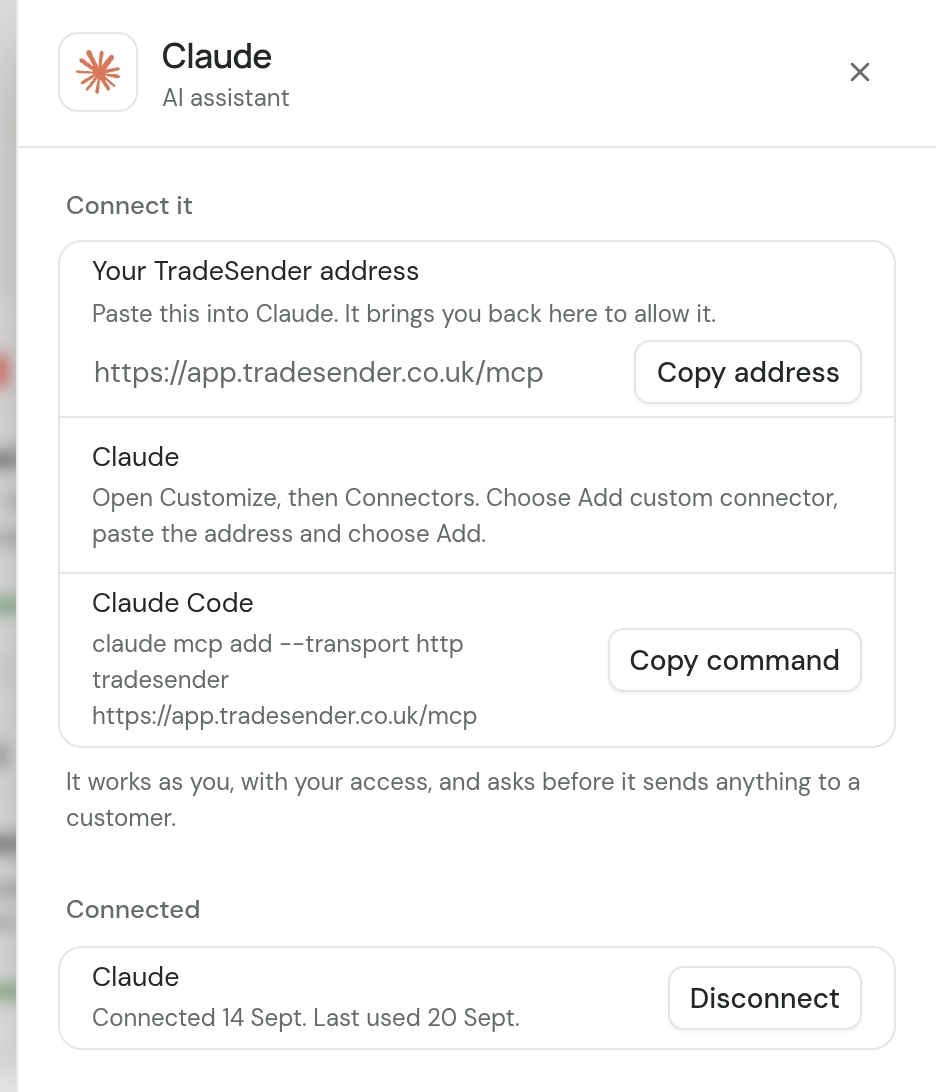
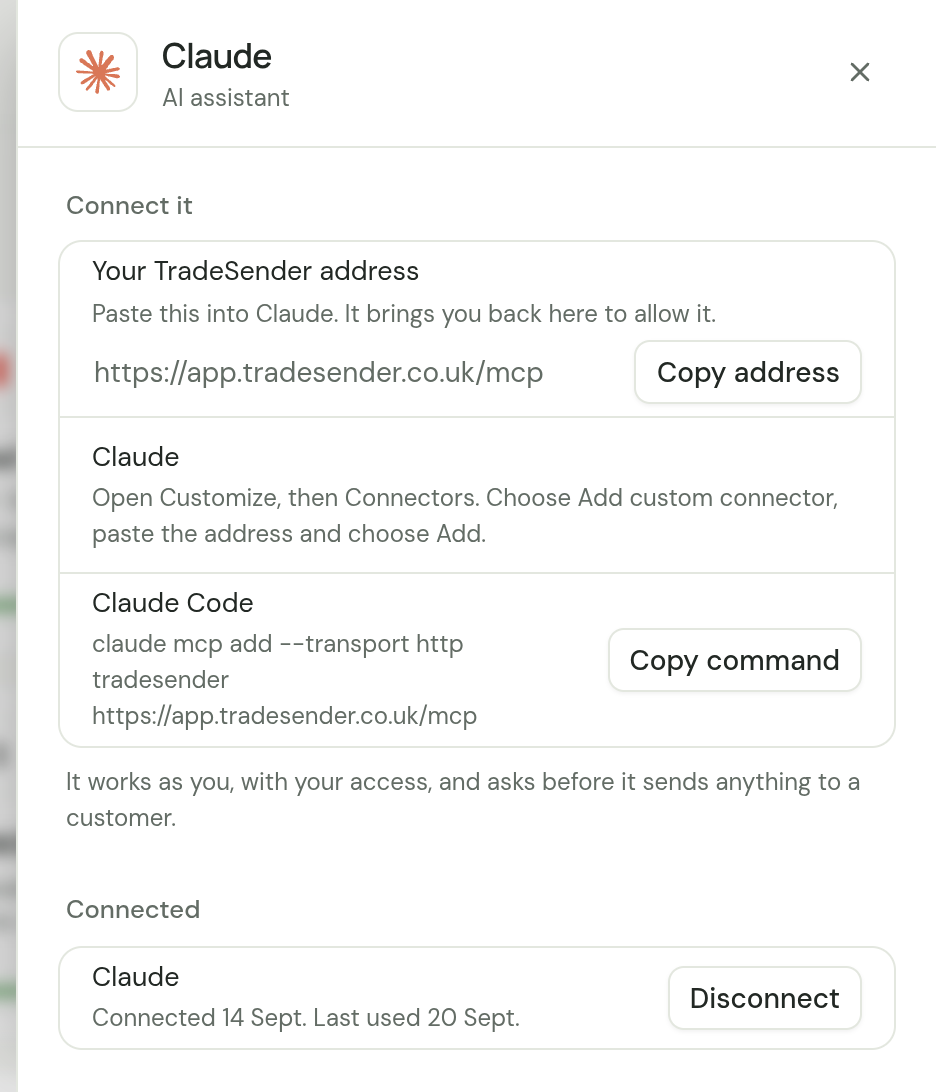
In TradeSender, open Settings, then Connected apps, and choose Claude. Beside Claude Code, choose Copy command.
-
Paste the command into your terminal and run it:
claude mcp add --transport http tradesender https://app.tradesender.co.uk/mcp -
Start Claude Code and type
/mcp. Follow it to sign in to tradesender. Your browser opens on TradeSender. -
Sign in to TradeSender if it asks. Check the workspace the page names, and choose Allow.
-
Back in Claude Code, ask "What's on tomorrow?".
If no browser opens, Claude Code prints an address. Copy it into a browser yourself.
You can also sign in without opening Claude Code:
claude mcp login tradesender
Read the Allow page
Before you choose Allow, check three things:
- The workspace. If you belong to more than one, it names the one you are signed in to.
- What it can do. An owner or office member sees "It can read and change customers, quotes, jobs, visits, invoices and payments, and email quotes and invoices to customers." A technician sees a shorter line.
- Where it sends you back. For an app running on your own computer, the page says "Allowing sends you back to an app on this device. Only allow this if you started it yourself just now." Allow it only if you ran
/mcpa moment ago.
You have 30 minutes from starting the sign-in to choosing Allow. After that, run /mcp again.
Every folder, or only this one
Run as it stands, the command adds TradeSender for the folder you are in, and for you alone. Claude Code calls this the local scope. To have TradeSender in every folder you work in, add --scope user:
claude mcp add --transport http tradesender --scope user https://app.tradesender.co.uk/mcp
--scope project writes it to a .mcp.json file in the folder, for everyone who shares that folder. Each of them still signs in with their own TradeSender account and gets their own access.
Approving what it does
Claude Code asks your permission before it uses a TradeSender tool, unless you have told it to stop asking. TradeSender keeps looking things up and making changes in separate tools, so you can let it read freely and still be asked before each change.
Read what it is about to do, most of all before it emails a customer. See Before it sends anything.
Check it, or remove it
| You want to | Run |
|---|---|
| See the servers Claude Code has | claude mcp list |
| See how TradeSender is set up | claude mcp get tradesender |
| Sign out, and keep TradeSender listed | claude mcp logout tradesender |
| Remove TradeSender from Claude Code | claude mcp remove tradesender |
Removing it deletes the sign-in Claude Code stored on your computer. To end the connection in TradeSender as well, open Settings, then Connected apps, choose Claude, and choose Disconnect beside Claude Code under Connected. See Disconnect an assistant.
Anthropic keeps the commands in its own Claude Code documentation on MCP. If one here stops working, that page is the one to trust.
If it does not connect
| What you see | What to do |
|---|---|
| Claude Code cannot reach the server, before any sign-in | Check the address in the command is exactly https://app.tradesender.co.uk/mcp, with nothing after mcp. |
| "This connection request has expired." | More than 30 minutes passed. Run /mcp again. |
| "TradeSender doesn't recognise this app." | Try once more. If it happens again, run claude mcp remove tradesender and add it again. |
| It worked, and now Claude Code asks you to sign in again | The connection ended: you disconnected it, your password changed, or you were removed from the workspace. Run /mcp and allow it again. |
Every other message is in If an assistant will not connect.
Checked against the app on 18 October 2026. Still stuck? Ask usAsk us.