Your price list
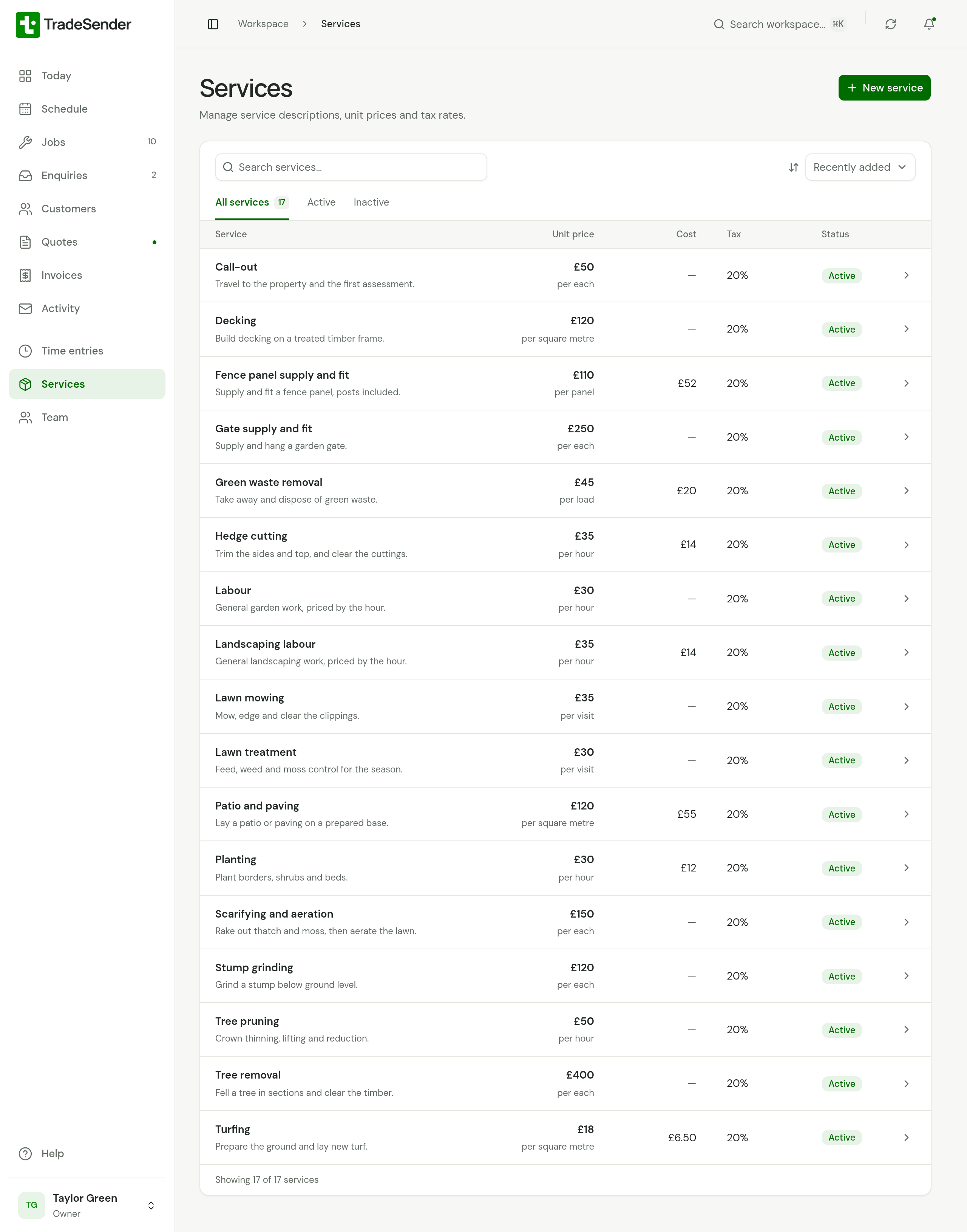
Keep the work you sell with its unit, price, cost and tax rate, so a line on a quote takes one pick.
Services is your price list: the work you sell, each with a unit, a price, a tax rate and, if you like, what it costs you. Pick a service on a quote, a job or an invoice and its line fills in. Owners and office members keep the list. Technicians do not see it. In the iPhone and Android apps it is called Service catalogue: tap the account button, and it is in Settings under Your business. This page follows the web.
What a service holds
| Field | What it is |
|---|---|
| Service name | What the customer reads on the line, such as "Hedge cutting". No two services can share a name. |
| Description | A note on what the service covers. It shows under the name in your list. It is not copied onto quotes. |
| Unit | What one of it is: an hour, a visit, a load, a square metre. |
| Unit price (GBP) | The price of one unit. |
| Tax rate (%) | The VAT rate for the line. It starts at 20 if your business has a VAT number, and at 0 if it has none. |
| Cost per unit (GBP) | What one unit costs you: materials, a tip fee, what you pay for the hour. Leave it at 0 if you do not cost your work. |
| Price includes tax | Tick it when the price you typed already has the VAT in it. |
| Active in the catalogue | Untick it to take the service off the list you pick from. |
The list shows each service's Cost beside its price, or a dash when it has none.
Who sees a cost
Only owners and office members, in the web app and the phone apps. Technicians do not see the price list at all. A cost is never on anything a customer gets: not the quote, the invoice, their page, the PDF or the email. An API key and a connected AI assistant are not sent it either, and cannot set it, even an owner's.
A cost on a service fills in the Cost of each line you add from it, on a quote or a job, and TradeSender works out the margin from there. See Cost and margin.
The services you start with
When you set up your workspace, TradeSender asks What work do you do? and adds services for the trades you tick, so your first quote has lines to pick. Each one comes with a typical UK price before VAT. Treat them as a starting point and change every price to your own.
| You ticked | You get |
|---|---|
| Lawn mowing | Lawn mowing, Lawn treatment, Scarifying and aeration |
| Hedge cutting | Hedge cutting, Green waste removal |
| Landscaping | Landscaping labour, Turfing, Patio and paving, Planting |
| Tree work | Tree pruning, Tree removal, Stump grinding, Green waste removal |
| Fencing and decking | Fence panel supply and fit, Decking, Gate supply and fit |
| Something else | Labour, Call-out |
If you skipped the question, the list starts empty. Add your own services below.
While you have no quotes, the Quotes page offers Start with a sample quote: a new quote with your first three priced services already on it.
Add or change a service
-
Open Services and choose New service.
-
Enter the Service name, the Unit and the Unit price (GBP).
-
Check the Tax rate (%), and tick Price includes tax if it does.
-
Enter the Cost per unit (GBP) if you want margins on your quotes and jobs.
-
Choose Create service.
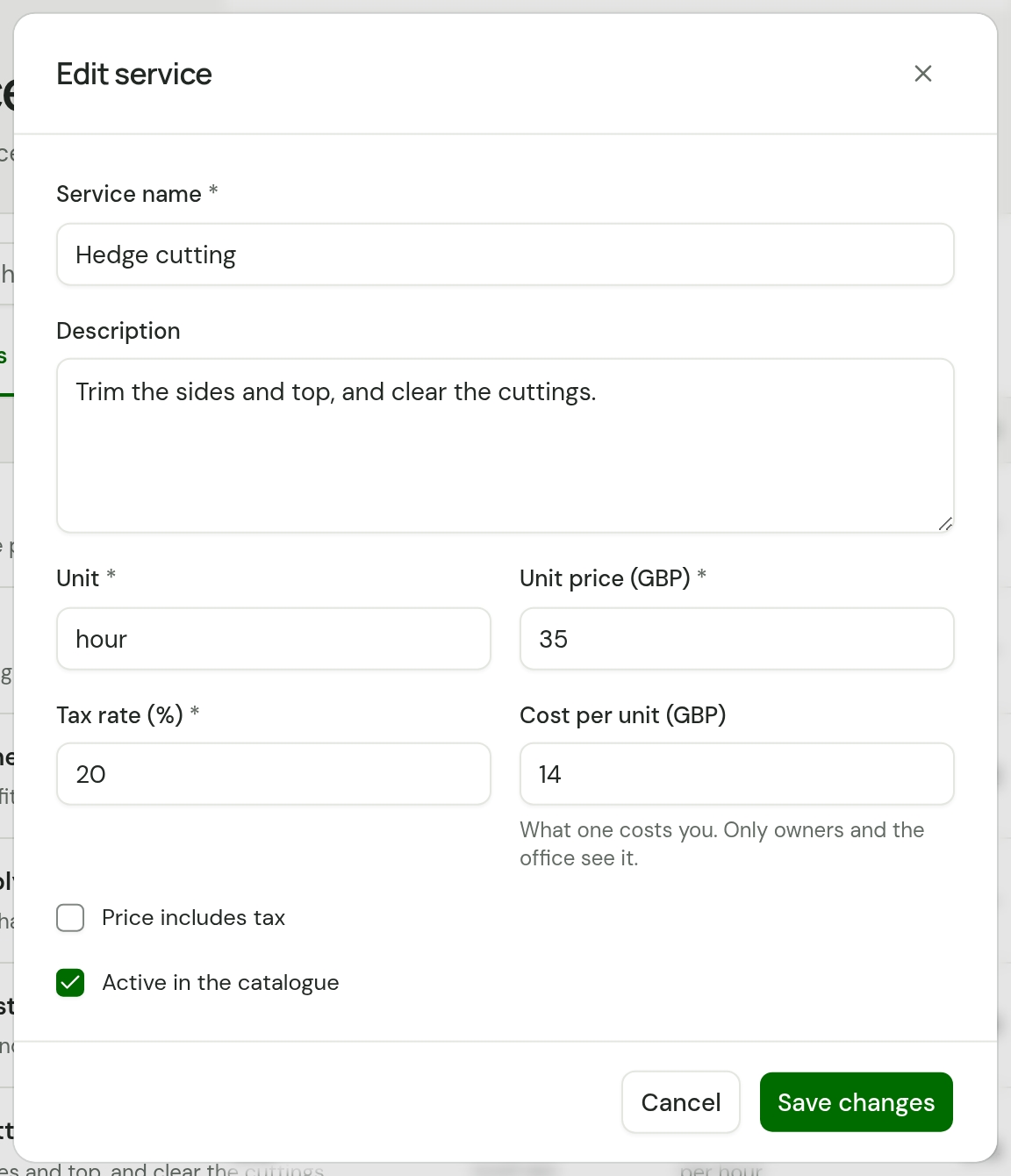
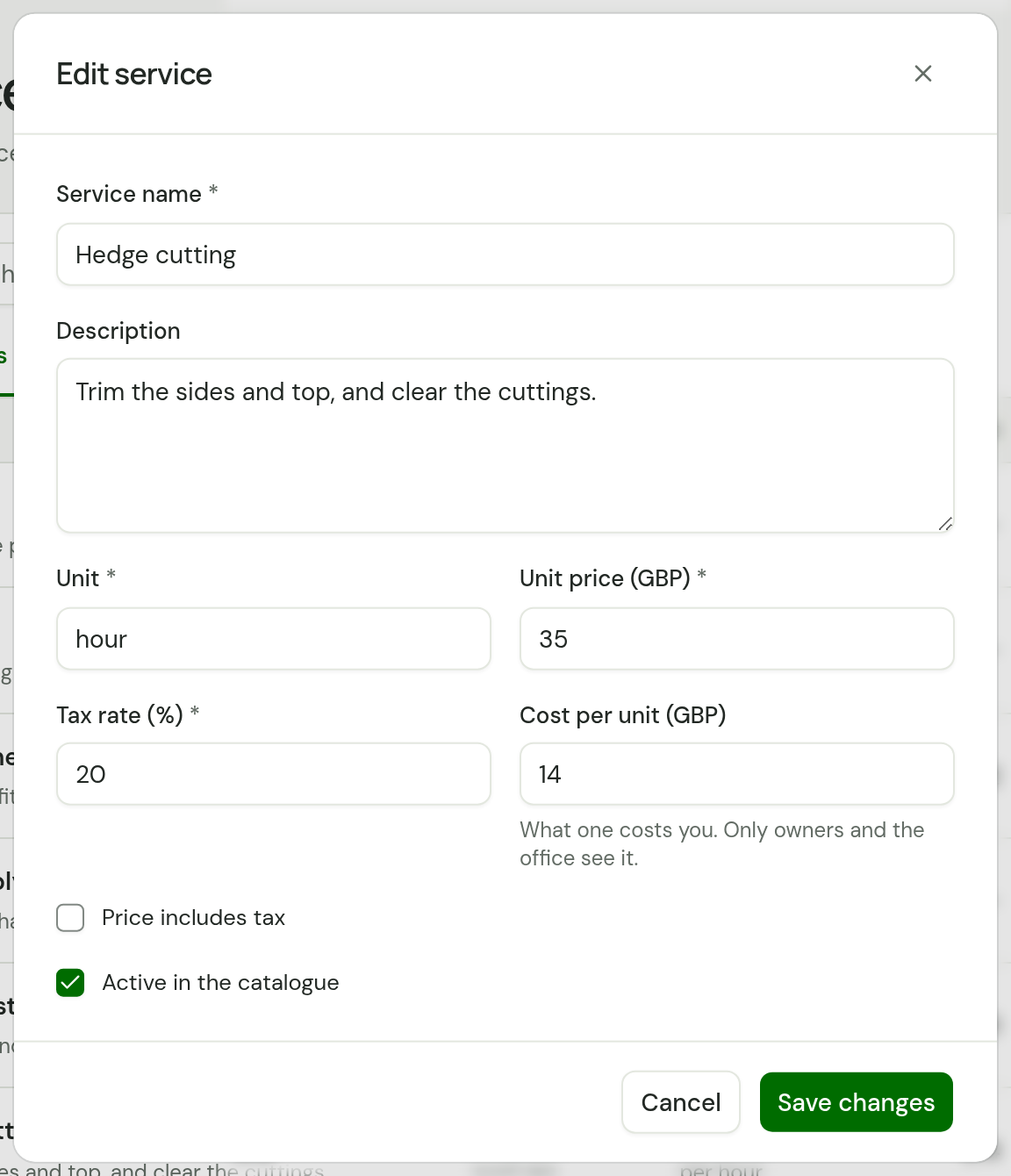
To change a service, choose it in the list. Its form opens. Make the change and choose Save changes.
Take a service off the list
A service is never deleted. Open it, untick Active in the catalogue and save. It then reads Inactive and is no longer offered on quotes, jobs and invoices. Paperwork that already used it keeps its lines. Tick the box again to bring the service back.
The Active and Inactive tabs on the Services page filter the list.
Pick a service on a line
Every line on a quote, in a job's Pricing and on an invoice starts with Item. Choose a service there and TradeSender fills in the rest of the line:
- Description, with the service's name
- Unit, Price and Tax %
- Cost, on a quote or a job. An invoice's lines have no cost
- Qty, set to 1 for you to change. Lawn work priced per square metre starts at the property's lawn size instead: see Lawn size
Each of those can still be changed on that one line. Leave Item on Custom to type a line of your own.
In the phone apps, Add item opens a line of its own with your services along the top: tap one and the line fills in. Tap a line to change it.
Create and send a quote walks through a whole quote.
When you change a price
A line copies the service's name, unit, price, cost and tax rate at the moment you pick it. Changing the service afterwards changes the lines you add from then on. Quotes, jobs and invoices you have already written keep the figures they had.
Checked against the app on 29 October 2026. Still stuck? Ask usAsk us.