Send an invoice
Email an invoice with a link and a PDF, see what your customer sees, send it again, or void one that was wrong.
Owners and office members send invoices, on the web and in the iPhone and Android apps. Emailing one needs a connection in all three. This page follows the web.
Email it
-
Open the invoice and choose Email invoice.
-
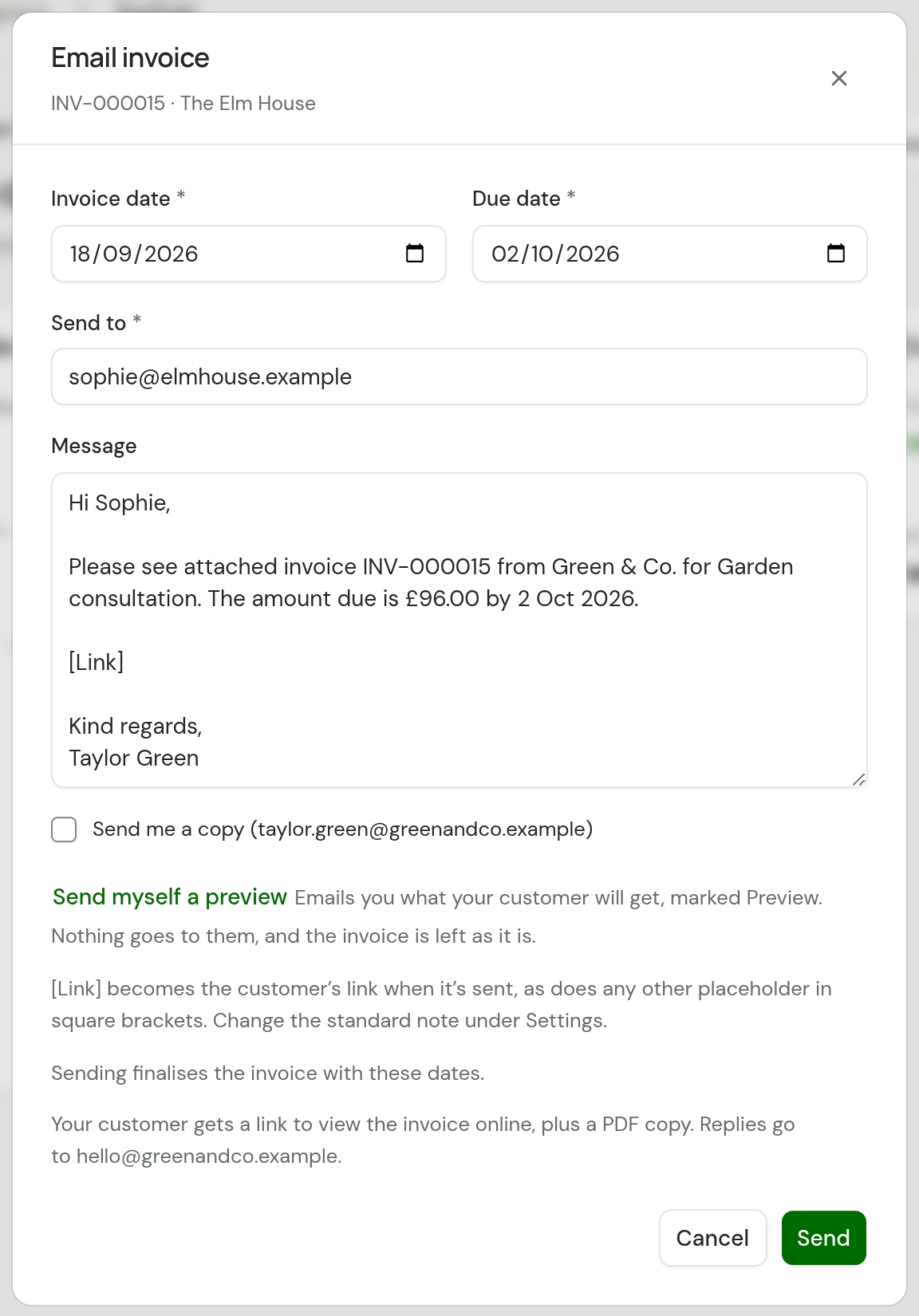
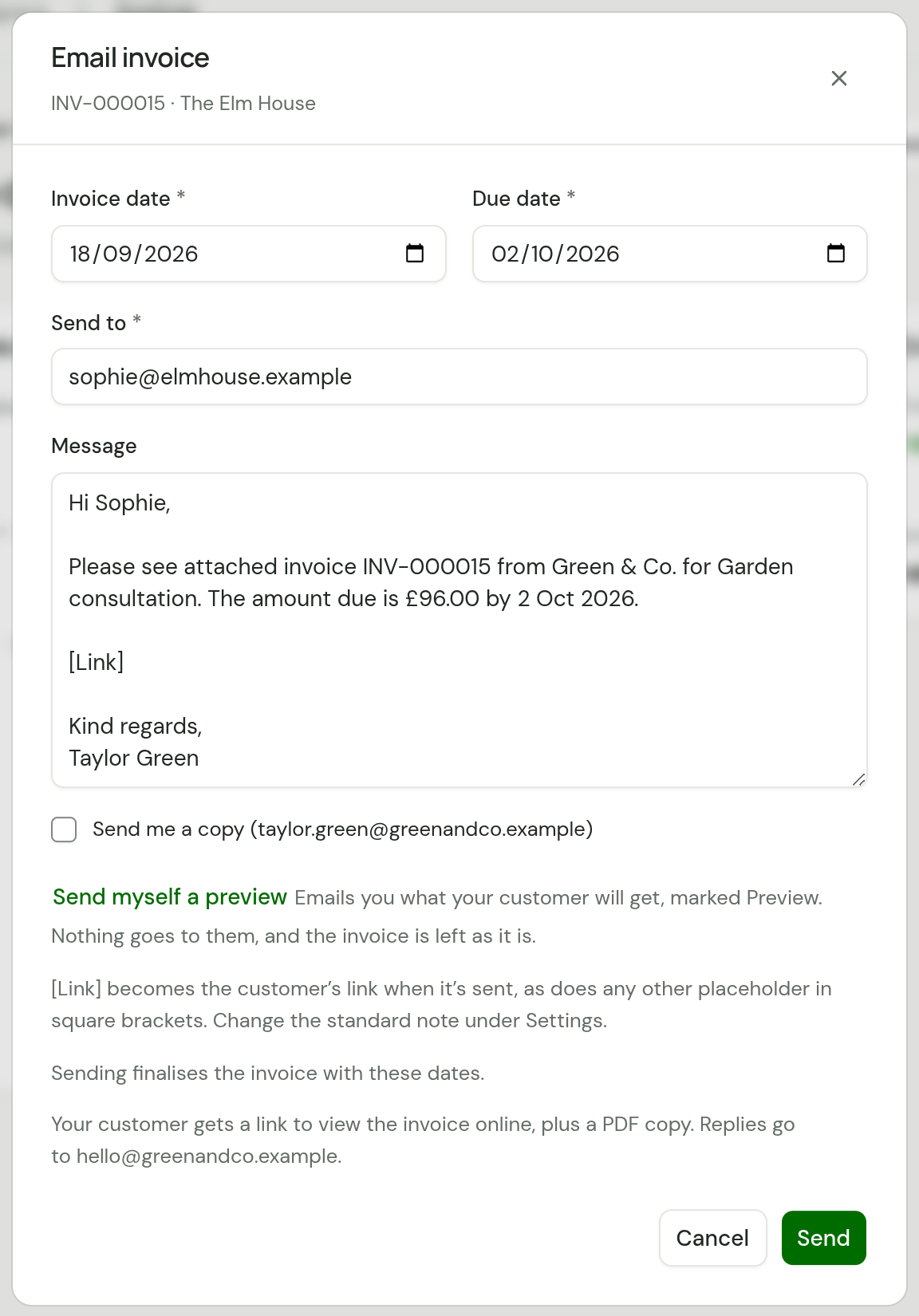
On a draft, check the Invoice date and Due date. They start from the draft's own dates. Sending finalises the invoice with the dates you leave here.
-
Check Send to. It starts with the customer's email address, or the address this invoice last went to.
-
Read the Message. It starts with your standard note, filled in for this invoice, and you can change it. Leave
[Link]in: it becomes the customer's link when the email goes. -
Not sure what it will look like? Choose Send myself a preview. The email your customer would get, with your message, the link and the PDF, goes to your own address with "Preview" at the start of the subject, and the dialog says where it went. Nothing goes to the customer, and a draft is not issued: it is previewed with the dates above.
-
Tick Send me a copy if you want one, then choose Send.
To change the standard note for every invoice, see Quote and invoice settings.
What your customer gets
An email with the subject "Invoice INV-000007 from Green & Co.", carrying your note, a link to the invoice online and a PDF copy.
| Part | What it is |
|---|---|
| From | Your business name at invoices@tradesender.co.uk |
| Replies | Go to your Business email from Settings, Business details. With none set, to the person who sent it. With your own mailbox connected, back to that mailbox |
| The link | Opens the invoice in their browser, with no password, and does not expire. It also signs them in to their customer portal. When you take payment online, that page is where they pay: the email has no payment button of its own |
| The PDF | The same invoice, attached |
If you have connected your own mailbox, the email comes from your own address, the dialog names it, and a reply goes back to that mailbox. See Send from your own mailbox.
Where [Link] stands on a line of its own, as it does in the message TradeSender fills in, the email shows it as a button. Inside a sentence it is a link. If you take [Link] out of the message, the email still carries the link, as a button under your note.
For a customer who pays you by Direct Debit, the email says "This invoice will be collected by Direct Debit on or just after 30 September. There’s nothing you need to do."
What they see on their page
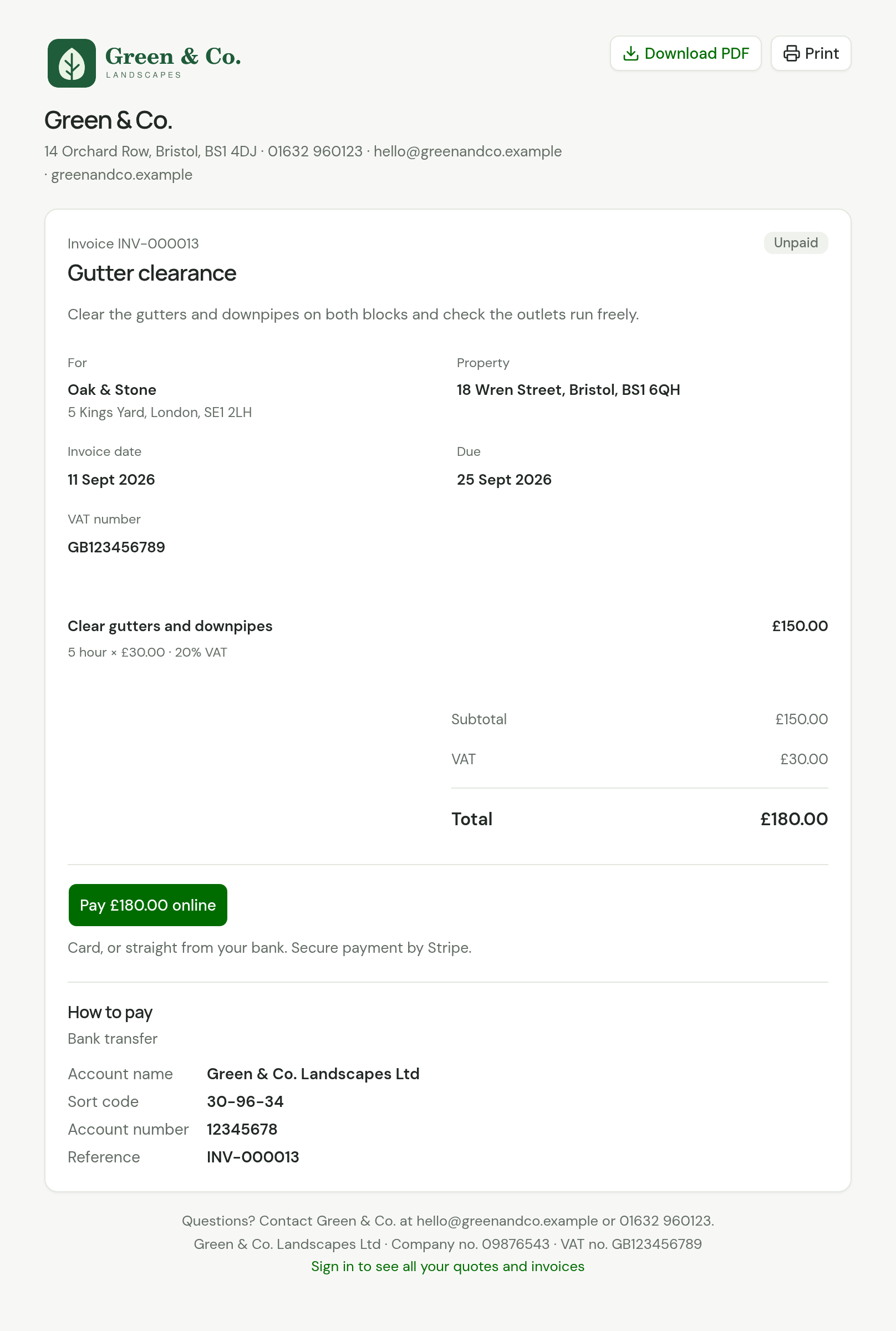
- Your logo, business name and contact details.
- The invoice number, title and status: Unpaid, Overdue, Partially paid, Being collected, Paid or Void.
- Who it is for, the property, the Invoice date and when it is Due.
- Each line with its amount before VAT, then Subtotal, VAT and Total. Once you record a payment, Paid and Balance due too. An invoice that takes a deposit off says so above the VAT.
- Pay £180.00 online, when you take payment online. See What your customer sees.
- How to pay, by Bank transfer: your Account name, Sort code and Account number, with the invoice number as the Reference.
- Download PDF and Print.
How to pay shows only while money is owed, and only when your workspace has a sort code and an account number. Neither it nor the Pay button shows while a payment is on its way, or while a Direct Debit is going to collect the invoice.
A customer who arrived from the email also sees Your customer portal above the invoice, which leads to their other invoices, their quotes and their visits.
To see the page yourself, choose View as customer beside Customer link on the invoice. Copy link copies it, to send by text or WhatsApp. A copied link opens this invoice only and signs nobody in.
Mark as sent without emailing
If you printed the invoice or handed it over another way, choose Mark as sent on the draft. Check the Invoice date and Due date and choose Mark as sent again. The invoice is finalised, and no email goes.
You can still use Download PDF and Copy link afterwards.
After it has gone
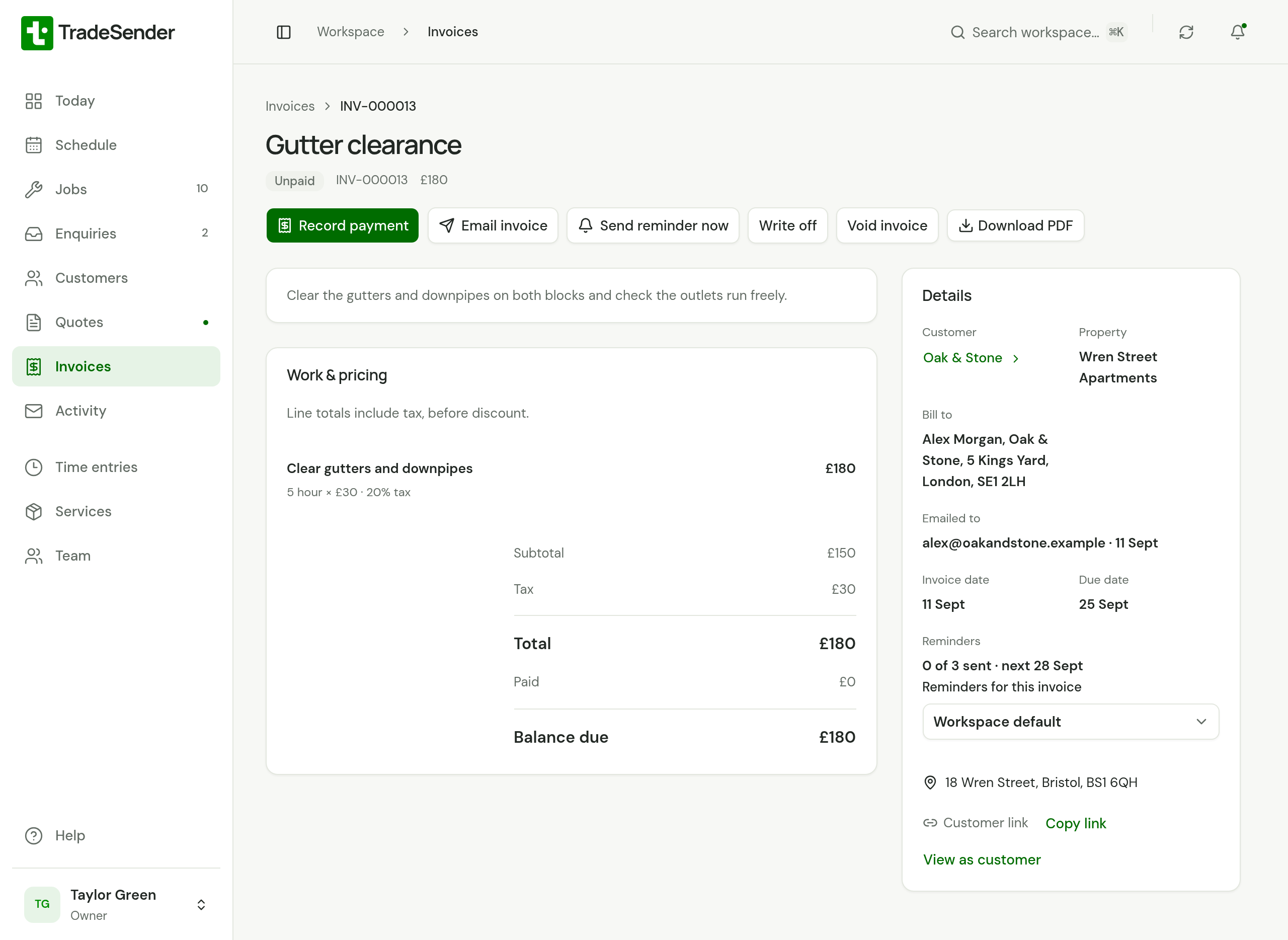
The invoice reads Unpaid, and Emailed to shows the address and the date.
| You want to | Choose |
|---|---|
| Send it again, or to another address | Email invoice |
| Record money that has arrived | Record payment. See Record a payment |
| Remind them to pay, now | Send reminder now. See Send one now |
| Settle what they will not pay | Write off. See Write off what will not be paid |
| Keep a copy | Download PDF |
| Cancel it | Void invoice |
Emailed to keeps the latest address and date only. Every send is listed under Sent on the customer's page, with the address it went to. TradeSender does not tell you if an email bounces. If a customer says it has not arrived, check the address and send again, or copy the link.
If the invoice goes unpaid, TradeSender can remind the customer for you: see Automatic emails. The Reminders row under Details says how many have gone and when the next one can.
The daily limit
A workspace can email 100 quotes, invoices, portal sign-in links, On my way notes and reminders sent with Send reminder now a day in total. Every try counts, and so do emails your AI assistant sends.
These are counted apart and do not use up the 100:
- the invoices a month-end run sends
- automatic emails
- the emails that tell customers a day's visits have moved, which have a limit of their own
- a deposit invoice emailed as a customer accepts a quote
Void an invoice
A finalised invoice cannot be edited. If it is wrong, void it and create it again. A draft is not voided: it is deleted, with Delete draft invoice. See Delete a draft.
Choose Void invoice, then Void invoice again to confirm.
- The invoice reads Void. It stays in Invoices, under the Void filter, with its number.
- The customer's link still opens it, marked Void, with no bank details, so an old email cannot lead to a payment.
- The job can be invoiced again. On a job billed per visit, the visits go back to waiting.
Void invoice is offered only while no payment holds money on the invoice: one that has arrived, is on its way or is in dispute. A payment made online that failed does not stop you, and nor does a payment you refunded in full. To give back what was paid and void the invoice in one go, choose Refund, then Void the invoice. A workspace that takes payment online also has the invoice's payment page closed as it is voided: see Void an invoice that can be paid online.
Checked against the app on 29 October 2026. Still stuck? Ask usAsk us.