What your customer sees
The page your customer opens from the quote email, how they accept or decline it, and what TradeSender does when they answer.
When you email a quote, the customer gets a link to a page with the quote on it. With your standard note, the link reads "View and accept your quote online". The page opens in any browser, on a phone or a computer, and the customer needs no account and no app. To see the page yourself, open a sent quote and choose View as customer.
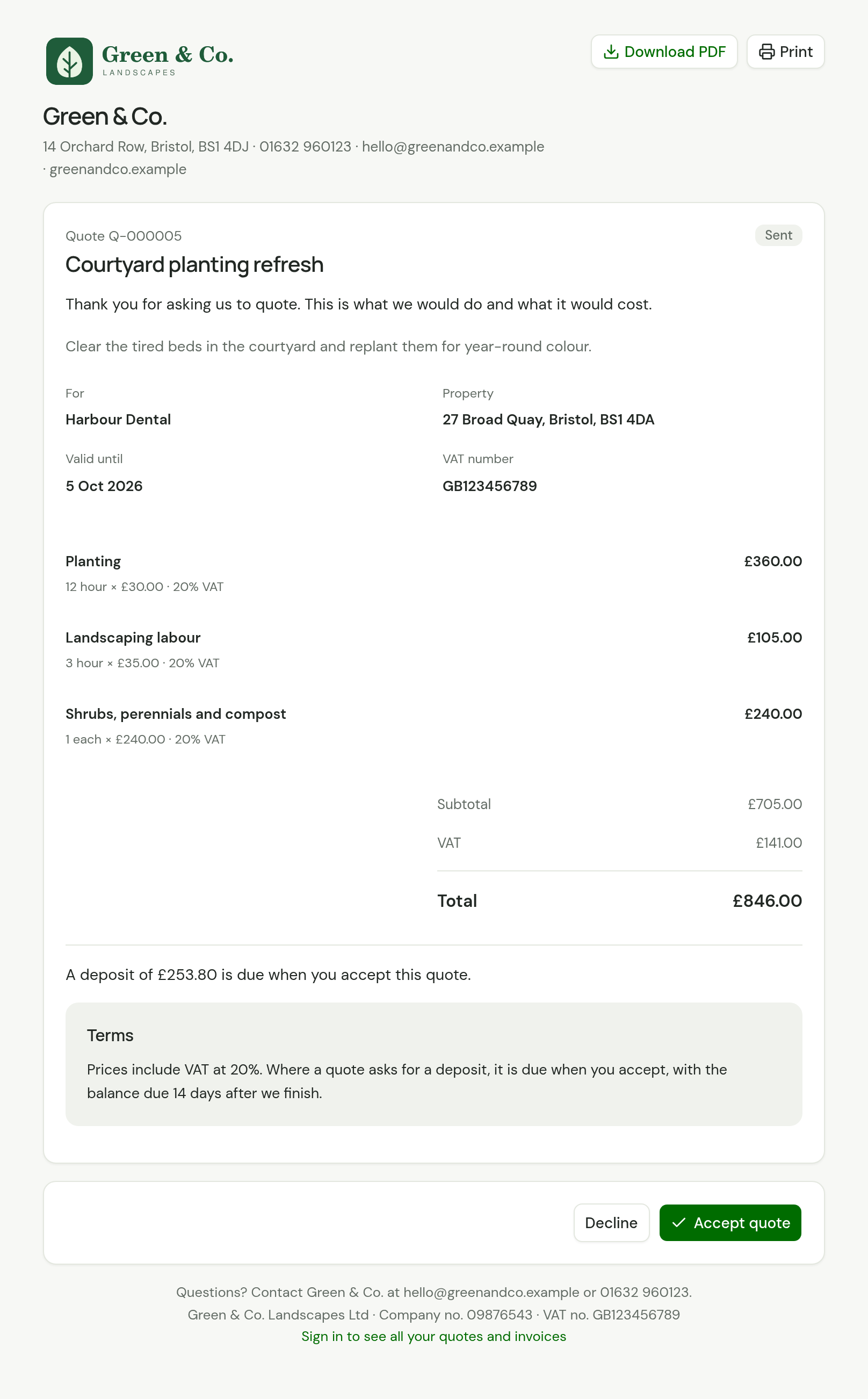
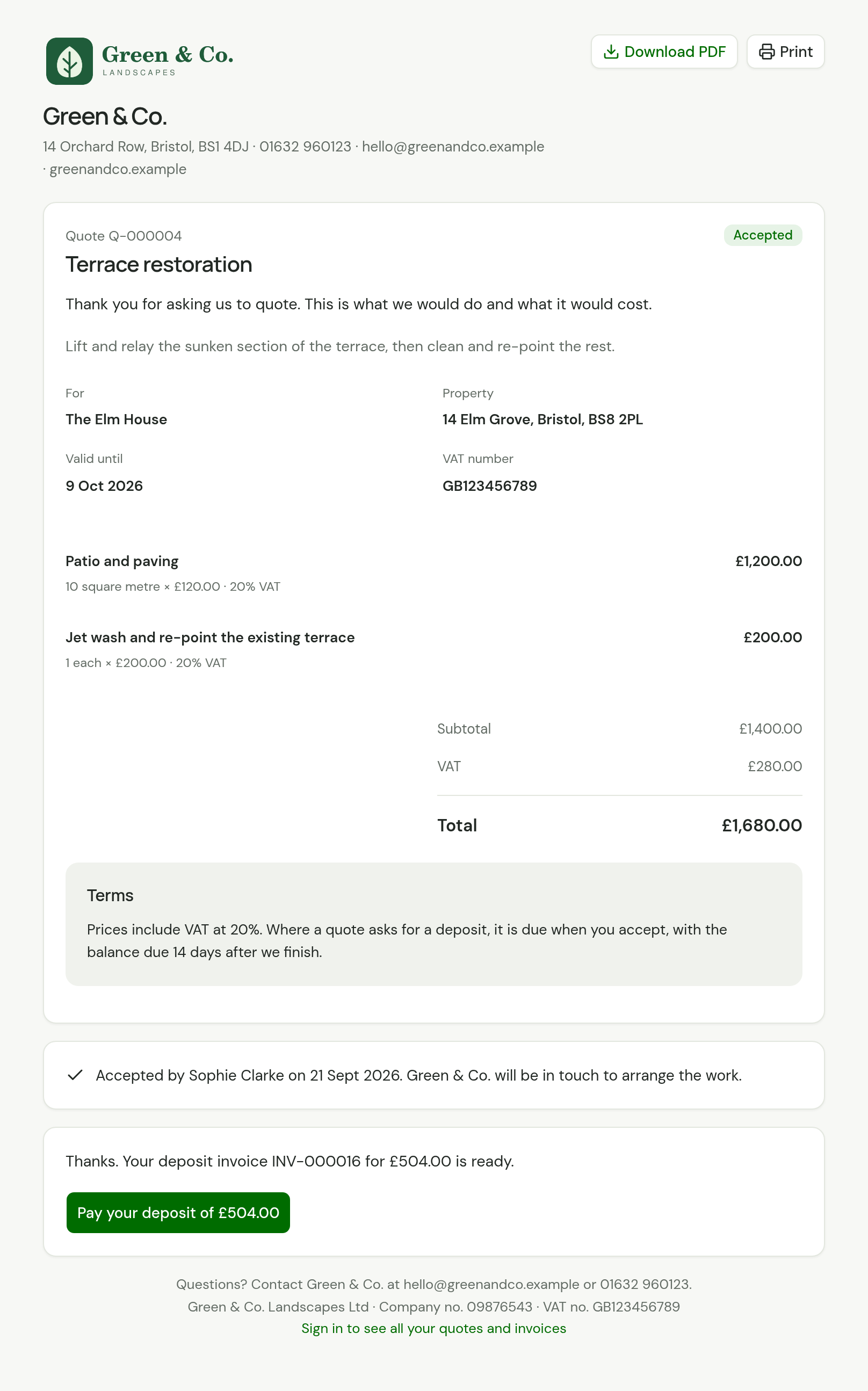
What is on the page
From top to bottom:
- Your logo and business name, with your address, phone, email and website on one line.
- Download PDF and Print.
- The quote's number, title and status.
- Your intro, then the quote's description.
- For: who the quote is for. Property: where the work is. Valid until, and your VAT number if you have one.
- Each line: what it is, the quantity, unit and price, and the amount before VAT.
- Subtotal, Discount if you gave one, VAT if you charge it, and Total.
- "A deposit of £253.80 is due when you accept this quote.", when the quote asks for one. See Ask for a deposit.
- Terms.
- Decline and Accept quote.
- How to contact you, with your legal name, company number and VAT number.
Anything you keep for yourself is left off: the quote's Notes, what each line costs you and your margin.
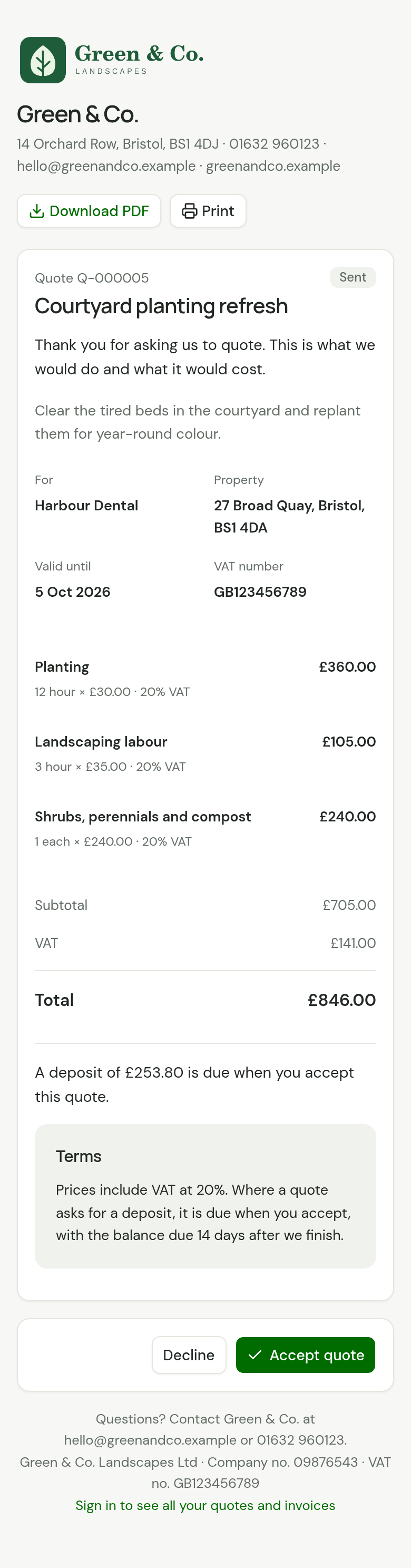
On a phone the same parts sit in one column.
Where each part comes from
Only the owner can change these settings.
| On the page | Set it in |
|---|---|
| Logo | Settings, then Quotes and invoices, under Logo |
| Business name, email, phone, address and website | Settings, then Business details, under Business |
| Legal name, company number and VAT number | Settings, then Business details, under Company |
| Intro | Settings, then Quotes and invoices, under Quote intro |
| Terms | The quote's own Terms, or Quote terms in Settings, then Quotes and invoices, when it has none |
Quote intro is one line, above the work on every quote. Quote terms print on any quote that has no terms of its own. To give one quote its own, type them in Terms when you write it: see Create and send a quote.
How they accept
-
The customer chooses Accept quote.
-
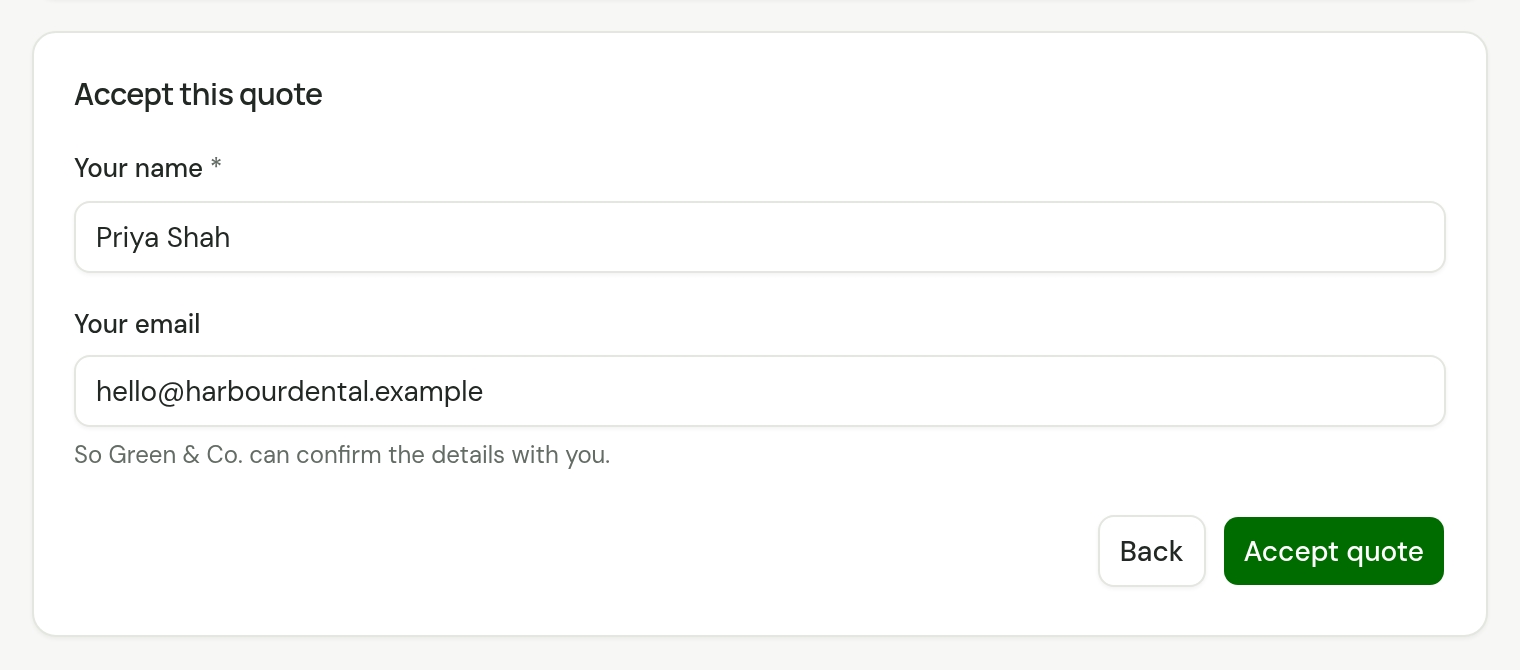
They enter Your name. Your email is optional.
-
They choose Accept quote again.
The page then says who accepted and when, and that you will be in touch to arrange the work. Accepting takes no payment, and TradeSender does not email the customer a confirmation. The page is their record, so get in touch with them yourself.
When the quote asks for a deposit
Accepting issues the deposit invoice at once. The page thanks them and shows it: "Thanks. Your deposit invoice INV-000016 for £504.00 is ready.", with the button Pay your deposit of £504.00. The button opens the invoice's own page, where they pay online or read your bank details.
TradeSender also emails them that invoice, to the email address you hold for them. See When the quote is accepted.
How they decline
The customer chooses Decline, then Decline quote. The page tells them to contact you if they change their mind.
What happens in TradeSender
- The quote changes to Accepted or Declined by itself. An accepted quote shows the name they entered under Accepted by.
- A quote that asked for a deposit has its deposit invoice, finalised and emailed, under Deposit invoice on the quote's page.
- TradeSender emails your business to say who accepted or declined which quote, with a link to your quotes. It names the customer as your lists do: by their company when they have one. The email goes to your Business email in Settings, then Business details. If that is empty, it goes to the workspace's owners.
- An accepted quote is listed under Needs attention on Today as Quote accepted: create a job.
Next, turn the quote into a job. If the customer said yes by phone, record it yourself: see After it has gone.
The rest of what is theirs
The link in the email also signs the customer in to their customer portal, where they see their other quotes, booked visits, finished work and invoices. Above the quote they see Your customer portal, which takes them there.
A link you copied with Copy link signs nobody in. Whoever opens it sees this one quote, with Sign in to see all your quotes and invoices at the foot of the page.
The PDF
The email carries the quote as a PDF. Download PDF on the page opens the same quote as a PDF, and Print prints the page without its buttons.
How long the link lasts
The link does not expire. An accepted quote's page stays as the customer's record of what they agreed.
The offer can run out. From the day after Valid until, the customer's page reads Expired, tells them to contact you for an updated quote, and no longer offers Accept quote. In TradeSender the quote reads Expired too, and Quotes awaiting reply on Today says how many have expired. A quote with no Valid until date does not run out.
If the customer sees This link isn't valid, the link was probably cut short when it was copied or forwarded. Open the quote and choose Send again, or Copy link to send it yourself.
Checked against the app on 18 October 2026. Still stuck? Ask usAsk us.