Set up your business
Answer the three set-up questions, choose where to start, work through the Get set up list on Today, and fill in the business details your customers see.
The owner of a new workspace does this once, on the web or in the iPhone or Android app, whichever opens the workspace first. This page follows the web. Office members and technicians are not asked.
The three set-up questions
They come up the first time you open a new workspace, followed by one more step that asks where you want to start. Every question has Skip for now, and you can change the business details later in Settings. Nothing is saved until you choose on the last step.
What work do you do?
Tick every trade you do, then choose Continue.
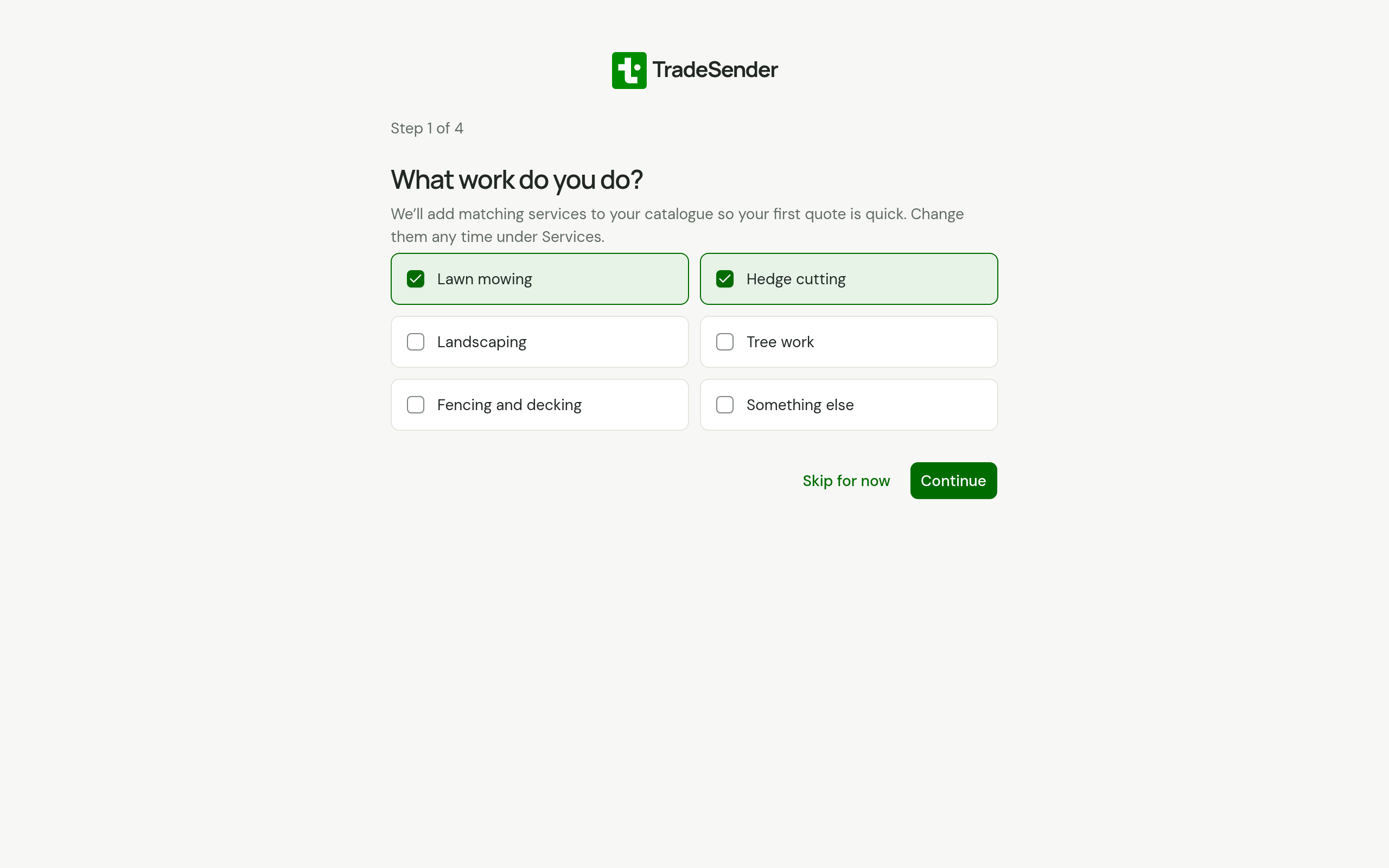
TradeSender adds starter services to your price list for the trades you tick, so your first quote has lines to pick from.
| Trade | Starter services |
|---|---|
| Lawn mowing | Lawn mowing, Lawn treatment, Scarifying and aeration |
| Hedge cutting | Hedge cutting, Green waste removal |
| Landscaping | Landscaping labour, Turfing, Patio and paving, Planting |
| Tree work | Tree pruning, Tree removal, Stump grinding, Green waste removal |
| Fencing and decking | Fence panel supply and fit, Decking, Gate supply and fit |
| Something else | Labour, Call-out |
Each one comes with a unit, a line of description and a typical UK price before VAT: Lawn mowing starts at £35 a visit. Change the prices to your own in Your price list.
Starter services are added once, and only to an empty price list. Ticking different trades later adds nothing more.
How big is your team?
Choose Just me, 2 to 5 people or 6 or more, counting everyone who goes out on jobs. If you choose Just me, the Get set up list leaves out inviting a team. You can still invite people.
Business details
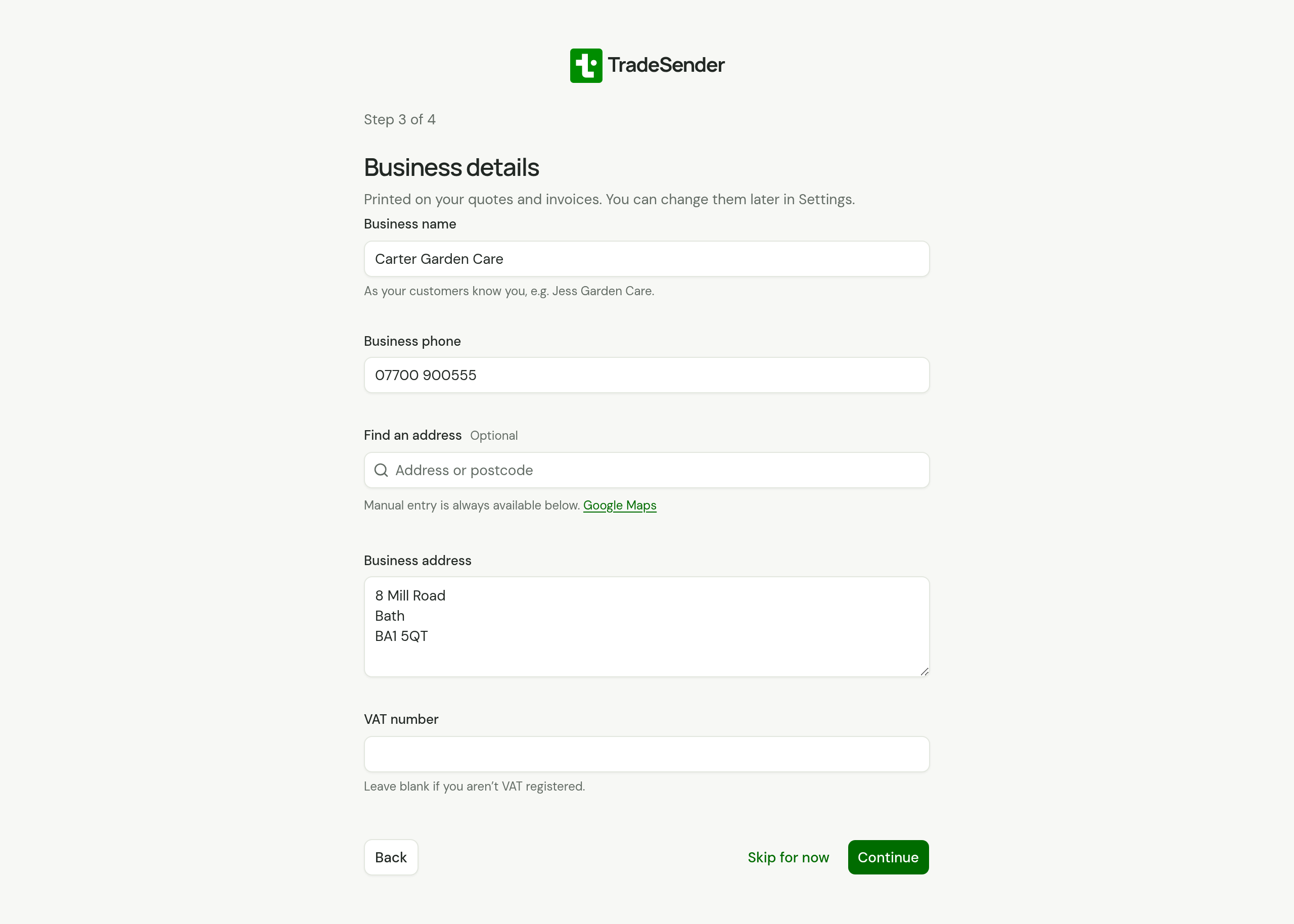
| Field | What it is for |
|---|---|
| Business name | The name your customers know you by, filled in with the one you gave when you created your account. It names the workspace and is printed on your quotes and invoices |
| Business phone | Printed on your quotes and invoices |
| Find an address and Business address | Search for your address or type it in. Printed on your quotes and invoices |
| VAT number | Leave it blank if you are not VAT registered. With a number, your starter services carry 20% VAT and new quote lines start at 20% |
Choose Continue. Your business email starts as the address you signed up with, and when your answers are saved your Workspace ID is made from your business name.
Where do you want to start?
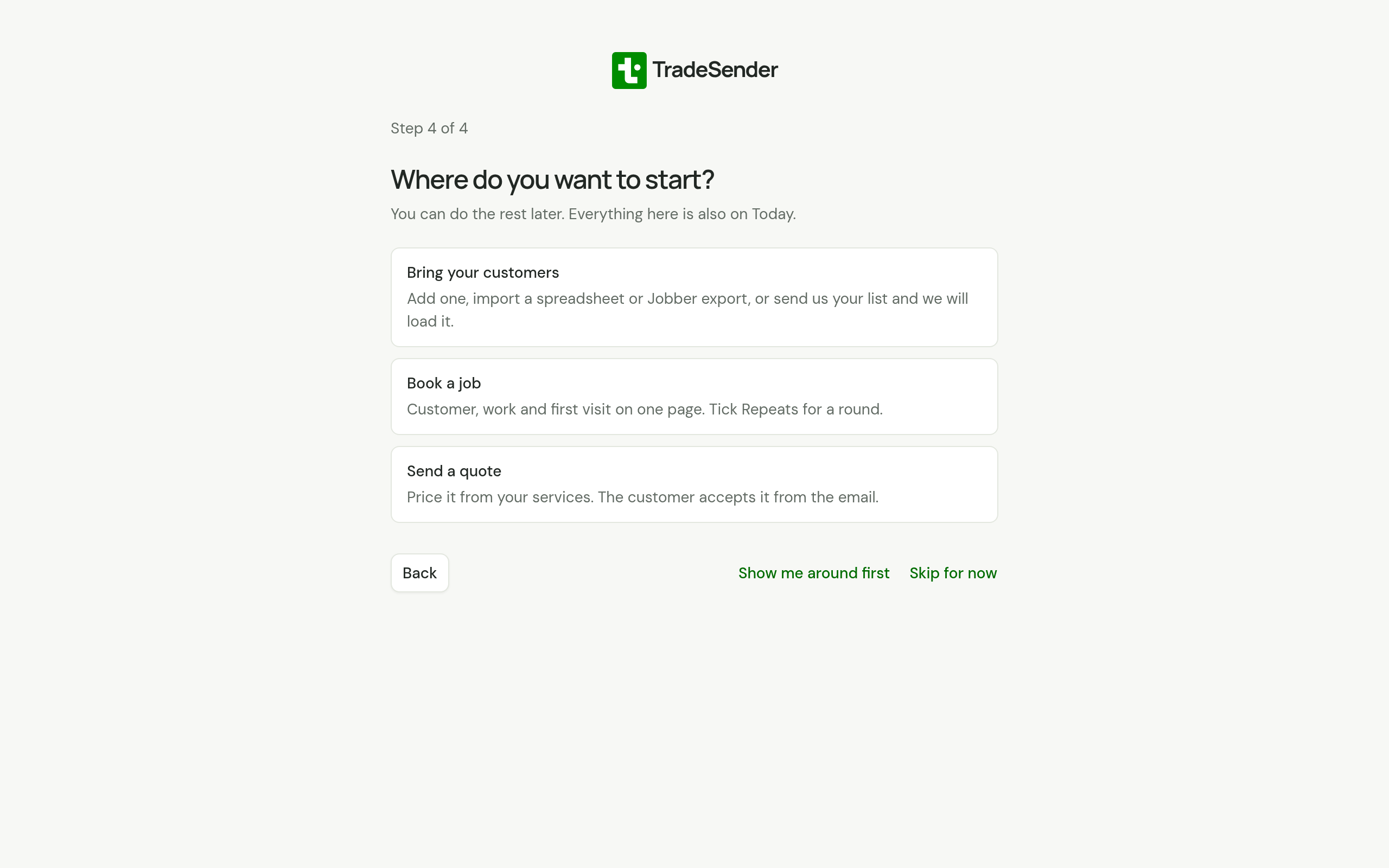
The last step saves your answers and opens the first thing to do, on a screen you will use every day. Choose one:
| Choice | Where it leads |
|---|---|
| Bring your customers | The Customers page, which offers to add one, import a file or email us your list. See Import customers |
| Book a job | Today, with New job open. See Create a job |
| Send a quote | Today, with New quote open. See Create and send a quote |
| Show me around first | Today, with the tour running |
| Skip for now | Today |
Whichever you choose, everything here is also on Today. If saving fails, the step says why and you can choose again.
When you book a job or send a quote before you have any customers, the New customer form opens first, so the job or quote has its customer and property as soon as you have saved them. See Add a customer.
If you arrived from an offer link that named a plan, this step is left out: Finish on Business details saves your answers and takes you to checkout.
The tour
A short tour runs over your own workspace. It has six stops: Today, Schedule, Jobs, Customers, Quotes and invoices and Start with a job. Use Next and Back to move, Skip tour to leave, and Done at the end.
Start it with Show me around first on the last set-up step, or at any time with Take the tour in the Get set up list.
The Get set up list
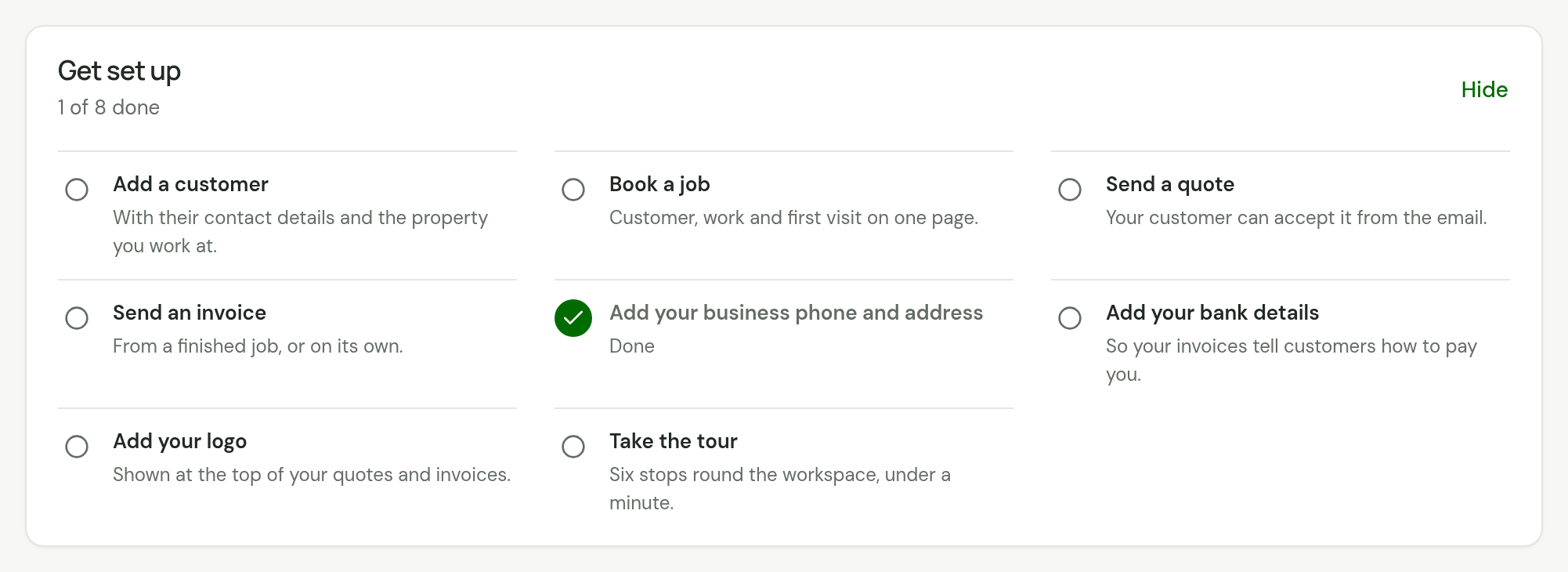
Until you hide it, owners see Get set up on Today. The work comes first, then the details your documents carry. Tap anywhere on a line to open the place where you do that thing; it ticks itself when TradeSender can see it is done, and a ticked line says Done.
| Line | Ticked when |
|---|---|
| Add a customer | You have a customer |
| Book a job | You have a job |
| Send a quote | A quote has been sent |
| Send an invoice | An invoice has been sent, or marked as sent |
| Invite your team | The workspace has a second member. Left out if you chose Just me |
| Add your business phone and address | Both are filled in |
| Add your bank details | You have saved a sort code and an account number |
| Add your logo | You have uploaded a logo |
| Take the tour | You have finished the tour in this browser |
The last line is about your phone and is not counted. On an Android phone it reads Get the Android app, which opens the app's page on Google Play. Anywhere else, once the iPhone app is on the App Store, it reads Get the iPhone app. Until then it offers the home screen, where your browser can put TradeSender there: Install app in Chrome or Edge on a computer, which opens the browser's own dialog, or Add to Home Screen on an iPhone or iPad, where you tap Share in your browser and then Add to Home Screen. In any other browser the list ends with the tour.
The list goes away when every line is ticked. To put it away sooner, choose Hide. To bring it back, open Settings, Business details and choose Show on Today under Get set up.
On a phone, the list sits above the day's schedule until you have a visit booked for today, then moves below it.
The iPhone and Android apps show a shorter list of the same kind, in the same order.
Settings, Business details
Open the menu under your name, choose Settings, and stay on Business details. Only the owner can change these. Everyone else can read them.
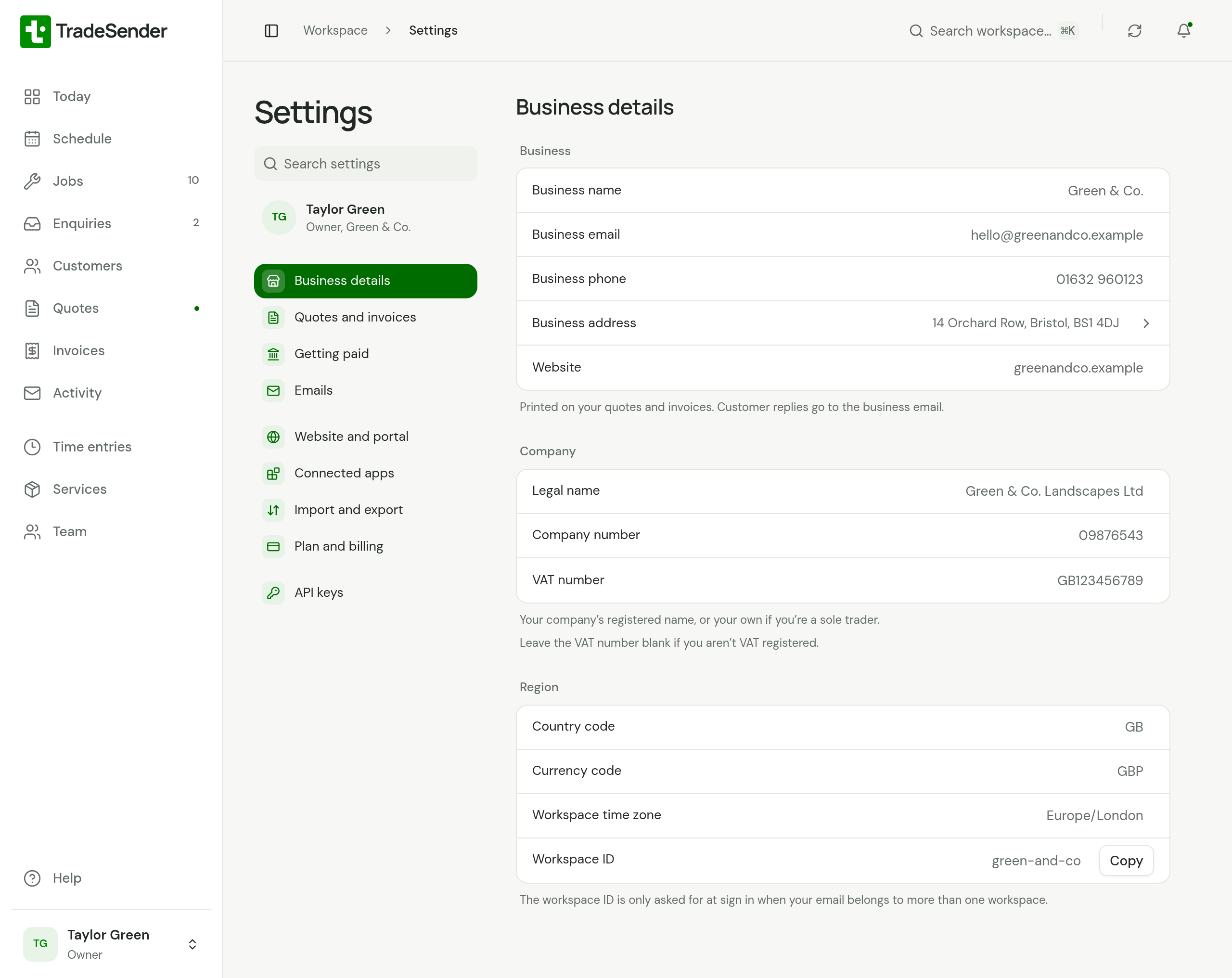
Each row shows what is saved. Click a value to change it. Business address opens a search, with the address beneath it to edit, and Done closes it again. As soon as you change something, a bar at the foot of the page reads Unsaved changes: choose Save to keep your changes or Discard to drop them.
Business
| Field | What it is for |
|---|---|
| Business name | Shown to customers on quotes, invoices and emails |
| Business email | Printed on documents, and where customer replies go unless you have connected your own mailbox, which then gets them. TradeSender also sends its own notices here, such as a customer accepting a quote. With no business email, those go to the owners |
| Business phone | Printed on your quotes and invoices |
| Business address | Printed on your quotes and invoices. The map of the day starts a route from the postcode in it |
| Website | Your web address, beside your address, phone and email at the top of the customer's page |
Company
| Field | What it is for |
|---|---|
| Legal name | Your registered company name, or your own name if you are a sole trader. Printed at the foot of every quote and invoice |
| Company number | From Companies House, if you are a limited company. Printed at the foot of every quote and invoice, as "Company no." |
| VAT number | Printed on every quote and invoice. Leave it blank if you are not VAT registered |
With a VAT number saved, new lines on quotes, jobs and invoices start with a Tax % of 20, and the editor shows the tax column and Amounts are. Without one, documents show no tax. With a VAT number saved and every service on your price list at 0%, the note under Company says "Your services are all set to 0% VAT." See Services.
Region
| Field | What it is for |
|---|---|
| Country code | Two letters, such as GB. The search for your business address looks in this country |
| Currency code | Three letters, such as GBP. New quotes, jobs and invoices start in it, and the money figures on Today count only this currency |
| Workspace time zone | Such as Europe/London. Repeating visits are booked in it, a month ends by it for month-end invoicing, and automatic emails go by its clock. The calendar shows times in your own device's time zone |
| Workspace ID | Asked for at sign-in only if your email address belongs to more than one workspace. Copy copies it. You cannot change it |
In the iPhone and Android apps, tap the account button and choose Business details under Settings. The owner changes them with Edit.
Your logo and bank details
These are in two more sections of Settings:
- Quotes and invoices holds the Logo: a PNG or JPEG, printed at the top of your quotes and invoices. It saves as soon as you choose the file.
- Getting paid holds the bank details, under Bank transfer. They are shown on invoices so customers can pay by bank transfer.
Quote and invoice settings covers both sections.
Checked against the app on 29 October 2026. Still stuck? Ask usAsk us.