Work a visit
Find the day's visits, get directions, tell the customer you are on your way, start the timer, add photos and finish the visit from your phone.
Anyone on a visit's crew can work it, on the web and in the iPhone and Android apps. Owners and office members can work any visit. This page follows the web, which fits a phone's browser.
Find the visit
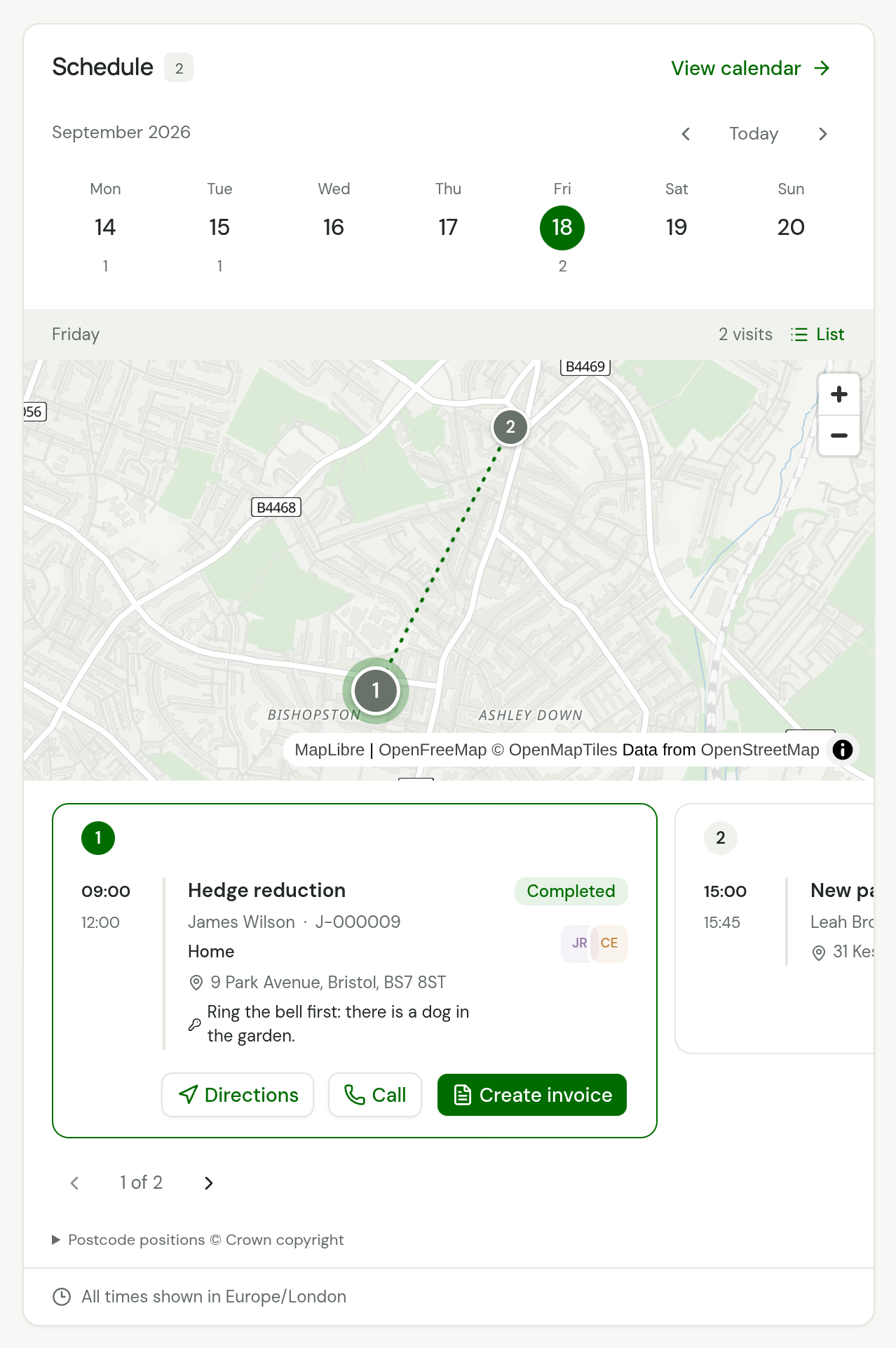
Open Today. The Schedule panel shows the day's visits in time order, on a map with a card for each, or as a list. To see another day, choose it in the strip of days above. The Schedule shows the same visits on a calendar.
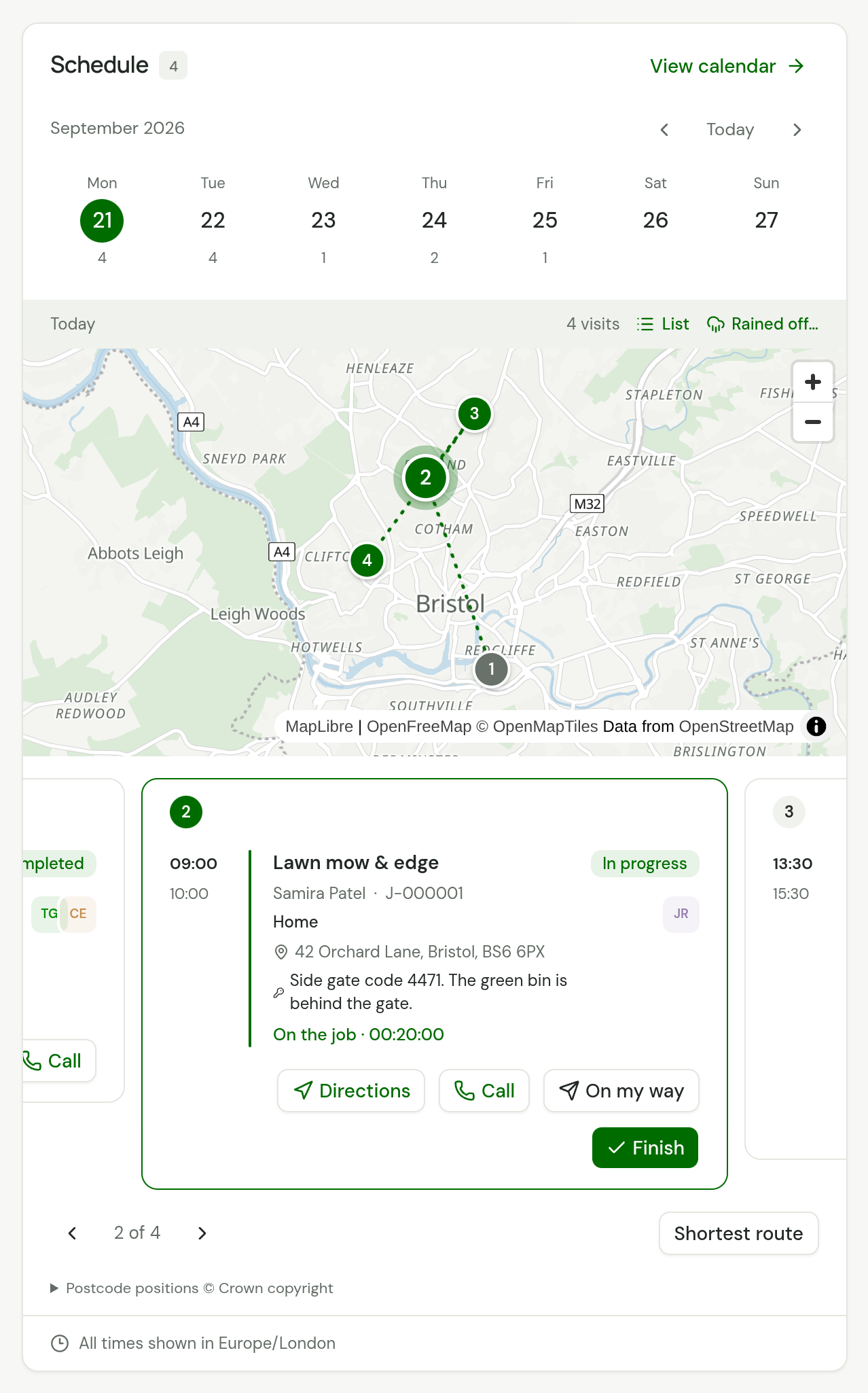
Each visit shows its times, the job, the customer, the property's address and its access notes, such as a gate code. Choose the visit to open its page.
| Button | What it does |
|---|---|
| Directions | Opens Google Maps with directions to the property. |
| Call | Starts a call to the customer's phone number. |
| On my way | Emails the customer roughly when you will arrive. See Tell the customer you are on your way. |
Directions needs a property on the job. Call needs a phone number on the customer. On my way needs an email address on the customer.
In a car with Apple CarPlay, the iPhone app puts the day's visits on the car's screen, with these three buttons, and you can start and finish a visit there too. See TradeSender in the car with CarPlay.
Today draws the day's visits on a map, with these visits as cards beneath it. List, beside the count of the day's visits, shows them as a list instead. See The day's visits.
Shortest route, beside the arrows under the map, lists the visits still to do in an order to drive them. See The map of the day.
Tell the customer you are on your way
On my way sends the visit's customer one email saying who is coming and roughly when. Anyone who can work the visit can send it: an owner, an office member, or a technician on its crew.
-
Choose On my way on the visit's card on Today, or on the visit's page beside Directions.
-
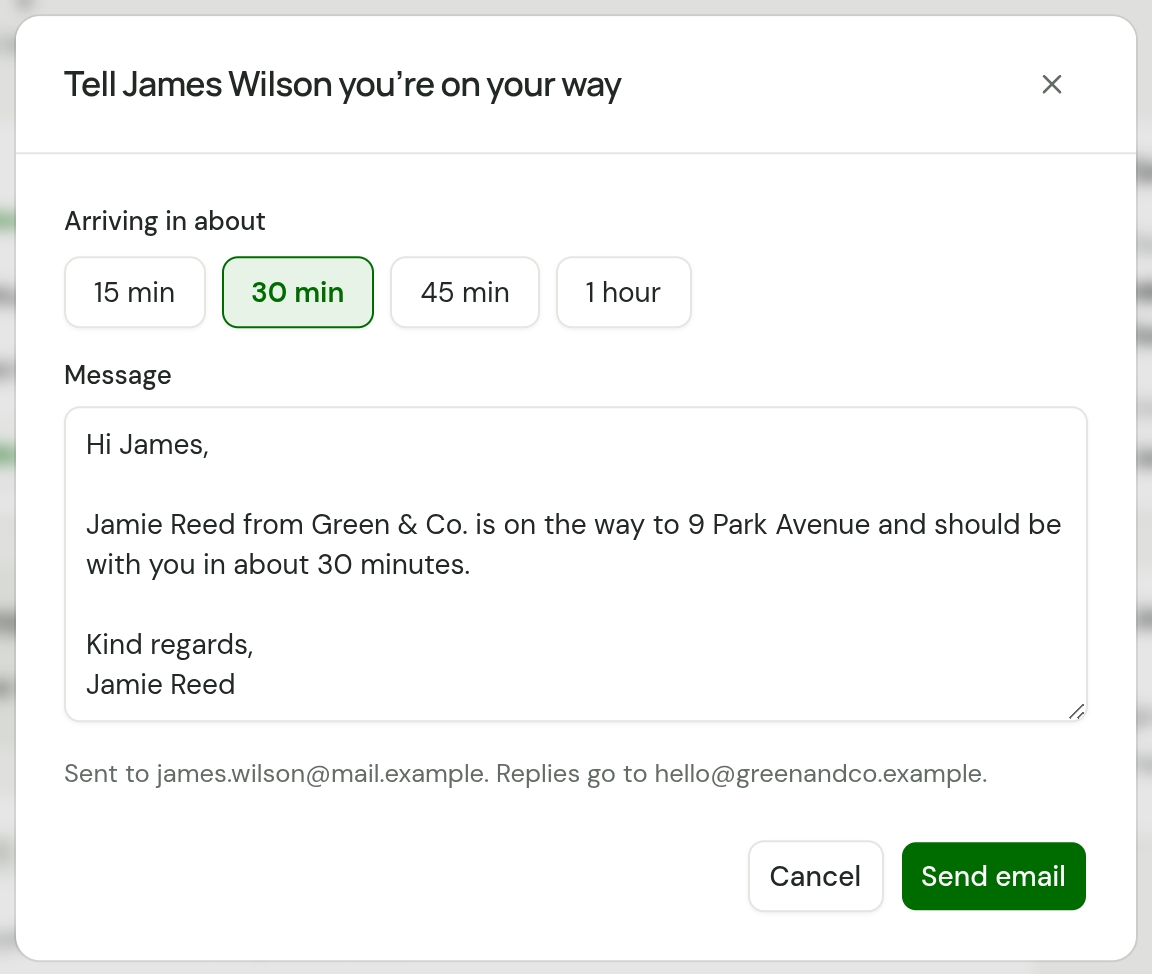
Under Arriving in about, choose 15 min, 30 min, 45 min or 1 hour. It starts at 30 min.
-
Read the Message. It is your On my way note, filled in with the customer's first name, your name, the first line of the address and the wait you chose. Change it if you want to say more.
-
Choose Send email. The message says "Email sent."
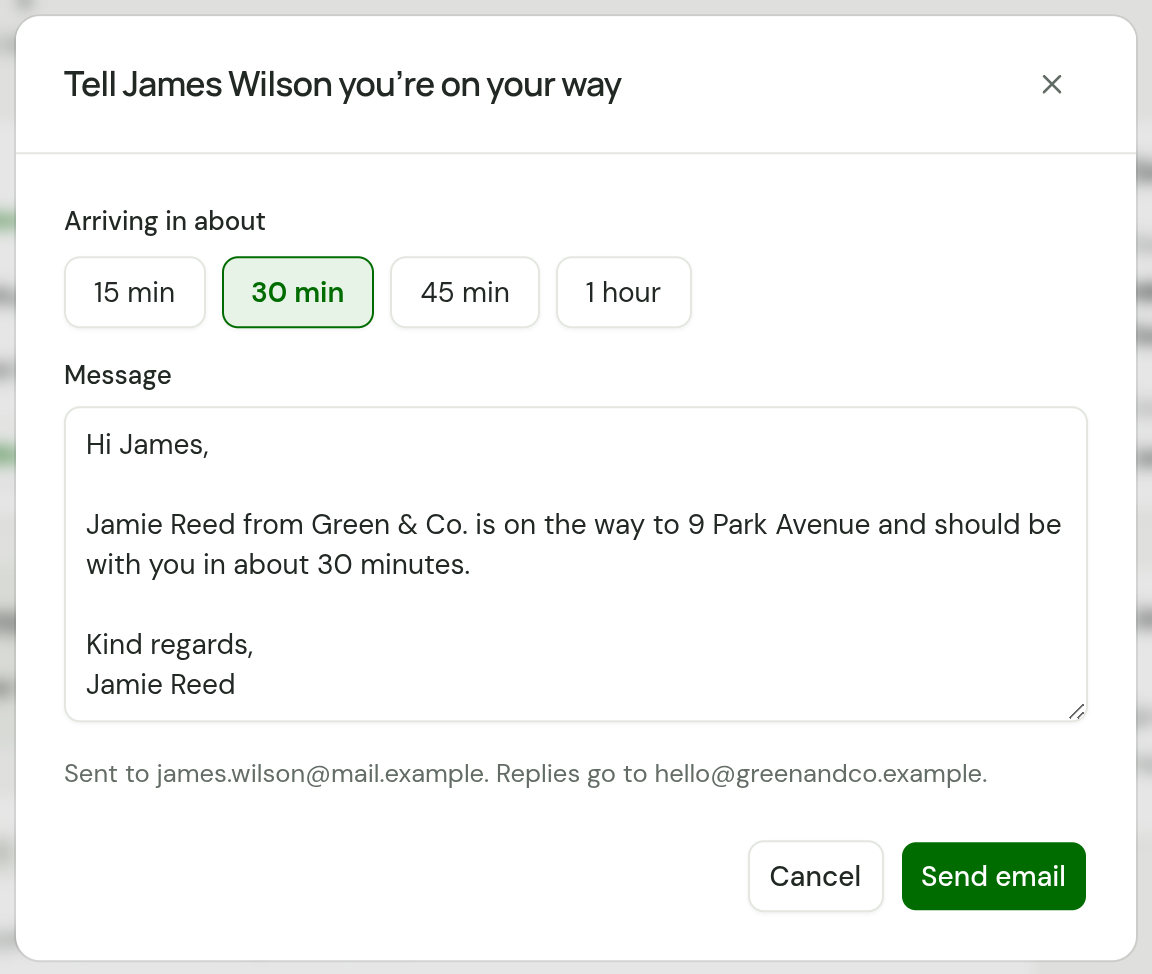
The wait is the one you pick. TradeSender does not track anyone, ask for your location or work out a drive.
What the customer receives
| Part | What it is |
|---|---|
| Subject | "Jamie Reed from Green & Co. is on the way". Someone signed in under the business's own name sends "Green & Co. is on the way" |
| In it | Your note, under your logo. No link and no attachment |
| From | Your business name at visits@tradesender.co.uk, or your own address with your mailbox connected |
| Replies | Go to your connected mailbox. With none, to your Business email, and with neither, to whoever sent it |
It goes to the customer's own Email address. The address of the property is its first line, as the customer knows it. The name you file a property under is never sent.
When the button is there
- The visit reads Scheduled or In progress. A finished or cancelled visit has no button.
- The customer has an email address. Without one there is no button, so ring them.
- You can work the visit. A technician sees it only on visits they are on.
Good to know about On my way
- One email at a time. A second On my way for the same visit within 5 minutes is refused, and the message says who sent the first, such as "Jamie Reed told this customer they were on the way 2 minutes ago. Another can be sent 5 minutes after the last." So two people in one van do not both write to the customer.
- It does not start the visit. Nothing about the visit changes. Choose Start when you arrive.
- It counts towards the day's emails. A workspace sends 100 emails a day by hand in total: see The daily limit.
- Every workspace has it. A person sends it, so it is not one of the automatic emails.
- It is listed under Sent on the customer's page as On my way. Its subject names whoever sent it.
- An owner sets the standard note in Settings, Emails, under Email notes. See Email notes.
- In the phone apps it needs a connection. The app says "This needs a connection. It isn’t saved on this phone to send later." A note that arrived an hour late would be worse than none.
Start the visit
Choose Start on Today, or Start visit on the visit's page. The visit starts at once, with nothing to fill in.
- The visit reads In progress.
- Your timer starts. The message says "Visit started · timer running."
- If your timer was running on another visit, it stops there. You have one timer at a time.
The timer
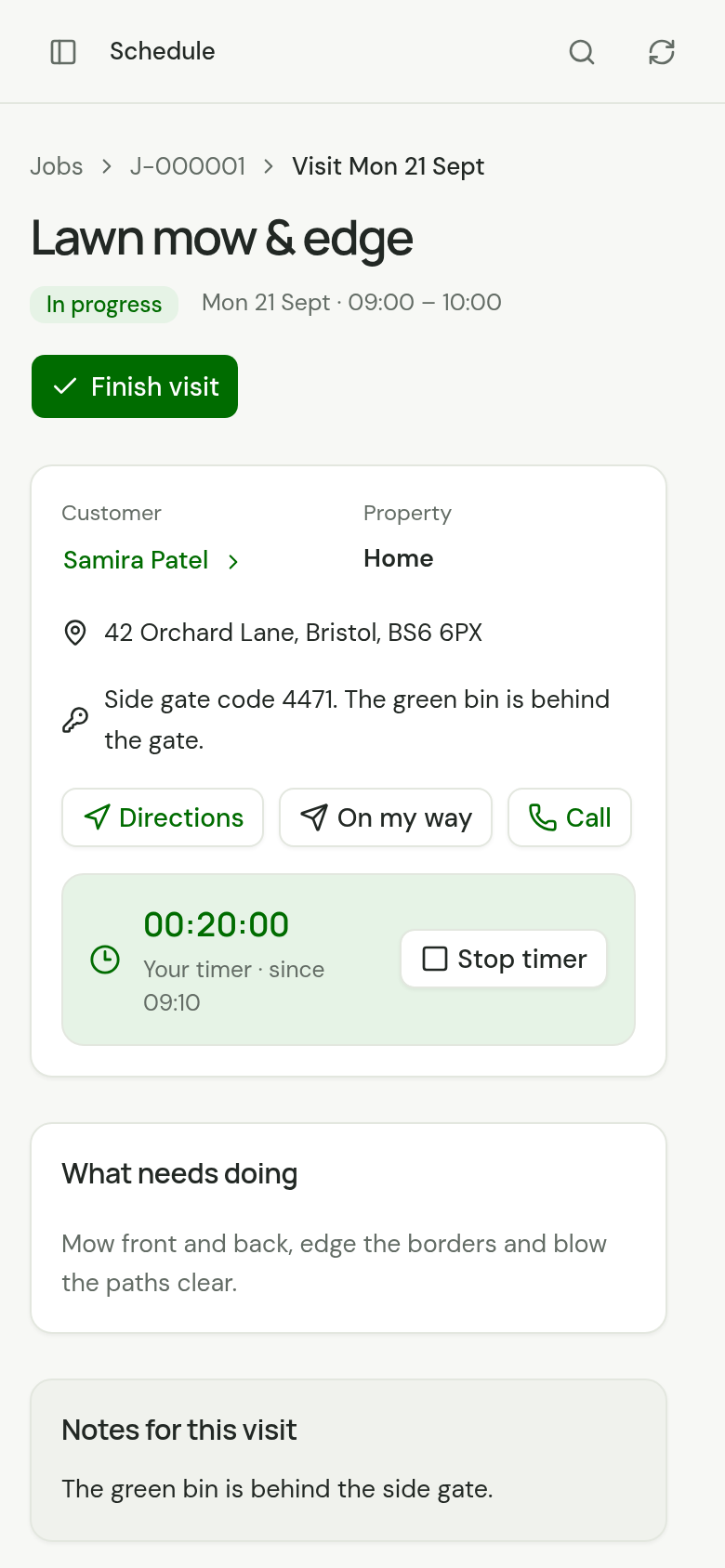
The visit's page shows each running timer: the time so far, whose it is and when it began. Yours reads "Your timer" and has Stop timer beside it.
- A second person on the crew opens the same visit and chooses Start timer. Each person has their own.
- Stop timer ends your time and leaves the visit in progress, for a break or for a visit you do not want timed. Start timer begins a new entry.
- On Today, the visit shows On the job with the time since the first person clocked in, and how many are clocked in when there is more than one. A bar at the bottom of Today shows your own timer, with Finish on it.
What you record goes to Time entries.
Add photos
On the visit's page, choose Add photos and pick them. On a computer you can also drag them onto the page.
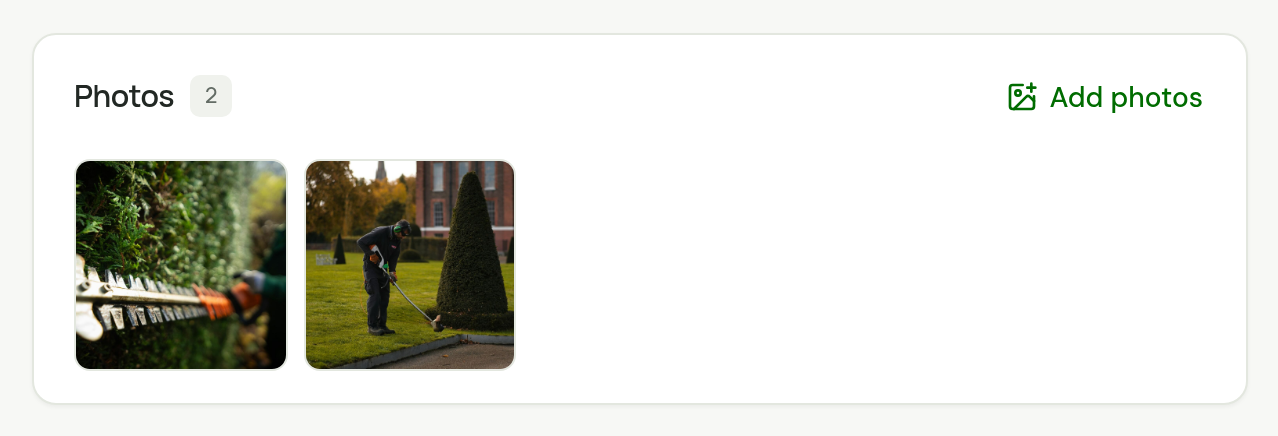
- A visit holds up to 30 photos.
- A photo can be a JPEG, PNG, WebP or HEIC file of up to 10 MB.
- TradeSender shrinks each one to 2048 pixels on its longest side before it uploads.
- Photos have no labels such as before and after.
- Photos are not emailed to the customer. Once the visit is finished, the customer can see them in their customer portal.
Choose a photo to see it large. Remove photo is there for owners and office members, and for the person who added it.
In the phone apps, Add photos offers Take photo and Choose from library. A photo you take is also saved on the phone: in the library on an iPhone, and in the gallery on Android, in a folder called TradeSender.
Read the notes
- What needs doing is the job's description. It is the same on every visit of the job.
- Notes for this visit is what the office wrote for this visit only.
- The line with the key icon is the property's access notes.
Finish the visit
-
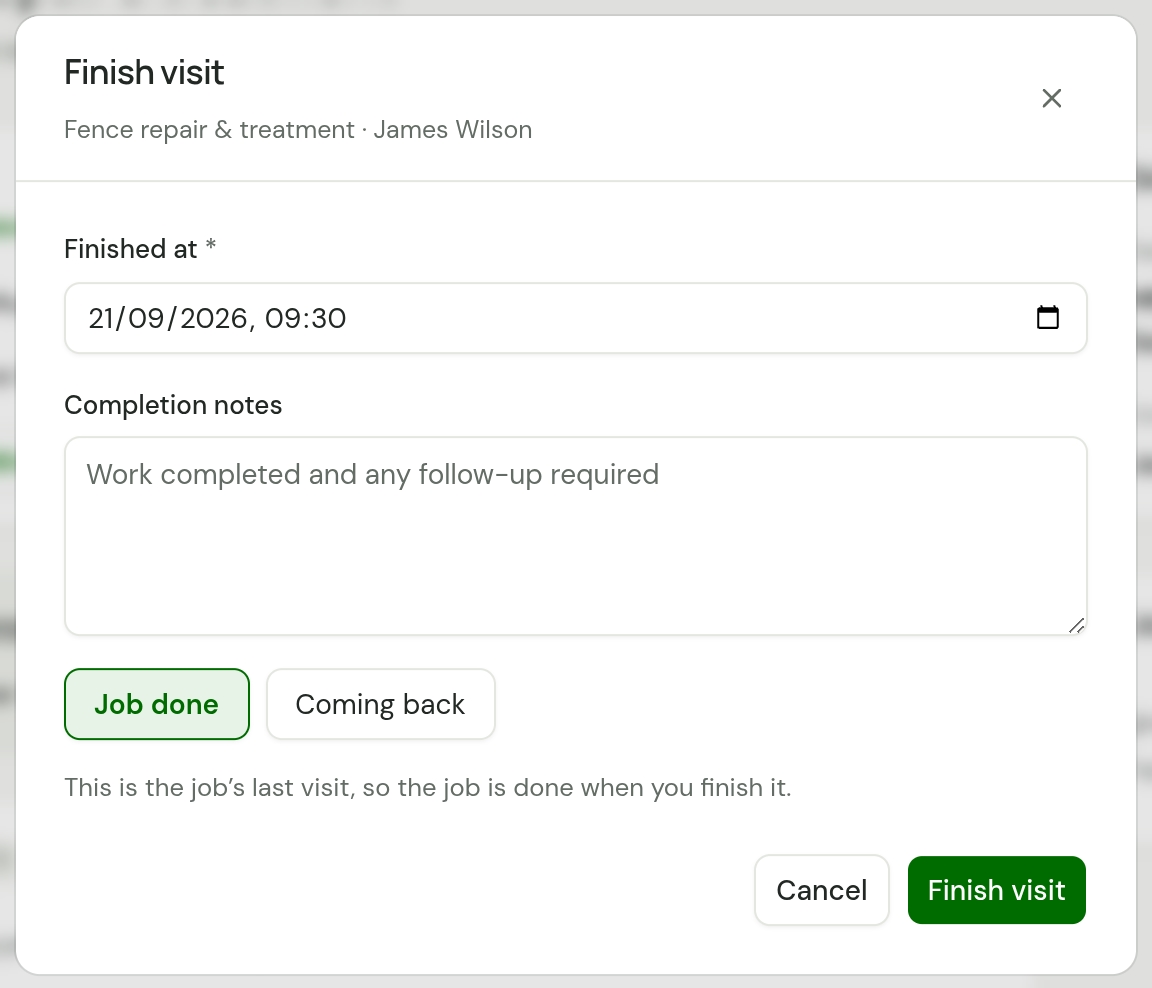
Choose Finish on Today, or Finish visit on the visit's page.
-
Check Finished at. It starts at the time now. Change it if you are finishing the visit after the event. It cannot be in the future or before the visit started.
-
In Completion notes, say what was done and anything to follow up.
-
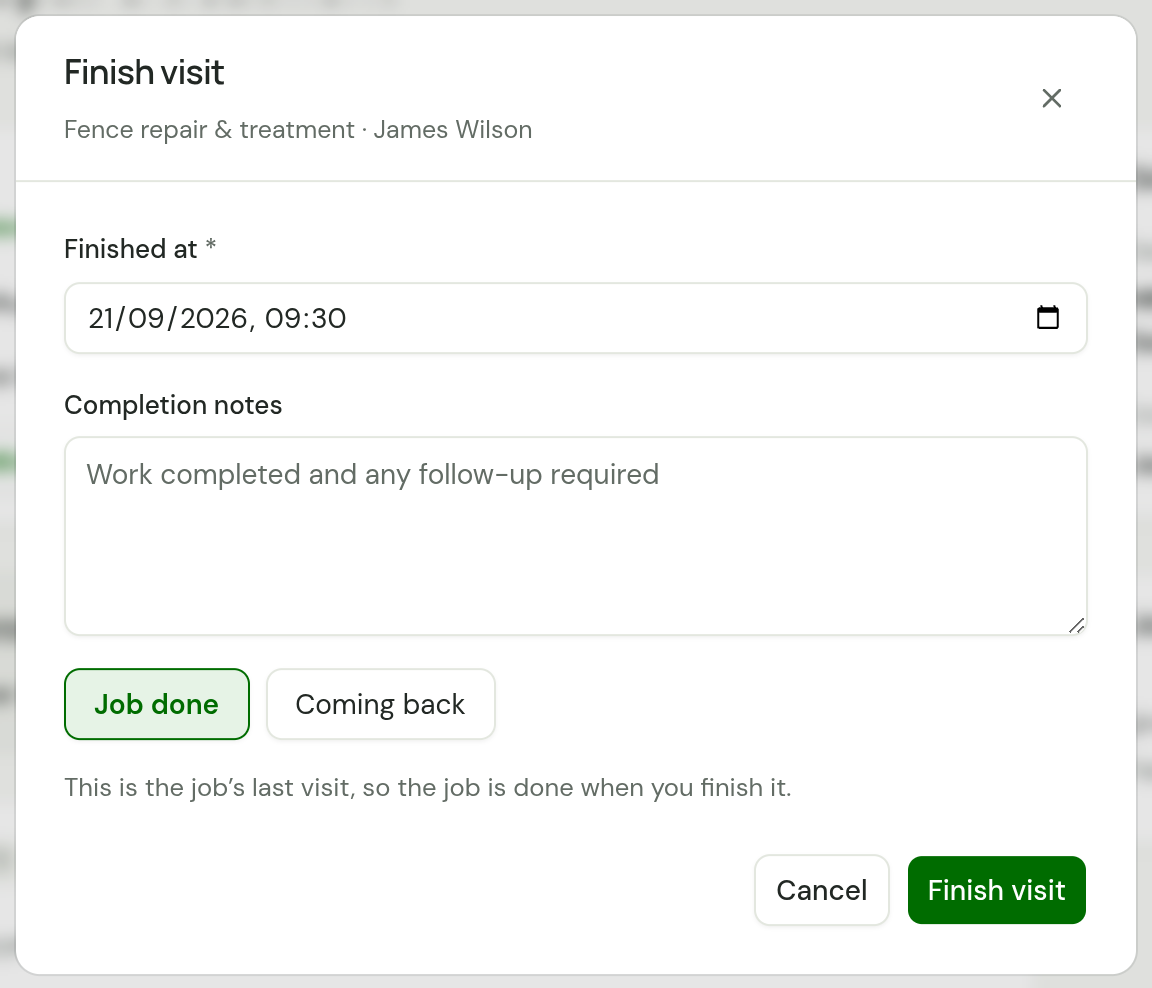
If this is the last visit of a one-off job, choose Job done or Coming back.
-
Choose Finish visit.
| Choose | What happens |
|---|---|
| Job done | The job is finished with the visit and reads Completed. The message says "Visit finished. Job done." |
| Coming back | The job stays open. For an owner or office member the form for the next visit opens, so it can be booked straight away. A technician is told "The job stays open. The office will book the next visit." |
You only see the choice when nothing else is booked on the job, the job has no repeat with visits still to come, and it is billed When the job is complete or Don’t invoice. On any other visit the job stays open.
Finishing stops every timer on the visit, at the Finished at time. You can also finish a visit that was never started.
For owners and office members, the message after Job done offers Create invoice, or Add pricing to invoice when the job has no price. See Invoice a job.
A finished visit on Today
For owners and office members, a finished visit's card on Today carries the next step to its invoice.
| Button | When |
|---|---|
| Create invoice | The work is waiting for an invoice: the job is finished, or it is billed by the visit and this visit is due |
| Add pricing to invoice | The same, and the job has no price yet |
| Open invoice | The visit is on an invoice already |
The card has no button while the job still has work left on it, when its Bill is Don’t invoice, and for a job billed At month end until the month is over.
What a technician can do
| A technician can | A technician cannot |
|---|---|
| See the visits they are on, and those jobs | See other people's visits |
| Use Directions, Call and On my way | See prices, quotes or invoices |
| Start and finish their visits | Book, move, change or cancel a visit, or move a rained-off day |
| Start and stop their own timer | See or change other people's time |
| Add photos, and remove their own | Remove someone else's photo |
A technician who chooses Coming back books nothing. The job stays open for the office to book the next visit.
See Roles for the rest.
Without signal
The web app needs a connection to start or finish a visit. The iPhone and Android apps keep a start or a finish made without signal and send it when you are back in range, with its original time. Photos and On my way need a connection in all three. See Working without signal.
Checked against the app on 29 October 2026. Still stuck? Ask usAsk us.