Import customers and export your records
Bring your customers and their properties in from a CSV file or from Jobber, and export customers, invoices, payments and a file for Xero.
Owners and office members import and export, on the web. Open Settings, then Import and export. Import at the top of the Customers page opens the same screen, as does Import a file there before you have any customers, and Bring your customers on the last set-up step takes you to that page. The iPhone and Android apps have no screen for this. Customers you import on the web are in the apps like any others.
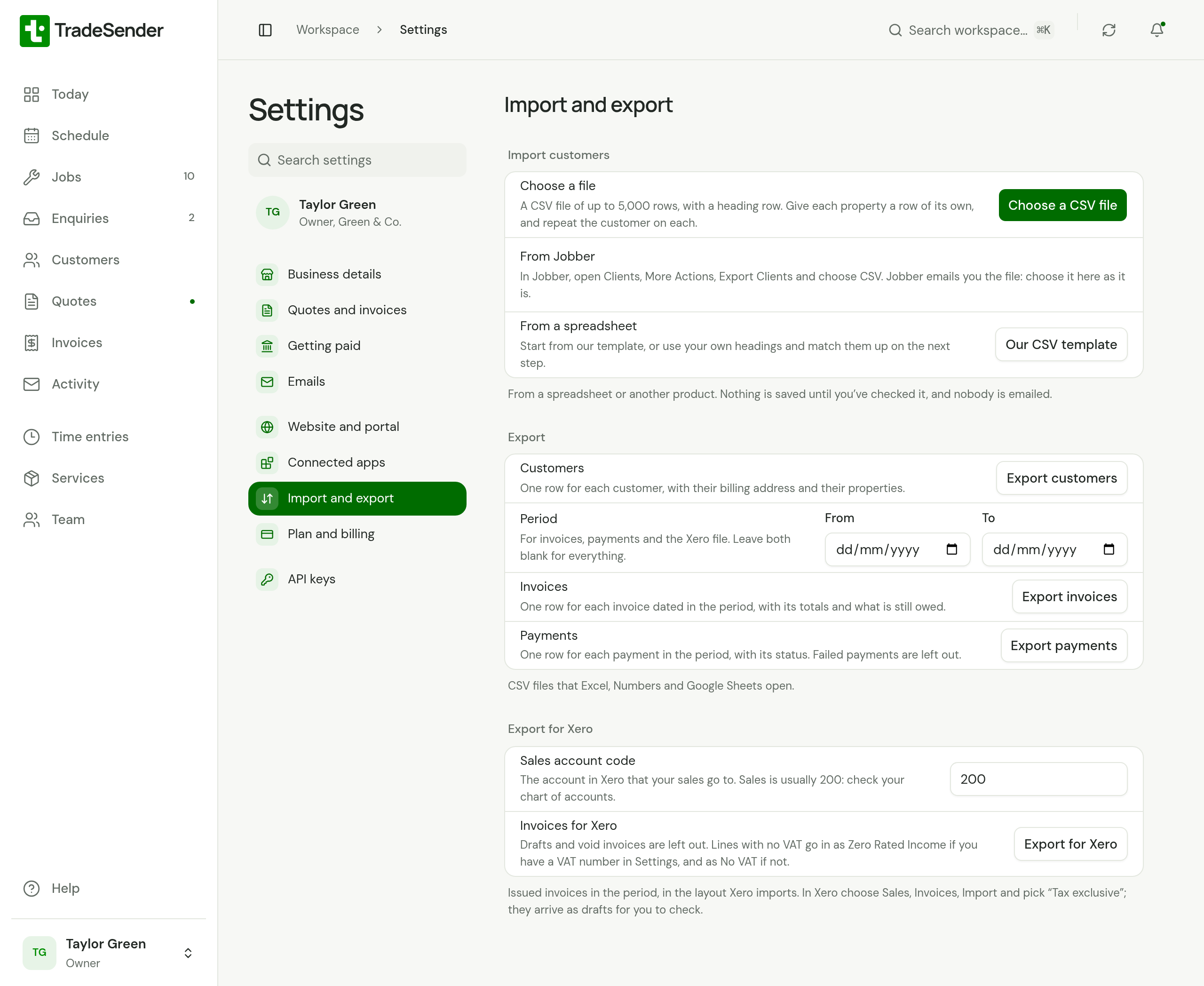
Import customers from a file
An import brings in customers and their properties. Nothing is saved until you have seen what the file will do, and nobody in it is emailed.
Get the file ready
The file is a CSV: the plain format every spreadsheet can save.
- It holds up to 5,000 rows and 5 MB. Split a longer list into several files and import them one after another.
- Its first row names the columns, such as Name, Email and Phone.
- Each property has a row of its own. For a customer with two properties, repeat the customer on both rows.
To start from a blank sheet, choose Our CSV template. It downloads a file with these headings:
| Heading | What goes under it |
|---|---|
name | The person you deal with |
company_name | The business, if the customer is one |
email, phone | How you reach them |
payment_terms_days | Days to pay an invoice. Leave it blank for 14 |
notes | Anything you want kept on the customer |
property_name | A name for the address, if it has one |
address_line_1, address_line_2, city, region, postal_code | The property's address |
country_code | Leave it blank for the United Kingdom |
access_notes | Gate codes, parking and where the key is kept |
You do not need our headings. A file with headings of its own works too: you match them up on the next step.
In Excel, save with File, Save As and "CSV UTF-8 (Comma delimited)". TradeSender refuses an Excel workbook or a PDF and tells you which it is.
From Jobber
The screen gives the steps: in Jobber, open Clients, More Actions, Export Clients and choose CSV. Jobber emails you the file. Choose it in TradeSender as it is.
TradeSender knows Jobber's column headings and matches them for you. Look down the matches before you go on, as you would for any file: if Jobber has named a column in a way TradeSender does not know, pick the column yourself.
What comes across from Jobber:
- The client's name, company, email, phone, notes and each property's address.
- A second phone, further email addresses and tags, which go into the customer's Notes.
- A billing address, when it is a whole address and not the property's own.
Jobber's lead source, title, custom fields and reminder settings are not imported. A client marked as archived in the file is left out.
Choose the file and match the columns
-
Choose Choose a CSV file and pick the file.
-
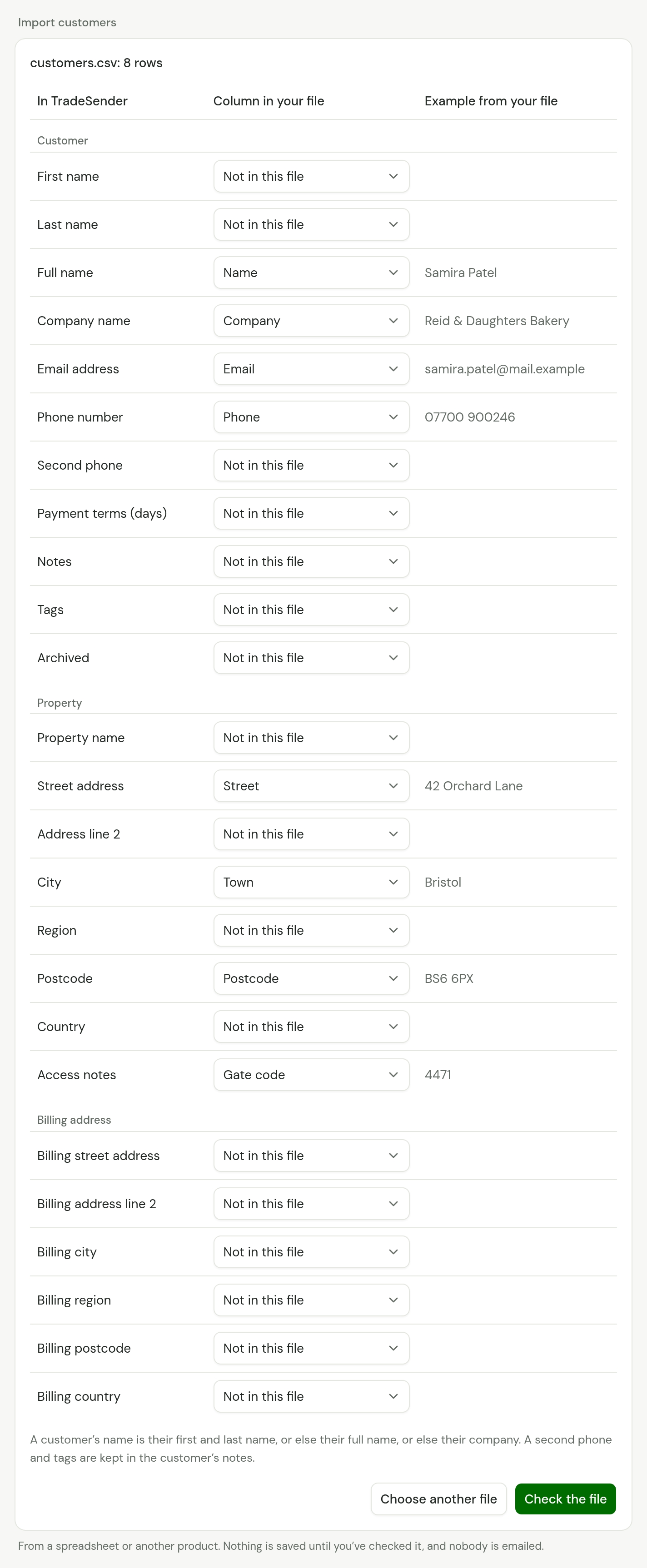
TradeSender shows a table of its own fields. Beside each is the column of your file it will read, and an example from the file. Change any that are wrong. A field with no column reads Not in this file.
-
Read the note under the table. Not imported lists the columns of your file that no field uses.
-
Choose Check the file.
A customer's name is their first and last name. If the file has neither, it is their full name, and failing that their company.
Check the file
The check runs the whole import and then takes it back. What it tells you is what the same file will do.
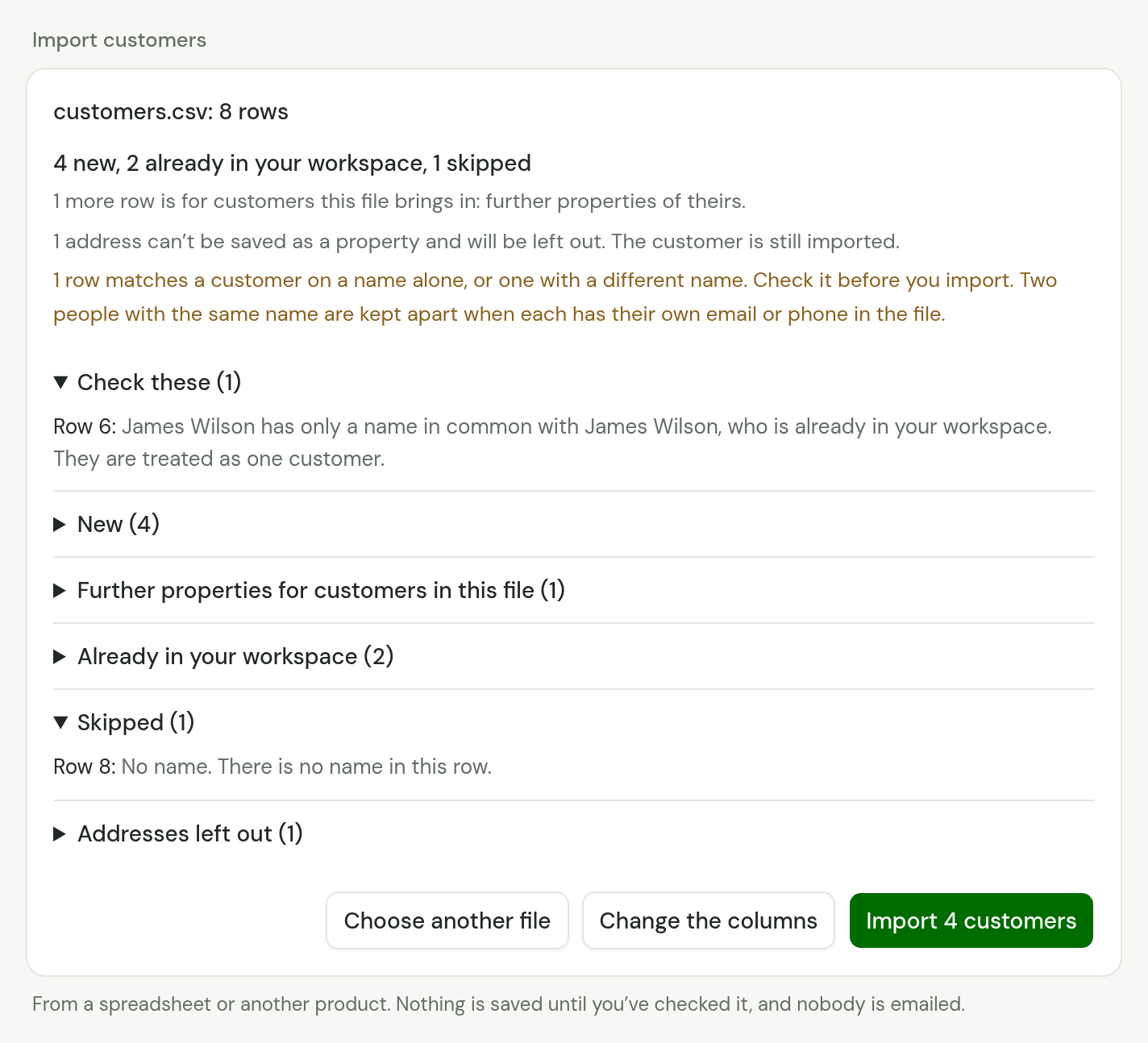
The first line counts the rows, such as "4 new, 2 already in your workspace, 1 skipped". Each list under it opens to show its rows, by their row number in your spreadsheet.
| List | What is in it |
|---|---|
| Check these | Rows that matched a customer on a name alone, or matched a customer with a different name. Read these before you import |
| New | Customers the import will create |
| Further properties for customers in this file | Later rows for a customer that an earlier row creates |
| Already in your workspace | Rows for a customer you have, with what the row adds to them |
| Skipped | Rows that cannot be imported, each with the reason |
| Addresses left out | Rows whose customer is imported and whose address is not, because it has no street, city or postcode |
If a column was matched to the wrong field, choose Change the columns, put it right and check again. To fix the file itself, edit it in your spreadsheet, then choose Choose another file.
Import
Choose the button, which counts the new customers: Import 4 customers. When the file only adds to customers you have, it reads Update 2 customers.
TradeSender then says what it did, such as "Imported 4 customers and 5 properties." See them in Customers opens the list.
If the connection drops part of the way through, choose Try again. The import carries on from where it stopped and brings nobody in twice. Importing the same file a second time creates nobody either: every row matches the customer it made.
What counts as the same customer
TradeSender looks for each row's customer in your workspace, and in the rows above it in the file. It tries three things, in this order:
- The same email address.
- The same phone number. Spaces and brackets are ignored, and +44 is read as 0. A phone number of fewer than 7 digits is not used.
- The same name, unless something says they are two people. Two customers with the same name are kept apart when both have an email address and the two differ, or both have a phone number and the two differ.
A row that matches creates nobody. It does two things to the customer it matched:
- It fills in what they have blank: Company name, Email address, Phone number, Notes and the billing address. It never changes anything that is already filled in, and never the name or the payment terms.
- It adds the row's address as a property, unless they have it. An address is theirs already when the postcode and the first line match. Flat 1 and Flat 2 at one address are two properties.
So two rows for one person make one customer with two properties.
An archived customer is not matched. A row for one creates a new customer.
What an import leaves alone
- It emails nobody. No sign-in link, no message.
- It brings in customers and properties only. Jobs, quotes, invoices and payments stay in the product you are leaving.
- A new customer's automatic emails are at Workspace default, like any other's. Nothing is sent until they have an invoice, a quote or a visit. See Automatic emails.
If the file is refused
| What you see | What to do |
|---|---|
| "This is an Excel workbook, not a CSV file." | Save it as CSV in Excel and choose that file |
| "This file has no heading row." | Add a first row that names the columns |
| "This file is too big to import in one go." | Split it into files of up to 5,000 rows |
| "We didn’t recognise any of this file’s headings." | Choose the column for each field yourself |
| "Choose the column that holds the customer’s name." | Match Full name, or First name and Last name, or Company name |
A file saved in Excel's older CSV format is read as it was saved. TradeSender says so, and asks you to check that names with accents look right in the examples.
Export your records
Each export is a CSV file that Excel, Numbers and Google Sheets open. Your browser makes it from your workspace as it is at that moment and saves it to your downloads, named with the day's date.
| Export | What is in it |
|---|---|
| Export customers | One row for each customer: name, company, email, phone, payment terms, billing address, notes and the date they were added. Their properties share one cell. Archived customers are left out |
| Export invoices | One row for each invoice dated in the period: number, status, customer, job number, title, dates, subtotal, discount, deposit deducted, tax, total, paid, written off and balance due. Drafts and void invoices are included, and the status column says which they are. A deposit invoice is a row of its own |
| Export payments | One row for each payment in the period, with its status: the date, the invoice number, the customer, the amount, what was refunded, what was received, the status, the method, the reference and your notes. Failed payments are left out. One still on its way and one in dispute are listed, with nothing under received, so total the received column |
Period applies to invoices, payments and the Xero file. Set From, To or both. Leave both blank for everything.
Amounts are in pounds with two decimal places, and dates are written year first, such as 2026-10-09, so a spreadsheet sorts them in order.
The customers export is for reading. It puts a customer's properties in one cell, so it is not a file to import back.
Export invoices for Xero
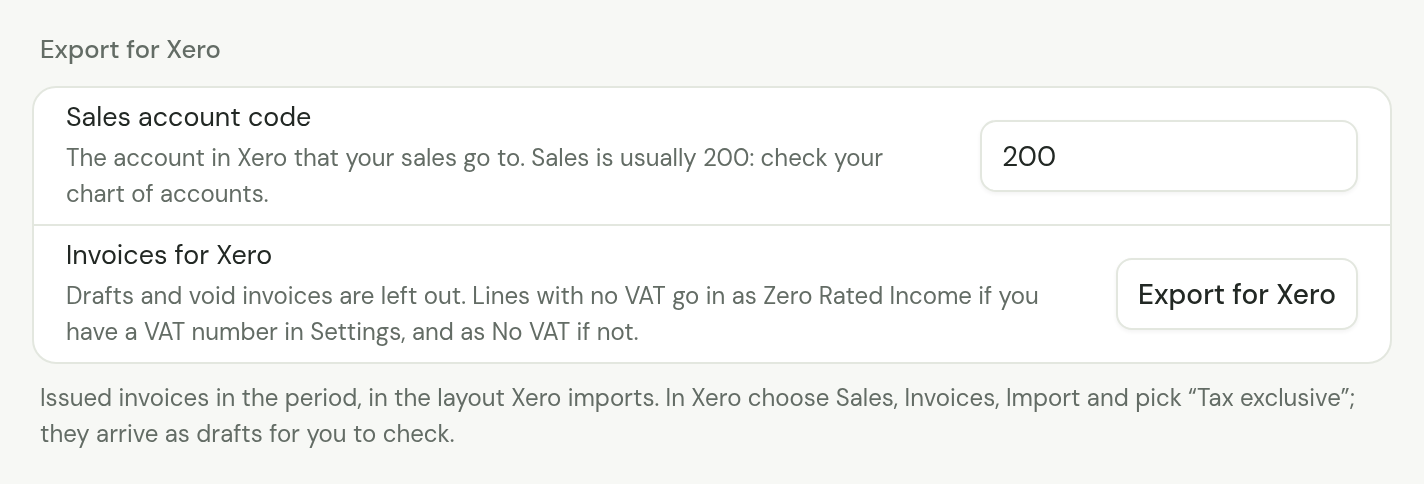
Export for Xero makes a file in the layout Xero's invoice import takes, for you or your accountant. TradeSender does not connect to Xero. You move the file by hand.
-
Set the Period under Export, such as last month.
-
Check Sales account code. It is the account in Xero that your sales go to. It starts at 200. Ask your accountant, or look at your chart of accounts in Xero. TradeSender remembers the code in this browser.
-
Choose Export for Xero.
-
In Xero, follow the steps the screen gives: open the Sales menu, choose Invoices, then Import. Choose the file and pick "Tax exclusive".
What is in the file
- One row for each line of each finalised invoice dated in the period. Drafts and void invoices are left out.
- Prices before VAT, with each line's VAT beside it, so Xero's total for an invoice is its total in TradeSender.
- The invoice's number, its invoice date and due date, the customer it is addressed to, and the job's number as the reference.
- A discount as a line of its own, with a minus amount.
- A deposit taken off an invoice as lines of their own, with a minus amount, named by the deposit invoice's number. The deposit invoice is in the file as a sale in its own right, so the two together are the work once.
- Your sales account code on every line.
How each line's VAT is named for Xero:
| The line's VAT in TradeSender | In the file |
|---|---|
| 20% | 20% (VAT on Income) |
| 5% | 5% (VAT on Income) |
| None, and you have a VAT number in Settings | Zero Rated Income |
| None, and you have no VAT number | No VAT |
| Any other rate | 20% (VAT on Income), with a warning on the screen that names the invoice. Correct it in Xero |
Payments are not in the file. Record or reconcile them in Xero as you do now.
Check your first import
Xero shows what it will bring in before it does. On that preview, the first time, check:
- The number of invoices is the number you expect for the period.
- Each invoice has the right customer, invoice date and due date. The file writes dates day first, such as 09/10/2026.
- Each line has its amount, your account code and a tax rate.
- An invoice's total in Xero matches its total in TradeSender to the penny.
If Xero refuses the file, or a column lands in the wrong place, stop there and tell us from Help what Xero said. A screenshot of its message helps.
Two more things to know:
- The invoices arrive as drafts. Nothing is in your books until you approve them in Xero.
- Xero matches customers by name. A customer Xero does not know by exactly the name on the invoice is added as a new contact. Look for duplicates after the first import.
Export each period once. Keep a note of the last period you exported, so no invoice goes to Xero twice.
Xero recommends no more than 500 lines in a file. Past that the screen warns you: choose a shorter period and export it in parts.
Good to know
- Technicians do not see Import and export.
- An export holds what your browser has loaded. Choose the two arrows in the top bar first if a teammate has just changed something.
- Text in an exported cell that begins with =, +, - or @ gets an apostrophe in front, so a spreadsheet does not run it as a formula. A phone number written +44 shows that apostrophe. The import takes it off again.
Checked against the app on 29 October 2026. Still stuck? Ask usAsk us.