Get help from TradeSender
Search the help articles, ask us a question or report a problem from Help, read our answers, and ask us when you cannot sign in.
Help is where you search these articles, ask us a question, tell us about a problem and read our answers. Everyone in a workspace has it, whatever their role. We usually reply within a working day.
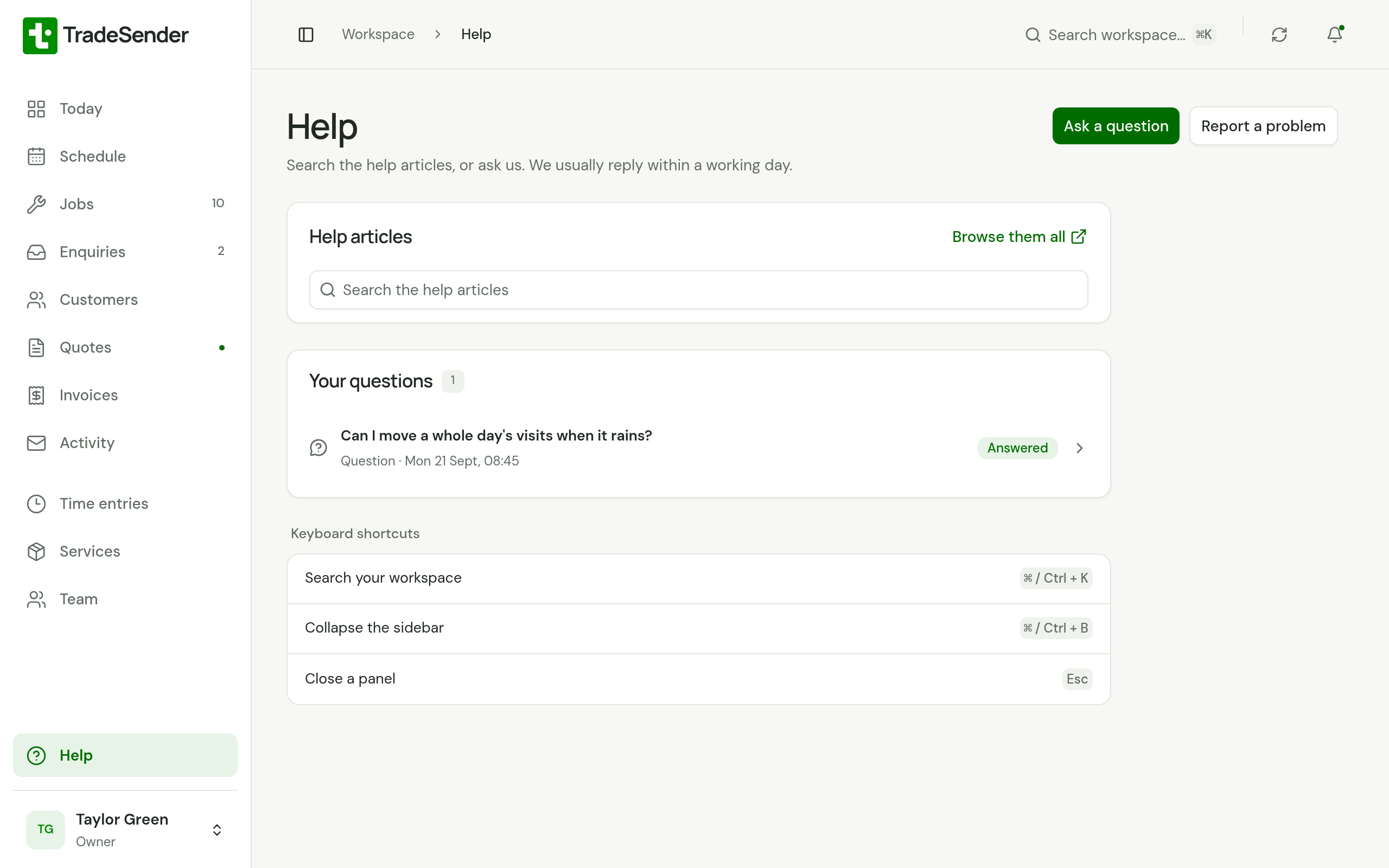
Open Help
- On the web, choose Help at the bottom of the sidebar, above your name. On a phone, open the sidebar first with the button at the left of the top bar.
- In the iPhone and Android apps, tap the account button at the top right to open Settings, then tap Help. It has a group of its own, under your name.
You need a connection for Help, because we keep your questions and our answers on our server and not on your phone. With no signal, the phone apps say "Help needs a connection. Try again when you’re online."
Search the help articles
Type in Search the help articles. The articles that hold every word you type appear as you type, best match first. Each opens on our website: in a new tab on the web, and in your browser from the phone apps. Browse them all opens the full list.
The search covers these guides. The API reference is on the website only.
Ask a question
-
Choose Ask a question.
-
Write it in Your question. Its first line becomes the question's title in Your questions, so start with the question itself.
-
To show us what you mean, choose Add screenshots and pick up to 5.
-
Choose Send question. In the phone apps, tap Send.
The question opens on its own page, and the phone apps say "Question sent". A question tells us which app you asked from and its version, and nothing about your device.
Report a problem
-
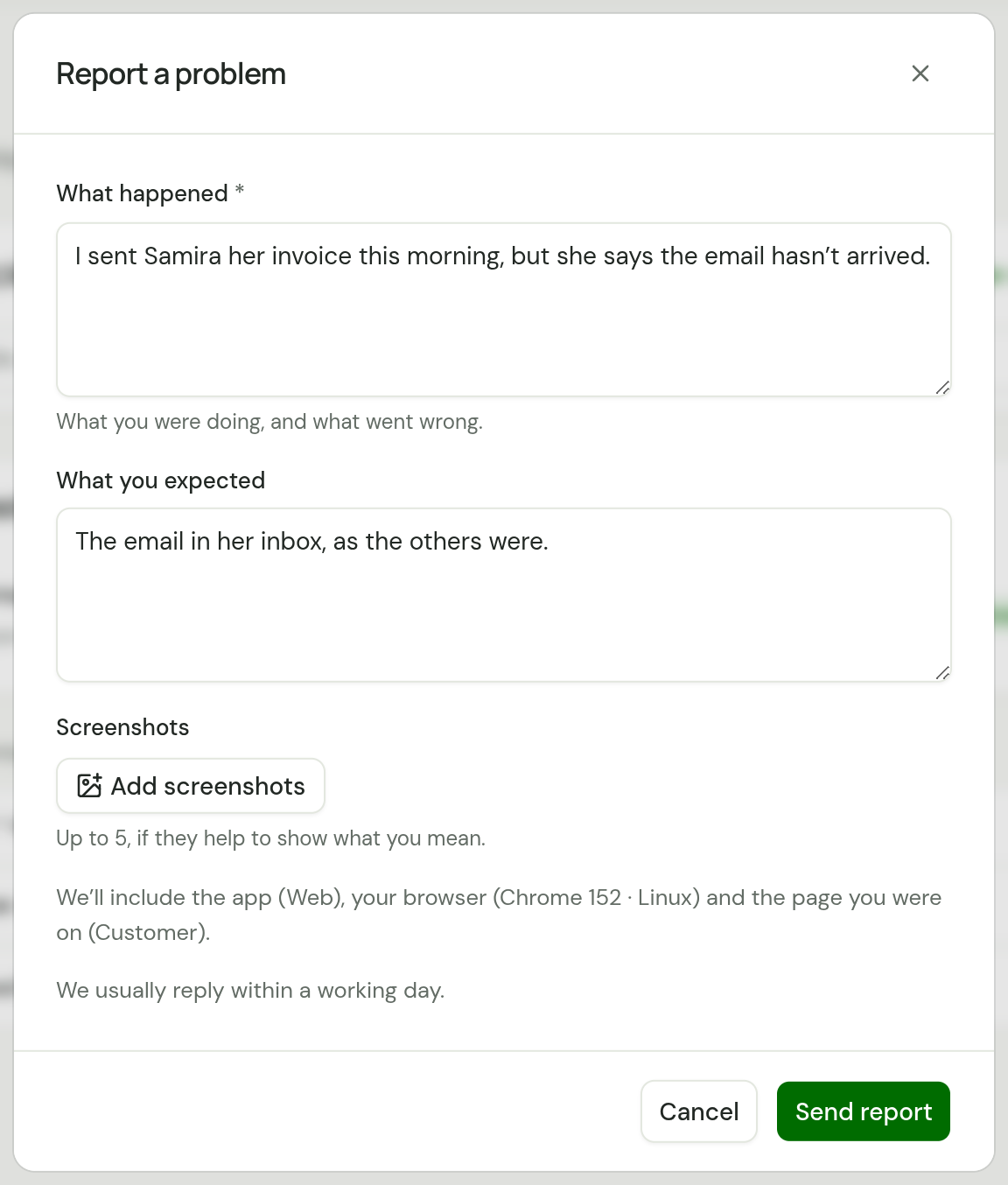
Choose Report a problem. On the web, open Help from the page where it went wrong: the report names that page.
-
In What happened, say what you were doing and what went wrong.
-
In What you expected, say what you thought would happen. You can leave it empty.
-
Add screenshots if they help, up to 5.
-
Choose Send report. In the phone apps, tap Send.
The phone apps say "Problem reported" once it has gone.
What a report includes
A line above the buttons lists what goes with the report, such as "We’ll include the app version (…), your browser (…) and the page you were on (…)". In the phone apps it reads "your phone" and "the screen you were on".
| It includes | On the web | In the phone apps |
|---|---|---|
| The app | Which build of it you are using | Its version and build |
| Your device | The browser and its system, such as Chrome on macOS | The phone's model and its version of iOS or Android |
| Where you were | The page you opened Help from | The screen you opened Help from, which is Settings |
| The last error you saw | The message, and the request ID our server gave it, when the app has shown an error | The same |
When there was an error, the line ends with it: ", with the last error you saw: "…"". The request ID lets us find that moment on our side.
Nothing from your workspace goes with a report, apart from what your words and screenshots show. A screenshot shows us whatever is on it, so crop out a customer's details if they don't help.
Your questions
Your questions lists everything you have asked, the latest activity first. Each row has the title, Question or Problem, and when it last changed. On the web a badge gives the status; in the phone apps it is in the row, such as "Question · Answered".
| Status | What it means |
|---|---|
| Open | Waiting for us |
| Answered | We have replied |
| Closed | Sorted, by you or by us |
Until you ask, it reads "Nothing asked yet. When you ask, you’ll find the question and our answers here." To list older questions, choose Show more on the web or Show earlier questions in the phone apps.
The conversation
Choose a question to open it. On the web the page has Help above its title, to go back, with the status and the kind under it. Conversation lists each message, the first at the top. Yours are headed You, and ours the first name of whoever answered, such as Levi · TradeSender. Each has its date and time and any screenshots, which you can open full size.
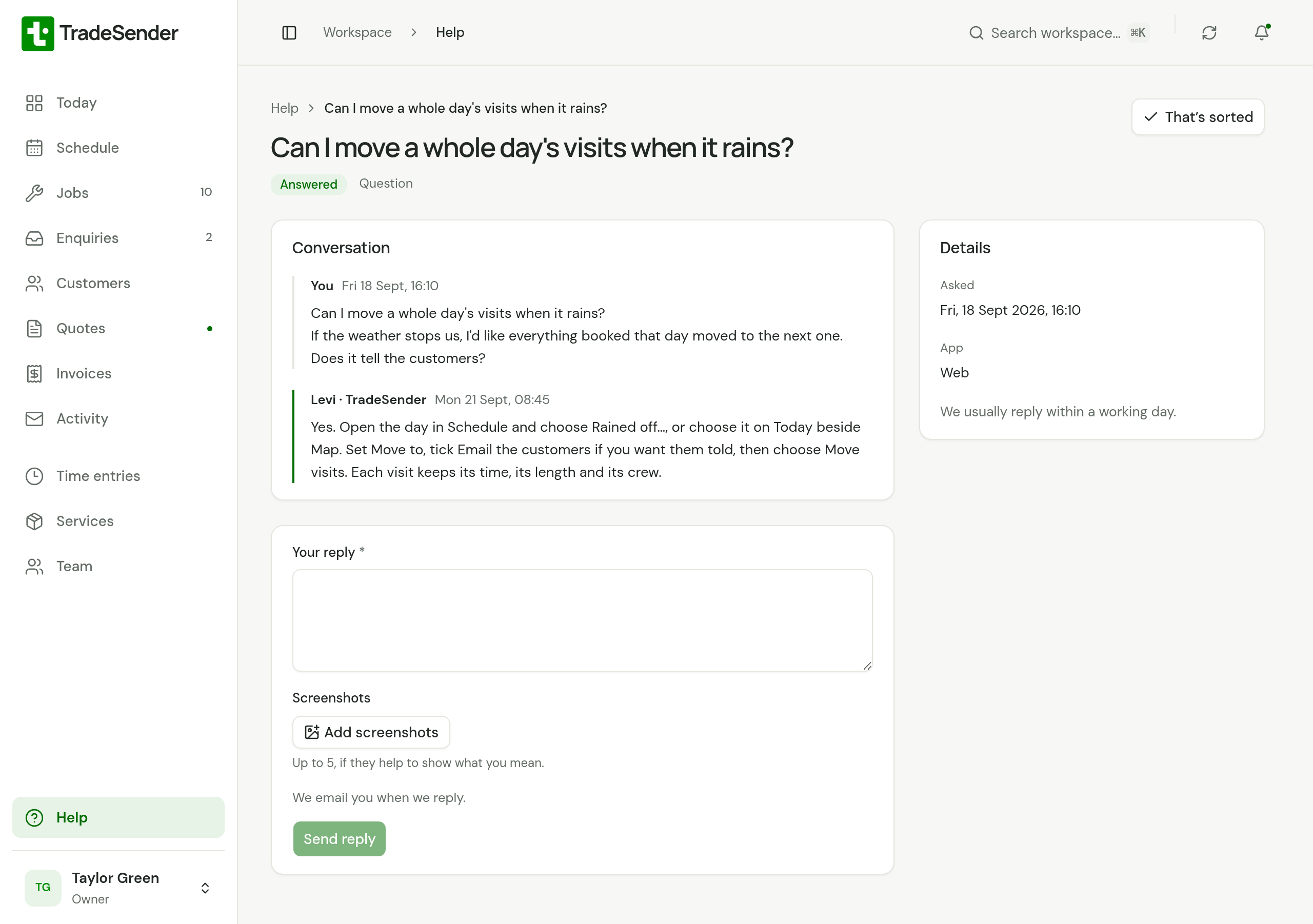
Details, beside the conversation, says when you asked. For a problem report it also lists What you expected, App, Build, Device, Screen, Last error and Request ID, as they were sent.
In the phone apps the screen is titled with the kind, such as Question, and the messages follow the title and status.
Reply
Write in Your reply, add screenshots if you like, and choose Send reply. When you reply to a question we have answered, or to a closed one, it opens again and we hear about it.
That's sorted
When you have what you need, choose That’s sorted. The question closes, and the page reads "Closed. Reply to reopen it." In the phone apps the button sits under the reply, with "Closes the question. You can still reply later."
We close a question too once we have dealt with it. Your reply opens it again, whoever closed it.
When we answer
We email you at the address you sign in with. The email has our answer, signed with the first name of whoever wrote it, and an Open in TradeSender button that opens the question.
If you use the iPhone or Android app, it says Reply to your question too, with the first line of our answer. Tap it to open the question. See Notifications on your iPhone, or Notifications for Android.
You can reply to the email and we will read it, but your reply is not added to the question. Reply in TradeSender to keep the conversation in one place.
Who sees a question
Only you. Nobody else in your workspace sees your questions or our answers, not even an owner, and you do not see theirs. TradeSender's own staff read them to answer.
A question belongs to you in that workspace. If you leave it, or are removed from it, you can no longer open the question, and we do not email you our answers.
An API key or an AI assistant you connect cannot read your questions or ask new ones. Help is in the apps only.
If you can't sign in
You can ask us without an account, for example when you cannot sign in or have not started with TradeSender yet. On the sign-in page, choose Ask us, beside "Can’t sign in?". The sign-in screen in the iPhone and Android apps has the same line, which opens the form in your browser.
-
The form is headed Ask TradeSender. Enter Your name and your Email address. We send our answer there.
-
Under What is it?, choose A question or A problem.
-
Fill in Your question, or What happened and What you expected. Add screenshots if they help, up to 5.
-
Choose Send.
The page reads "Question sent" or "Report sent", then "Thanks. We’ll reply to" your address. Back to sign in returns to the sign-in page.
We do not email you to say it arrived. Our answer comes by email, with a Read and reply button. It opens the conversation in your browser, without signing in, where you can reply with screenshots or choose That’s sorted. Our later answers come by email too.
If the form says "Too many requests", wait a while and try again, or email support@tradesender.co.uk.
If you can sign in, use Help in your workspace instead. We then keep the question with your account, and you read our answers in TradeSender.
Keyboard shortcuts
At the foot of Help on the web, Keyboard shortcuts lists the keys that work anywhere in the workspace. You will not see them on a phone.
| Keys | What they do |
|---|---|
| ⌘ / Ctrl + K | Search your workspace. See the top bar |
| ⌘ / Ctrl + B | Collapse the sidebar to icons, and open it again |
| Esc | Close a panel |
Checked against the app on 29 October 2026. Still stuck? Ask usAsk us.