Quote and invoice settings
Set the logo, quote wording, online payments, bank details and email notes that go on every quote, invoice and reminder.
What goes on your quotes and invoices is set in four sections of Settings. Only the owner can change them, and office members can read them. Technicians see only Business details. The iPhone and Android apps have the same sections in their Settings, behind the account button. This page follows the web.
| Section | What it holds |
|---|---|
| Business details | Your business name and contact details, and the company details printed at the foot of every quote and invoice. See Settings, Business details |
| Quotes and invoices | Your logo, and the intro and terms on every quote |
| Getting paid | Online payments through Stripe, Direct Debit, and your bank details for a bank transfer |
| Emails | The notes your quotes, invoices and reminders are emailed with |
A field you type in waits to be saved: as soon as you change one, a bar at the foot of the page reads Unsaved changes, with Discard and Save. The logo saves as soon as you choose it.
Quotes and invoices
Open Settings, then Quotes and invoices.
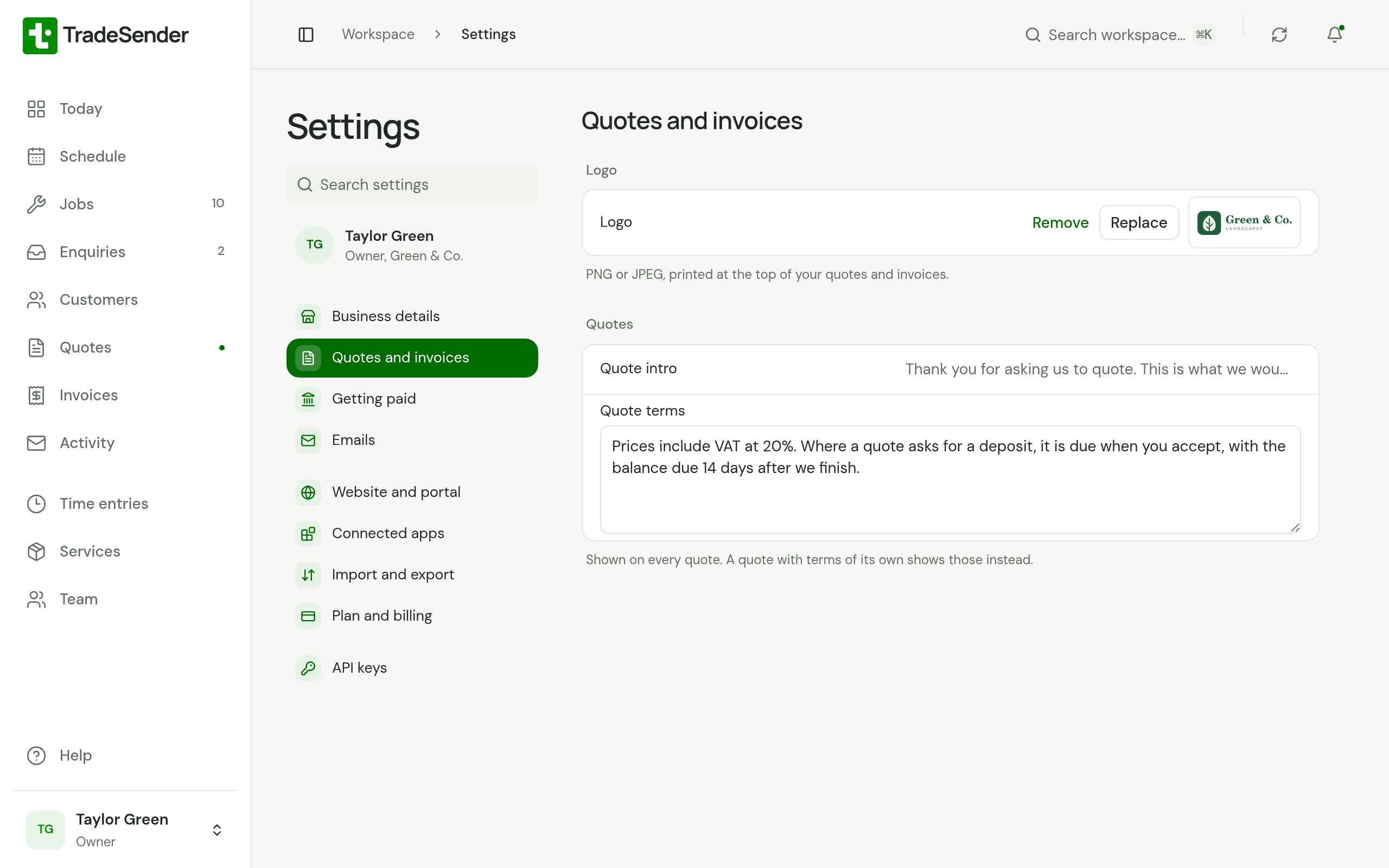
Logo
A PNG or JPEG, printed at the top of every quote and invoice: on the customer's page, on the PDF and in the email. Choose Upload logo, then Replace or Remove later. TradeSender shrinks it to 600 pixels on its longest side. It saves as soon as you choose the file.
Quotes
| Field | What it does |
|---|---|
| Quote intro | One line, up to 255 characters, that sits above the work on every quote. |
| Quote terms | Up to 2,000 characters, shown under Terms on any quote that has no terms of its own. |
The terms are not copied into each quote. If you change them, every quote without terms of its own shows the new wording, sent quotes included.
A quote gets terms of its own from the Terms field in its editor, on the web and in the phone apps.
Getting paid
Open Settings, then Getting paid.
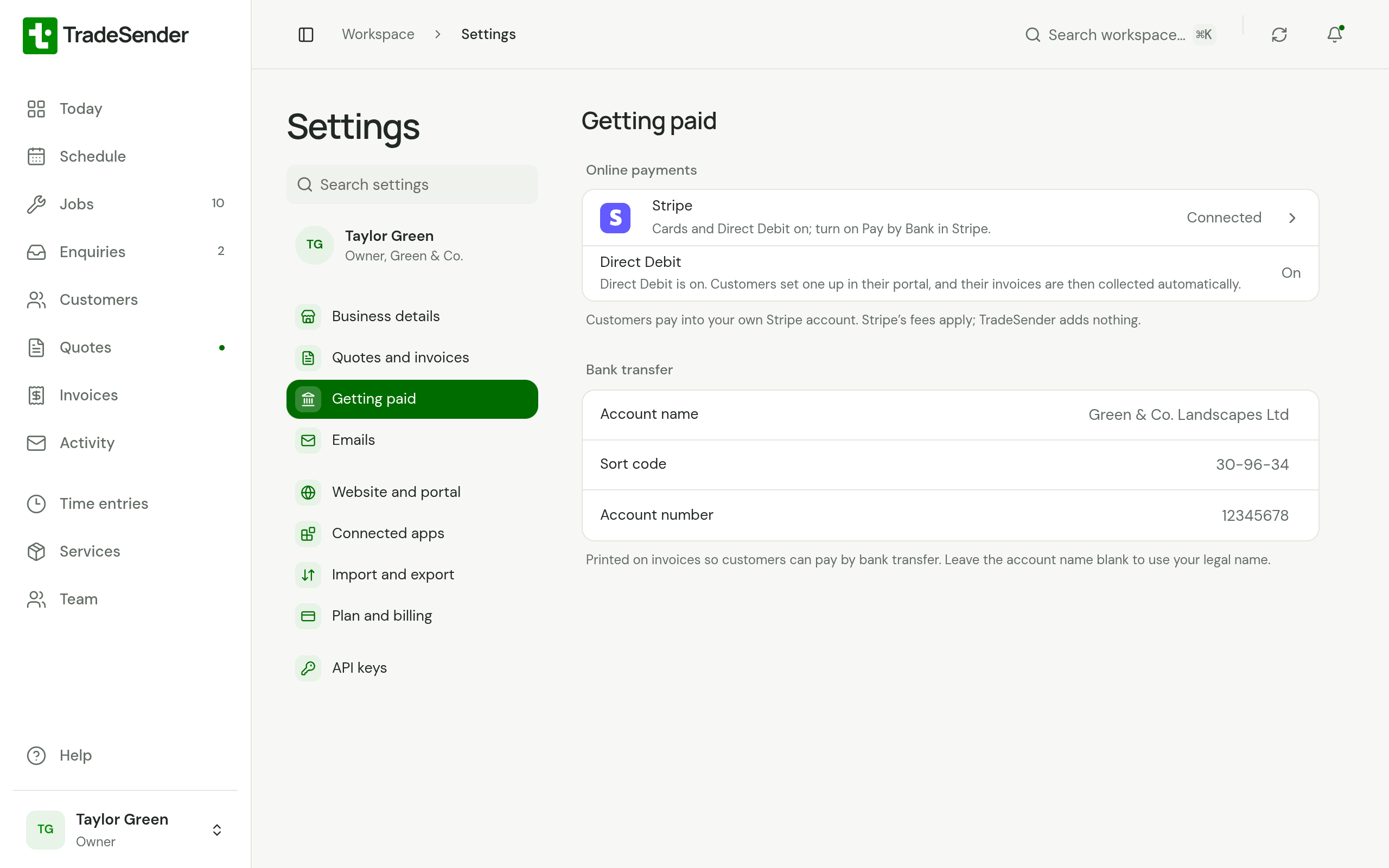
Online payments
This is where an owner connects the business's own Stripe account, so customers can pay an invoice online from its page.
| Row | What it shows |
|---|---|
| Stripe | Not connected, how far setting it up has got, or Connected with the ways of paying that are switched on. Choose it to open Stripe's sheet, which has Connect Stripe or Continue in Stripe while there is something to do |
| Direct Debit | On or Off, and what is missing when it is off. The row appears once Stripe is connected |
Nothing here waits for Save: the buttons open Stripe's own page. Take payment online covers connecting and what Stripe's sheet shows, and Collect by Direct Debit covers the second row.
Bank transfer
These are how customers pay you by bank transfer.
| Field | What it does |
|---|---|
| Account name | The name on the account. Leave it blank to use your legal name. |
| Sort code | Six digits. |
| Account number | Eight digits. |
An invoice needs both the sort code and the account number before it shows them. They appear under How to pay on the customer's invoice page and on the PDF, with the invoice number as the payment reference, for as long as money is owed. Quotes do not show them.
They are left off an invoice while a payment for it is on its way, and while a Direct Debit is going to collect it, so nobody pays twice.
With no sort code or no account number saved, the Email invoice dialog warns you before you send, and so does the month-end run. Neither warns once you take payment online, because the invoice then has a way to be paid.
Email notes
Open Settings, then Emails. Under Email notes is a row for each note your customers' emails carry. Each reads Standard until you write your own, and Changed after.
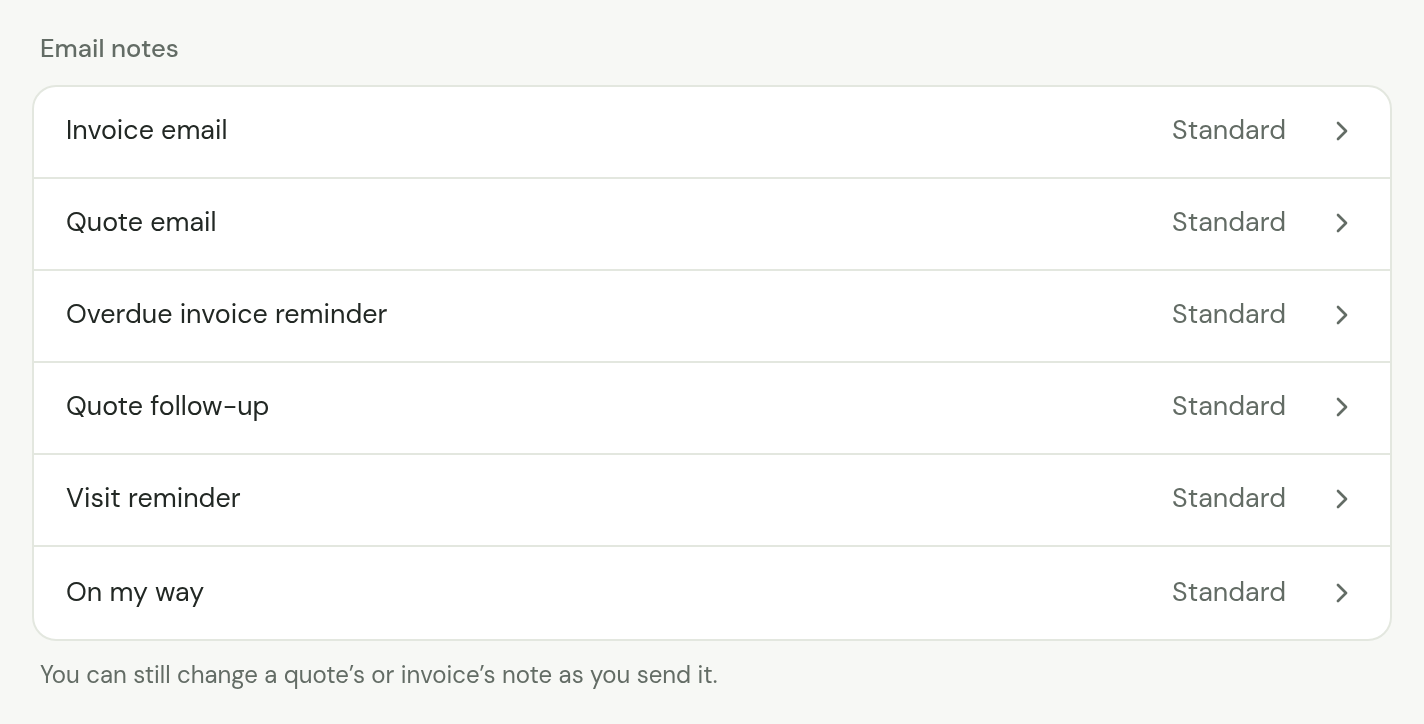
| Note | What it is sent with |
|---|---|
| Invoice email | Each invoice you email |
| Quote email | Each quote you email |
| Overdue invoice reminder | Each reminder of an overdue invoice, automatic or sent with Send reminder now |
| Quote follow-up | Each follow-up of a quote awaiting an answer |
| Visit reminder | The email the day before a visit |
| On my way | The email your team sends when they head to a visit |
Choose a row to open its note. The note is on the left, up to 2,000 characters. Under Insert is a button for each placeholder it takes, such as First name: choose one to put it where your cursor is. On the right, under What Margaret Hale gets, is the email a sample customer would get: who it is from, its subject, your logo, and the note filled in for an invoice, a quote or a visit of hers, with the button the email carries. It changes as you type.
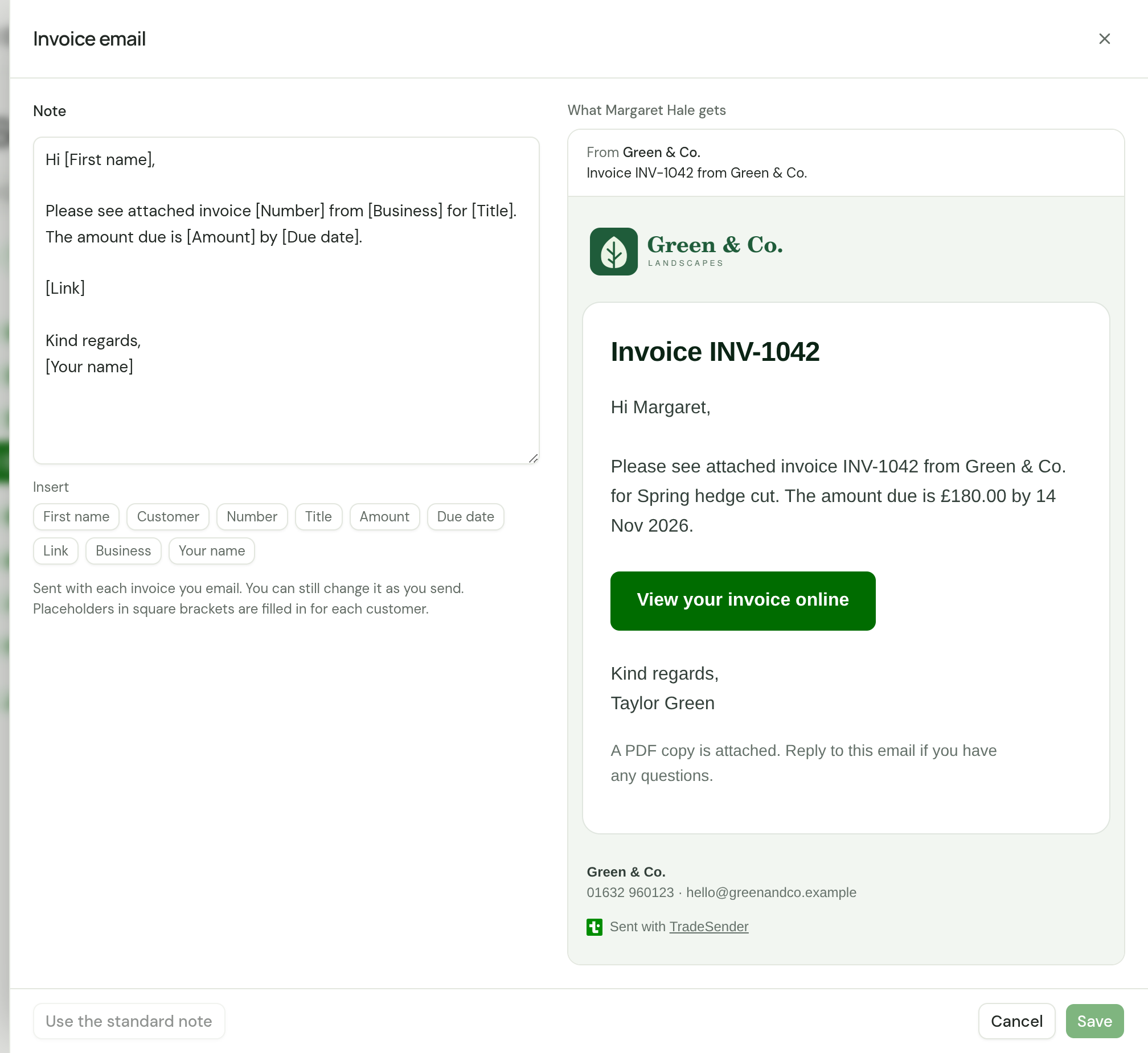
Choose Save to keep it, or Cancel to leave the note as it was. Use the standard note puts the standard wording back, and once saved the row reads Standard again.
The invoice and quote notes are a starting point. Each is filled in and put in the Message box each time you send, and you can change it there for that one email.
The notes for the emails TradeSender sends by itself, Overdue invoice reminder, Quote follow-up and Visit reminder, work the same way, except that nobody sees them before they go, so what you write here is what the customer reads. Automatic emails has each standard note.
Last is On my way: the note your team sends a customer when they are heading to a visit. It is filled in and shown to whoever sends it, who can change it for that one email. See Tell the customer you are on your way. The standard note is:
Hi [First name],

[Your name] from [Business] is on the way to [Property] and should be with you in about [Arrival].

Kind regards,
[Your name]
The standard invoice note is:
Hi [First name],

Please see attached invoice [Number] from [Business] for [Title]. The amount due is [Amount] by [Due date].

[Link]

Kind regards,
[Your name]
The standard quote note is:
Hi [First name],

Please see attached quote [Number] from [Business] for [Title], totalling [Amount].

[Link]

Kind regards,
[Your name]
Placeholders
A word in square brackets is filled in when the note is used.
| Placeholder | Becomes |
|---|---|
[First name] | The customer's first name. A title such as Mr, Mrs or Dr is skipped, so "Mrs Pat Lee" is greeted as Pat |
[Customer] | The customer's full name |
[Number] | The quote or invoice number |
[Title] | Its title |
[Amount] | On an invoice, the balance due. On a quote, the total |
[Due date] | The invoice's due date. Invoices only |
[Valid until] | The date the quote is valid until. Quotes only |
[Link] | The customer's link to the quote or invoice online |
[Business] | Your business name |
[Your name] | The name of whoever sends it. In an email TradeSender sends by itself, your business name |
[Visit date] | The day of the visits, such as Tuesday 22 September. Visit reminders only |
[Visits] | The customer's visits that day, a line for each. Visit reminders only |
[Property] | The first line of the property's address, such as 9 Park Avenue. With no property on the visit, "you". On my way only |
[Arrival] | The wait the sender picked: "15 minutes", "30 minutes", "45 minutes" or "an hour". On my way only |
A placeholder with nothing to fill it, such as [Due date] in a quote note, is left out of the email. [Link] on a line of its own shows as a button, and inside a sentence as a link. If a note has no [Link], the email still carries the link, as a button under the note. An On my way email has no link, like a visit reminder.
The note that tells customers a day's visits have moved is not here. You read and change it each time you move a day.
Settings that live elsewhere
| Looking for | It is here |
|---|---|
| Business name, email, phone and address, and the company details | Settings, Business details. They are printed on quotes and invoices, and customers' replies go to the business email unless you have connected a mailbox. See Settings, Business details |
| Reminders and follow-ups, and when overdue reminders go | Settings, Emails, under Automatic emails. Each customer and invoice can be set on or off for itself. See Automatic emails |
| The address of your customer portal | Settings, Website and portal, under Customer portal. See Give customers access |
| A deposit | On each quote, as Deposit (£). See Ask for a deposit |
| Payment terms | On each customer, as Payment terms (days). See Invoice a job |
| Quote and invoice numbers | Automatic. They run Q-000001 and INV-000001 upwards and cannot be changed |
| Standard terms for invoices | There is no such setting |
| Sending from your own email address | Settings, Emails, under Sent from. See Send from your own mailbox |
Checked against the app on 29 October 2026. Still stuck? Ask usAsk us.