The web app on an Android phone
Choose between the Android app and the web app on an Android phone, put the web app on your home screen, what it needs to work, and why to sign out before someone else uses the phone.
On an Android phone you have two ways to use TradeSender: the Android app from Google Play, or the web app, which Chrome can put on your home screen.
Which to choose
| The Android app | The web app on your home screen | |
|---|---|---|
| Where it comes from | Google Play. See Get the Android app. | Chrome, from Settings in the web app. |
| Without signal | It keeps your workspace on the phone and sends your changes when the connection comes back. | It needs a connection to load and to save. |
| Notifications | It tells you when something needs you. | None. |
If you work where the signal drops, choose the Android app. It needs Android 10 or later. The web app suits anyone who would rather not install an app. Everyone in the workspace can use either, whatever their role.
Install the web app
Chrome puts the web app on your home screen with its own icon. It then opens like an app, without the browser's address bar.
-
Open Chrome on the phone, go to
app.tradesender.co.ukand sign in. -
Open the sidebar with the button at the left of the top bar. Choose your name at the bottom, then Settings.
-
At the top of the list, choose your name. Your account opens.
-
Under Appearance, beside Install app, choose the Install app button. Chrome asks you to confirm in a dialog of its own.
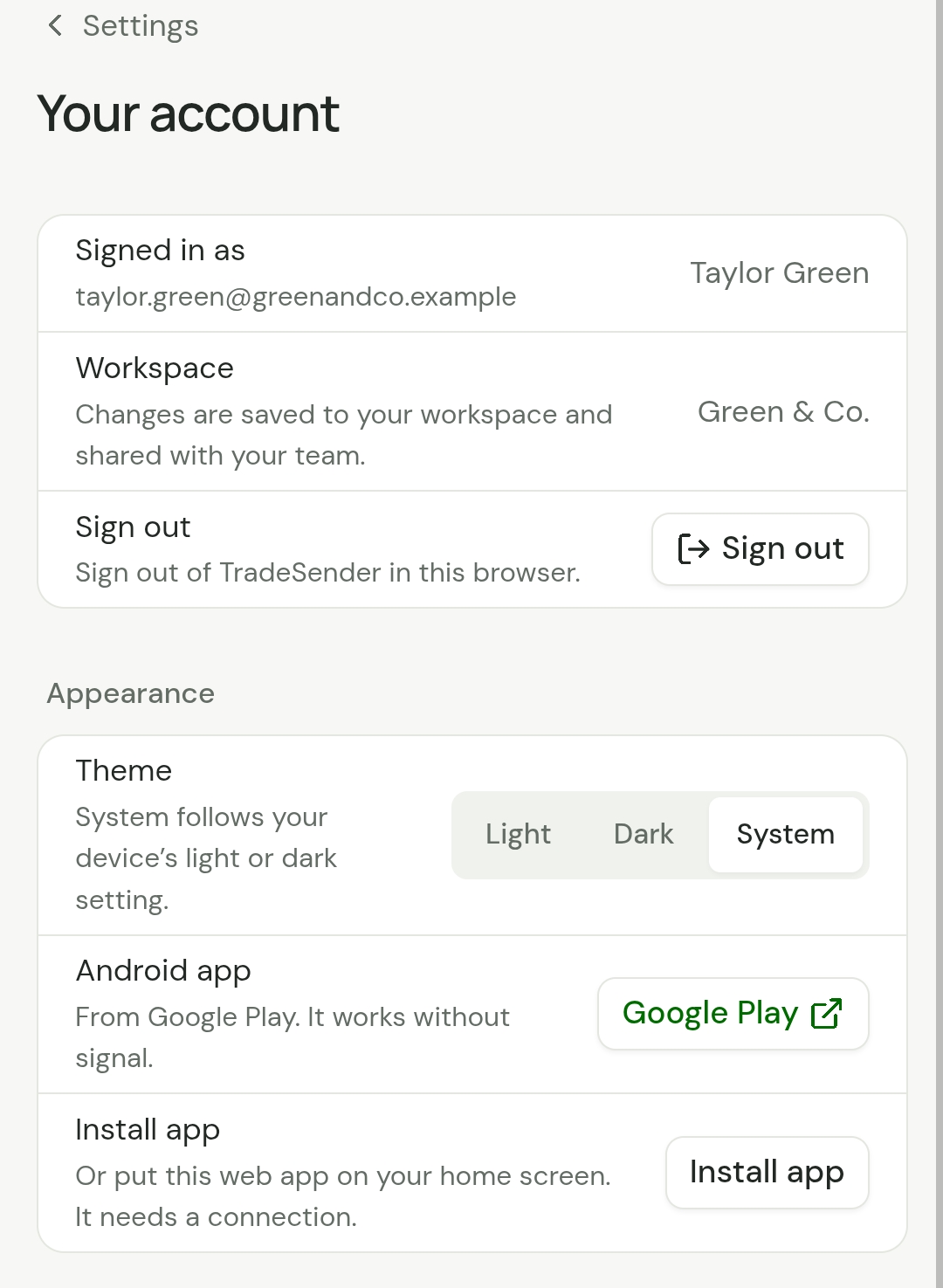
The row then reads Installed, and TradeSender is on your home screen.
Above it, Android app has a Google Play button, which opens the Android app's page on Google Play. On an Android phone, an owner who still has Get set up on Today finds Get the Android app as its last line.
Install app is there only while Chrome is offering to install. If you do not see it:
- Use the page for half a minute. Chrome on Android offers once you have tapped the page and spent a little time on it.
- Check you are in Chrome. We have not tried Samsung Internet or Firefox, which install websites in their own way.
- The row is missing once TradeSender is installed and you are looking at it in a browser tab. Open it from the home screen instead.
What you get
- An icon on the home screen. TradeSender opens on Today.
- A window of its own, with no address bar and no tabs.
- The same web app as in the browser, at phone width. Everything in these docs that follows the web applies. Many pages have an On a phone section.
It needs a connection
The installed app is the web app, so it needs signal or Wi-Fi to load and to save. Without one it says "You’re offline. Reconnect to refresh records or save changes." Nothing you type while offline is kept for later.
If you will be working without signal, use the Android app: see Working without signal, which holds for the Android app too. In the web app, start and finish visits when you have a connection, or set Finished at afterwards: see Work a visit.
It stays signed in
In a browser tab, Remember me on the sign-in page decides whether you stay signed in. The installed app has no Remember me: it keeps you signed in. Closing the app does not sign you out.
If the phone is lost, choose a new password with Forgot password? on the sign-in page. That signs you out on your other devices, the lost phone included. See Sign in with Google, Microsoft or Apple.
Other devices
- iPhone. Use the iPhone app: see Get the iPhone app.
- A computer. Chrome and Edge make the same offer, so Install app shows there too and puts TradeSender in a window of its own.
Your customers are never asked to install anything. The pages they open, such as a quote, an invoice or their portal, do not offer it.
Checked against the app on 29 October 2026. Still stuck? Ask usAsk us.