Get the iPhone app
What the TradeSender iPhone app needs, how to sign in with the account you already have, and what it covers compared with the web.
TradeSender has an iPhone app for the part of the work that happens away from a desk. It opens the same workspace as the web app, so a visit you finish on the phone is there on the web, and a job booked on the web is in the phone's calendar. The app is free.
Get the app

The app needs an iPhone running iOS 18 or later.
On an Android phone, use the Android app: see Get the Android app. On any other device, open app.tradesender.co.uk in the browser.
Sign in
Use the account you already have. There is nothing to set up again.
-
Open the app. On Sign in to your account, enter your Email and Password and tap Sign in. If you sign in on the web with Apple, Google or Microsoft, tap the matching button under or continue with.
-
If your email belongs to more than one workspace, the app asks for Workspace. Enter the Workspace ID shown in Settings, then Business details, on the web or in the app.
-
The app fetches your workspace and opens on Today.
If you are new to TradeSender, create your account on the web first: see Create your account.
The app only signs in. Apple, Google and Microsoft sign you in to the app only once your TradeSender account uses that email. Otherwise the app says "There’s no TradeSender account with that email."
If a teammate invited you, open the invitation email and choose your password first. That link opens in your browser. Then sign in to the app with the same email and password. Forgot password? works the same way: the app emails you a link, and you choose the new password in the browser.
If you still cannot get in, tap Ask us, beside "Can’t sign in?" under the sign-in buttons. It opens a form in your browser where you can ask us without signing in: see If you can't sign in.
What is in the app
The app has a tab bar along the bottom and an account button, a person in a circle, at the top right, which opens Settings.
| In the app | What it holds |
|---|---|
| Today | The day's visits with Start visit and Finish visit, and On my way on a visit's own screen to email its customer. Owners and office members also get the month's figures, what needs attention, Rained off… to move the day's visits, and buttons for a new Job, Quote, Customer or Invoice. |
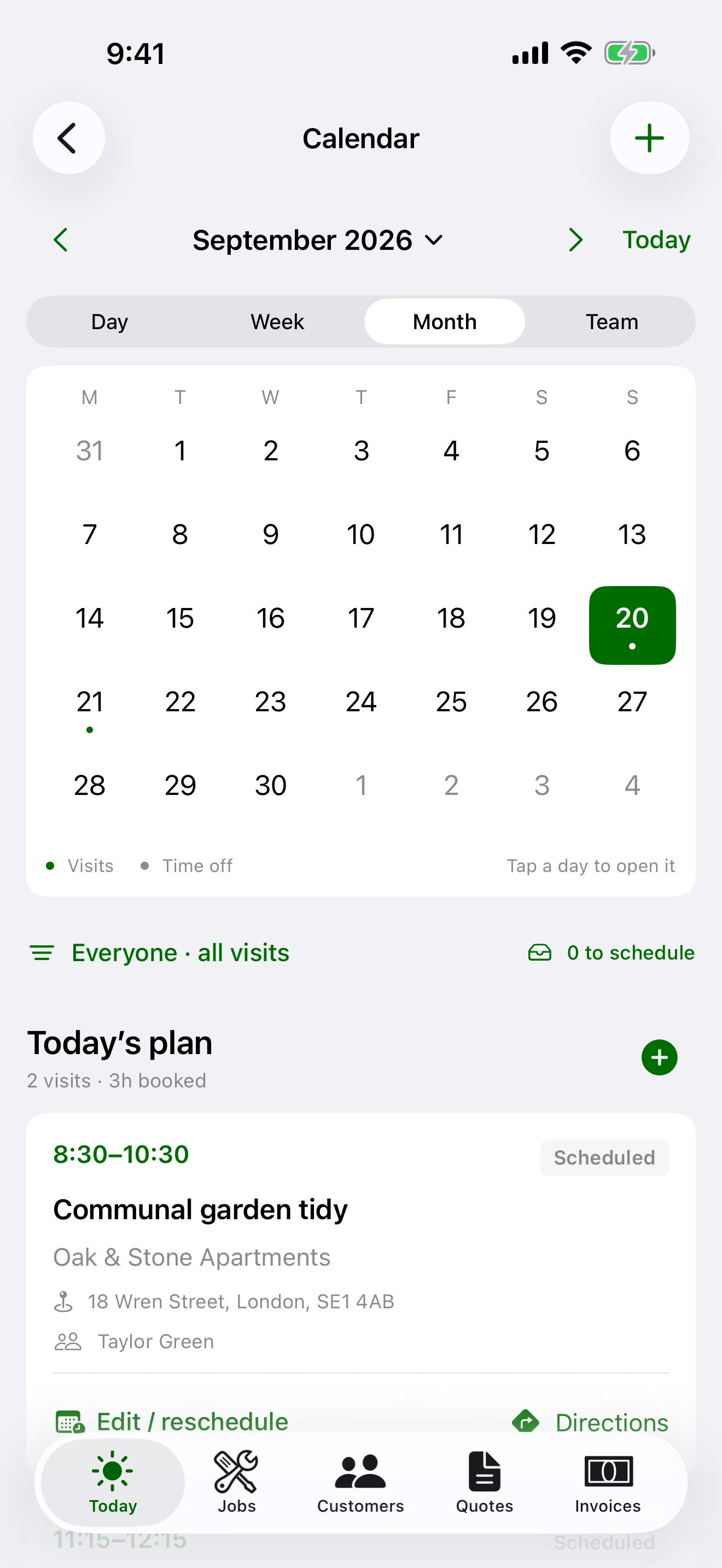
| The calendar button on Today | The calendar in Day, Week, Month and Team views, where you book and move visits. |
| Jobs | Each job with its visits, time and invoices. |
| Customers | Customers with their contacts and properties, what they owe and what has been sent to them. Owners and office members only. |
| Quotes and Invoices | Write and send them, ask for a deposit, record an acceptance, record a payment, collect an invoice by Direct Debit, run month end. Owners and office members only. |
| Settings, behind the account button | A Search box, your name, and Help in a group of its own. Then three groups. Your business: Time entries, Enquiries, Activity, Service catalogue, Team and Time off. Settings: Business details, Quotes and invoices, Getting paid, Emails, Website and portal and Connected apps, the same sections as the web. On this phone: Notifications, Appearance and Saved on this phone. Sign out is at the foot. |
On Today, the day's visits are on a map above their cards, as on the web: see The day's visits. You can move and zoom the map with your fingers. Once you have, tap Whole day, the round button in the map's corner, to see the whole day again.
A technician's app has Today and Jobs. Their Settings has Help, Time entries and Time off, Business details to read, Connected apps with their own AI assistants, and On this phone. See Roles.
In Help you search the help articles, Ask a question or Report a problem, and read our answers, as on the web: see Get help from TradeSender.
In Settings, Emails has the same email notes as the web, each opening with a preview of the email your customer gets under it. Connected apps lists the AI assistants you have connected, and each one's page has Disconnect. Website and portal has everything the web has for your enquiry form: the link, the Form code, Your own form address, the WordPress plugin and the Form key.
What the iPhone does that the web does not
- It works without signal. The app keeps a copy of your workspace on the phone and sends your changes when the connection returns. See Working without signal.
- It keeps the photos you take. On a visit, tap Add photos, then Take photo. The shot goes onto the visit and into your photo library, so a failed upload does not lose it.
- It tells you when something needs you. Everyone hears when they are booked on a visit, when it moves, and when a visit of theirs today or tomorrow is no longer theirs. Owners and office members also hear of new enquiries, customers' answers to quotes, payments made online and Direct Debits that fail. See Notifications on your iPhone.
- It puts the day on your car's screen. In a car with Apple CarPlay, the day's visits are on the car's screen, where you can get directions, call the customer, send On my way, and start and finish a visit. See TradeSender in the car with CarPlay.
What is only on the web
Sign in at app.tradesender.co.uk in Safari for these.
| On the web only | Where |
|---|---|
| API keys | Settings, then API keys. See API keys. |
| Importing customers from a file, and the exports | Settings, then Import and export. See Import customers and export your records. |
| Choosing which invoices one payment from a customer goes to | Record payment on the customer's page. The app applies the payment to the oldest invoices first. See One payment across several invoices. |
| The Schedule's Agenda view | Schedule. The app's calendar has Day, Week, Month and Team. |
| Your plan and billing | Settings, then Plan and billing. See Plans. |
| Stripe's own pages | An owner can start Connect Stripe in the app, under Getting paid. Stripe's page opens in Safari. When you finish or leave it, Stripe shows Back from Stripe, which tells you to go back to the app. The app shows the new line the next time it opens. See Take payment online. |
| What your customers do | Paying an invoice, accepting a quote and setting up a Direct Debit all happen on your customers' own pages, in a browser. |
| Choosing a password from an invitation or a reset email | The link in the email opens in your browser. |
Sign out
Tap the account button, then Sign out at the foot of Settings. If changes are still waiting to sync, the app asks you to sync or review them first, so nothing saved on the phone is lost.
Checked against the app on 29 October 2026. Still stuck? Ask usAsk us.