Send from your own mailbox
Have your quotes, invoices and reminders reach customers from your own email address, through Gmail, Microsoft or any SMTP server.
TradeSender emails your quotes and invoices for you. Unless you change it, they come from quotes@tradesender.co.uk and invoices@tradesender.co.uk, under your business name. An owner can connect a mailbox so they come from your own address instead. Every workspace can, on the web and in the iPhone and Android apps.
What changes when you connect
| TradeSender sends | Your mailbox sends | |
|---|---|---|
| Your customer sees | Green & Co. at quotes@tradesender.co.uk or invoices@tradesender.co.uk | Green & Co. at your own address |
| The email travels through | TradeSender | Gmail, Microsoft or your mail server |
| Replies go to | Your Business email | The mailbox you connected |
When TradeSender sends, a reply goes to Business email in Settings, Business details. If that is empty, it goes to the person who sent the quote or invoice.
When your own mailbox sends, a reply goes back to that mailbox, as it does for any email you send from it. Business email is not used for replies then.
A workspace has one mailbox. Every quote and invoice goes through it, whoever in the team sends it.
What goes through your mailbox
The quotes and invoices you email to customers go through it, with the copy you get when you tick Send me a copy. So do:
- The invoices a month-end run emails.
- The sign-in links for the customer portal: the one you send from a customer's page, and the one a customer asks for on the portal's sign-in page.
- The automatic emails: overdue invoice reminders, quote follow-ups and visit reminders, and a reminder someone sends with Send reminder now.
Everything else still comes from TradeSender, from noreply@tradesender.co.uk. That includes:
- Password resets and team invitations.
- The email that tells you a customer accepted or declined a quote.
- The email that tells you a website enquiry arrived.
- The daily email of what TradeSender sent your customers by itself.
The limit of 100 emails a day that a workspace sends by hand stays the same. Your mail provider has limits of its own, which a large month-end run can reach.
Connect a mailbox
Only an owner can connect or disconnect. Everyone else sees "Only the workspace owner can change email sending."
Open Settings, then Emails. At the top, Sent from reads "TradeSender" until you connect a mailbox.
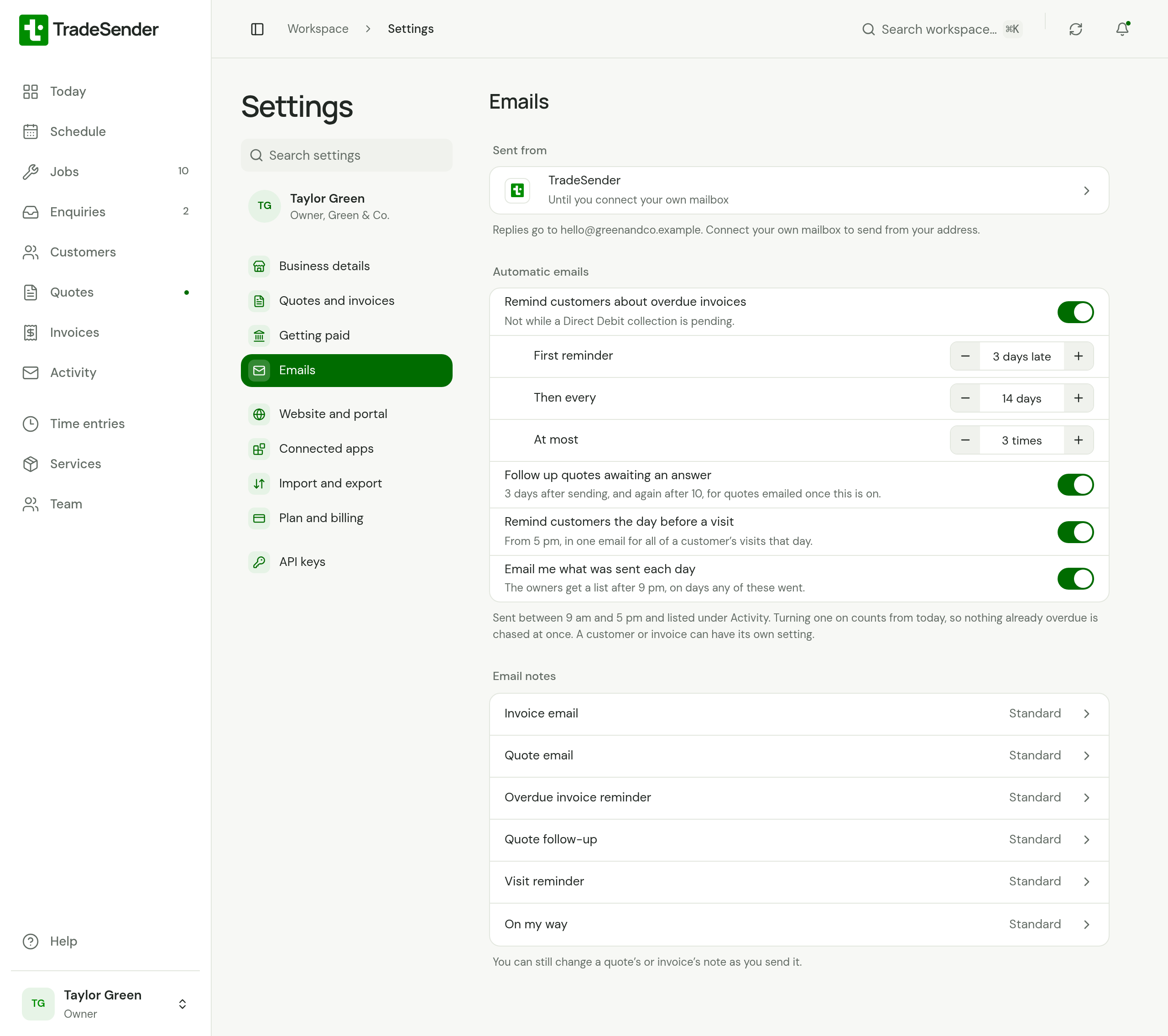
Choose Sent from. The sheet that opens lists the ways to connect, under Connect your mailbox. Pick the one that matches your email:
| Your email is with | Row | Choose | Steps |
|---|---|---|---|
| Gmail or Google Workspace | Gmail | Connect Google | Send from Gmail or Google Workspace |
| Outlook or Microsoft 365 | Outlook | Connect Microsoft | Send from Outlook or Microsoft 365 |
| Anyone else | Other mail server | Use SMTP | Send through SMTP |
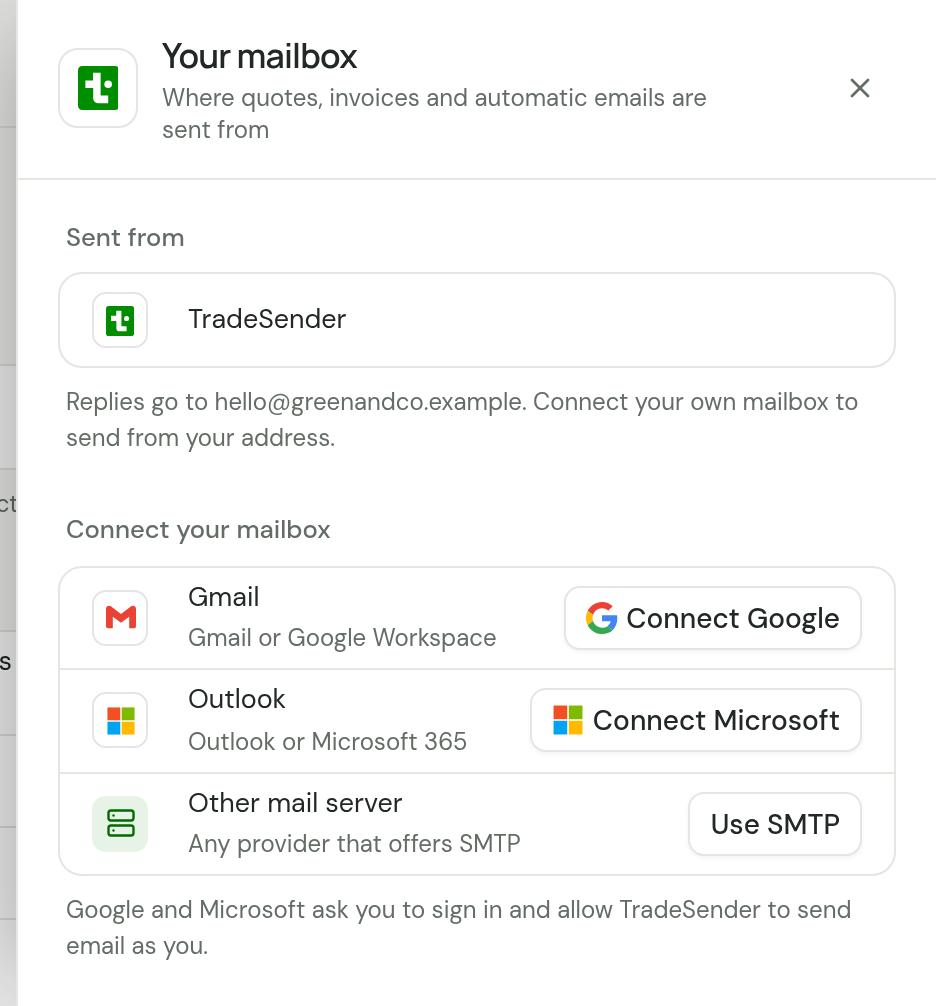
The same three are cards in Settings, Connected apps, which open this sheet too. Once a mailbox is connected, Sent from shows its name and your address in place of "TradeSender", and its card reads Sending.
There is no test email. To see what your customer receives, tick Send me a copy the next time you send a quote or invoice.
If your mailbox stops working
What TradeSender does depends on how the mailbox fails.
The mailbox refuses TradeSender's sign-in. This happens when the password changes, or when you take away TradeSender's access at Google or Microsoft. TradeSender then does three things:
- It disconnects the mailbox.
- It sends that email from its own address, so your customer still gets it. A reply then goes to your Business email.
- It emails your Business email, or the owners if you have not set one. The subject is "TradeSender can no longer send email from" and your address.
Later quotes and invoices come from TradeSender until an owner connects the mailbox again.
The mailbox cannot be reached, or is slow, or turns the email away for now. TradeSender tries again, five times in all, waiting longer between tries. It does not switch to its own address for this kind of failure.
Disconnect
Open Settings, then Emails, and choose Sent from. At the foot of the sheet, choose Disconnect. Quotes and invoices go back to being sent by TradeSender, and TradeSender deletes the sign-in details it held for the mailbox.
To change to a different mailbox, disconnect first. The ways to connect come back once nothing is connected.
Checked against the app on 29 October 2026. Still stuck? Ask usAsk us.