Time entries
See the hours recorded on visits and jobs, week by week, and add, correct or remove an entry by hand.
Everyone has Time entries in the sidebar. Technicians see their own time. Owners and office members can see the whole team's. This page follows the web. In the iPhone and Android apps, tap the account button: Time entries is in Settings, under Your business.
How time gets recorded
Timers start from a visit. There is no separate clocking-in screen.
| When you | Your timer |
|---|---|
| Choose Start visit | Starts on that visit |
| Choose Start timer on a visit already in progress | Starts, alongside your crew mates' |
| Choose Stop timer | Stops. The visit stays in progress |
| Choose Finish visit | Stops, with everyone else's on that visit |
| Start another visit | Stops on the first visit and starts on the second |
You have one timer at a time. Each stretch from start to stop is one time entry, kept on the visit and on its job. See Work a visit.
Read the page
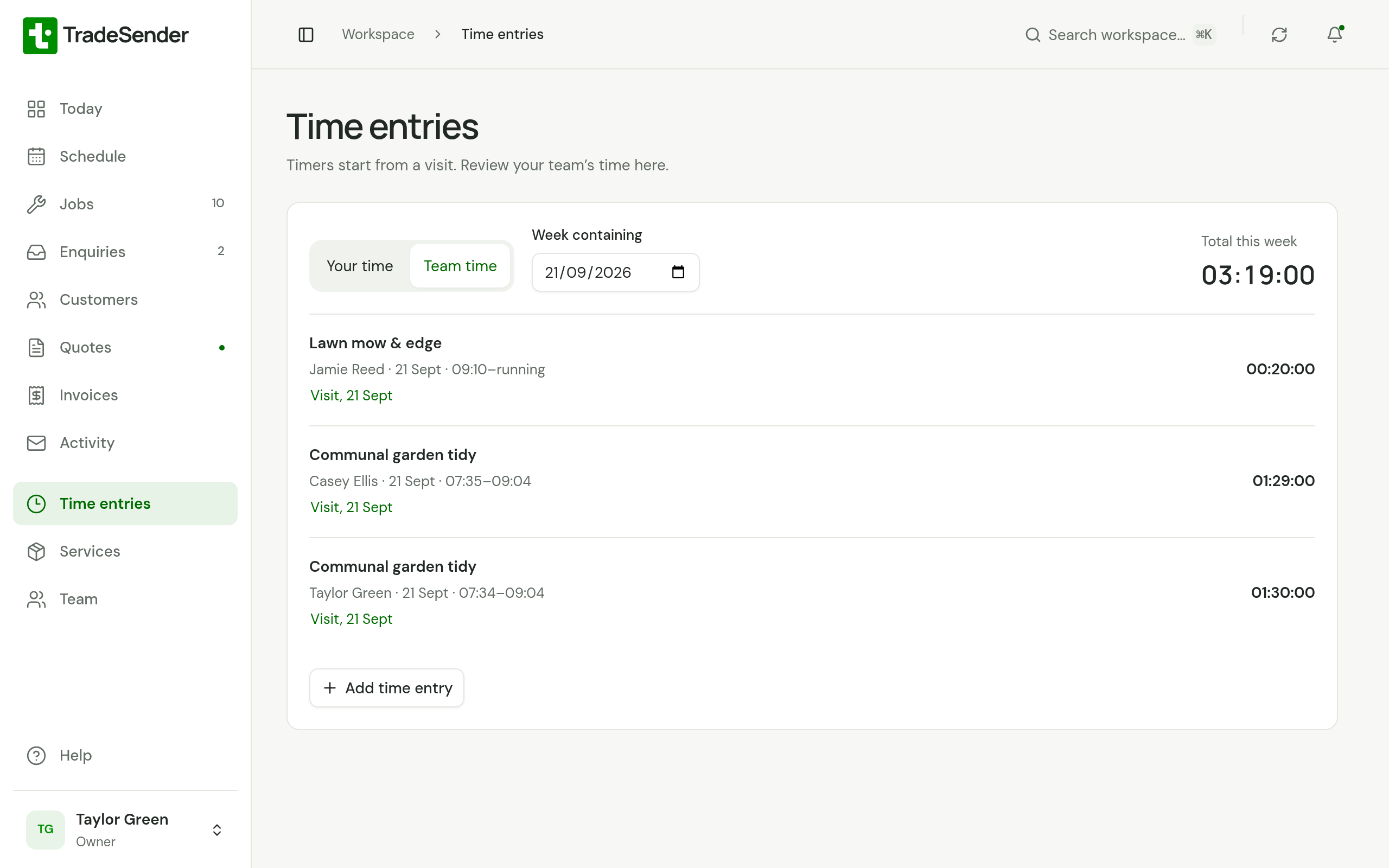
- Week containing takes any date. The list shows that week, Monday to Sunday, newest first.
- Each entry shows the job, the date, the time clocked in and out, and its length in hours, minutes and seconds. A timer still going reads "running" and counts up.
- An entry made from a visit links to that visit.
- Choose an entry to open it.
The same list is on every job's page under Time entries, for that job only.
Your time and Team time
Owners and office members have a switch above the list. Your time shows your own entries. Team time shows everyone's, with each person's name.
Technicians have no switch. They see their own time and nobody else's.
What the total means
Total this week adds up the entries in the list, for the week you chose.
- With Team time it is everyone's hours together. Two people on the same visit for an hour count as two hours.
- An entry that crosses into another week counts only the part inside this one.
- A running timer is counted up to now.
Time is a record of hours worked. It does not change a job's price or what goes on its invoice.
Add an entry by hand
Use this for time you recorded somewhere else.
-
Choose Add time entry. On a job's page the job is already chosen.
-
Choose the Job.
-
Owners and office members choose the Person. A technician's entries are always their own.
-
Set Clocked in and Clocked out. They start as the last hour.
-
Add a note under What did you work on? (optional) if it helps, and choose Create time entry.
An entry cannot end before it starts, cannot be in the future and cannot overlap another entry for the same person. A technician can add time only to a job they have a visit on.
An entry added by hand belongs to the job. It is not tied to a visit.
Correct or remove an entry
Choose the entry. Time entry opens with the Person, Clocked in, Clocked out and Duration, and a link to Open visit or Open job.
| What is wrong | What to do |
|---|---|
| A timer was left running | Choose Stop timer. An owner or office member can stop anyone's from Team time. |
| The times are wrong | Choose Edit, change Clocked in or Clocked out, and choose Save changes. |
| The note is wrong | Choose Edit and change What did you work on? (optional). |
| It is on the wrong job, or under the wrong person | Choose Delete time entry, confirm, then add it again by hand. Job and Person cannot be changed on an entry. |
| It should not be there | Choose Delete time entry, then Delete time entry again to confirm. |
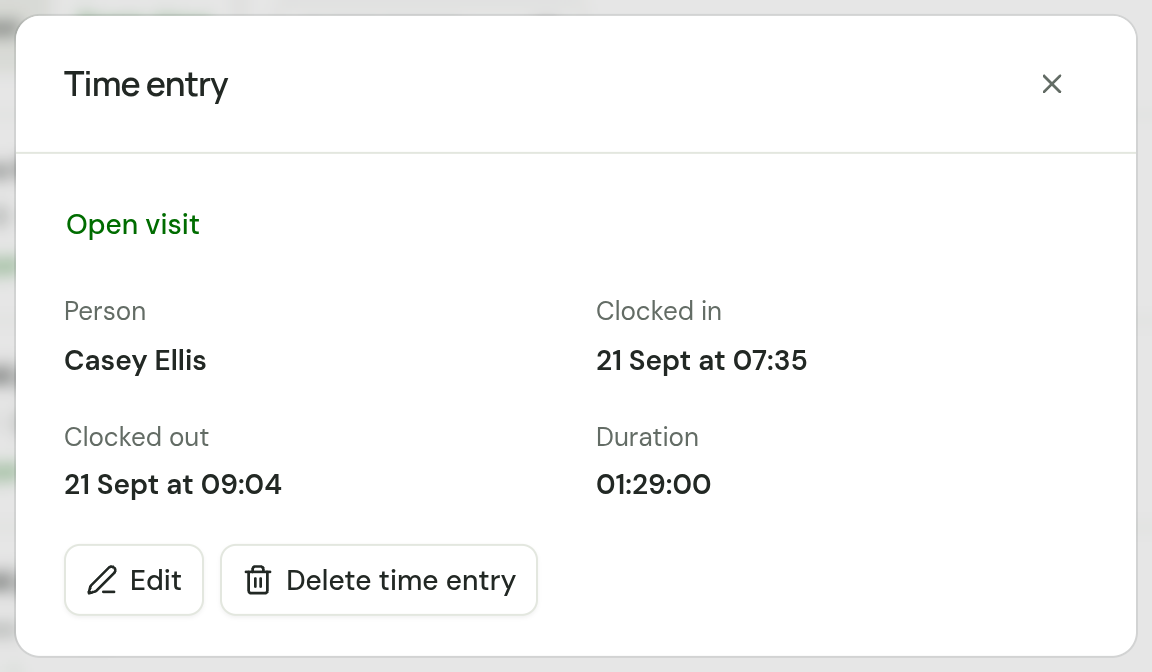
Edit is on a finished entry. Stop a running timer first. The same rules hold as for a new entry: it cannot end before it starts, cannot be in the future and cannot overlap another entry for the same person.
You can stop, edit or delete your own entries. Owners and office members can do the same to anyone's. The phone apps have Edit on a finished entry too.
Who can do what
| Technician | Owner and office | |
|---|---|---|
| See their own time | Yes | Yes |
| See the team's time | No | Yes |
| Add time for themselves | Yes | Yes |
| Add time for someone else | No | Yes |
| Edit or delete their own entry | Yes | Yes |
| Stop, edit or delete someone else's entry | No | Yes |
Checked against the app on 29 October 2026. Still stuck? Ask usAsk us.