Turn a quote into a job
Create the job from an accepted quote, with its customer, property, scope and prices already filled in.
When a customer says yes, you create the job from the quote, so nothing is typed twice. Owners and office members do this, on the web and in the iPhone and Android apps. This page follows the web.
First, the quote must read Accepted
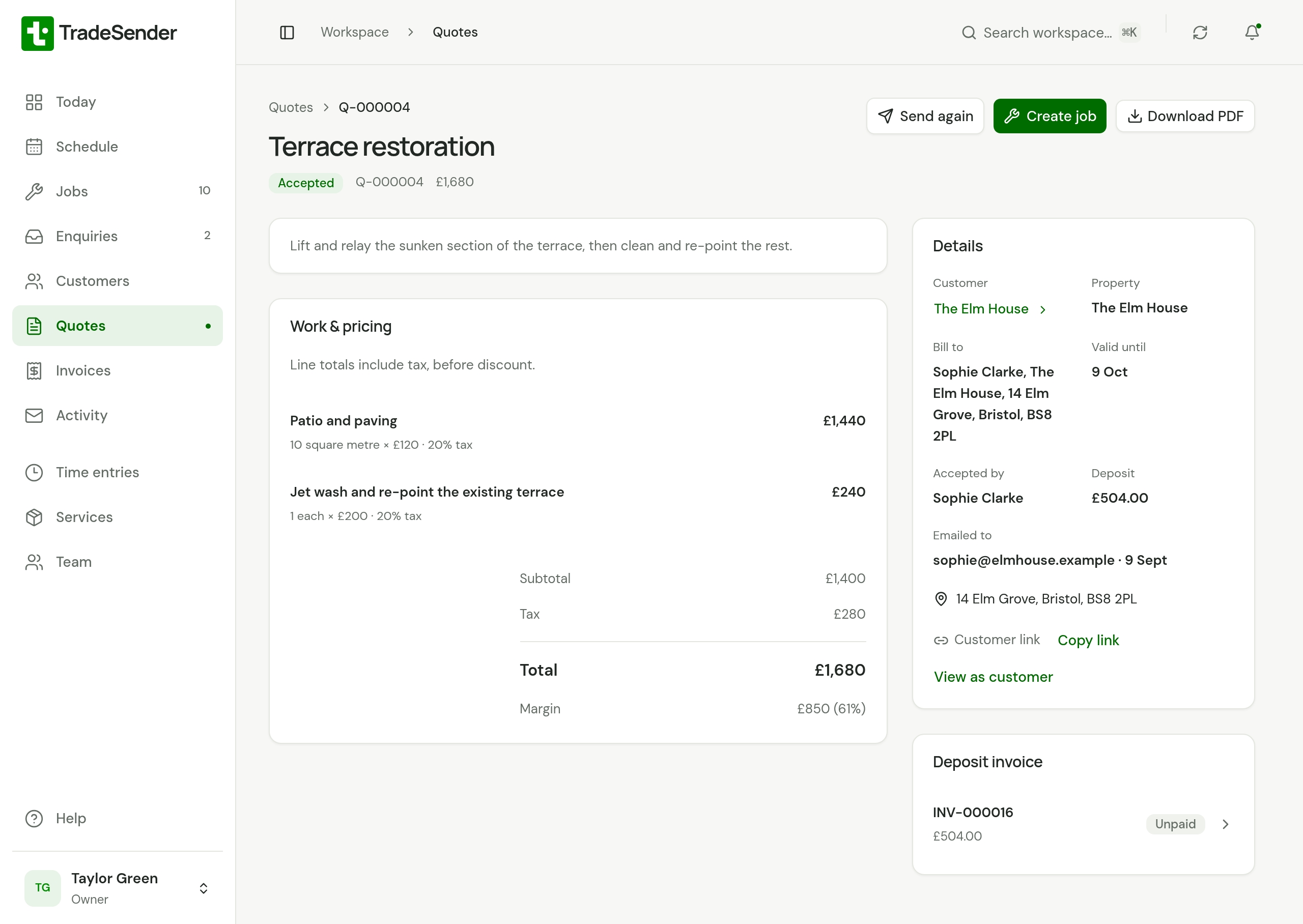
Create job shows on a quote whose status is Accepted.
| The quote reads | Do this first |
|---|---|
| Accepted | Nothing. The customer accepted online, or you have already recorded it. |
| Sent, and the customer agreed by phone or in person | Choose Record acceptance, check the name under Accepted by, and choose Record acceptance. |
| Draft | Send it. If you gave it to the customer another way, choose Send quote, then Mark as sent without emailing. Then record the acceptance. |
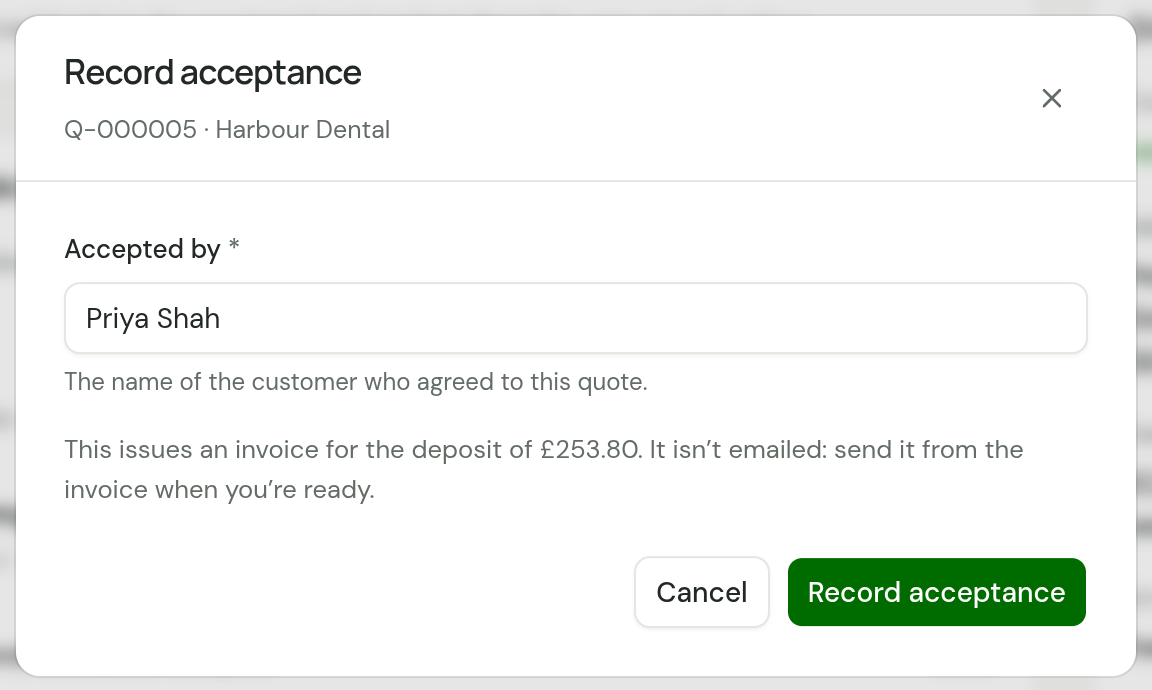
Accepted by starts with the customer's contact name. Change it if someone else agreed. The phone apps have the same Record acceptance button.
A quote with a deposit
Accepting a quote that asks for a deposit issues an invoice for it straight away, whoever accepts.
- The customer accepted online. The deposit invoice was emailed to them as they accepted.
- You record the acceptance. The dialog says "This issues an invoice for the deposit of £253.80. It isn’t emailed: send it from the invoice when you’re ready." Afterwards the message reads "Quote accepted. Its deposit invoice is ready to send."
Either way the quote's page has a Deposit invoice panel that opens it. You do not need to wait for the deposit to be paid before you create the job: TradeSender does not stop you.
A quote past its Valid until date reads Expired and cannot be recorded as accepted. Send it again with a new date first: see A quote that has expired.
Create the job
-
Open the accepted quote and choose Create job. Accepted quotes are also listed under Needs attention on Today as Quote accepted: create a job.
-
A form opens, titled New job from and the quote's number, with the quote's details filled in. Change the Job title or the lines if the work has changed since you quoted.
-
Under When, choose Today, Tomorrow or Pick a day, set the times and tick the Crew. If you have no date yet, tick Schedule later.
-
Choose Save job. The job and its first visit are saved together.
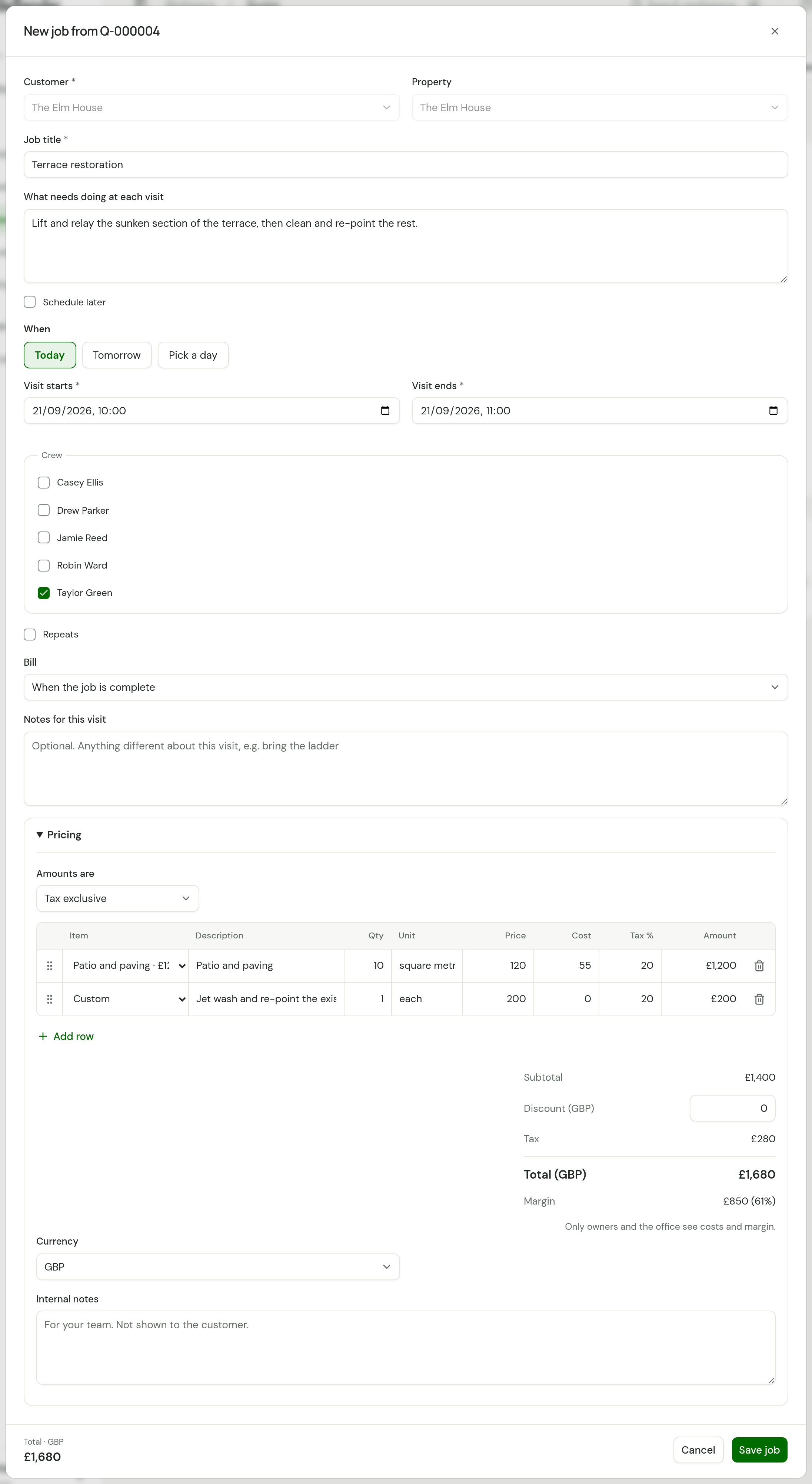
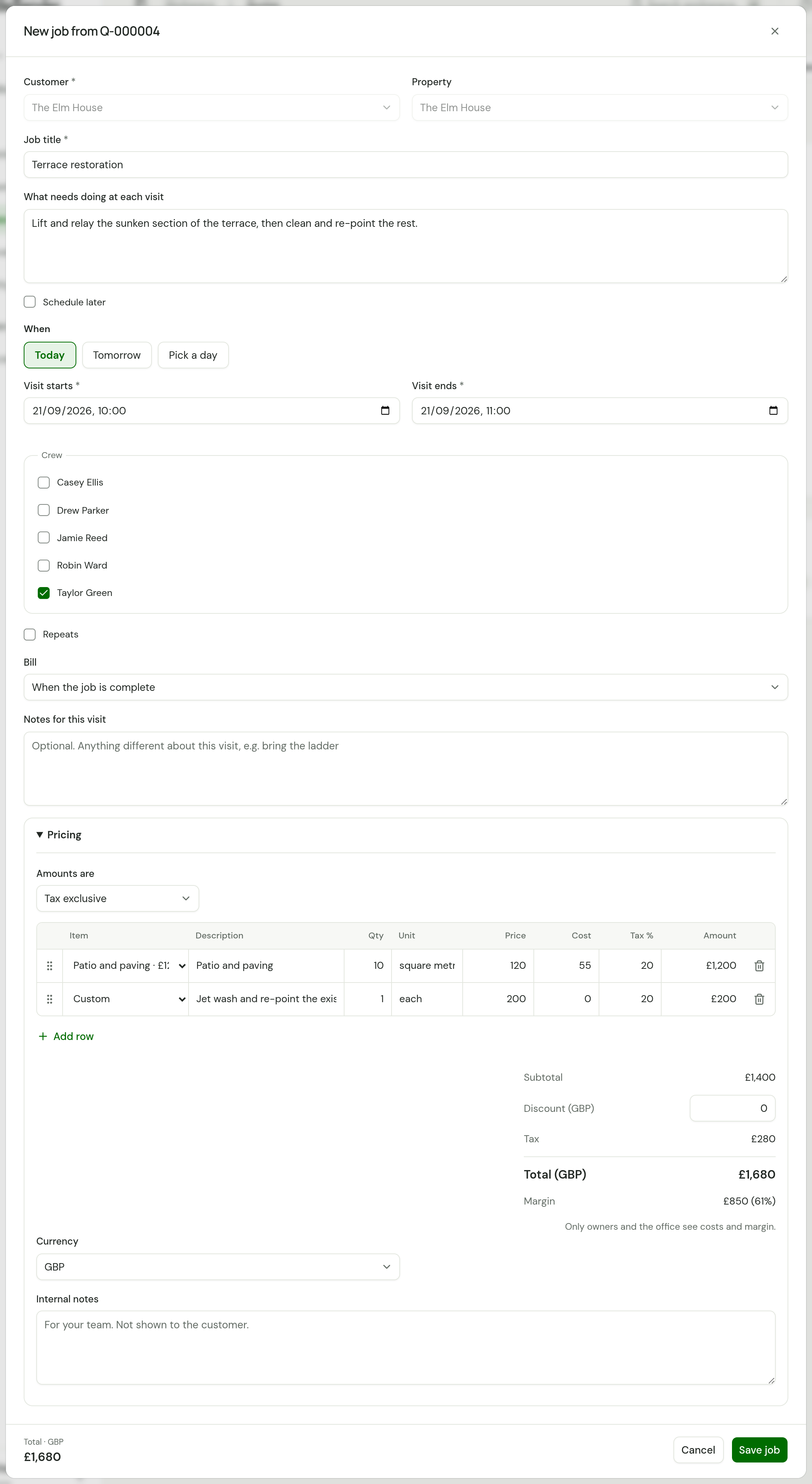
Create a job covers the rest of the form: repeats, how the job is billed, and notes.
What is copied across
| From the quote | On the job |
|---|---|
| Customer and property | Customer and Property. They are fixed and cannot be changed on this form. |
| Quote title | Job title |
| Description | What needs doing at each visit |
| Each line, with its quantity, unit, price, tax and what it costs you | The lines under Pricing |
| Discount and currency | Pricing |
The job has its own copy. Changing the job afterwards leaves the quote as the customer accepted it.
What the quote shows afterwards
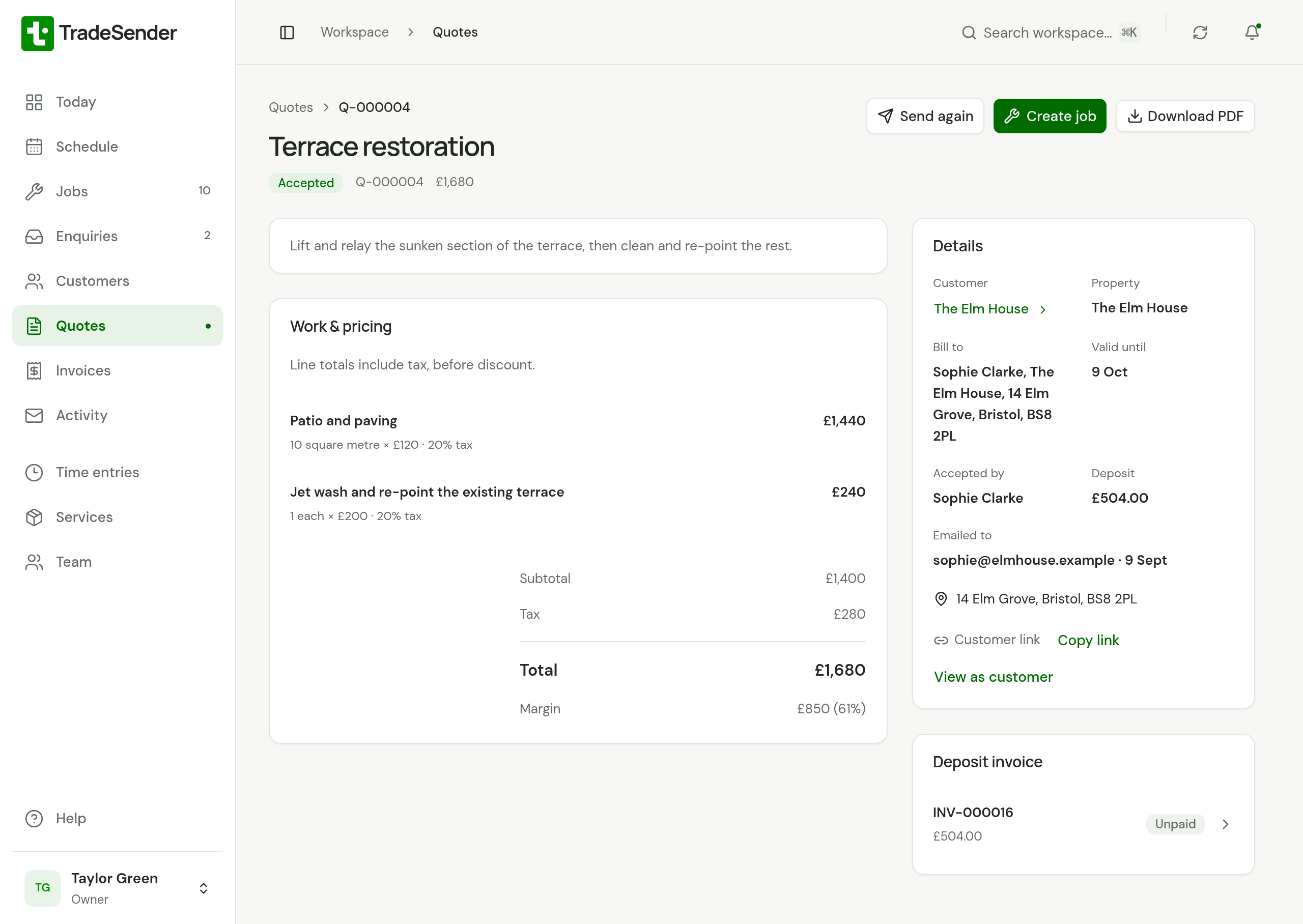
The quote still reads Accepted. Open job takes the place of Create job, and a Job panel lists the job's number, title and status.
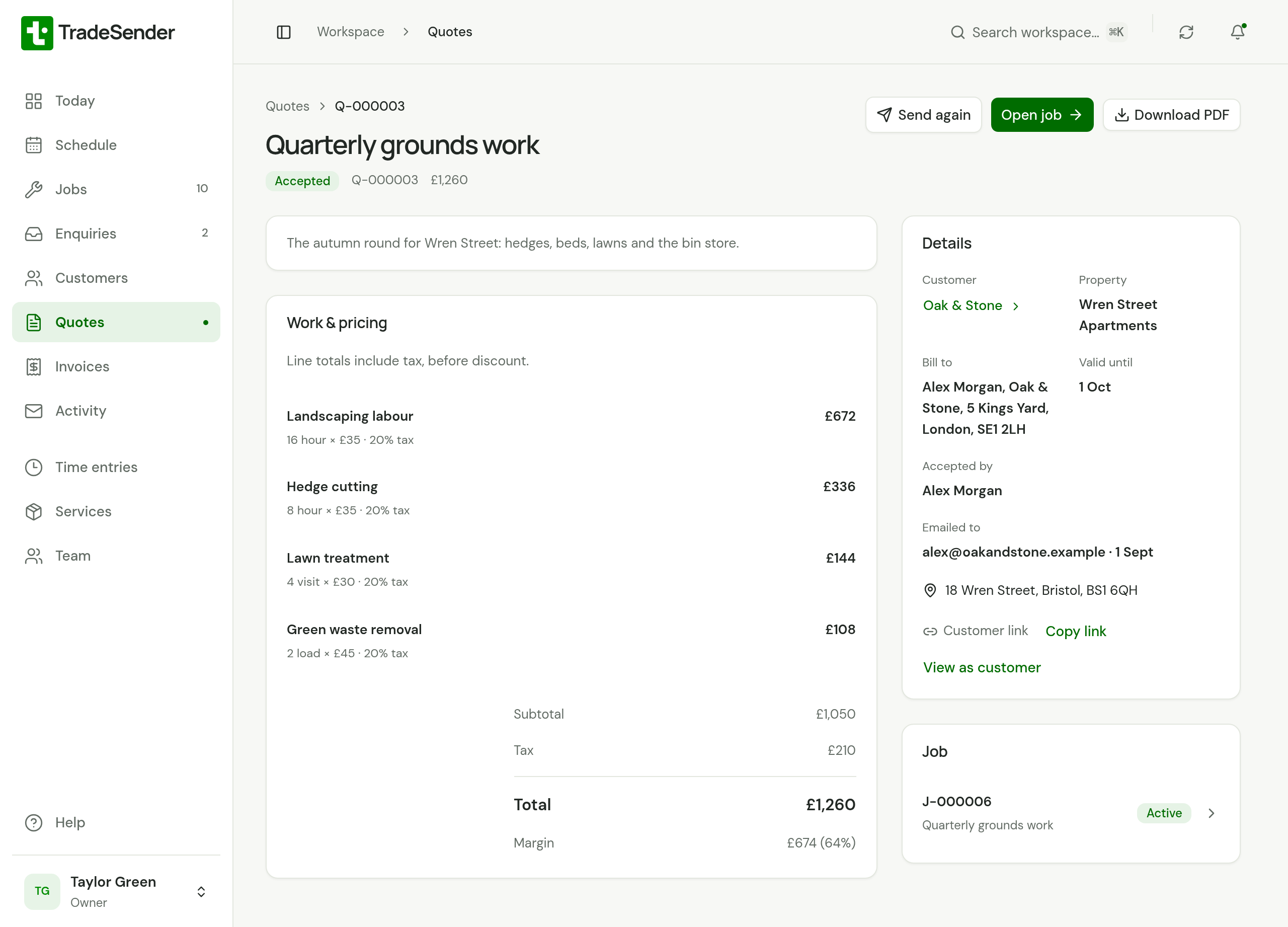
- One quote makes one job.
- The quote leaves Needs attention.
- The quote opens the job, and the job's page has a Quote panel that leads back to the quote.
- When the quote had a deposit, the job's page lists the deposit invoice under Invoices, and says "The deposit of £504.00 on INV-000016 is still to be deducted. It comes off this job’s invoice." until the job is invoiced. See The invoice for the work.
Checked against the app on 29 October 2026. Still stuck? Ask usAsk us.