Send from Gmail or Google Workspace
Connect a Gmail or Google Workspace mailbox so your quotes and invoices reach customers from your own Google address.
An owner connects the mailbox, on the web or in the iPhone or Android app. This page follows the web. You need the Google account whose address your customers should see. It does not have to be the account you sign in to TradeSender with.
Connect
-
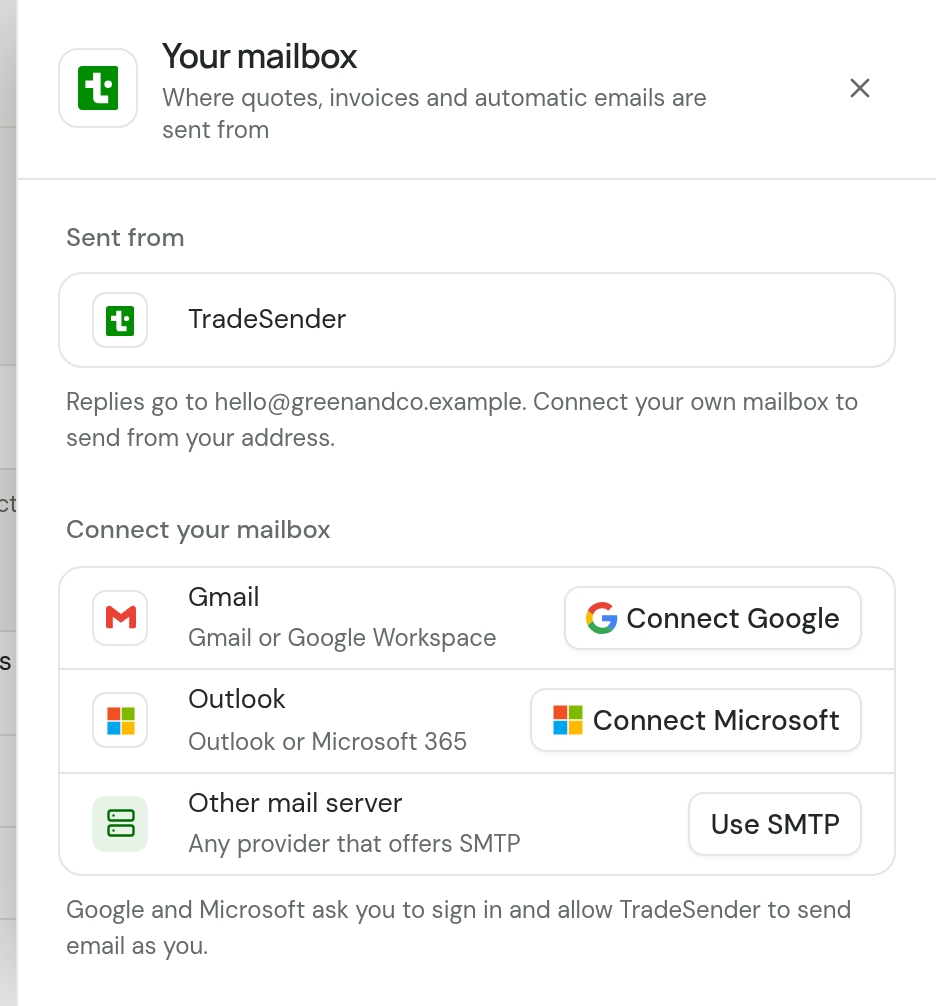
Open Settings, then Emails, and choose Sent from. The Your mailbox sheet opens.
-
Under Connect your mailbox, on the Gmail row, choose Connect Google.
-
Google opens. Sign in to the account you want to send from, or pick it from the list.
-
Google lists what TradeSender is asking for. Allow it. If Google puts a tick box beside sending email, tick it. Without it TradeSender cannot send from your address, and it refuses the connection.
-
You come back to Settings, Emails, with the sheet open. It reads "Your mailbox is connected.", and Sent from shows your Google address, marked Sending.
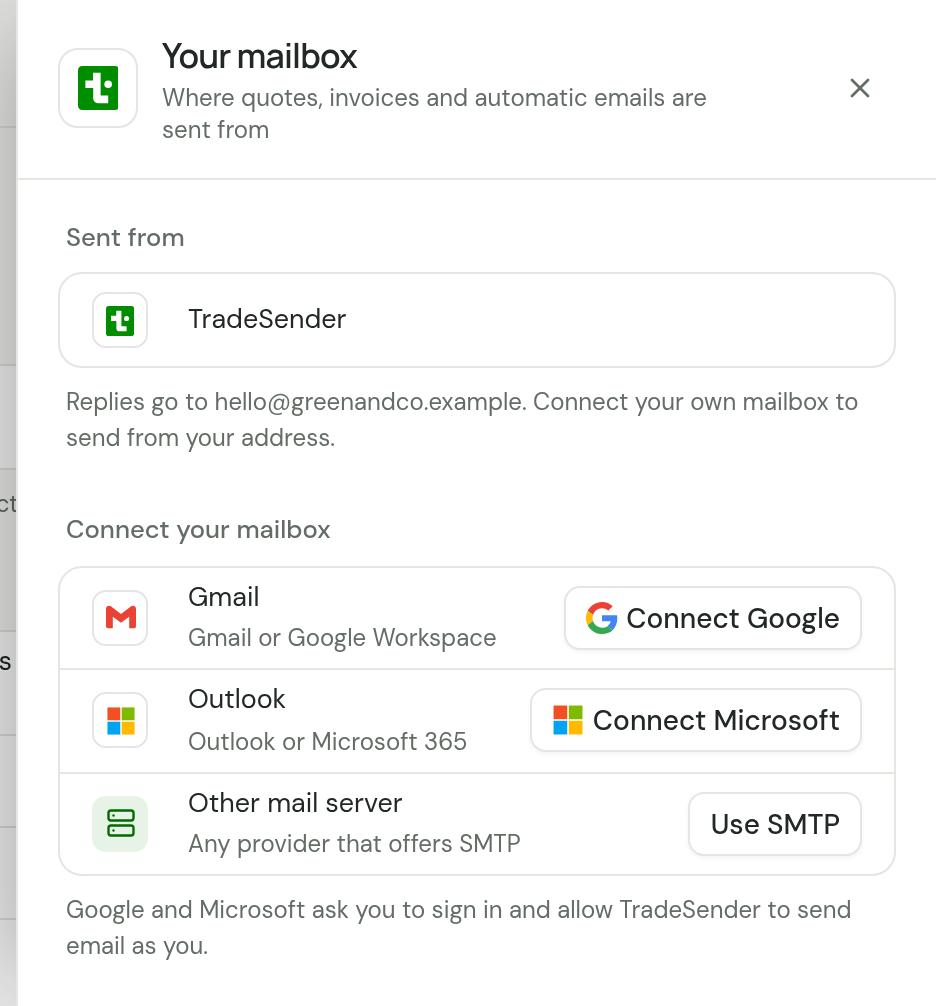
You have 10 minutes from choosing Connect Google to finishing at Google.
In the iPhone or Android app, tap the account button, then Emails, then the row under Sent from, which reads TradeSender until a mailbox is connected. Connect Google is there.
What Google asks you to allow
TradeSender asks Google for two things:
- Your email address. TradeSender needs it to know which address your quotes and invoices come from.
- Sending email. Google words this "Send email on your behalf".
What TradeSender can and cannot do
With that permission TradeSender can send an email from your address. It does so when someone in your workspace emails a quote, an invoice or a portal sign-in link, and for any automatic emails you have switched on.
It cannot read, search or delete your email, and it cannot see your contacts, calendar or files. It never asks Google for any of that.
TradeSender keeps your mailbox address and a token from Google that lets it send. The token is stored encrypted. TradeSender never sees your Google password.
Check it works
There is no test email. The next time you send a quote or invoice, tick Send me a copy. Your copy shows the address your customer sees.
If it does not connect
| What you see | Why | What to do |
|---|---|---|
| "Tick “Send email on your behalf” and try again." | You left Google's tick box for sending email unticked. | Choose Connect Google again and tick it. |
| "Couldn’t connect your mailbox. Please try again, or use SMTP." | You cancelled at Google, Google did not give TradeSender lasting access, or you are no longer an owner. | Choose Connect Google again and allow everything Google lists. |
| "This took too long. Start again from Settings, Emails." | More than 10 minutes passed at Google. You are still signed in to TradeSender. | Choose Connect Google again. |
| No Connect Google, and "Only the workspace owner can change email sending." | You are not an owner of the workspace. | Ask an owner to connect it. |
If Google stops accepting the connection later, TradeSender disconnects the mailbox and sends from its own address: see If your mailbox stops working.
Disconnect
Open Settings, then Emails, and choose Sent from. The sheet is headed Gmail. Choose Disconnect at its foot.
Quotes and invoices go back to being sent by TradeSender. TradeSender deletes the token and asks Google to cancel it.
To check for yourself, or to remove the permission from Google's side, open the linked apps page of your Google Account, choose TradeSender and choose Remove access. Google's own steps are in Manage links between your Google Account & apps from other developers.
If you remove access at Google and leave the mailbox connected in TradeSender, the next quote or invoice cannot go through Google. TradeSender then disconnects the mailbox, sends from its own address and emails you to say so.
Checked against the app on 29 October 2026. Still stuck? Ask usAsk us.