The customer portal
One page where each of your customers sees their quotes, booked visits, finished work and invoices from you, pays what they owe and sets up a Direct Debit, with no password to remember.
Every workspace has a customer portal. It is a page with your name and logo on it, where a customer sees everything of theirs in one place: what you have quoted, what is booked, what you have done and what they owe. They sign in with a link, never a password.
Every workspace has the portal. You do not switch it on.
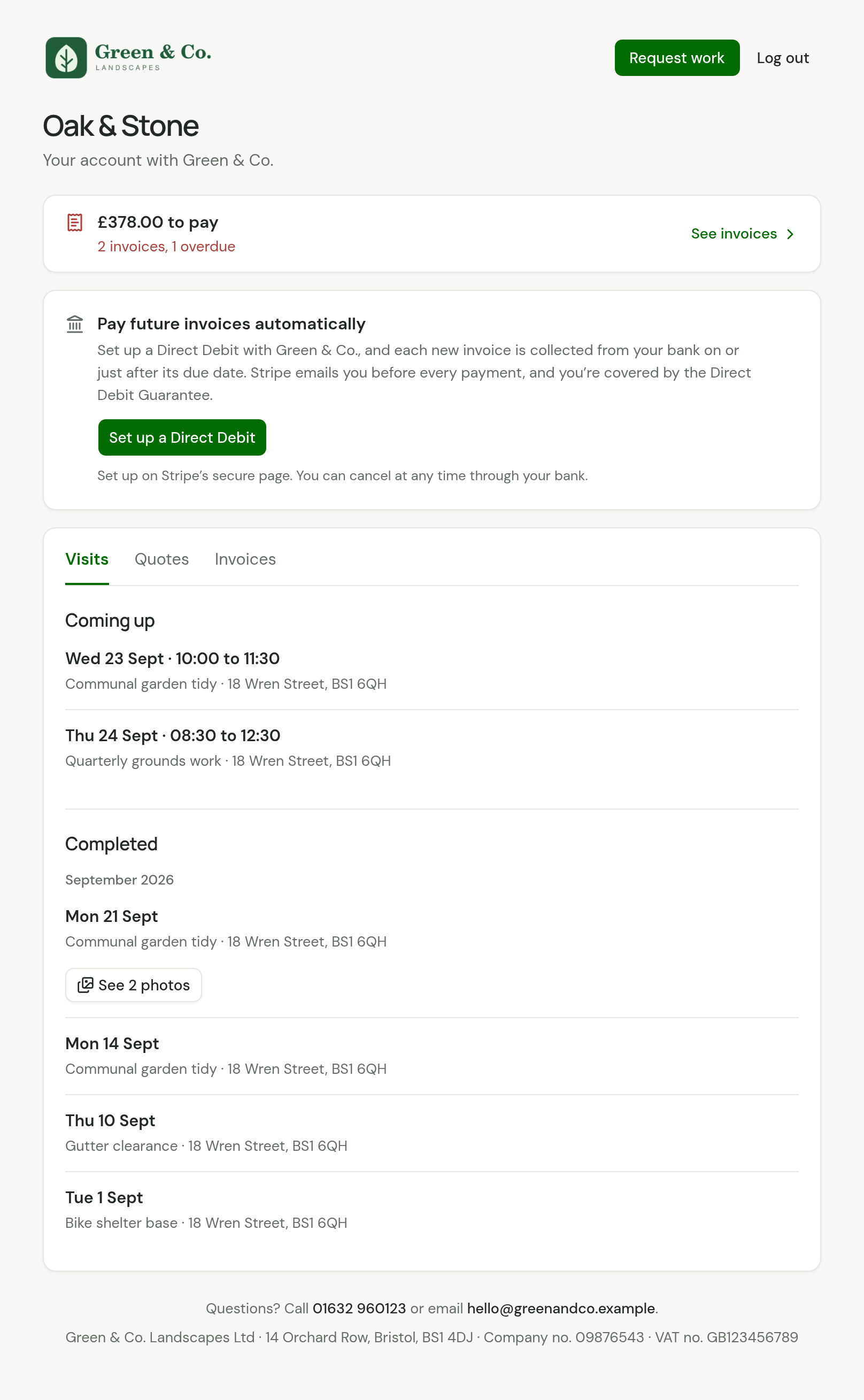
What your customer sees
At the top are your logo, the customer's name and Request work. Under those is what is waiting on them, each with its way there:
- a quote you have sent that they have not answered, which opens that quote
- what is left to pay across their invoices, which opens the invoice, or the list when there is more than one. When it is one invoice they can pay online, the link reads Pay
- what their Direct Debit is going to collect, with the day, and what is already being collected
When nothing is waiting and they have had an invoice from you, it reads Nothing to pay right now.
Under that, when you collect by Direct Debit, is a card about theirs: the offer to set one up, or how far it has got. See Direct Debit.
Below that are three tabs.
| Tab | What is in it |
|---|---|
| Visits | Under Coming up, the visits booked from today onwards, soonest first. Each line leads with the day and the time, then the work and the property. A visit you are on shows In progress. Under Completed, every visit you have finished, latest first and month by month, with the day, the work and the property. |
| Quotes | The quotes you have sent them, newest first, each with its total. One they have not answered reads Awaiting answer. Each opens its own page, where they accept or decline it. |
| Invoices | The invoices you have sent them, newest first, each with its total and whether it is paid. One you wrote off reads Written off, and its page shows the amount written off with nothing left to pay. Each opens its own page, with how to pay. One they can pay online has a Pay button, one their Direct Debit will collect is labelled Direct Debit with its day, and the invoice for a quote's deposit is marked Deposit. |
Your customer never sees the word job. Each visit carries the title of the job it was for, so a weekly round reads as a list of the days you came. Two visits to one job that finish on the same day are one line.
The portal opens on Visits every time. What needs the customer is said above the tabs, so the tabs do not move.
Request work is how a customer asks for something else: see Asking for more work.
At the foot are your phone number and email address, which a phone can ring or write to with one tap, then your legal name, address, company number and VAT number.
On a phone the same page sits in one column, and Log out is at the foot.
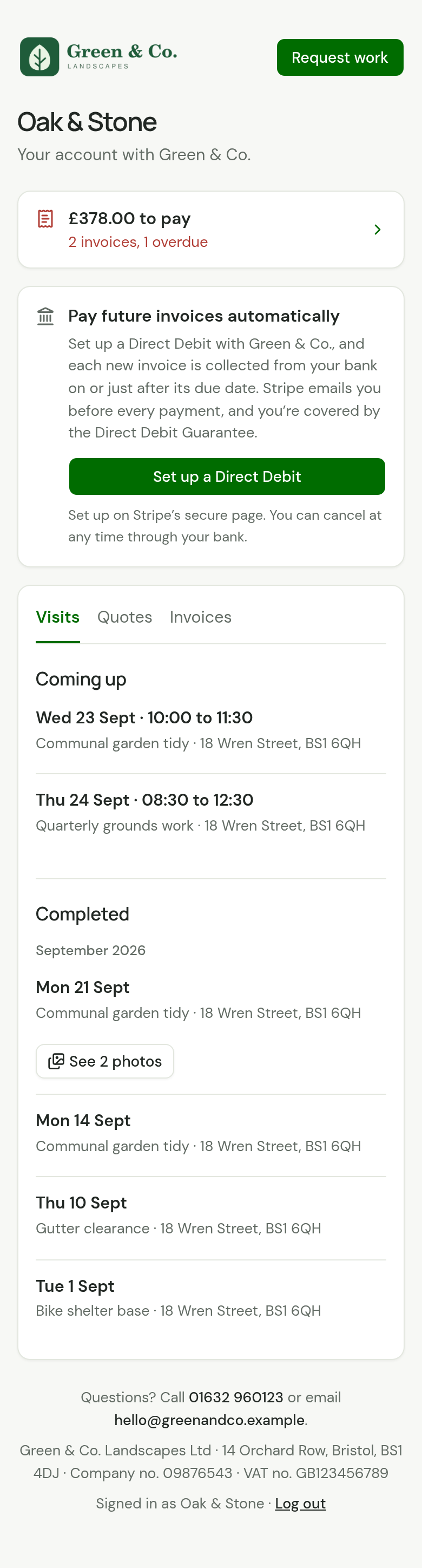
Photos of finished work
A completed visit with photos has a button under it such as See 2 photos. The customer chooses it and that day's photos open on the page.
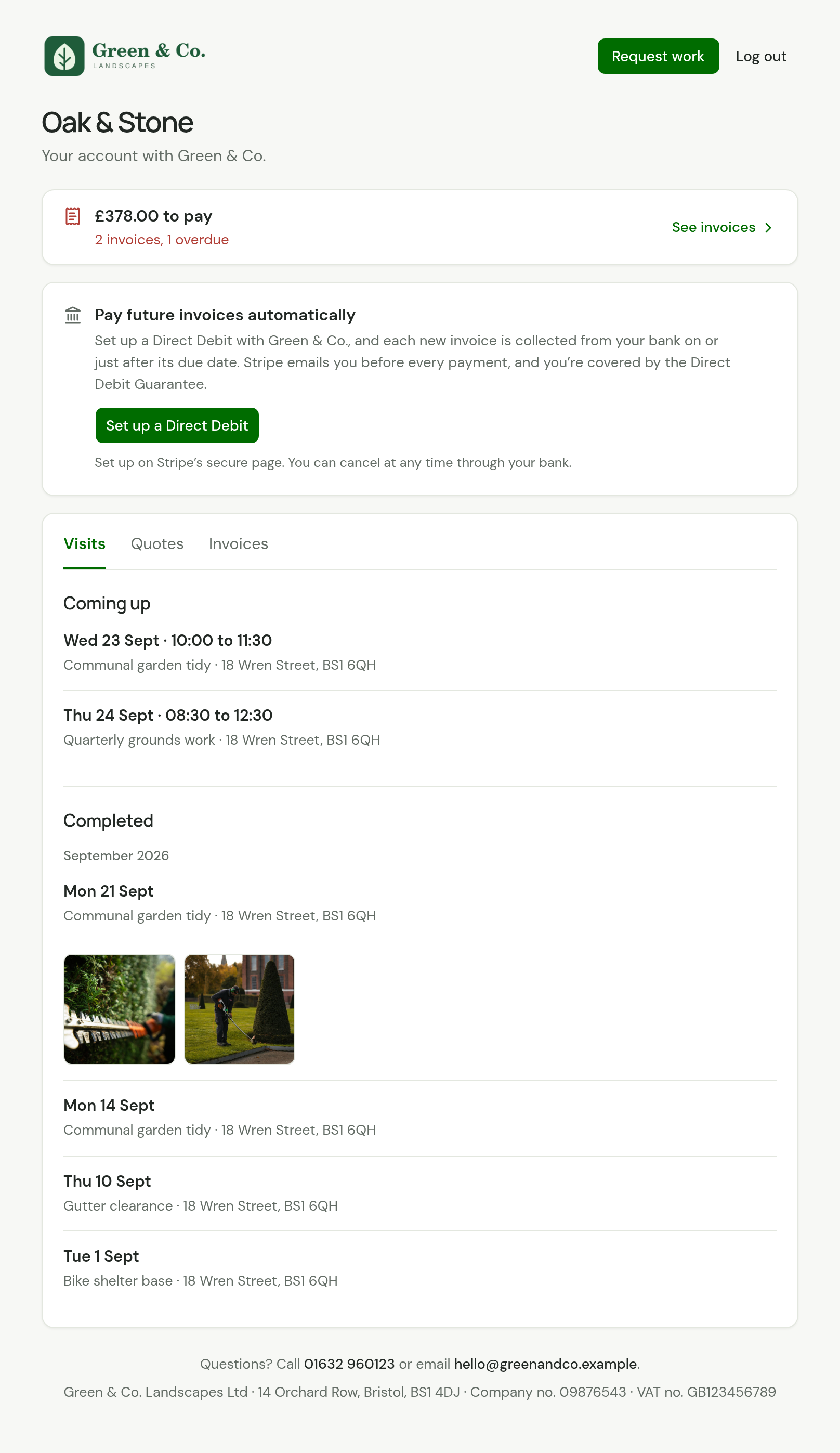
Paying an invoice
The portal takes no payment itself. Pay opens the invoice's own page, where your customer pays on Stripe's page or reads your bank details. See What your customer sees.
Pay is there only when you take payment online. Without it, each invoice still opens its page with your bank details.
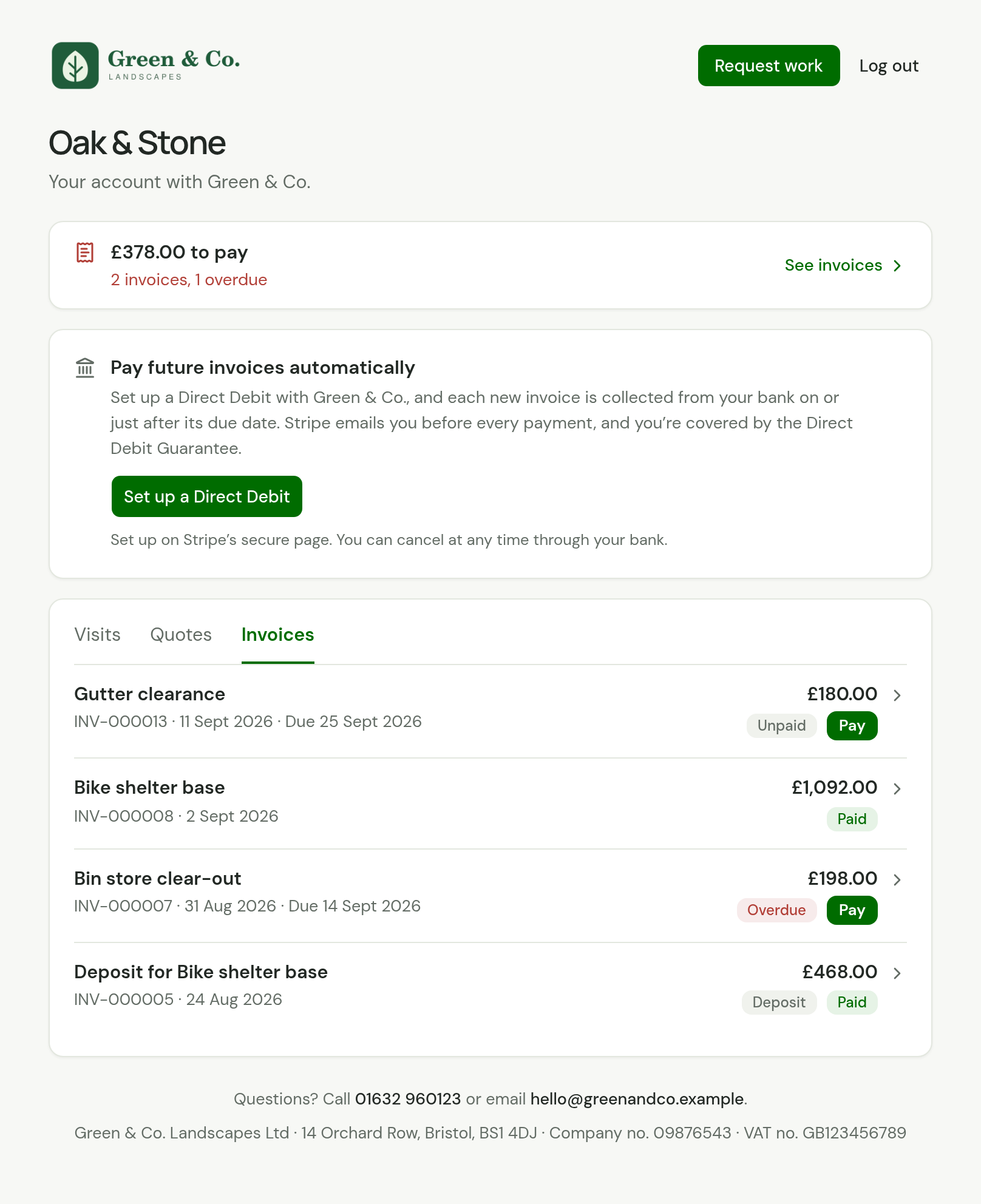
While a payment is on its way, the invoice reads Being collected, and the top of the portal says how much, such as "£138.00 being collected". That money is left out of what is still to pay.
Direct Debit
When your workspace collects by Direct Debit, a customer with none is offered one: Pay future invoices automatically, with Set up a Direct Debit. They set it up on Stripe's page and come back to their portal.
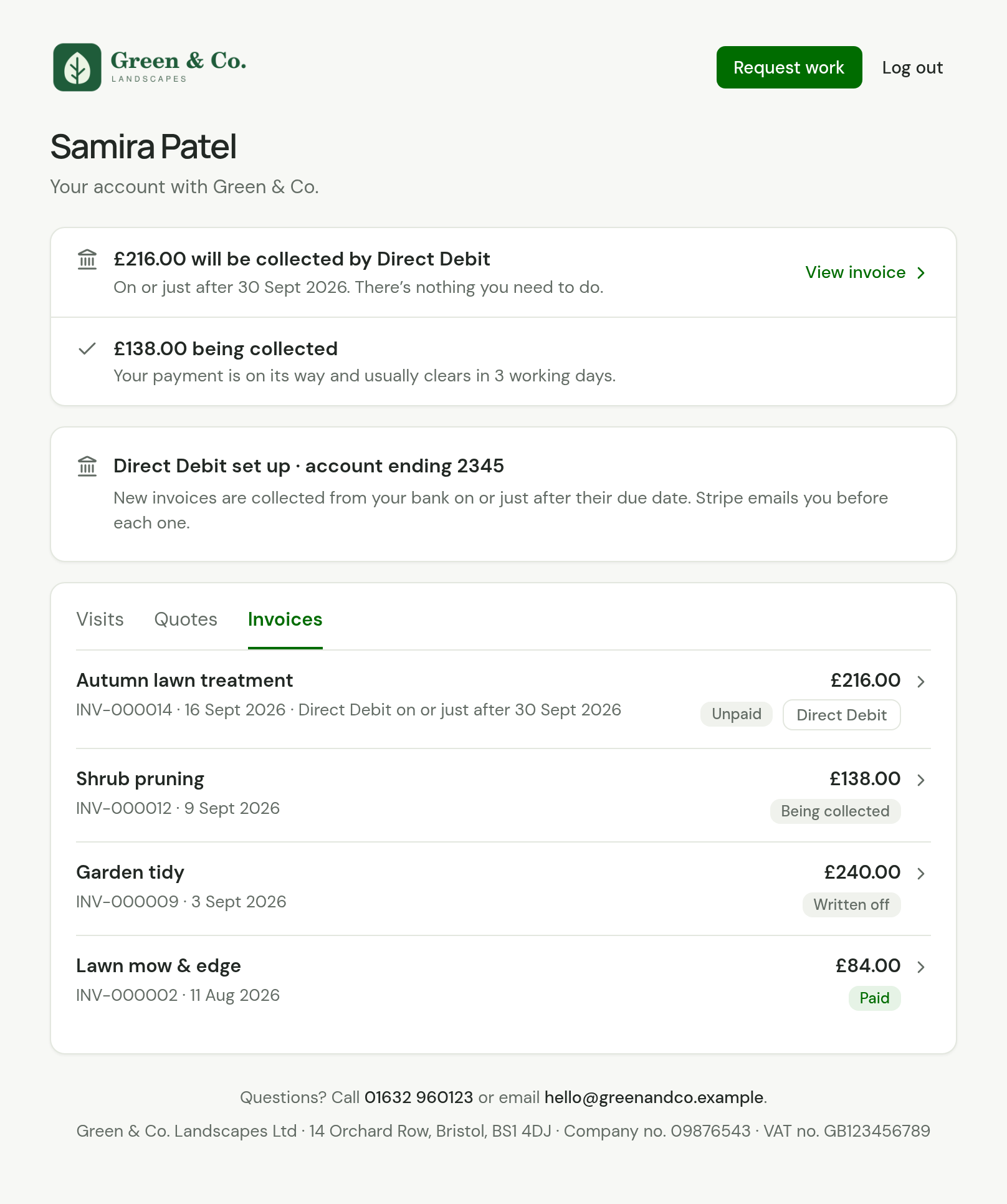
Once they have one, the card reads Direct Debit being set up and then Direct Debit set up, with the last four digits of their bank account. While their bank is confirming it, which takes about 3 working days, the card tells them to pay their invoices as usual. After that, invoices that will be collected show no Pay button and ask them for nothing.
The offer is not shown until Bacs Direct Debit is switched on in your Stripe account. Collect by Direct Debit has the whole of it, from your side and theirs.
It is not shown on the Free plan either.
Asking for more work
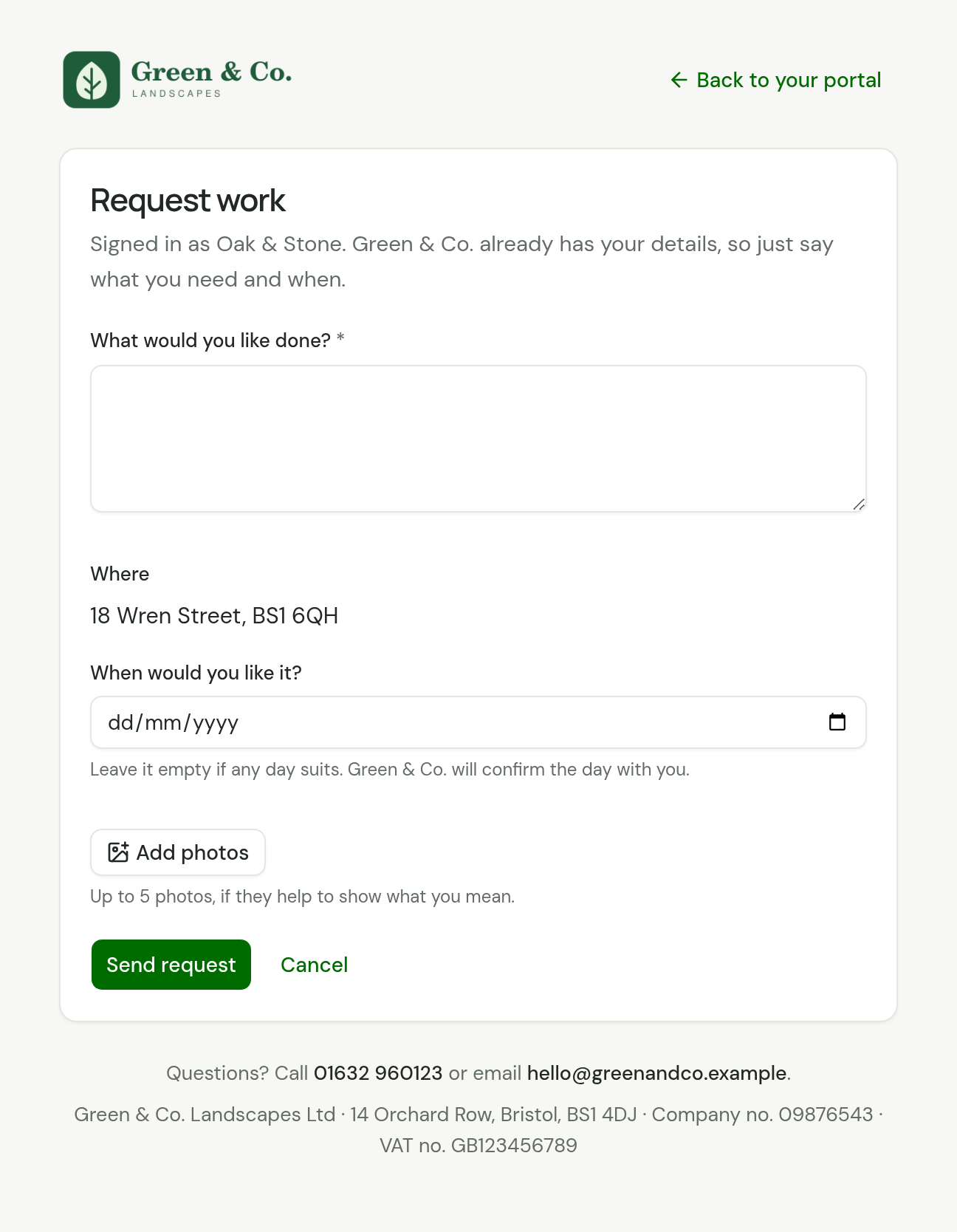
Request work opens a short form of the customer's own. You already know who they are and how to reach them, so it does not ask. They give three things:
- What would you like done? In their own words. This is the only thing they must fill in.
- Where? One of the addresses you hold for them. A customer with one address is not asked.
- When would you like it? A day, today or later. They leave it empty when any day suits.
They can add up to 5 photos.
The request arrives under Enquiries, already under that customer and with the day they asked for, and you get an email headed "Work request from" and their name. See A request from a customer.
What it never shows
- Prices on a visit, and a job's description. The quote and the invoice carry those.
- Your internal notes, and the instructions and completion notes written for the crew.
- The names of your team.
- Contact details, and anything belonging to another customer.
- Draft quotes and draft invoices.
Who can sign in
The customer: the person or company the quotes and invoices are for. A customer's additional contacts cannot sign in. If you have the same person recorded as two customers, each record has its own portal.
Next: give a customer their way in, and how signing in works.
Checked against the app on 20 October 2026. Still stuck? Ask usAsk us.