Create your account
Create a TradeSender account and workspace, sign in again later, and choose a new password if you forget yours.
Creating an account also creates your workspace, with you as its owner. You do it on the web at https://app.tradesender.co.uk or in the Android app. This page follows the web. The iPhone app signs in to an account you already have: see Get the iPhone app.
If someone has invited you to their workspace, do not create an account. Use the link in their email: see Invite your team.
Create an account
-
Open
https://app.tradesender.co.ukand choose Create an account under the sign-in form. -
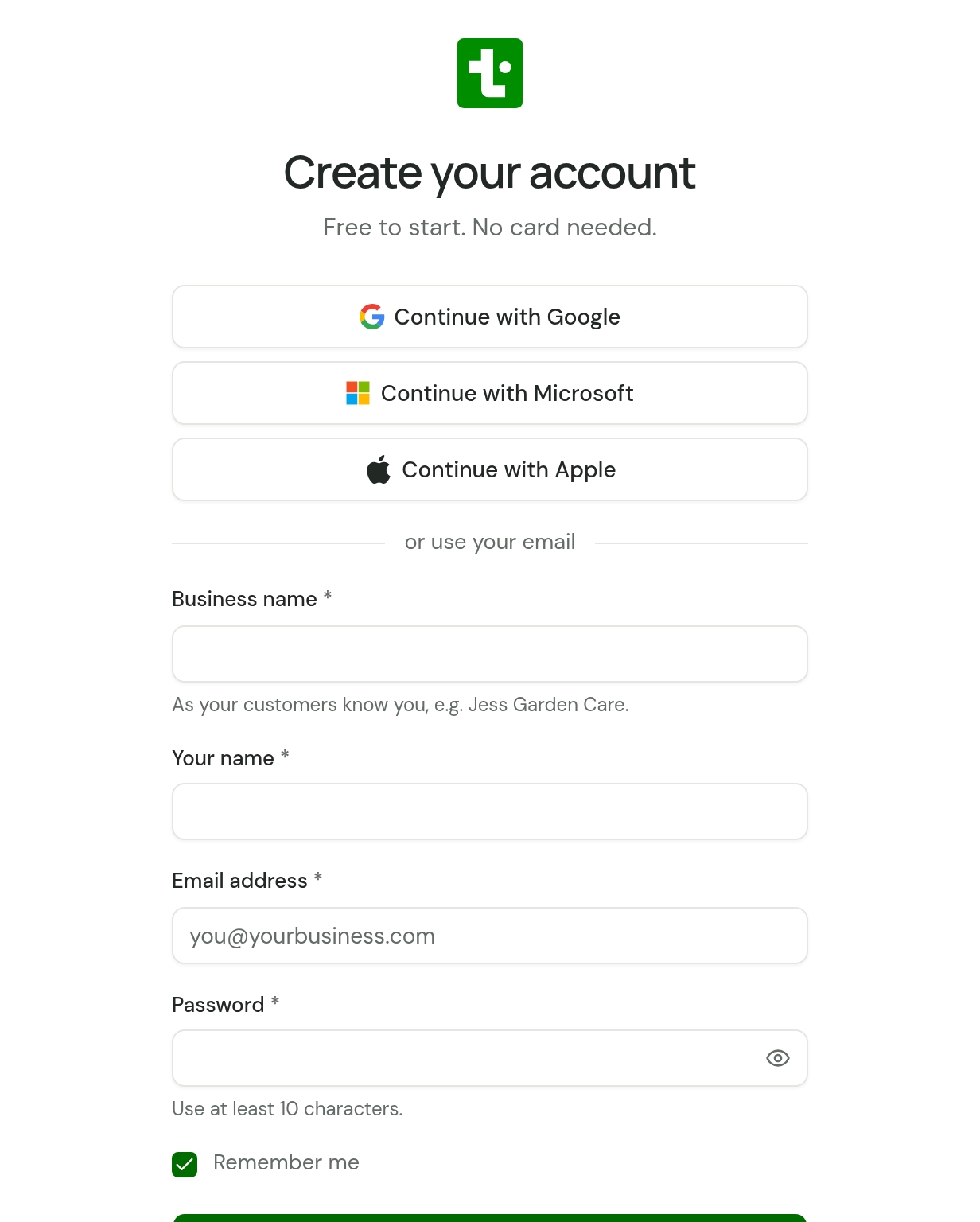
Choose how you will sign in:
- Continue with Google, Continue with Microsoft or Continue with Apple uses an account you already have, so there is no new password. Enter Business name first and the workspace takes it; otherwise it is named after you until the set-up questions.
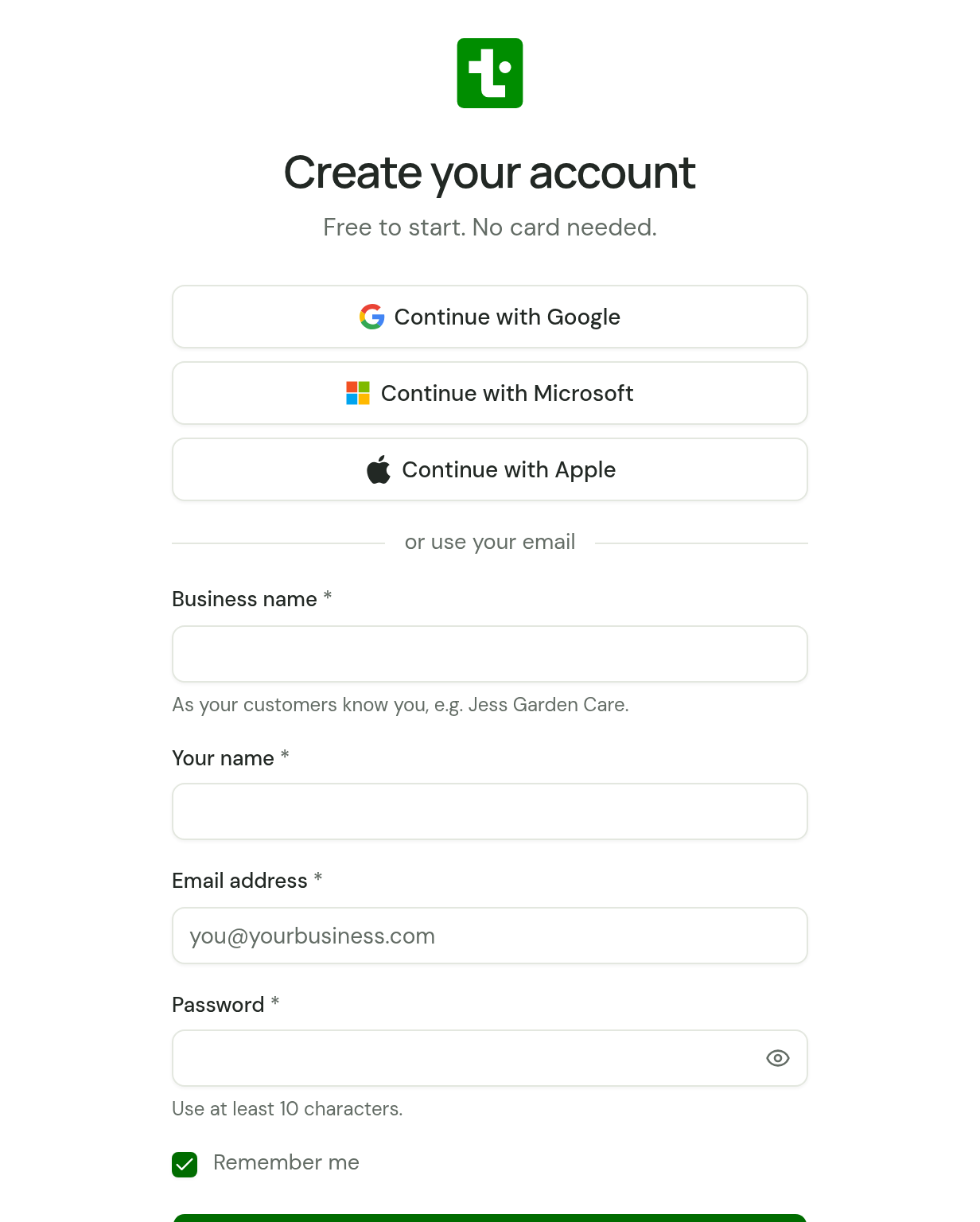
- Or enter Business name, Your name, your Email address and a Password of at least 10 characters, then choose Create account.
-
Answer the three set-up questions. Set up your business goes through them.
You need no card. By creating a workspace you agree to the Terms of Service and Privacy Policy.
If you came from Facebook or Instagram
A link tapped in Facebook or Instagram opens in that app's own browser, which can forget your sign-in once you close it. TradeSender says so in a line under the top bar: You're in Facebook's browser. Choose Copy address and open app.tradesender.co.uk in Safari or Chrome instead, or use the link in the email TradeSender sent when you created the workspace. Your workspace and everything in it are still there.
What you start with
- A workspace named after your business. It is what your customers see on quotes, invoices and emails, and the set-up questions let you change it straight after. Your Workspace ID is made from it.
- The owner role. You can invite other people later and choose a role for each.
- The Pro plan, with nothing to pay. See Plans and limits.
If you use Google, Microsoft or Apple
TradeSender takes your name and email address from that account. The email address must be one that account has verified.
If the email address already belongs to a TradeSender account, you are signed in to that account and no new workspace is made. If you hide your email address from TradeSender when you sign in with Apple, it matches nothing, so you get a new workspace. Sign in with Google, Microsoft or Apple has more.
Sign in
Open https://app.tradesender.co.uk and sign in the same way you signed up: the same Continue with button, or your email address and password.
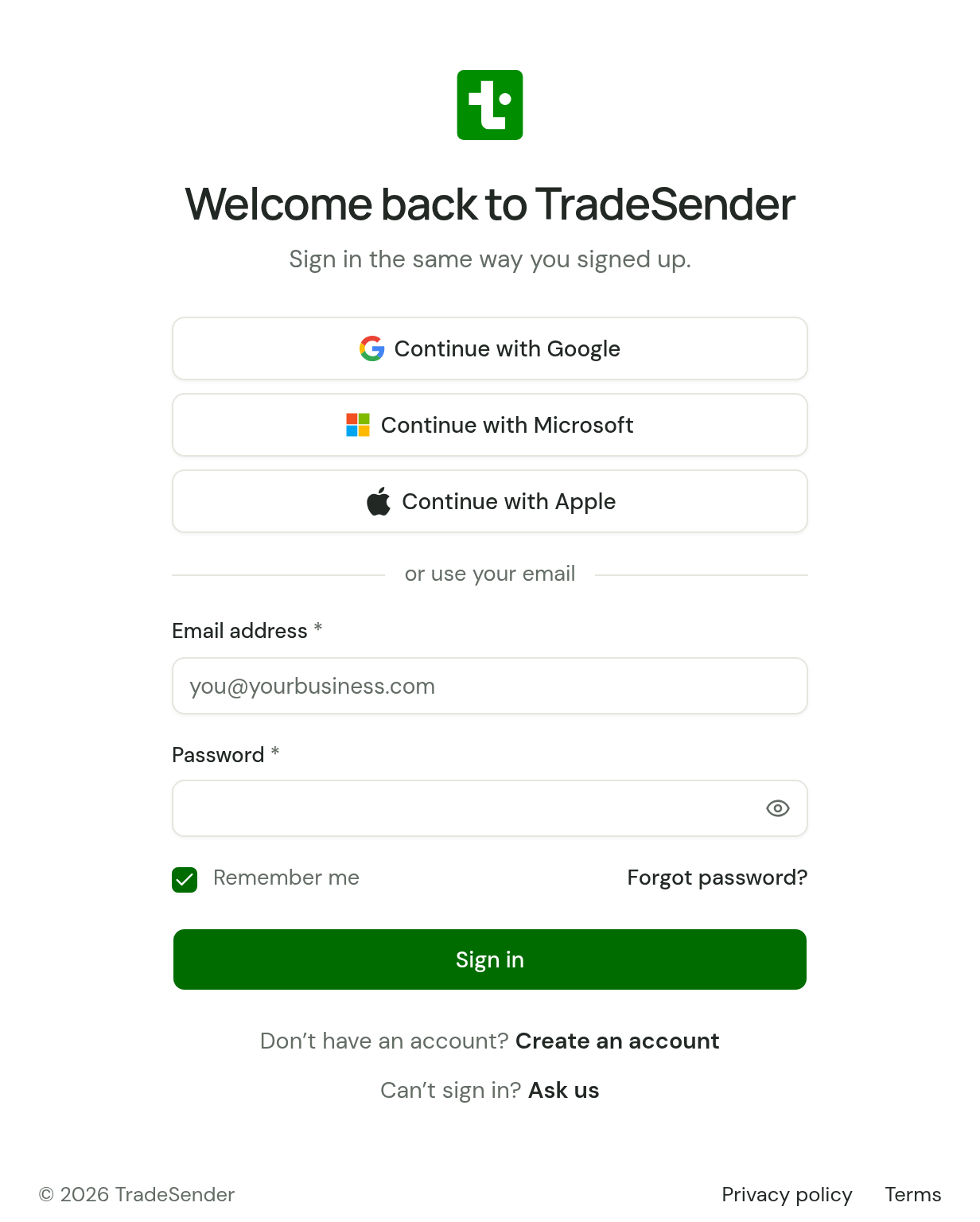
- Remember me is ticked to begin with. It keeps you signed in on this browser until you sign out. Untick it on a shared computer, and closing the tab signs you out.
- Workspace ID appears only when your email address belongs to more than one workspace. Enter the ID of the one to open. It is in Settings, Business details, and the invitation you joined with gives it too.
To sign out, open the menu under your name at the bottom of the sidebar and choose Sign out.
Reset a forgotten password
-
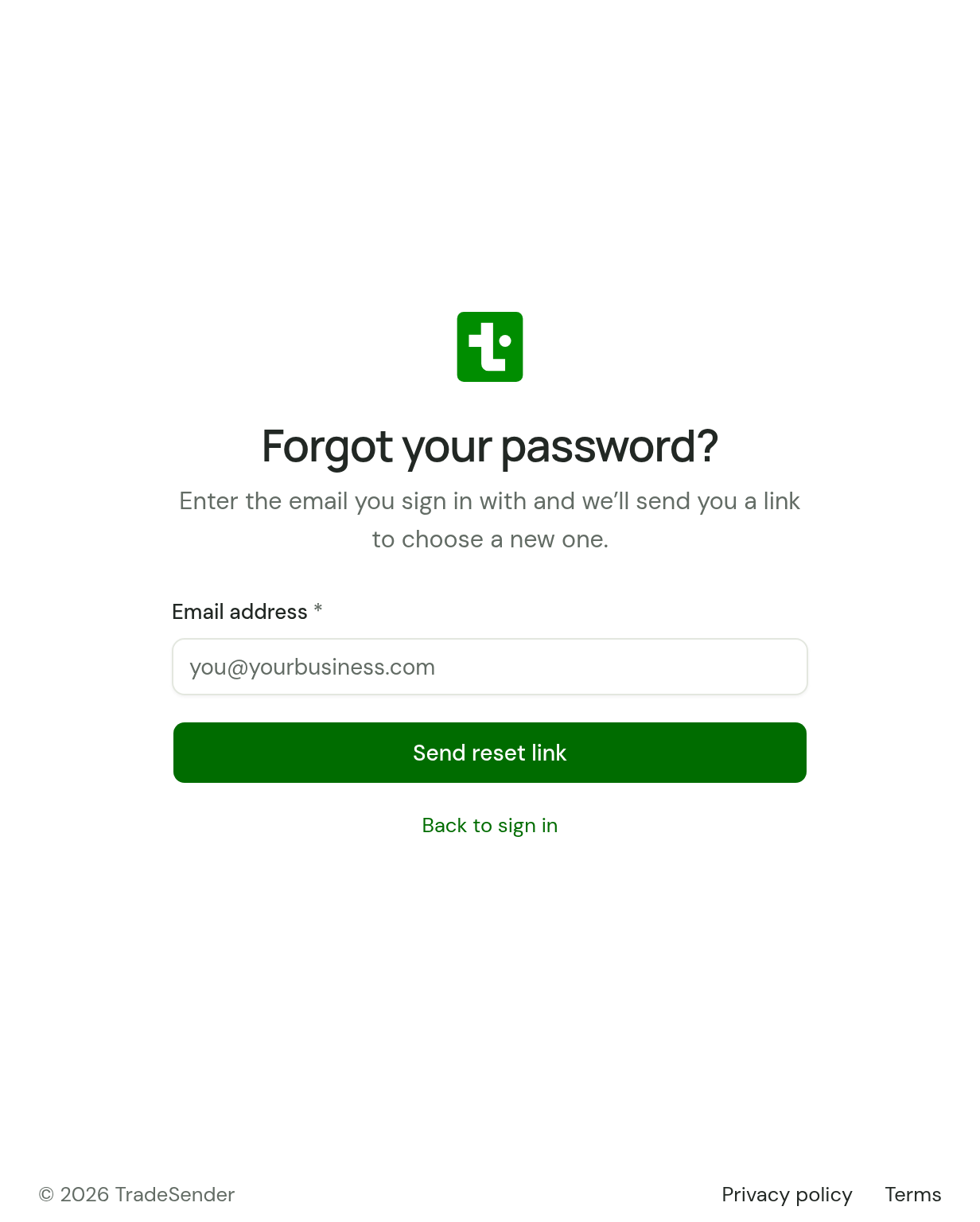
On the sign-in page, choose Forgot password?.
-
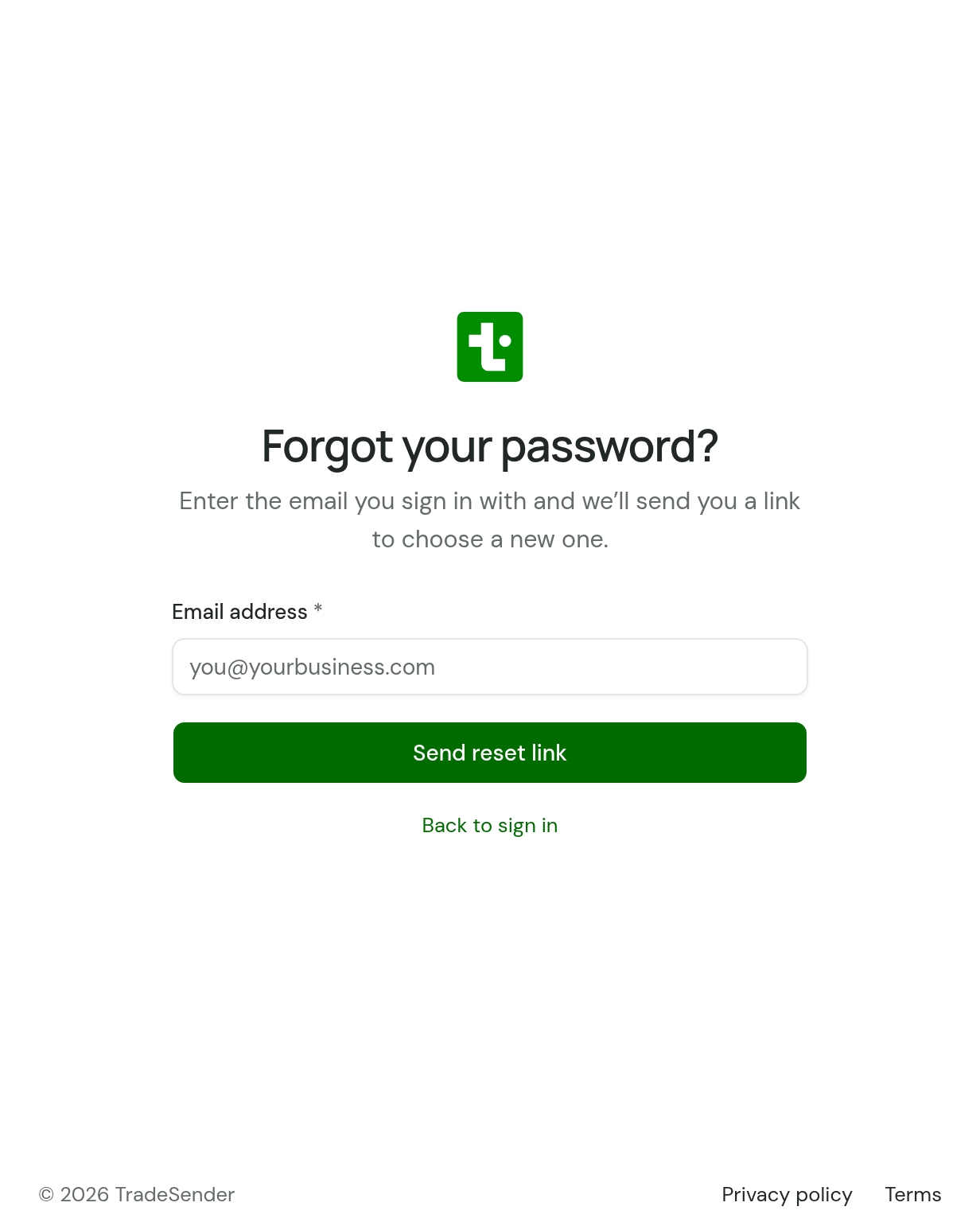
Enter the email address you sign in with and choose Send reset link.
-
Open the email from
noreply@tradesender.co.ukwith the subject "Reset your TradeSender password" and follow its link. The link works once and lasts 20 minutes. -
Enter a New password of at least 10 characters, enter it again in Confirm new password and choose Save password.
You are signed in straight away. If you belong to more than one workspace, choose which to open.
| What you see | What to do |
|---|---|
| No email arrives | The page reads the same whether or not the address has an account. Check you entered the address you signed up with. |
| "This link has expired or has already been used. Request a new one." | Choose Request a new link and start again. |
| "The passwords don’t match." | Enter the same password in both fields. |
This is also how you change a password you still remember: TradeSender has no separate setting for it. If you have only ever signed in with Google, Microsoft or Apple, it gives you a password to use as well.
Still cannot get in
On the sign-in page, choose Ask us, beside "Can’t sign in?" under the form. You can ask us there without an account, and we answer by email. See If you can't sign in.
Checked against the app on 29 October 2026. Still stuck? Ask usAsk us.