Create a job
Book the work, price it from your services, choose how it is billed and put its first visit on the schedule.
Owners and office members create jobs, on the web and in the iPhone and Android apps. Technicians see the jobs they have a visit on, without the prices, in all three. This page follows the web.
A job is the work and its price. A visit is when it happens: a date, a time and a crew. One job can have one visit or many.
Create the job
-
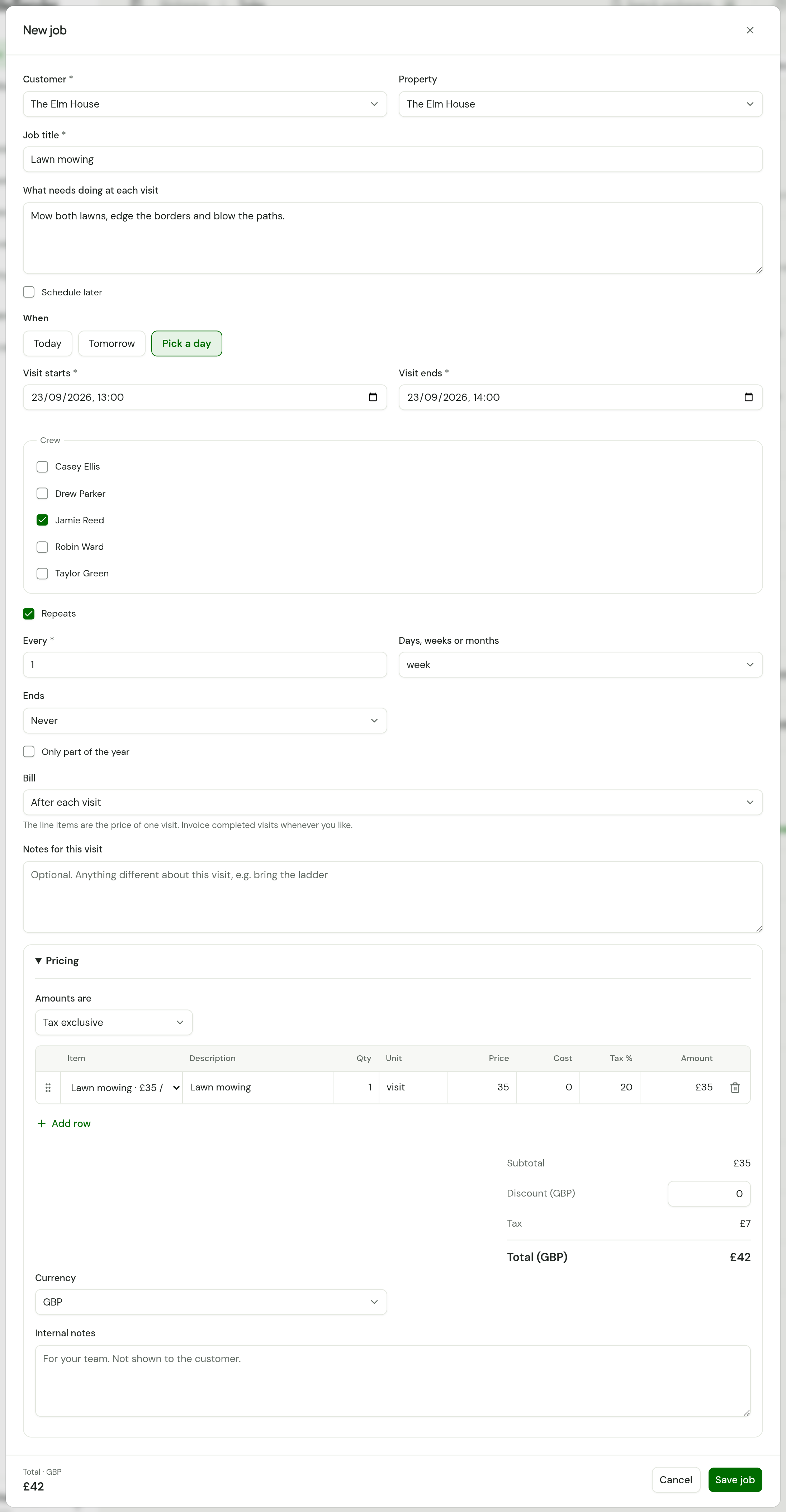
Open Jobs and choose New job. New job is also on Today, on the Schedule and on a customer's page, where the customer is already filled in.
-
Choose the Customer, and the Property if the work is at one of their addresses. A customer with one property has it chosen for you. For someone new, choose New customer… in the list and add them without leaving the job. New property… does the same for an address.
-
Give it a Job title, such as "Communal garden tidy". In What needs doing at each visit, describe the work. The crew reads this on every visit.
-
Under When, choose Today, Tomorrow or Pick a day, then set Visit starts and Visit ends. A new job starts at the next whole hour and lasts an hour until you change it.
-
Under Crew, tick who is going. You are ticked to begin with.
-
Leave Repeats unticked for a one-off job. For a round, tick it and see Repeating jobs and rounds.
-
Choose how to Bill the job. The choices are under How the job is billed.
-
Use Notes for this visit for anything that applies to this visit only, such as "bring the ladder".
-
Under Pricing, add the work. In Item, pick one of your services to fill in its description, unit, price and cost, or leave it on Custom and type your own. Set Qty, and choose Add row for each further line.
-
Choose Save job. The job's page opens, with its number, such as J-000004.
Pricing
Pricing works as it does on a quote. Discount takes an amount off the whole job. With a VAT number in Settings, each line has a Tax % and Amounts are switches the job between Tax exclusive and Tax inclusive: see VAT.
Each line also has a Cost: what one unit costs you. Once a line has a cost, Margin shows under the total, on the form and on the job's page. Only owners and office members see either, and neither goes on an invoice. See Cost and margin.
When the job's property has a Lawn size (m²), picking lawn work priced per square metre sets Qty to that size. See Lawn size.
Internal notes are for your team. Your customer never sees them.
You can save a job with no price. Its page then says "No pricing yet." with Add pricing beside it. A job needs at least one line before you can invoice it.
From an accepted quote
On an accepted quote, choose Create job. A new job opens, headed with the quote's number, with the customer, property, title, description, lines and discount already filled in. The customer and property are fixed. Set when and who, then choose Save job. See Turn a quote into a job.
How the job is billed
Bill has four choices.
| Bill | What it means |
|---|---|
| When the job is complete | One invoice for the whole job, once it is finished. A new one-off job starts on this. |
| After each visit | The line items are the price of one visit, and you invoice completed visits whenever you like. Ticking Repeats on a new job chooses this for you, until you pick Bill yourself. See Bill per visit. |
| At month end | The line items are the price of one visit. Finished visits wait until the month is over, and one run then invoices and emails every such job. See Invoice at month end. |
| Don’t invoice | For work paid in cash, done free of charge or billed somewhere else. The job is never invoiced and never appears in Needs attention. |
You can change Bill later with Edit details. Once one of a job's visits has been invoiced, Bill can only move between After each visit and At month end.
The job's page
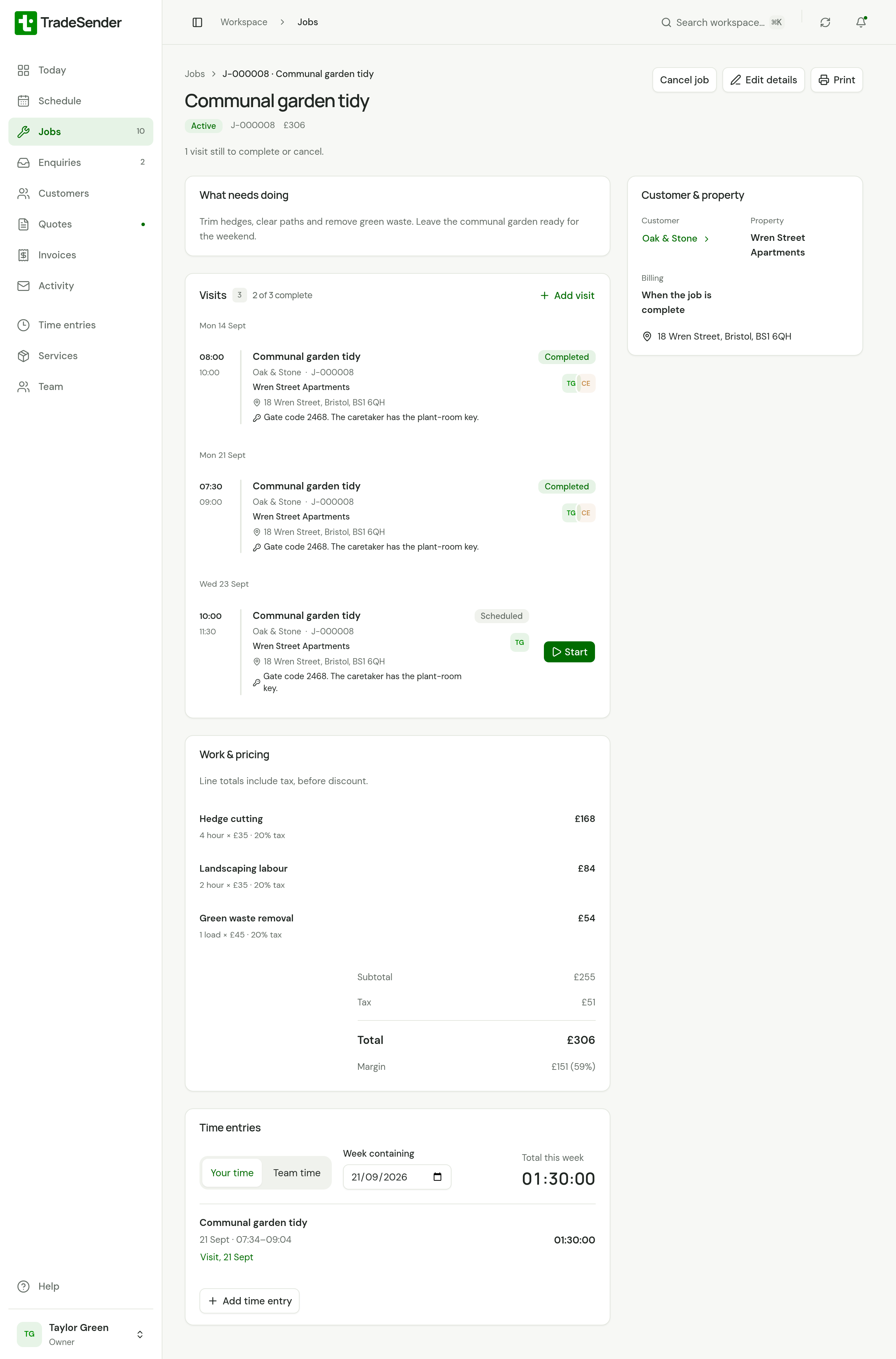
The page lists every visit with its status, the price, the time recorded and, once there are any, the invoices. A job made from a quote has a Quote panel that leads back to it. From here you can:
- Choose Edit details to change the title, the work, the pricing or Bill. The customer and property cannot change once the job has been invoiced.
- Choose Add visit to book another visit.
- Choose Cancel job. Any visits still to do are cancelled with it.
- Choose Print for a paper copy.
Add another visit
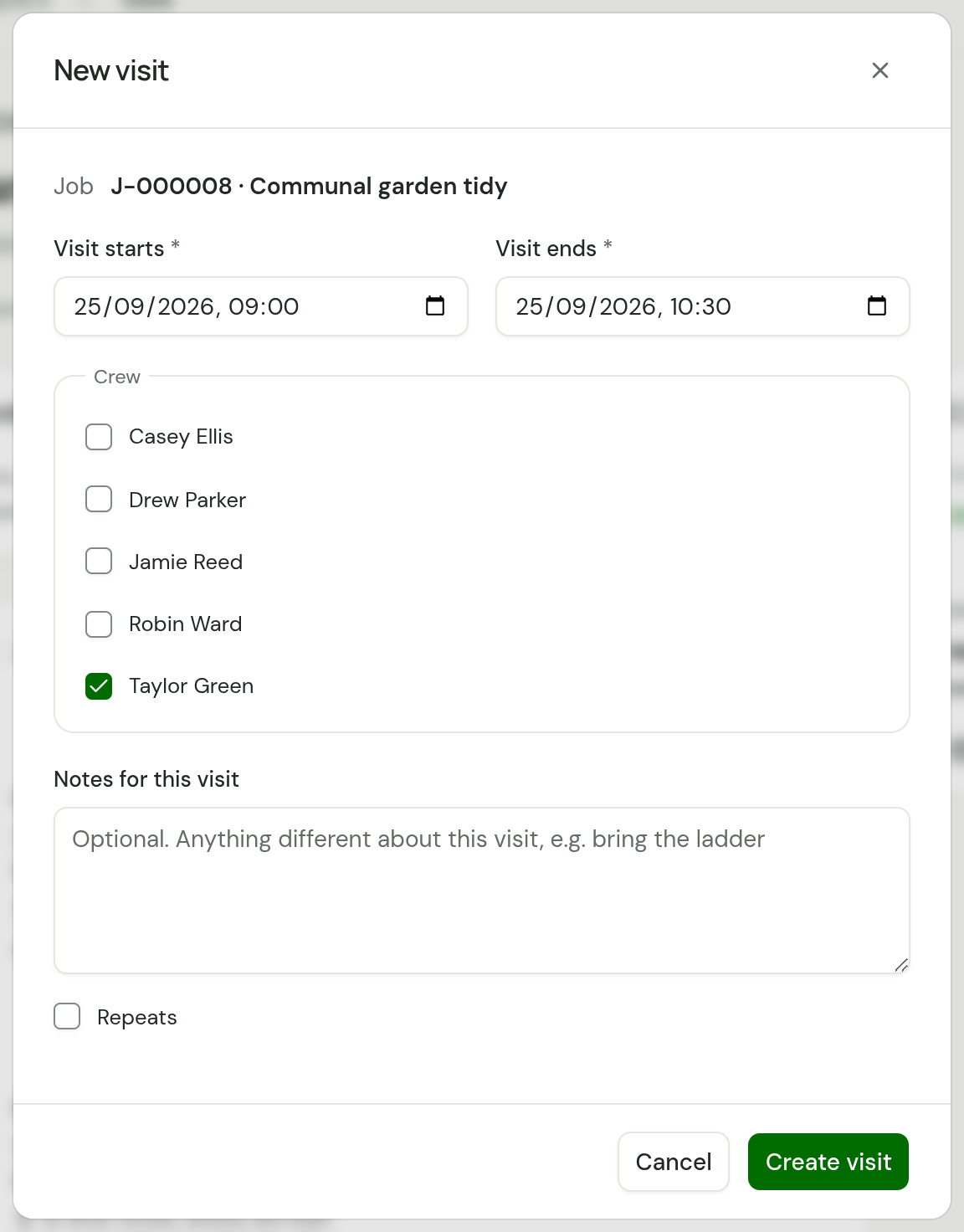
Choose Add visit, set Visit starts and Visit ends, tick the Crew and choose Create visit.
A job with no visit yet
If you do not know the date, tick Schedule later on the new job. When, Crew, Repeats and Notes for this visit fold away, and the job saves with no visit.
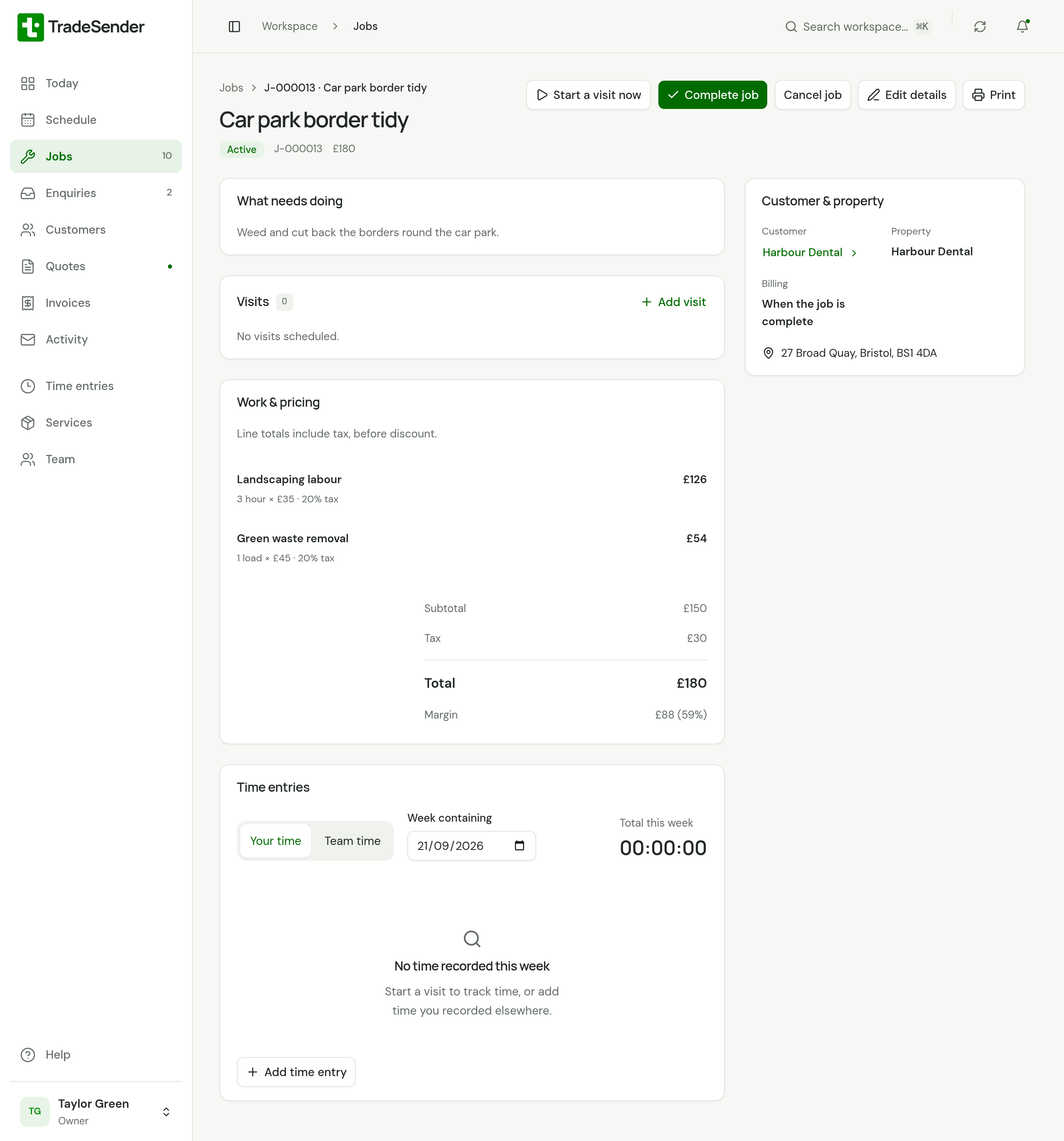
Until it has a visit:
- The Jobs list shows Unscheduled under Next visit.
- The Schedule counts it under to schedule.
- Add visit on the job's page books one.
- Start a visit now books a visit from now for an hour with you as the crew, starts it and starts your timer.
Good to know
- The Free plan includes 30 visits a month, counted when you book them, and no repeating visits. See Plans and limits.
- When the crew finishes the last visit of a one-off job, the job is finished too. See Work a visit.
Checked against the app on 29 October 2026. Still stuck? Ask usAsk us.