Give a customer their way in
The three ways a customer reaches their portal, from the quotes and invoices you email, a sign-in link you send, and an address for your website.
A customer reaches their portal in three ways. The first needs nothing from you.
From a quote or an invoice you email
The link in every quote and invoice email signs the customer in as it opens. Above the quote or invoice they see Your customer portal, which takes them to everything else.
This is true of emails sent from TradeSender. The link you copy from a quote or an invoice with Copy link opens that one document and signs nobody in, so it is the one to use when you want to share a single quote. Someone who opens it sees Sign in to see all your quotes and invoices at the foot of the page.
Send a sign-in link
Owners and office members can send a customer their link at any time.
-
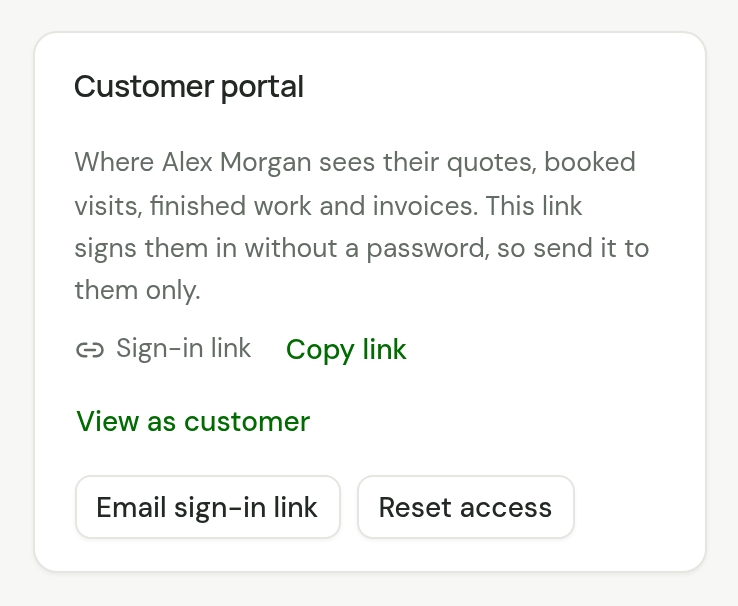
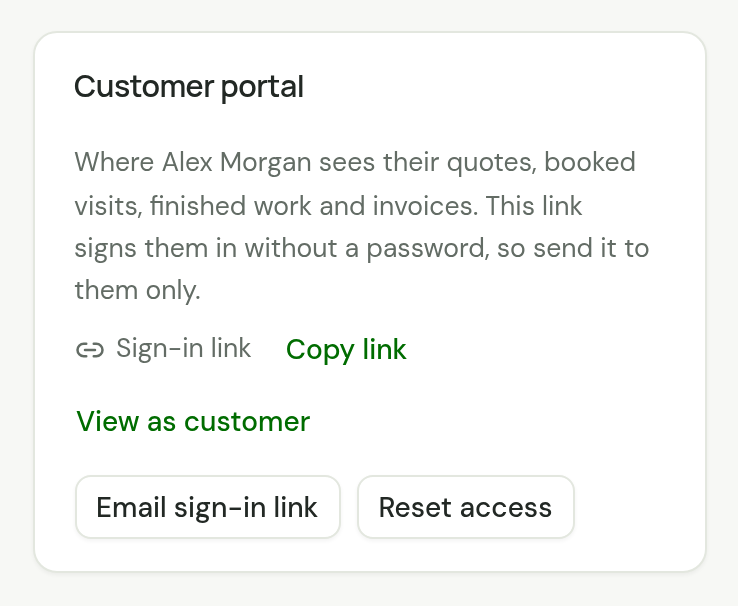
Open the customer. Under Customer portal, choose Email sign-in link.
-
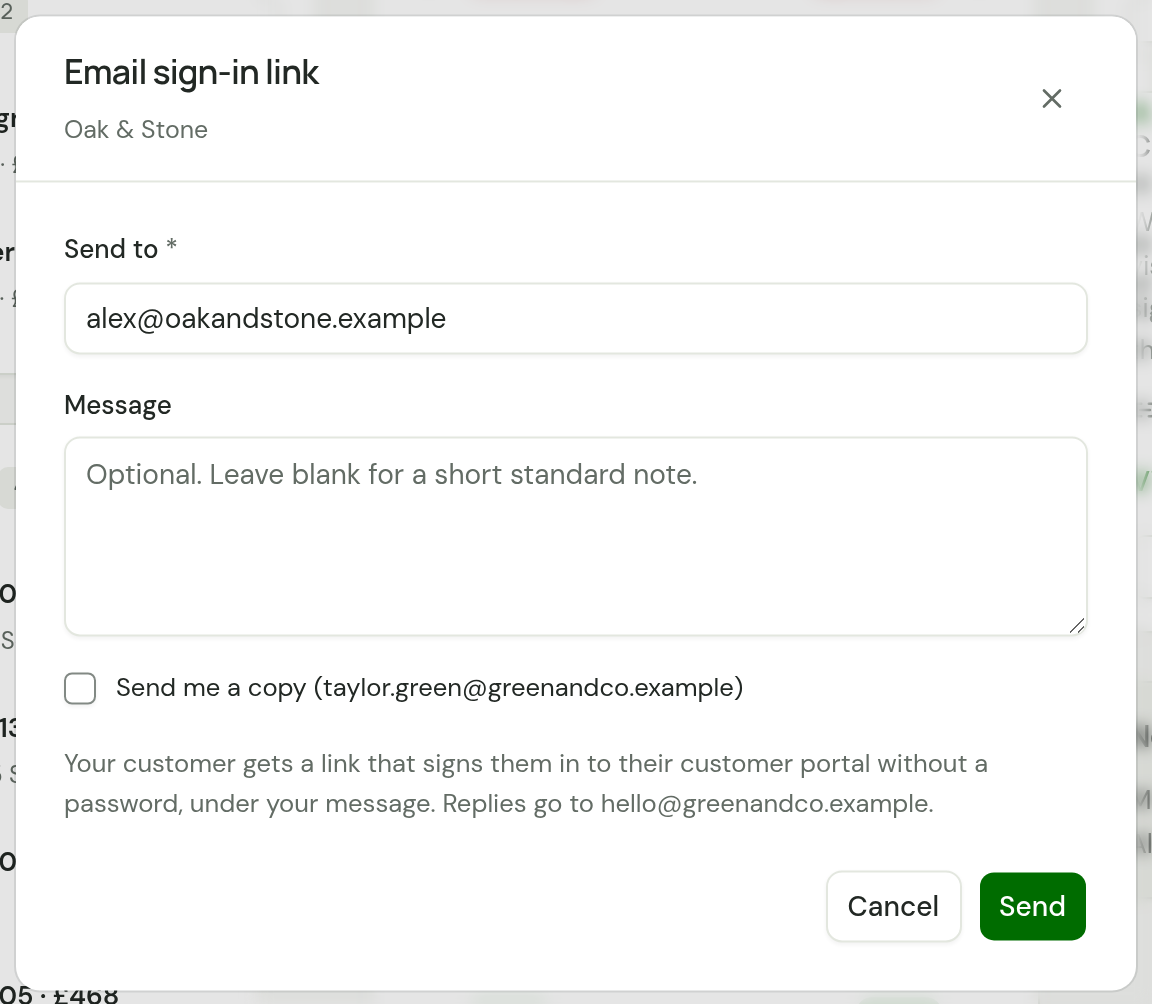
Check Send to. It starts with the customer's email address.
-
Write a Message if you want one. Leave it blank for a short standard note. Your message goes above the link.
-
Tick Send me a copy if you want one, then choose Send.
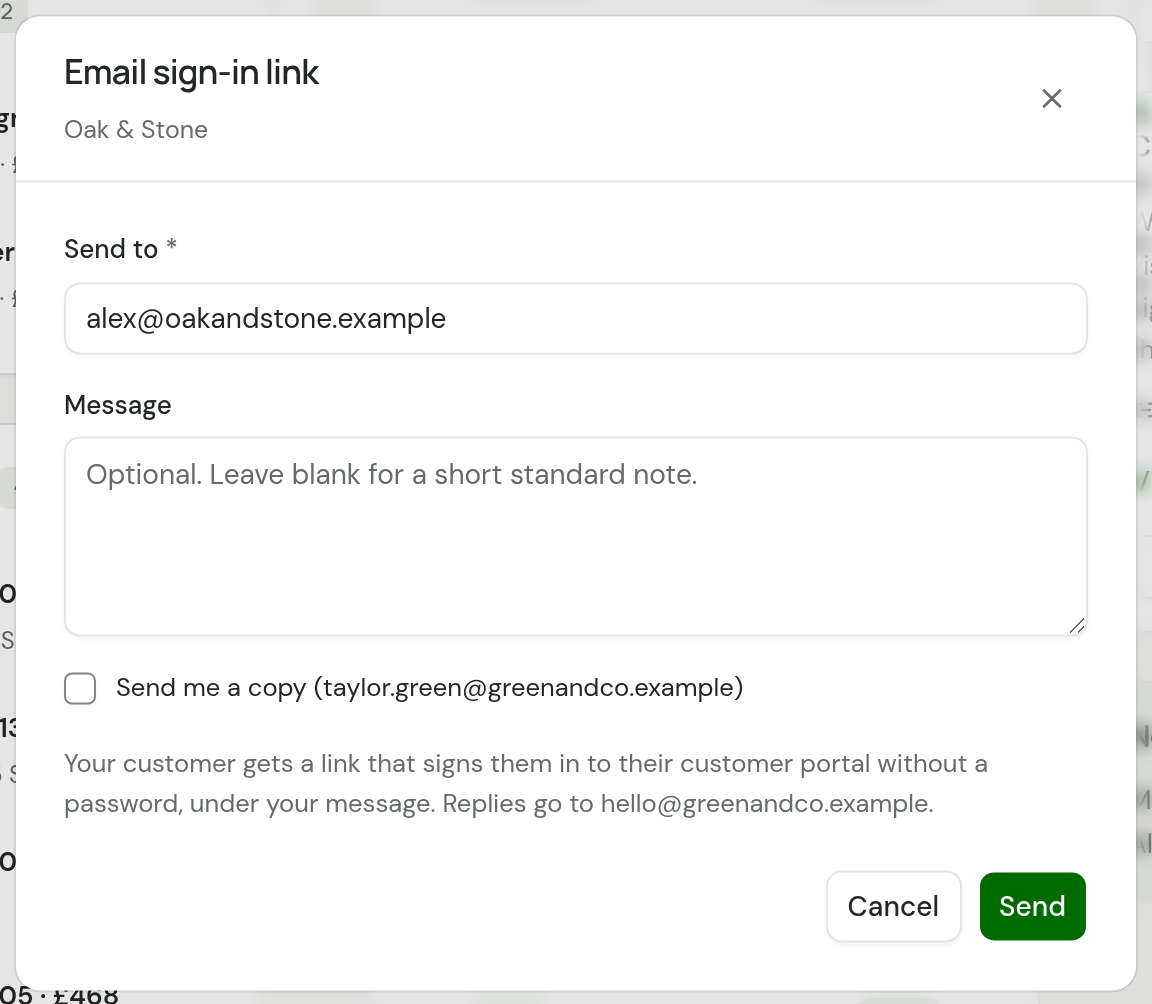
The email comes from your business, as an invoice does, and counts towards the 100 quote and invoice emails a workspace can send in a day. It is listed under Sent on the customer's page as Portal link emailed.
To send the link yourself, by text or WhatsApp, choose Copy link beside Sign-in link.
View as customer opens the portal as that customer, so you can see what they see. It signs your own browser in as them: choose Log out on the portal when you have finished.
Technicians do not see the Customer portal panel.
Put the address on your website
Your portal has one address for all your customers. Anyone can open it and ask for a sign-in link by email.
-
Open Settings, then Website and portal.
-
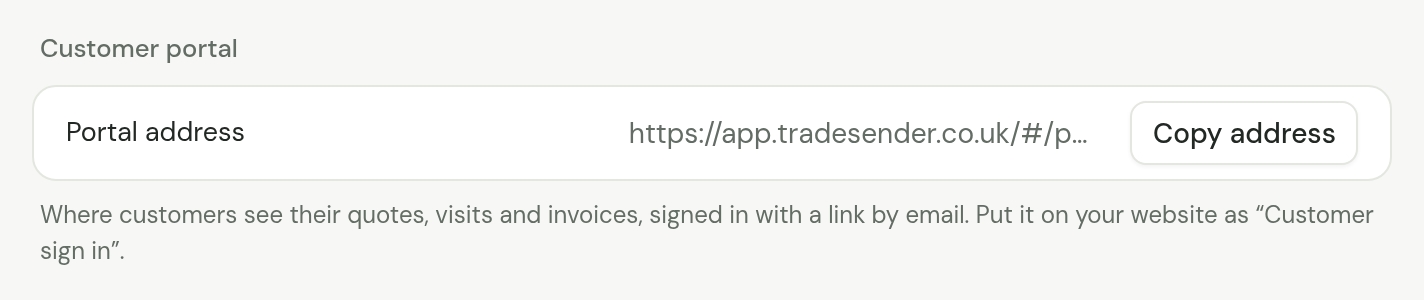
Under Customer portal, choose Copy address beside Portal address.
-
Put it on your website or in your email signature as "Customer sign in".
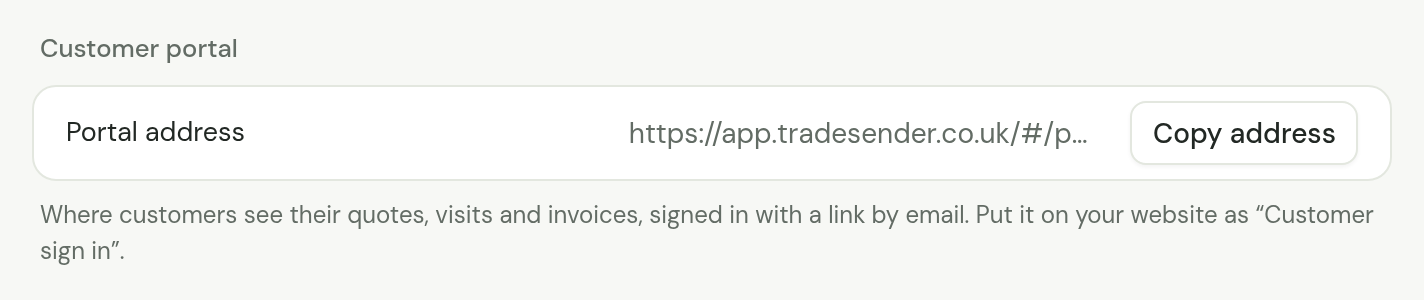
The address is not a secret. It ends with your workspace ID, and it does not change.
In the iPhone and Android apps
Open a customer and find Customer portal: Share sign-in link, Copy sign-in link, View as customer, Email sign-in link and Reset access. In Settings, Website and portal has the same heading, with Share the portal address and Copy the portal address.
Checked against the app on 29 October 2026. Still stuck? Ask usAsk us.