Invite your team
Add the people you work with, choose a role and a calendar colour for each, and change or end their access later.
Only an owner can invite people, change a role or deactivate someone. Office members can open Team and read it. Technicians do not see it. This page follows the web: in the iPhone and Android apps, Team is in Settings, under Your business.
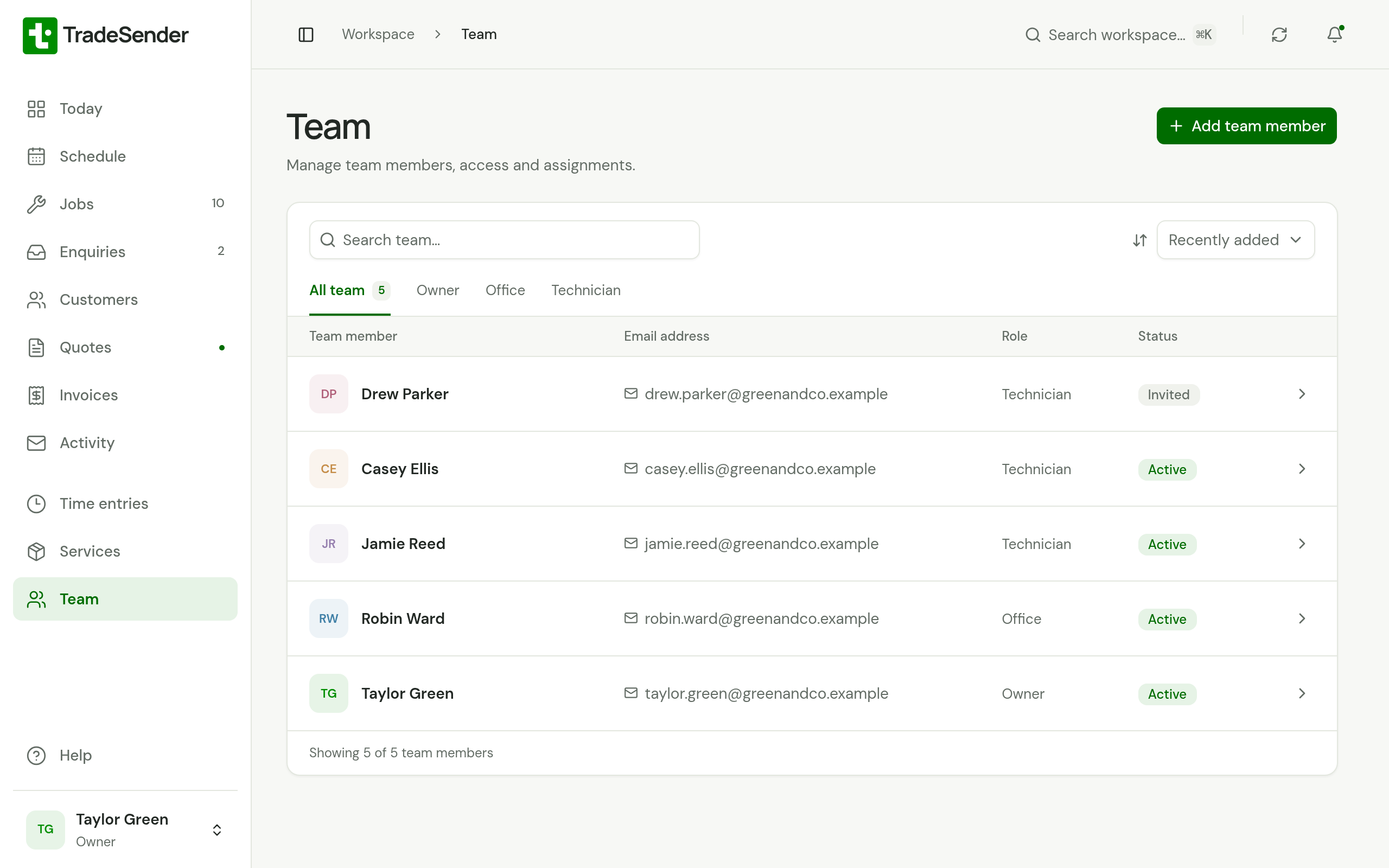
Invite someone
-
Open Team and choose Add team member.
-
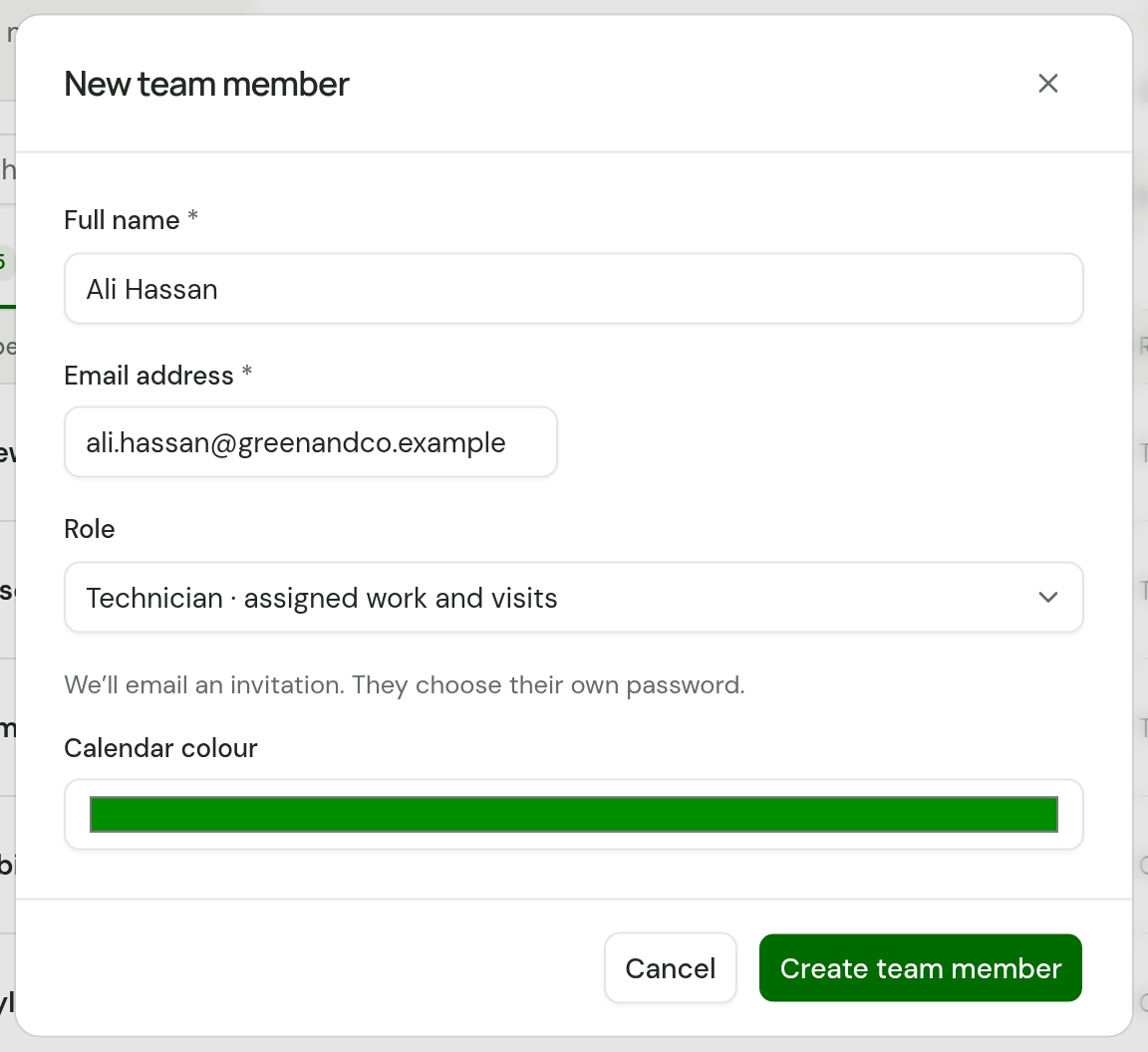
Enter their Full name and Email address.
-
Choose a Role:
- Technician · assigned work and visits
- Office · manage day-to-day operations
- Owner · full workspace access
Roles sets out what each can see and do.
-
Pick a Calendar colour. It colours their initials on visits, in the team list and on Today.
-
Choose Create team member.
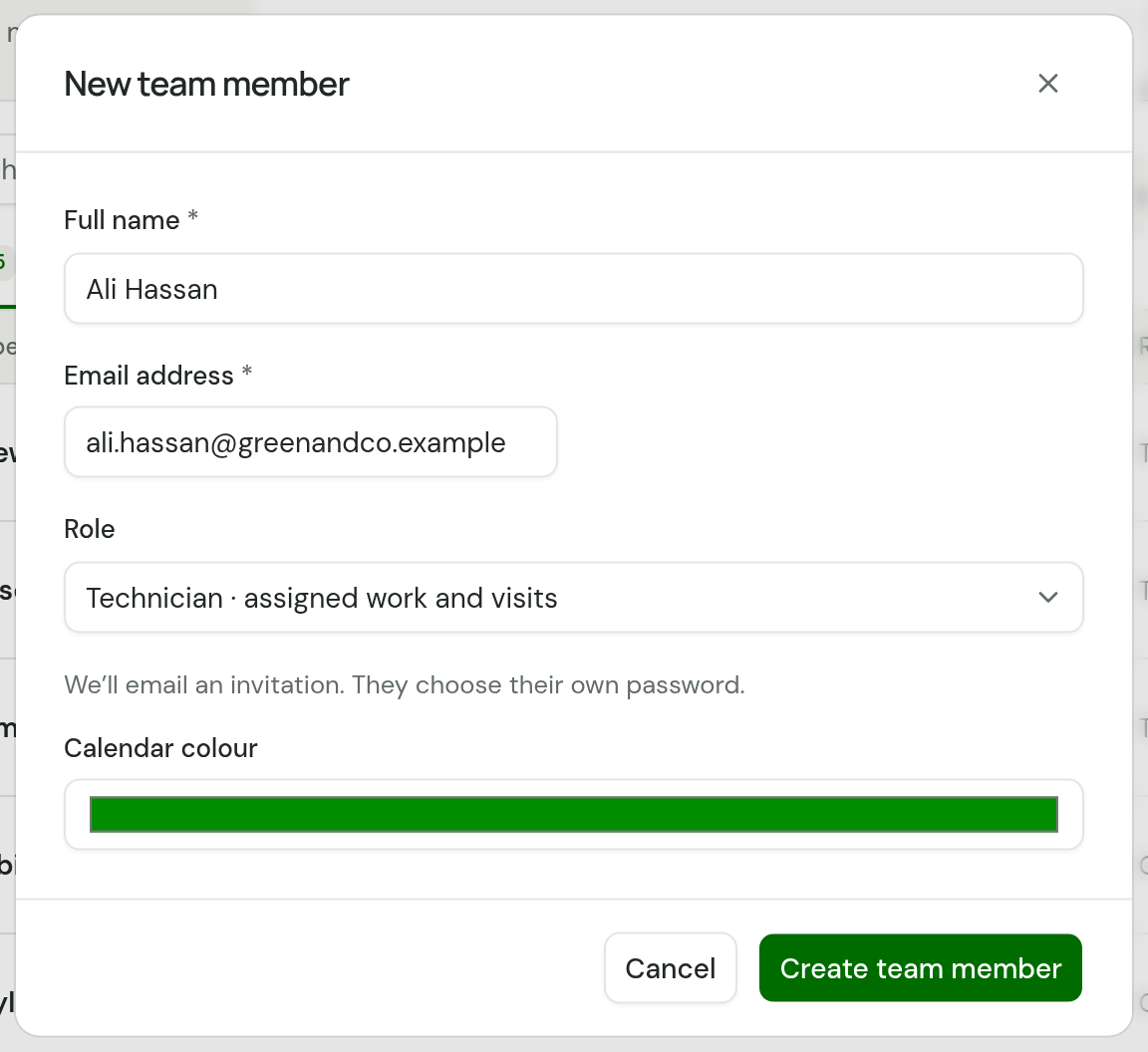
They appear in the list straight away, marked Invited, and you can assign them to visits before they have joined.
What they receive
TradeSender emails them from noreply@tradesender.co.uk with the subject "Join Green & Co. on TradeSender", using your business name. The email names you and carries a link to choose a password.
- The link lasts 7 days and works once.
- On the page it opens, they check Your name, choose a Password of at least 10 characters and choose Join team. They are signed in straight away.
- The same page tells them your Workspace ID, which they need only if their email address belongs to more than one workspace.
If their email address already has a TradeSender account, there is no password to choose. The email says they have been added, and they sign in the way they usually do.
Send the invitation again
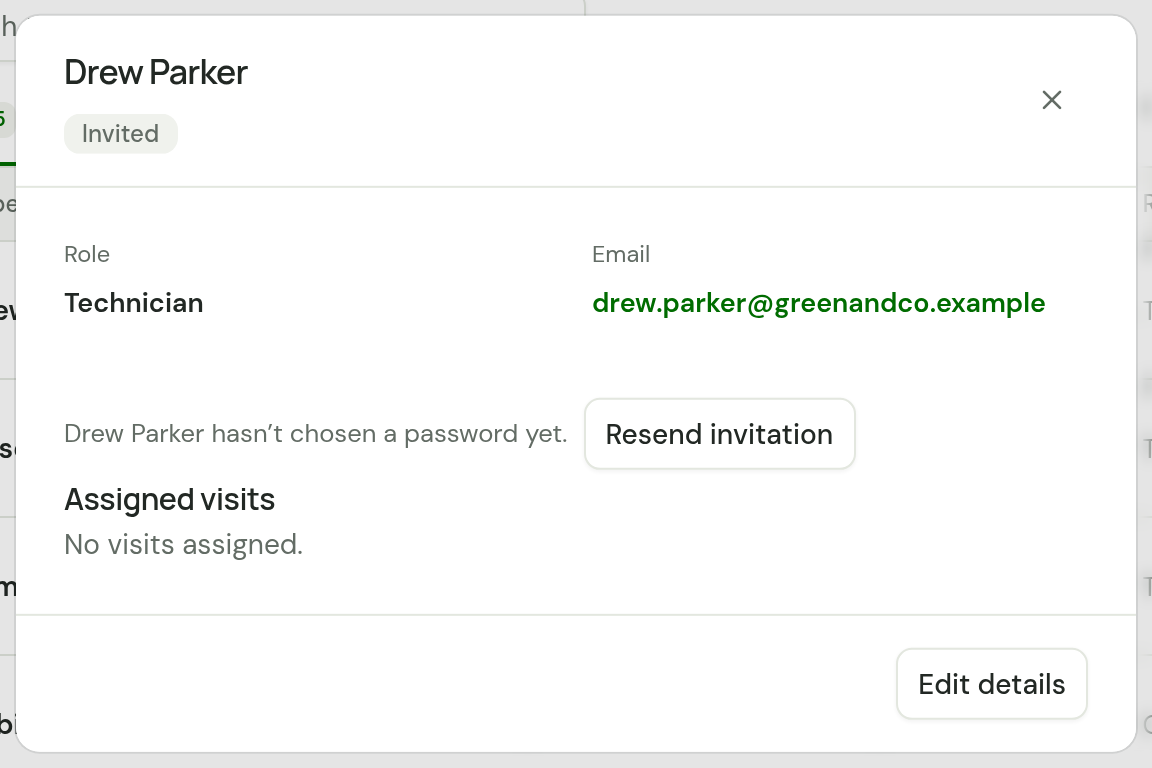
Open the person in Team. While they have not chosen a password, their details say so and have a Resend invitation button. Each email carries a fresh 7-day link.
Someone who opens a link that has run out sees "This invitation has expired or has already been used. Ask whoever invited you to send it again."
Change a role or a colour
Open the person in Team, choose Edit details, change Role or Calendar colour, and choose Save changes. The new role applies straight away, and their app shows it the next time it reloads.
You cannot change someone's name or email address here. A workspace must keep at least one active owner, so the last owner's role cannot be changed.
Deactivate someone
Open the person, choose Edit details, untick Active team member and choose Save changes.
Deactivating ends their access at once:
- They are signed out of the web app and the phone apps, and cannot sign in to your workspace.
- Their API keys and connected AI assistants for your workspace stop working.
- They show as Inactive in Team.
- They no longer count towards your plan.
What they did stays. Their completed visits and time entries remain in your records.
Their booked visits are not moved to anyone else. Give those visits to someone else before you deactivate the person. See The schedule. If you open one of those visits later and choose Edit details, the form names them, as in "Casey Ellis is no longer on the team and will be removed.", and takes them off the crew when you save.
To let them back in, tick Active team member again. They sign in as before, and connect any assistant or make any API key again.
Bringing someone back counts towards your plan like a new member, so it is refused when your team is full.
You cannot deactivate yourself. TradeSender has no way to remove a person from the list altogether: deactivating is how you end someone's access.
A member can also remove their own access: see Leave or delete a workspace.
How many people your plan allows
| Plan | Team members |
|---|---|
| Free | 1 |
| Pro | 5 |
| Business | Unlimited |
The count is of active members, including you and anyone invited who has not joined yet. If you are at the limit, Create team member is refused with a message such as "Your Pro plan includes 5 team members." Ticking Active team member for someone you deactivated is refused the same way. See Plans and limits.
Checked against the app on 29 October 2026. Still stuck? Ask usAsk us.