Record a payment
Record money against an invoice as it arrives, in full or in part, spread one payment across several invoices, and see what is paid, owed and overdue.
Owners and office members record payments, on the web and in the iPhone and Android apps. This page follows the web.
Record here the money that reaches you outside TradeSender: a bank transfer, cash, a cheque or a payment on your own card machine. An invoice shows your bank details, and the money arrives in your own account. TradeSender cannot see that account, so none of these is marked as paid by itself.
Two kinds of payment record themselves, and you leave them alone: a payment your customer makes online, and one TradeSender collects by Direct Debit. See Payments that record themselves.
Record a payment
-
Open the invoice and choose Record payment. The button is there once the invoice has been emailed or marked as sent, for as long as anything is owed.
-
Check Amount (GBP). It starts at the balance due. Enter less if the customer has paid part.
-
Choose the Payment method: Bank transfer, Card, Cash, Cheque, Direct debit or Other.
-
Set Paid on to the day the money arrived. It starts at today and cannot be in the future.
-
Add a Reference if you want one, such as the name on the bank statement, and Notes for anything else worth keeping. The notes are for your records. Your customer does not see them.
-
Choose Record payment.
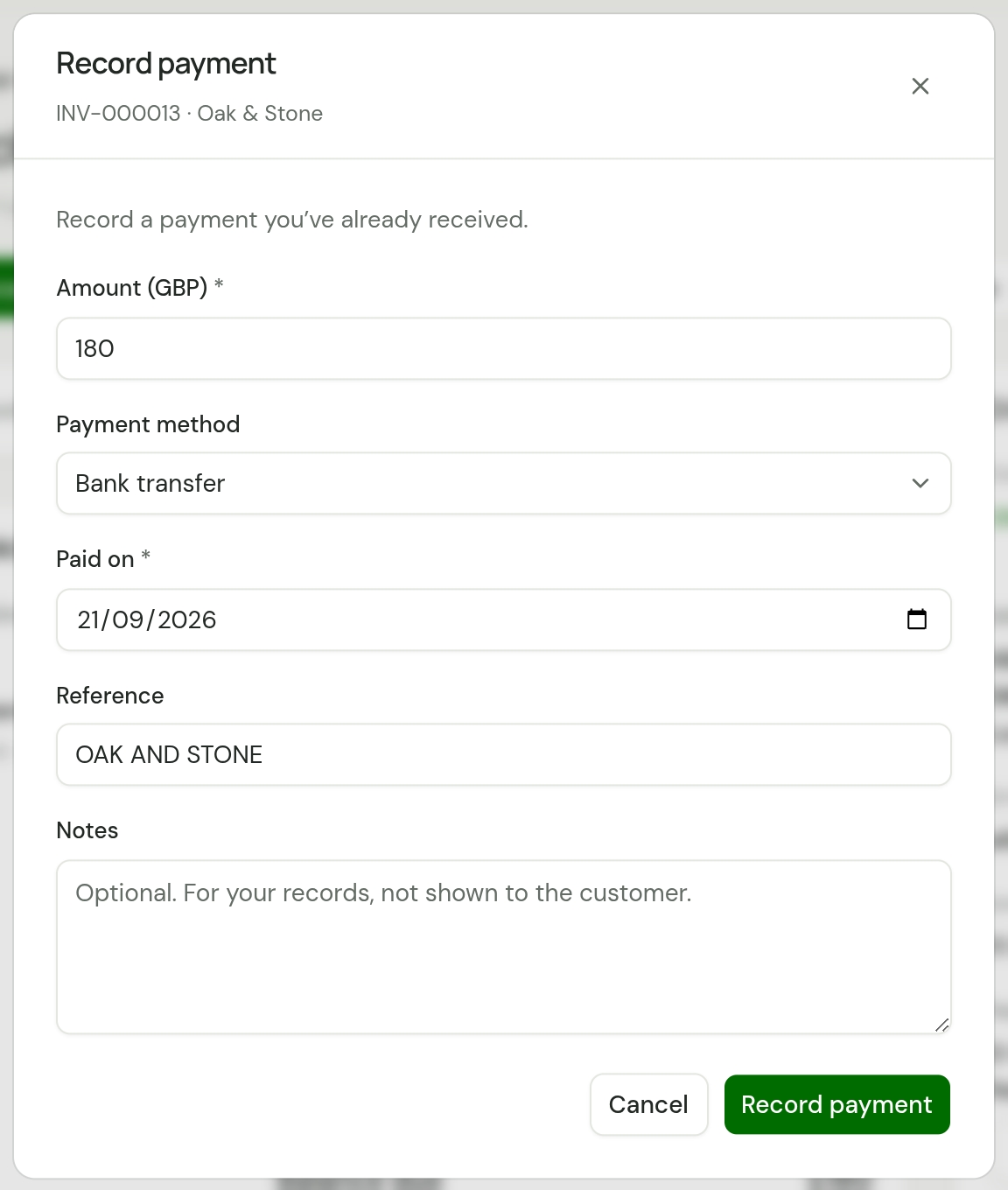
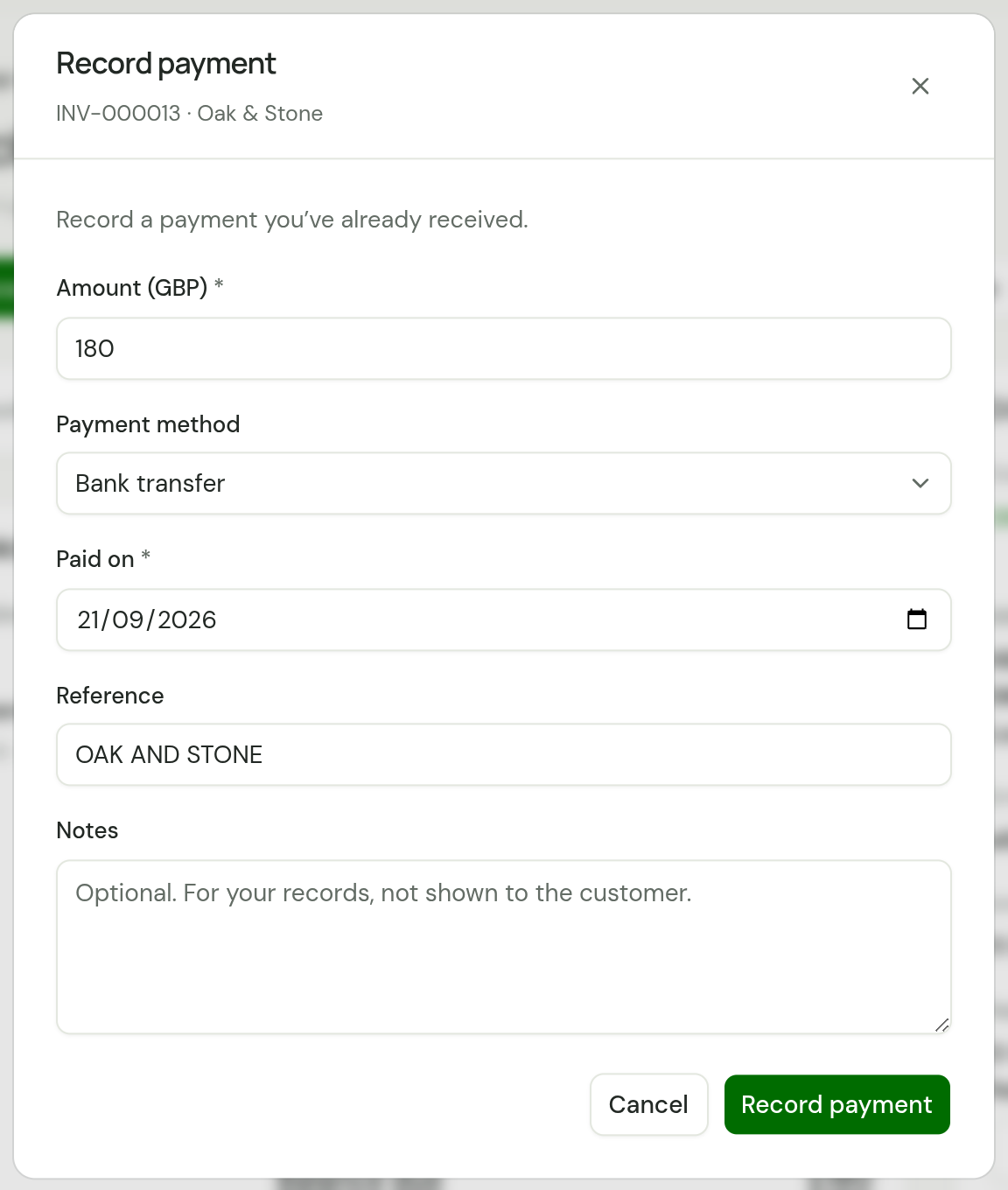
Card is for a card payment you took yourself, on your own card machine for instance. It records the payment. It does not charge anyone. Direct debit is the same: it is for one you collected some other way, and it takes nothing from anybody's bank.
Record payment is still offered while a customer's online payment or Direct Debit is on its way. Do not record that money by hand as well, or the invoice is paid twice. It then says how much is over: "Paid £45.00 more than the invoice.", followed by Refund £45.00, which opens Refund on the newest payment for that amount.
Part payments
Record each payment as it comes in. You cannot record more than the balance due.
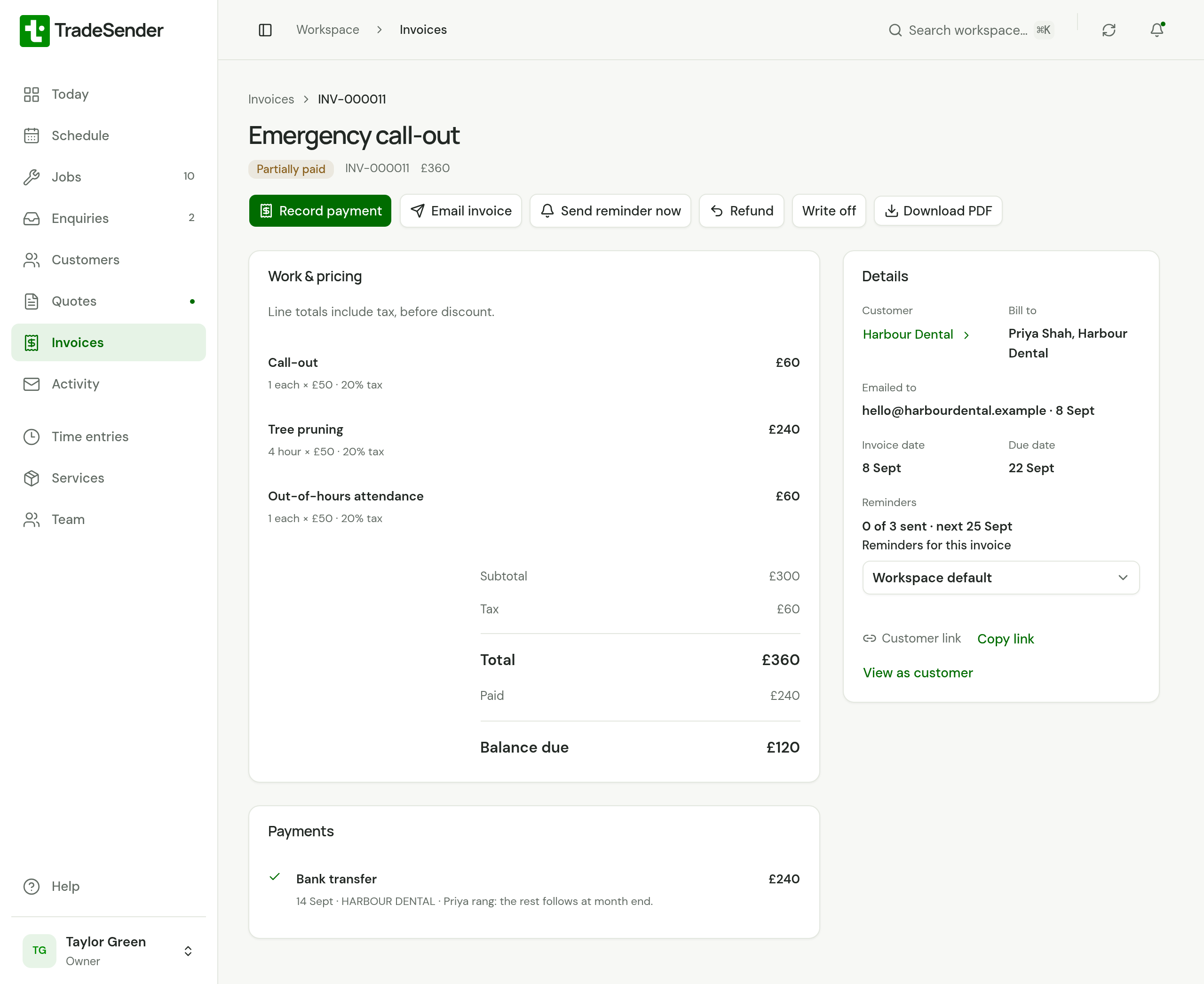
- The invoice reads Partially paid.
- Paid and Balance due under the total show what has come in and what is left.
- Payments lists each payment with its method, date, reference, notes and amount.
- Your customer's page shows Paid and Balance due too.
One payment across several invoices
A customer who pays the month in one bank transfer has paid several invoices at once. Record it once, from the customer.
-
Open the customer and choose Record payment. The button is there while they owe something.
-
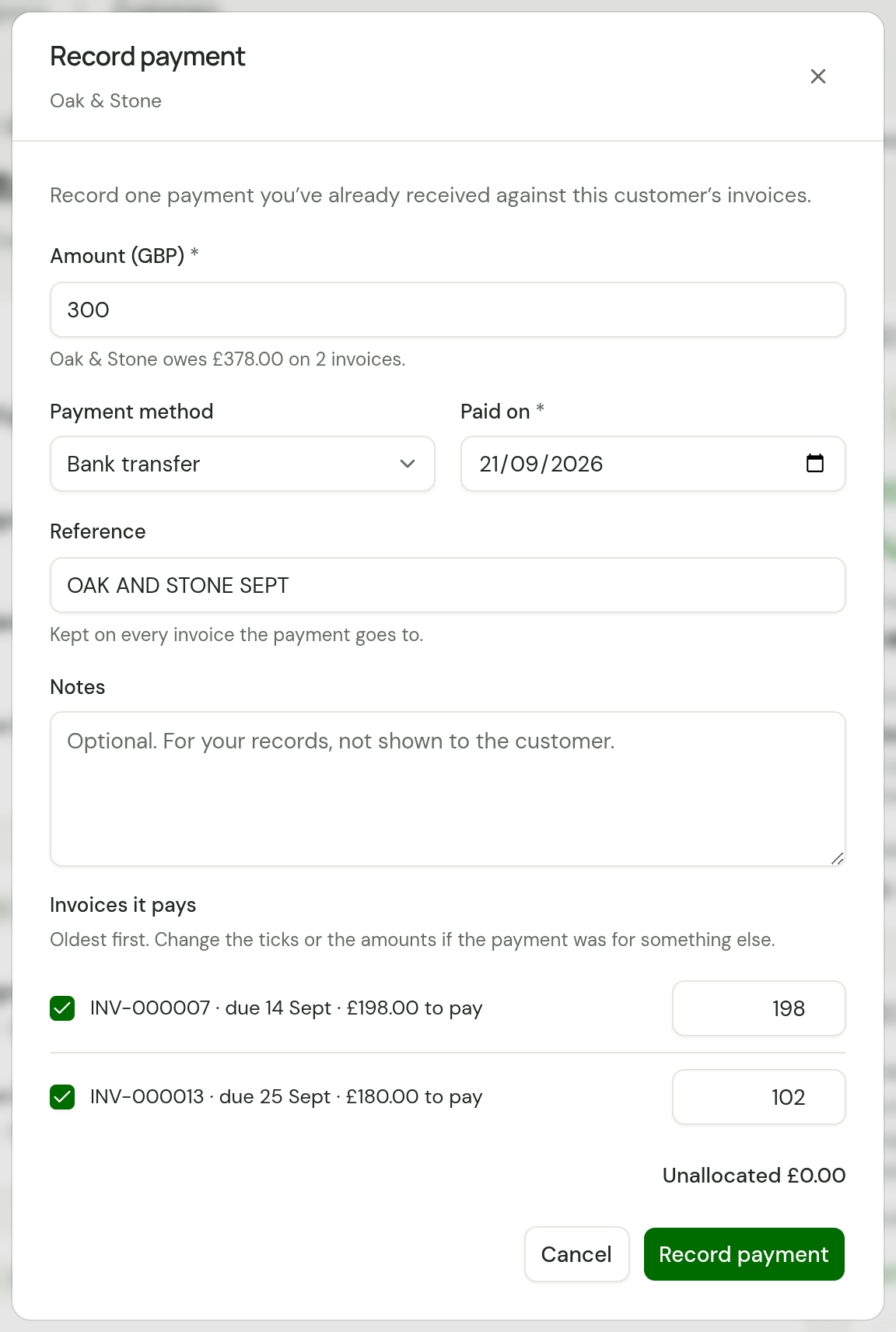
Check Amount (GBP). It starts at what they have to pay today, and the line under it says what that is: "Oak & Stone owes £378.00 on 2 invoices." Enter what arrived.
-
Set the Payment method and Paid on, and add a Reference and Notes if you want them.
-
Look at Invoices it pays. TradeSender spreads the amount over the invoices the customer has to pay, the oldest due first, each paid in full before the next gets anything.
-
If the payment was for something else, change it. Untick an invoice to leave it out, or type another amount beside one. Unallocated under the list must read £0.00 before you can save.
-
Choose Record payment.
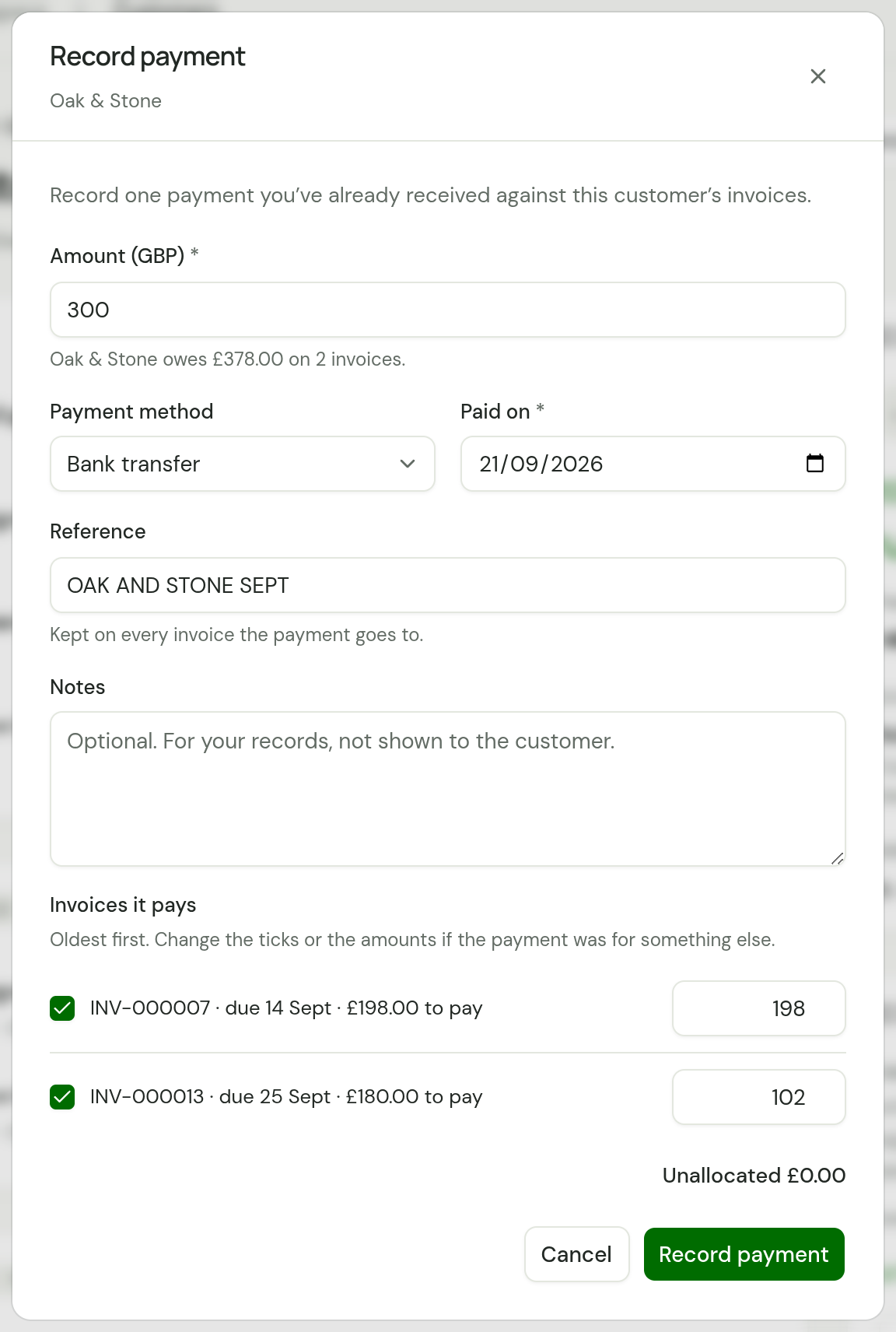
TradeSender records one payment on each invoice it paid, all with the same Reference, so each invoice still shows its own payment under Payments. Leave Reference blank and TradeSender makes one up to tie them together, such as PAY-20261101-7F3A.
- You cannot record more against one invoice than it has left to pay, or more in all than the invoices you can tick come to.
- It is all or nothing. If one part cannot be recorded, none of it is.
- In the phone apps, Record payment on the customer asks for the amount and applies it to the oldest invoices first. To choose which invoices it pays, use the web. It needs a connection.
Invoices that are already being collected
A payment recorded this way never goes to an invoice whose money is already on its way, and is not spread onto one that a Direct Debit is going to collect. Your customer is asked for neither today. Both stay in the list and say why:
| Under the invoice | It means | Can it take some of the payment |
|---|---|---|
| "Being collected" or "Being collected by Direct Debit" | A payment for it is on its way from the customer's bank | No. It cannot be ticked, because it would be paid twice |
| "Collecting by Direct Debit on 30 Sept" | Their Direct Debit will collect it on that day | Only if you tick it. It starts unticked |
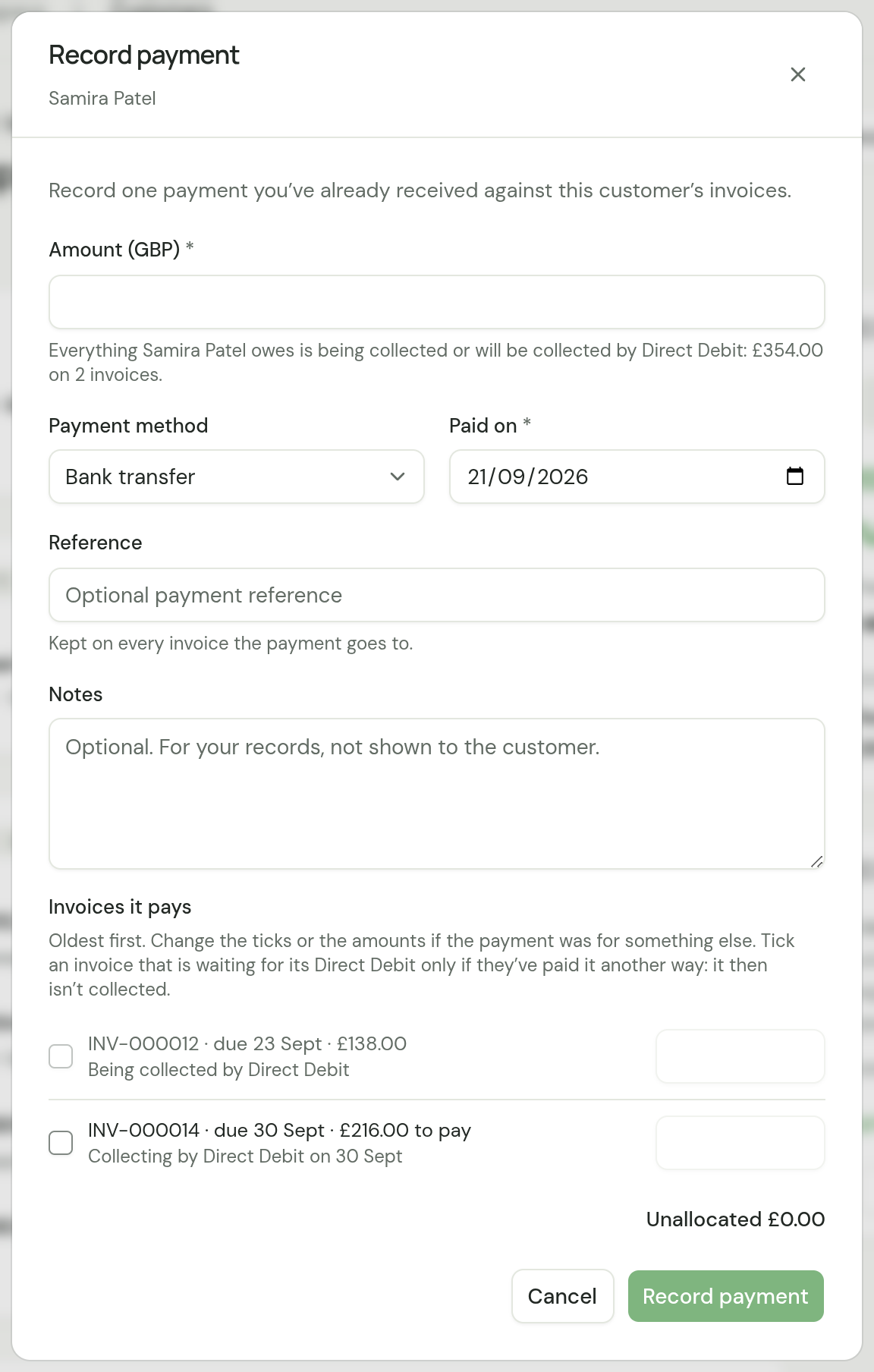
- The amount starts without them. The line under it gives both parts. If the newer of Oak & Stone's two invoices were being collected, it would read "Oak & Stone has £198.00 to pay on 1 invoice. Another £180.00 on 1 invoice is being collected." For invoices waiting for their day it ends "will be collected by Direct Debit".
- Tick an invoice that is waiting for its Direct Debit only if they have paid it another way. The dialog says so under Invoices it pays. Once the invoice is paid it is not collected, and one that is part paid is collected for what is left.
- Type more than they have to pay today and the rest stays Unallocated until you tick an invoice that can take it.
- When every invoice they owe on is being collected, there is no form. The dialog says that everything they owe is being collected, then "There’s nothing to record a payment against. If a collection fails, that invoice can be paid here.", and offers Close.
- In the phone apps these invoices are listed under Left out, and the amount can be no more than the others come to. To record a payment on one that is waiting for its Direct Debit, open that invoice and choose Record payment there.
Payments that record themselves
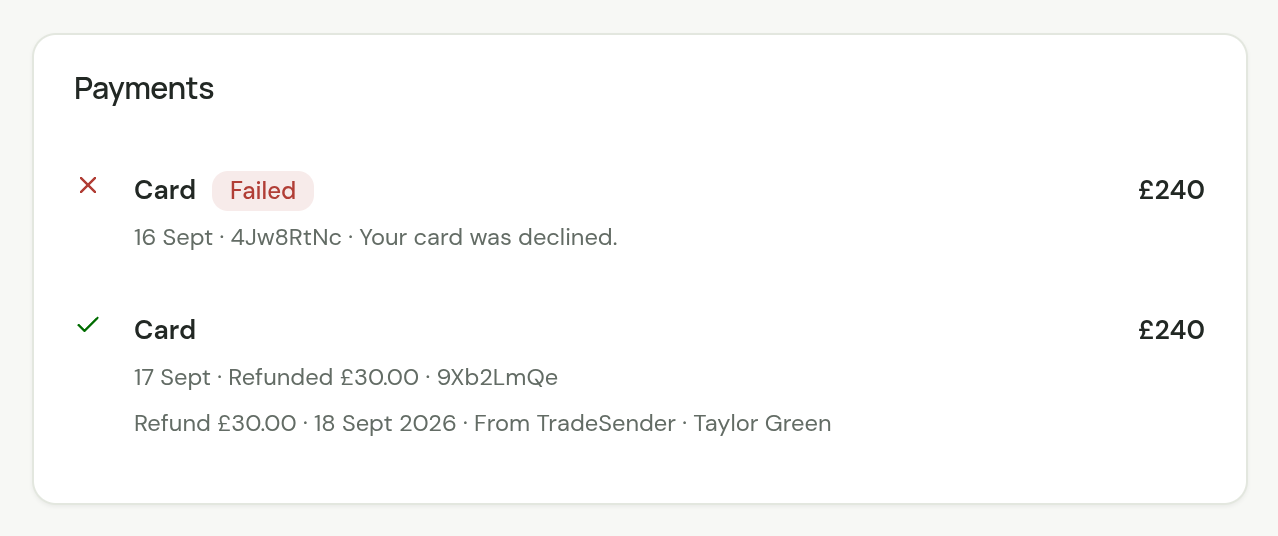
A payment made on Stripe's page, and a Direct Debit TradeSender collects, appear under Payments without you doing anything. Unlike a payment you record, one of these can still be on its way, or can fail.
| A payment reads | It means | Counts as paid |
|---|---|---|
| No badge | The money has arrived | Yes |
| Pending | It is on its way from the customer's bank | Not yet |
| Failed | The card was refused or the bank would not pay. The reason is beside it | No |
| Disputed | The customer has challenged it with their bank | Not while it is disputed |
| "Refunded £15.00" | You refunded part of it, from the invoice or in Stripe | Only what was not refunded |
| Refunded, with a grey refunded icon in place of the tick | You refunded all of it | No |
Each refund is listed under its payment, with how it was made: From TradeSender, Recorded by hand or In Stripe. See A payment's refunds.
Paid and Balance due on the invoice count only money that has arrived and stayed. A payment you record by hand always has.
You can record a payment by hand on the same invoice as an online one: a customer who pays part in cash and the rest online has both listed.
Refund a payment you recorded
When you give a customer back money you recorded, by bank transfer, in cash or any other way, record the refund on the payment. No money moves: you pay your customer back yourself, and TradeSender records that you did. Owners and office members can do it, on the web and in the phone apps, where Refund… is in the invoice's menu. A payment made online goes back through Stripe instead: see Refund a payment.
-
Pay your customer back.
-
Open the invoice and choose Refund. The button is there on an invoice you have sent, or one you voided, while a payment on it has something left to give back.
-
If more than one payment can be refunded, choose the one you gave back. Each reads how it was paid, the day, and what is left of it.
-
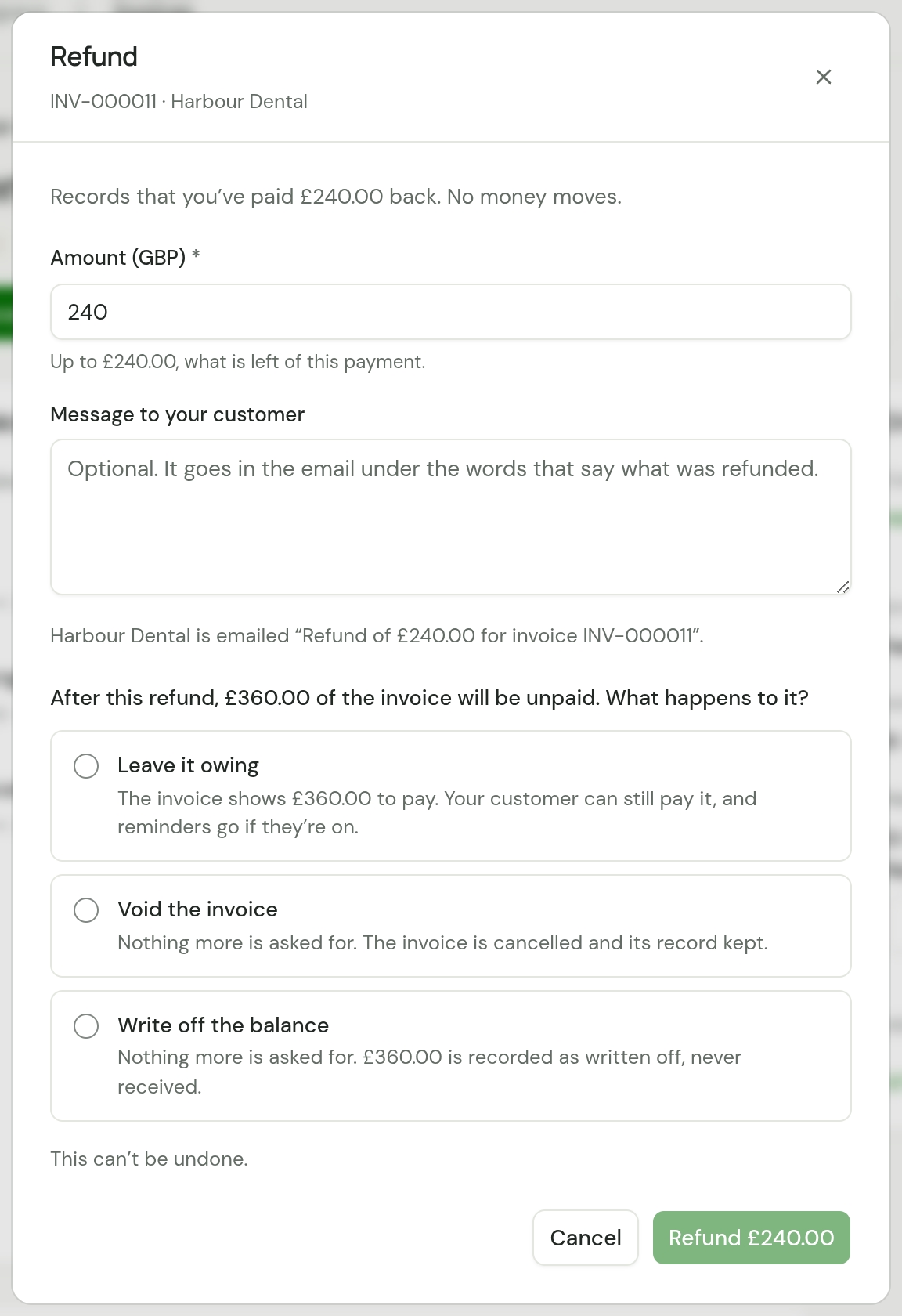
Check Amount (GBP). It starts at everything left of the payment. Enter less if you gave back part of it.
-
Add a Message to your customer if you want one, such as how you paid them back. It goes in their email, under the line that says what was refunded. The box is there only when your customer will be emailed.
-
If the refund leaves money to pay, the dialog may ask what happens to it, such as "After this refund, £360.00 of the invoice will be unpaid. What happens to it?" Choose Leave it owing, Void the invoice or Write off the balance. Nothing is chosen for you. See When a refund leaves money owing.
-
Read "This can’t be undone.", then choose Refund £240.00. The button carries your amount. It stays greyed out until you have answered the question in step 6, if the dialog asks it.
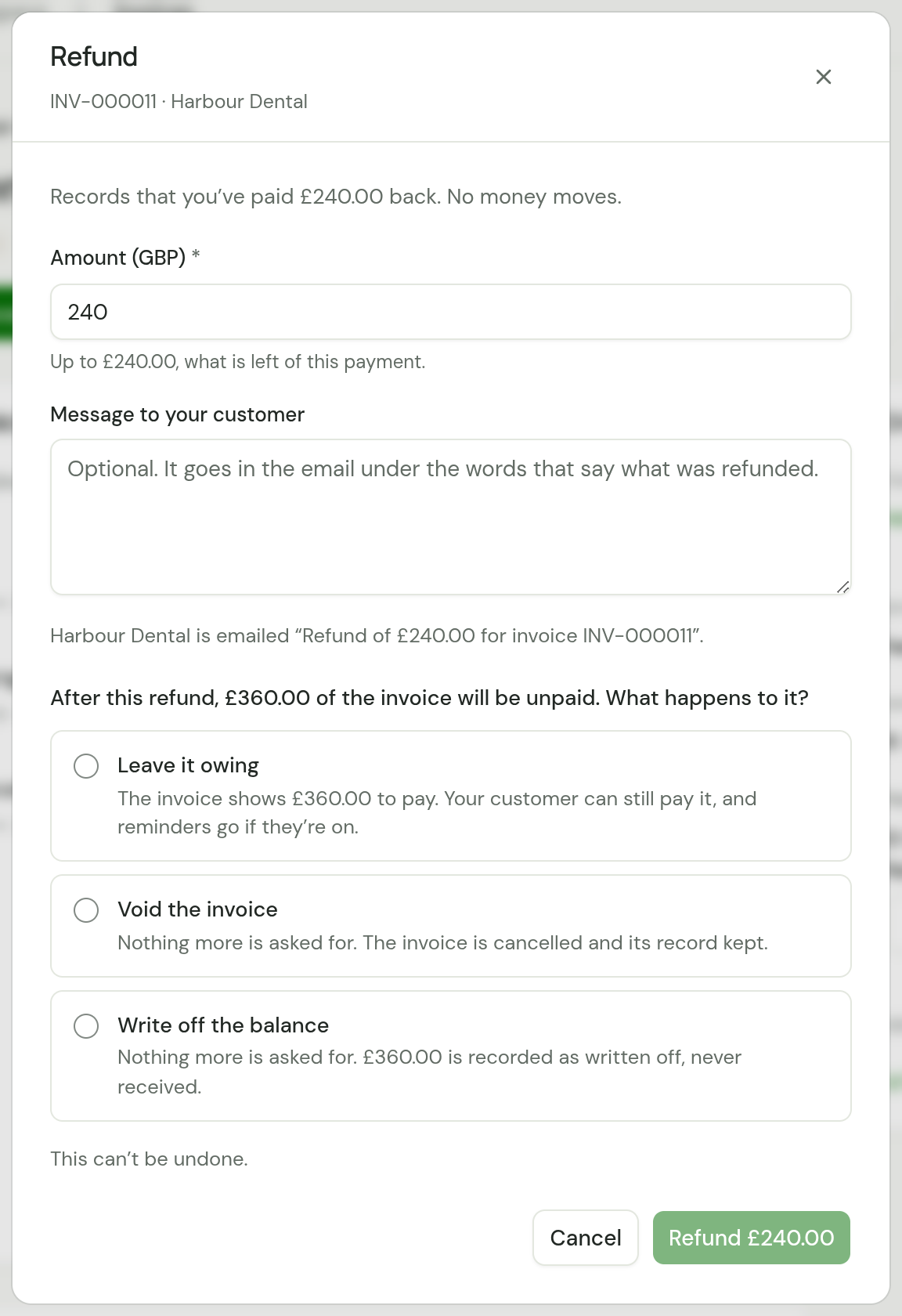
The message says "Refund recorded." What changes:
- The refund is listed under the payment, as "Refund £240.00 · … · Recorded by hand" and your name. A payment refunded in full reads Refunded, with a grey refunded icon in place of the tick; one refunded in part reads "Refunded £…" as well.
- The payment counts only what is left of it. Paid and Balance due on the invoice, Paid this month on Today, your customer's page, their portal and the PDF follow. Your customer's page and the PDF list no refunds.
- The payments export has the payment's whole amount, what was refunded, and what was received after it.
- Your customer is emailed "Refund of £240.00 for invoice INV-000011 from Green & Co.": "We've refunded £240.00 of what you paid for invoice INV-000011.", then a line on how the invoice stands, such as "£360.00 is still to pay on this invoice.", "The invoice has been voided, so there is nothing to pay." or "There is nothing more to pay on this invoice.", then your message if you wrote one, a link to the invoice's page and the PDF. It is listed as Refund under Sent on the customer and in Activity.
- A customer with no email address, or one who is archived, is not told. The dialog says so, and the refund is recorded all the same.
A refund cannot be undone. If you record a refund by mistake, record the money again with Record payment.
Write off what will not be paid
Sometimes a customer pays part of an invoice and will not pay the rest, and chasing it costs more than it is worth. Write off what is left. TradeSender then counts the invoice as settled, and counts nothing as received that did not arrive. Owners and office members can do this, on the web and in the phone apps, where Write off… is in the invoice's menu.
-
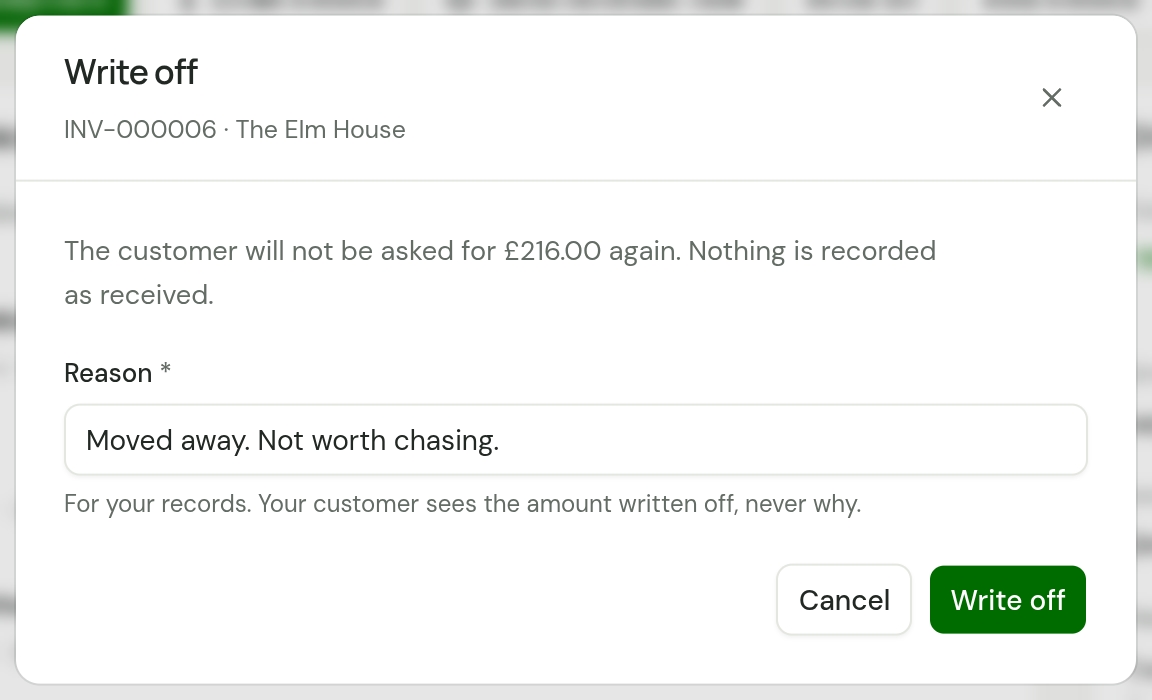
Open the invoice and choose Write off.
-
Under Reason, say why, such as "Disputed the front beds. Agreed £50 rather than chase it." It is for your records. Your customer sees the amount written off, never why.
-
Choose Write off.
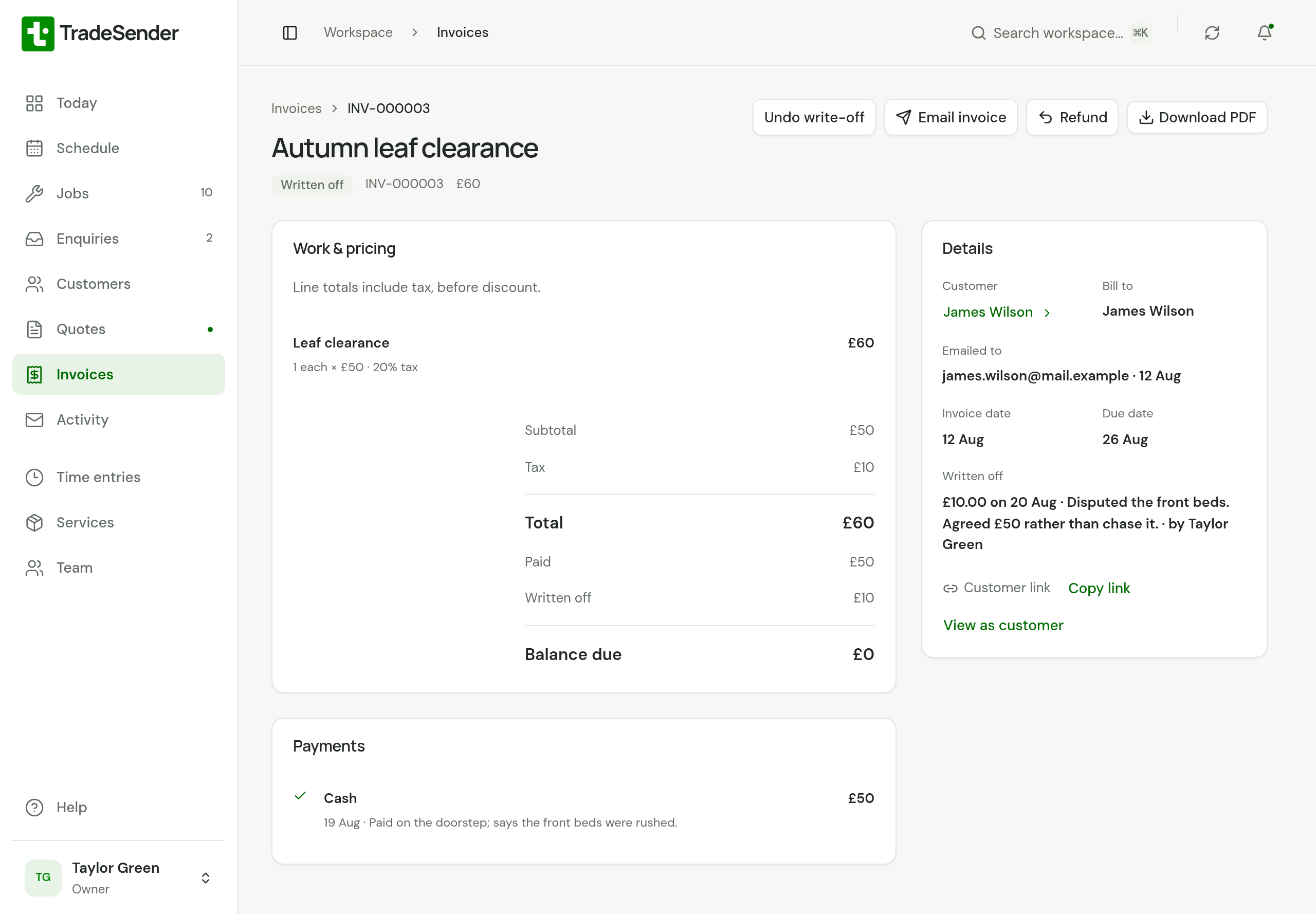
What changes:
- The invoice reads Written off. Under Details, Written off gives the amount, the day, the reason and who wrote it off.
- It leaves Owed to you on Today, Payment overdue under Needs attention and what the customer owes on their page. It is never reminded, and a Direct Debit never collects it.
- Nothing is recorded as received. Paid this month counts only what you were paid, and so does the payments export. The invoices export has a written-off column beside paid.
- Your customer's page for the invoice, their portal and the PDF show Paid, Written off and a Balance due of nothing, and ask for nothing.
- Record payment goes, and Undo write-off takes its place.
If the customer pays after all, choose Undo write-off first. What was written off is owed again, the invoice is overdue again if its due date has passed, and its reminders carry on. Then record the payment as usual. A payment cannot be recorded while the invoice is written off.
Write off is not offered, or is refused, for:
- a deposit invoice. The whole deposit comes off the invoice for the work, so writing it off would give the customer that money as credit. Void it, or refund what was paid.
- an invoice with a payment on its way or in dispute. Wait until it has cleared or been settled.
- a draft, a void invoice, or one with nothing left to pay.
TradeSender makes no credit note. In your accounts software, record the amount as a bad debt or a credit note, as your accountant advises.
What each status means
| Status | Meaning |
|---|---|
| Draft | Not finalised. The customer cannot see it and you cannot record a payment on it. |
| Unpaid | Emailed or marked as sent, with nothing paid. |
| Partially paid | Some money recorded, some still owed. |
| Overdue | The due date has passed and something is still owed. |
| Being collected | A payment is on its way from the customer's bank: one made online that takes days to clear, or a Direct Debit. |
| Paid | Nothing left to pay. |
| Written off | You wrote off what was left to pay. Nothing is owed on it. |
| Void | Cancelled. Nothing is owed on it. |
Overdue
An invoice is overdue from the day after its Due date, whether nothing or part of it has been paid. It is not overdue while it is Being collected, or while a Direct Debit is waiting for its day to collect it. You will see it in three places:
- Overdue on the invoice and in the Invoices list, where the Overdue filter gathers them.
- Payment overdue under Needs attention on Today, with the amount and the customer. An invoice whose Direct Debit failed is listed there as Direct Debit failed in its place.
- The overdue amount under Owed to you on Today.
TradeSender can chase for you. With Remind customers about overdue invoices switched on, it emails a reminder 3 days after the due date and then every 14 days, three times at most, unless you change those timings. A customer or an invoice can be set to be reminded, or not, whatever the switch says. See Automatic emails. To chase one yourself, open the invoice and choose Send reminder now.
Paid
When the balance reaches nothing, the invoice reads Paid and Record payment goes. The job it came from reads Paid too. On the customer's page, the bank details disappear.
What Today's figures count
Owners and office members see three figures at the top of Today, once the first invoice has been finalised.

| Figure | What it adds up | Beneath it |
|---|---|---|
| Paid this month | Payments whose Paid on date is in this calendar month. An online payment counts once it has arrived, less anything refunded | Last month's total to the same day |
| Invoiced this month | The totals of finalised invoices whose Invoice date is in this month | Last month's total to the same day |
| Owed to you | The balance due on every finalised invoice. A written-off invoice has none | The part that is overdue, or "None overdue". Then how much of the total is on its way, such as "£138 being collected" |
- All three include VAT.
- Drafts and void invoices are left out.
- A payment counts in the month of its Paid on date, so a payment you backdate to last month counts there.
- Choose a figure to open the invoices behind it.
Further down Today, Recent payments lists the three latest payments, whether you recorded them or they came in online.
Checked against the app on 29 October 2026. Still stuck? Ask usAsk us.