Invoice a job
Turn a finished job into a draft invoice, check it, and finalise it by emailing it or marking it as sent.
Owners and office members raise invoices, on the web and in the iPhone and Android apps. Technicians do not see them. This page follows the web.
An invoice takes its customer, lines and discount from the job, so there is nothing to type twice. This page covers a job billed When the job is complete. For a round billed by the visit, see Bill per visit. For a round billed once a month, see Invoice at month end.
Create the invoice
A job can be invoiced once it reads Completed. There are four places to start, and they all make the same draft.
| Where you are | Choose |
|---|---|
| You have finished the job's last visit | Create invoice in the message "Visit finished. Job done." |
| On Today, at the finished visit's card | Create invoice |
| On the finished visit's page | Create invoice |
| On the job's page | Create invoice, then Create invoice again to confirm |
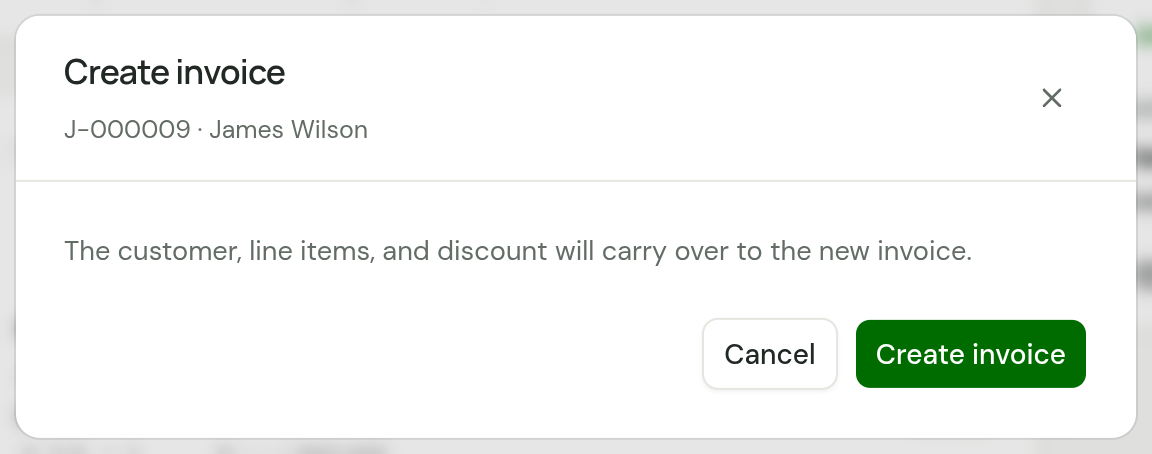
The draft opens straight away. Nothing has gone to the customer.
A job billed After each visit or At month end has a button such as Invoice 2 completed visits in its place, and lets you choose which visits go on the invoice.
To find the jobs that are waiting, open Jobs and choose To invoice, or look for Ready to invoice under Needs attention on Today.
A job with no price
A job with no line items shows Add pricing to invoice in place of Create invoice. It opens the job at Pricing. Add at least one line and choose Save and create invoice. The job is priced and its draft invoice opens.
One invoice for each job
A job billed when it is complete has one invoice at a time. Once it has one, the job's page shows Open invoice. If you void that invoice, Create invoice comes back.
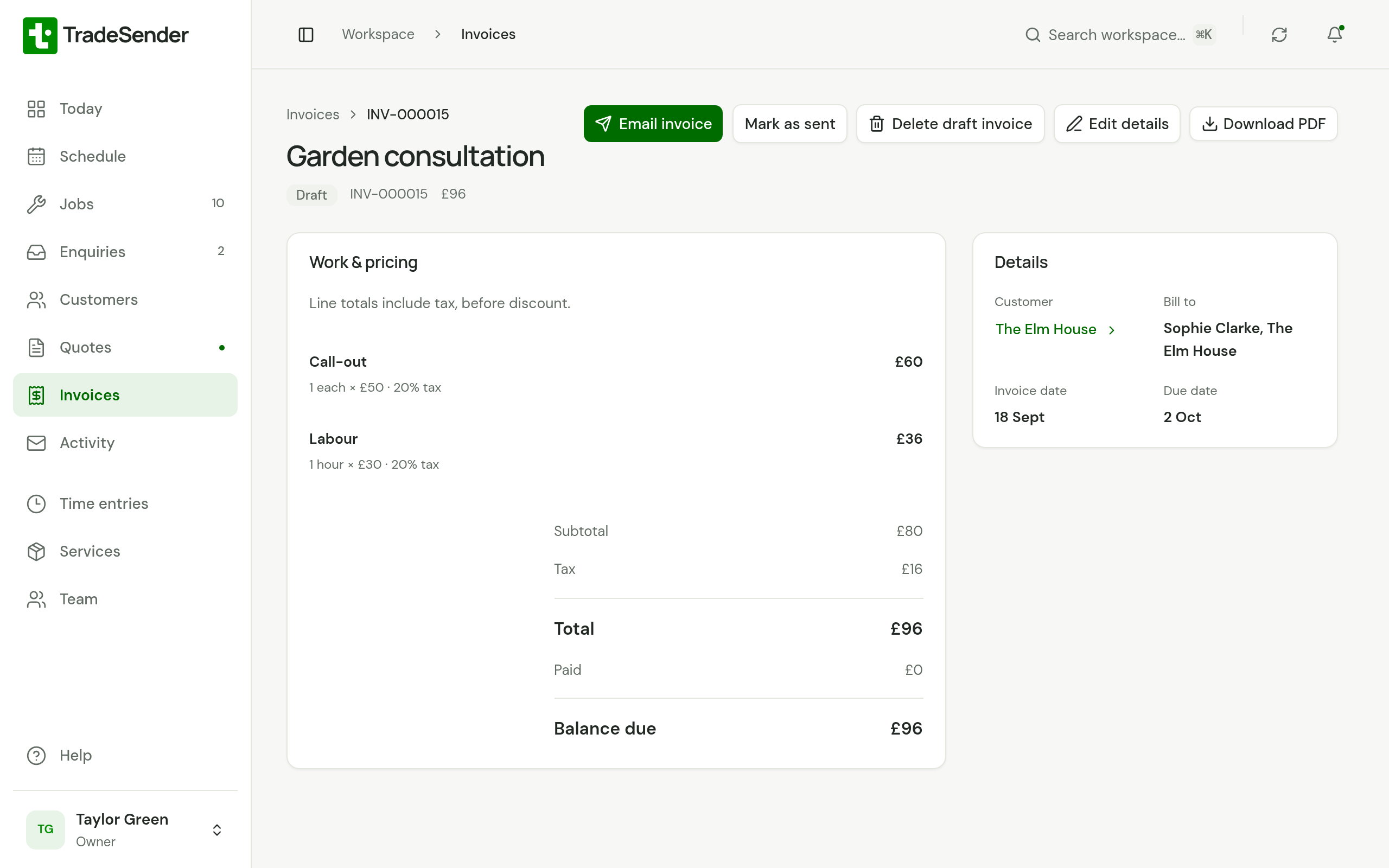
What the draft contains
| On the draft | Where it comes from |
|---|---|
| Title and description | The job's title and what needs doing |
| Line items and discount | The job's pricing. What each line costs you stays on the job: an invoice carries no costs |
| Customer and Bill to | The job's customer. If the property is billed to someone else, their name and address |
| Invoice date | Today |
| Due date | Today plus the customer's payment terms |
| Number | The next number in your workspace, such as INV-000008 |
The invoice number
An invoice gets its number when the draft is created. Numbers run in order, starting at INV-000001. You cannot choose a number or a prefix, and a number is never used twice.
Edit a draft
Choose Edit details. You can change the Customer, Related job, Invoice date, Due date, Invoice title, the lines, the Discount and the Description, then choose Save draft.
A Due date that still follows the customer's payment terms moves when you change the Invoice date. One you have set yourself stays where you put it.
Changing the draft does not change the job. Changing the job's price later does not change the invoice.
You can edit an invoice only while it is a draft. Once it is finalised, void it and create it again if it is wrong: see Send an invoice.
Delete a draft
A draft you do not want has Delete draft invoice on its page. Choose it, then Delete draft invoice again to confirm.
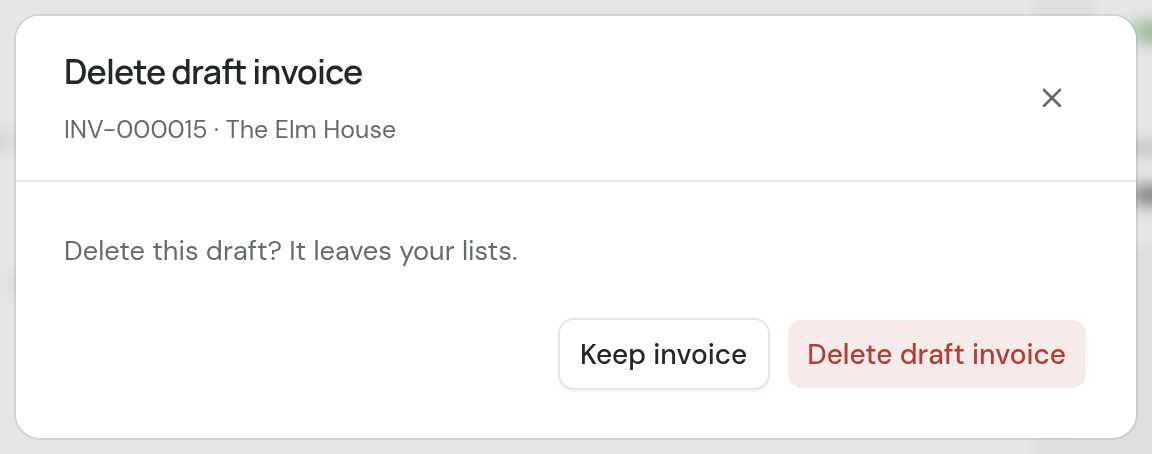
The draft leaves your lists. If it came from a job, the job can be invoiced again. Its number is not used again. Only a draft can be deleted: an invoice you have sent is voided instead. In the phone apps, the draft's menu has Archive invoice, which does the same.
Finalise it: Email invoice or Mark as sent
A draft has two buttons that finalise it. TradeSender has no separate issue step.
| Button | What it does |
|---|---|
| Email invoice | Emails the invoice to the customer with a link and a PDF, and finalises it. See Send an invoice. |
| Mark as sent | Finalises it without an email, for an invoice you have handed over another way. |
Both ask for the Invoice date and Due date first. Once an invoice is finalised:
- It reads Unpaid and can no longer be edited.
- It has a Customer link your customer can open.
- It keeps the name and address it was addressed to, even if the customer's details change later.
- The job reads Invoiced.
- It counts towards Invoiced this month and Owed to you on Today.
Due dates and payment terms
Each customer has their own Payment terms (days), set on the customer. A new customer starts at 14.
- A draft's Due date is its invoice date plus those days.
- You can change both dates in the draft, and again as you email it or mark it as sent. In both places, changing the Invoice date moves a Due date that still follows the terms.
- The due date cannot be before the invoice date.
- The day after the due date, an invoice with anything still owing reads Overdue. See Record a payment.
An invoice with no job
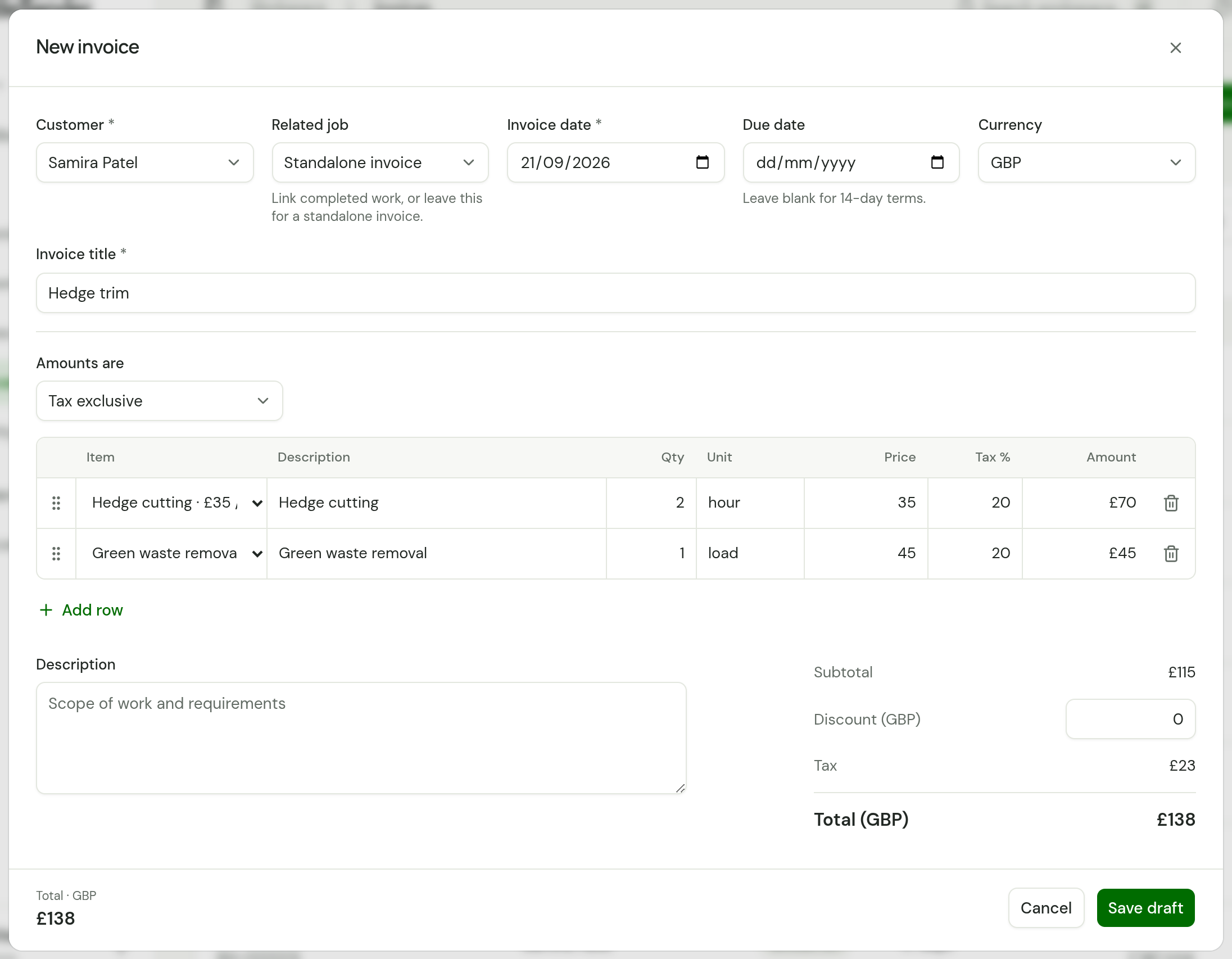
Open Invoices and choose New invoice, or choose Invoice on Today. Pick the Customer and leave Related job on Standalone invoice, or choose one of that customer's completed jobs. Leave Due date blank to use the customer's payment terms.
Checked against the app on 29 October 2026. Still stuck? Ask usAsk us.