Sign in with Google, Microsoft or Apple
Use the Google, Microsoft or Apple account you already have to get into TradeSender, with or without a password as well.
You can sign in to TradeSender with a Google, Microsoft or Apple account in place of a password. All three are on the sign-in page on the web and in the iPhone and Android apps, and anyone in a workspace can use them.
Sign in
-
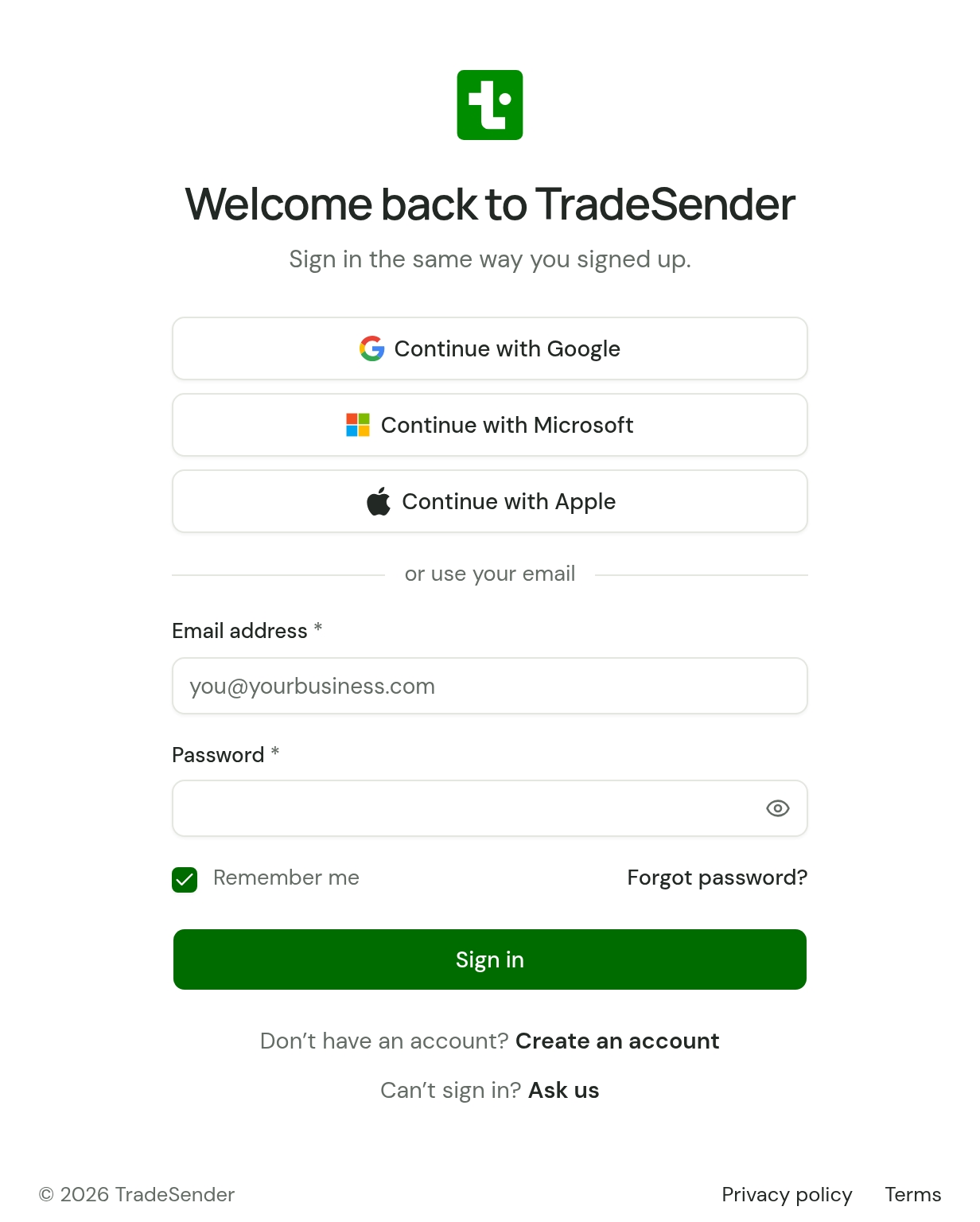
Open the sign-in page.
-
Choose Continue with Google, Continue with Microsoft or Continue with Apple.
-
Sign in at Google, Microsoft or Apple if it asks, and agree to share your name and email address.
-
You come back to TradeSender, signed in.
You have 10 minutes to finish at the provider.
The Create your account page has the same three buttons. It makes no difference which page you start from.
In the iPhone app the buttons sit under the email form, after "or continue with". Apple's own button comes first, then Continue with Google and Continue with Microsoft.
In the Android app they also sit under the email form, after "or continue with", in the web's order: Continue with Google, Continue with Microsoft and Continue with Apple. Each opens the provider's page in a browser tab and brings you back to the app.
The first time you use one
TradeSender works out who you are in this order:
- You have used this provider account before. You go into the same TradeSender account as last time.
- Its email address matches a TradeSender account. TradeSender links the two. From then on you can sign in either way. This is also a way into a team you were invited to: use a provider account with the address the invitation went to.
- Nothing matches. TradeSender makes a new workspace on the Free plan with you as its owner. It takes the Business name you entered on the Create your account page before choosing the button; with none, it is named after you until you enter one, in the set-up questions that follow or later in Settings.
For step 2, the provider must confirm the email address is yours. If it has not, TradeSender does not link anything and tells you so.
Apple and a hidden email address
If you choose to hide your email address, Apple gives TradeSender a relay address in place of yours. It matches no TradeSender account, so you get a new workspace. To get into a workspace you already have, sign in with your email and password.
If you belong to more than one workspace
TradeSender shows Choose your workspace and asks for a Workspace ID. Yours is in Settings, under Business details.
What TradeSender receives
Your name, your email address and an identifier that lets TradeSender recognise you next time. Apple sends your name the first time only.
TradeSender never receives your Google, Microsoft or Apple password. Signing in gives it no way into your email, contacts, calendar or files.
Use a password as well
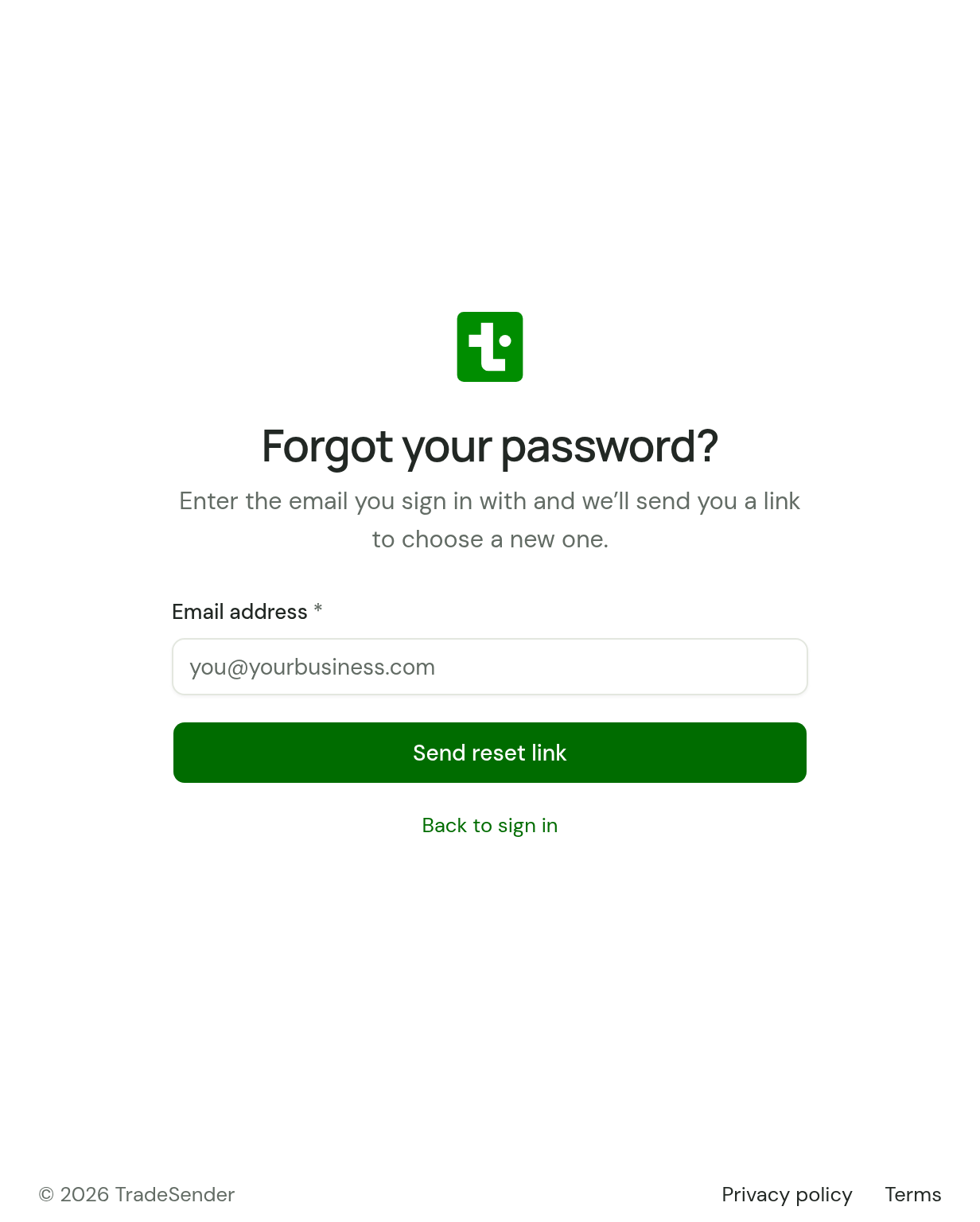
You signed up with a provider and want a password. On the sign-in page choose Forgot password?, enter your email address and choose Send reset link. The link in the email lasts 20 minutes. Choose a password of at least 10 characters and choose Save password. After that you can sign in either way.
Choosing a new password signs you out on your other devices. It also disconnects any AI assistants you have connected and ends any API keys you made.
You have a password and want to use a provider. Choose its button on the sign-in page, with a provider account that has the same email address. TradeSender links it, and your password carries on working.
Signing in is separate from sending email
Signing in with Google or Microsoft shares your name and email address, nothing more. It does not let TradeSender send from your Gmail or Outlook mailbox.
Sending quotes and invoices from your own address is a different permission. An owner gives it once for the workspace, in Settings, Emails. See Send from your own mailbox.
If it does not work
TradeSender shows Couldn’t sign you in with one of these, and a Back to sign in button.
| What you see | Why | What to do |
|---|---|---|
| "Sign-in was cancelled." | You cancelled at the provider. | Start again from the sign-in page. |
| "That account’s email address isn’t verified. Verify it first, or sign in with your email and password." | The provider has not confirmed the address is yours. | Verify the address with the provider, or use your password. |
| "That email is already linked to a different account with this provider. Sign in with your email and password." | Your TradeSender account is already linked to another account at the same provider. | Use the provider account you linked first, or your password. |
| "This sign-in took too long or didn’t start here. Please try again." | More than 10 minutes passed at the provider, or you came back in a different browser or tab from the one you started in. | Start again, and finish in the same tab. |
| "This sign-in has expired. Please try again." | More than 5 minutes passed before the last step. | Start again. |
| "No workspace with that ID.", on Choose your workspace | The Workspace ID you entered is not one of yours. | Type it again. The form stays open. The ID is in Settings, Business details. |
| "That sign-in option isn’t available yet. Use your email and password." | TradeSender cannot offer that provider at the moment. | Use another button, or your password. |
| "Couldn’t sign you in with that account. Please try again." | Anything else, such as the provider not answering. | Try again. If it repeats, use your password and tell us from Help. |
Checked against the app on 29 October 2026. Still stuck? Ask usAsk us.