The WordPress plugin
Install the TradeSender Enquiries plugin, enter your form key and put the enquiry form on a WordPress page with a shortcode.
The TradeSender Enquiries plugin puts your enquiry form on a WordPress website with a shortcode. It can also pass on what your Contact Form 7 forms receive. You need to be an administrator of the WordPress website, so that you can install plugins, and an owner or office member in TradeSender.
The plugin needs WordPress 6.3 or later and PHP 7.4 or later. You download it from TradeSender and upload it to WordPress.
Download the plugin
In TradeSender on the web, open Settings, then Website and portal. Beside WordPress plugin, choose Download plugin. Your browser saves tradesender-enquiries.zip. Leave it zipped.

In the iPhone and Android apps, WordPress plugin under Website and portal shares a link to the file, to open on the computer you look after the website from. The file is at this address:
https://app.tradesender.co.uk/downloads/tradesender-enquiries.zip
Install it in WordPress
-
In your WordPress admin, open Plugins, then Add Plugin. WordPress versions before 6.8 call it Add New Plugin or Add New.
-
Choose Upload Plugin, pick
tradesender-enquiries.zip, and choose Install Now. -
Choose Activate Plugin.
TradeSender Enquiries is now in your list of plugins, with a Settings link under its name.

WordPress keeps its own steps in Manage Plugins.
Enter your form key
-
In TradeSender, on the same page of Settings, choose Copy key beside Form key. In the iPhone or Android app, tap Form key.

-
In WordPress, open Settings, then TradeSender enquiries.
-
Paste the key into Form key and choose Save Changes. Pasting your form link or your form address works too.

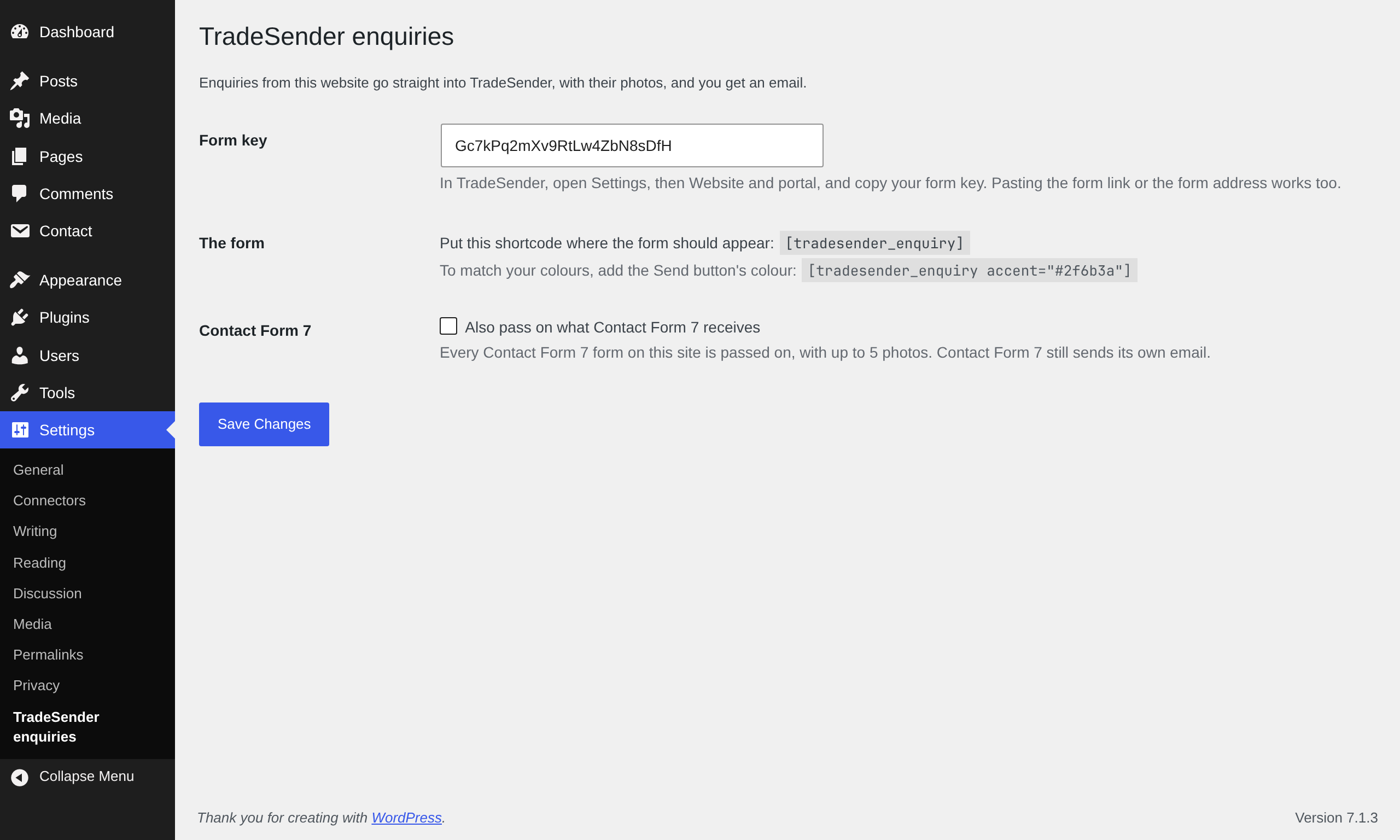
If WordPress says "That does not look like a TradeSender form key.", copy the key again from TradeSender.
Put the form on a page
-
In WordPress, edit the page the form should be on.
-
Add a Shortcode block where you want the form: type
/shortcodeand press Enter. -
Enter the shortcode, then save the page:
[tradesender_enquiry]
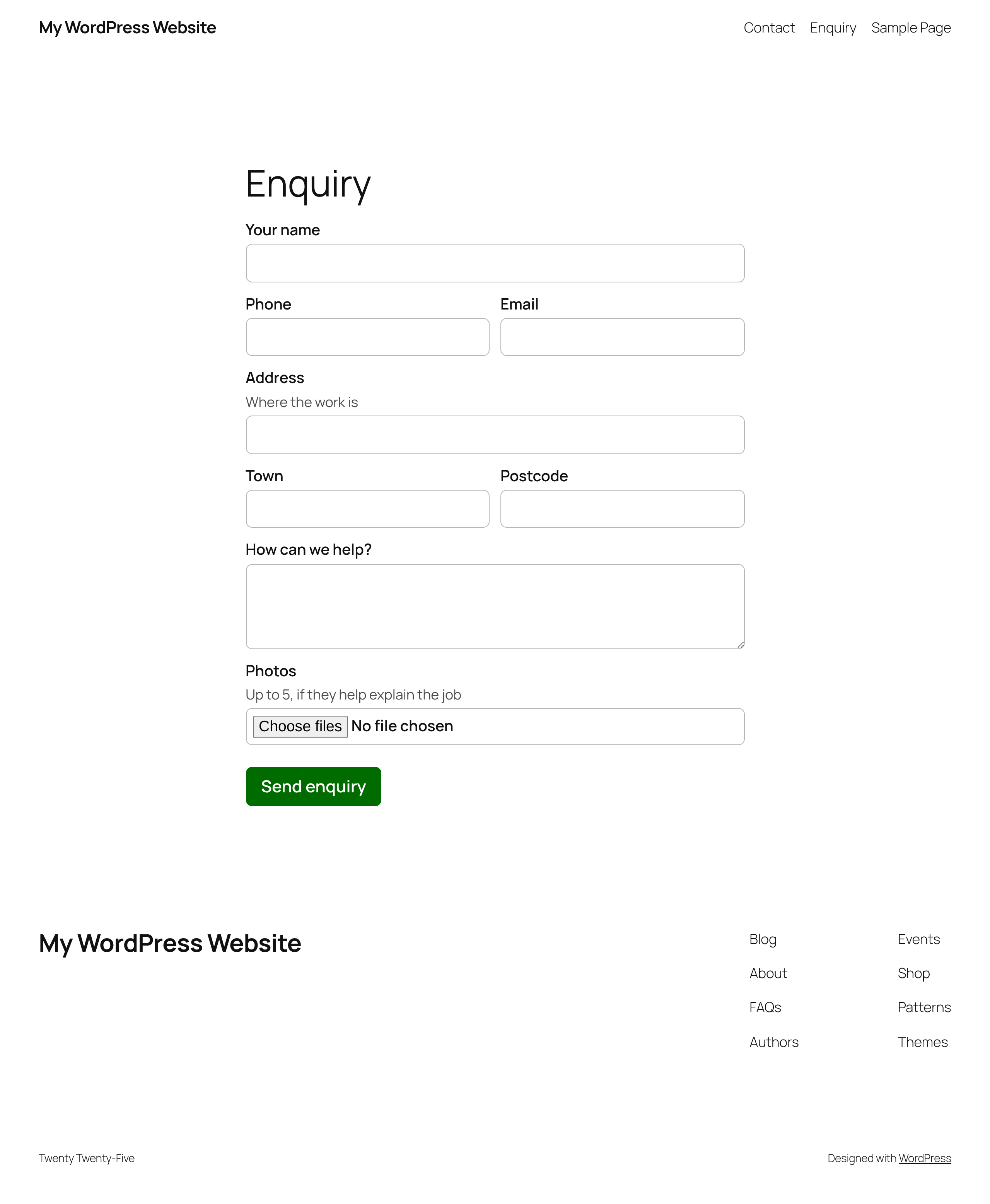
To match the Send enquiry button to your colours, add the colour as a hex code:
[tradesender_enquiry accent="#2f6b3a"]
While no form key is saved, visitors see nothing where the shortcode is. Signed in as an administrator you see "Add your TradeSender form key under Settings, TradeSender enquiries, and the enquiry form will appear here."
Send yourself an enquiry from the page, check it reaches Enquiries in TradeSender, then delete it. The form is the one on Add the form to your website, so it looks and behaves as that page describes.
Pass on Contact Form 7
If your website uses Contact Form 7, you can keep those forms. In WordPress, open Settings, then TradeSender enquiries, tick Also pass on what Contact Form 7 receives and choose Save Changes.
Every Contact Form 7 form on the website is then passed to TradeSender, with up to 5 photos. Contact Form 7 still sends its own email. Any question TradeSender has no place for is kept under the enquiry's message.
If an enquiry cannot be passed on, the settings page says so the next time you open it, with the reason and the time.
Update the plugin
The plugin is not in WordPress's plugin directory, so WordPress does not offer updates for it. To update it, download the zip from TradeSender again and upload it as before. WordPress asks whether to swap it for the one you have: choose Replace current with uploaded. Your form key and settings stay.
If you replace your form's address in TradeSender, the form key changes. Paste the new key into Form key in WordPress, or the form on your website stops sending.
Remove the plugin
In WordPress, open Plugins. Choose Deactivate under TradeSender Enquiries, then Delete.
Deleting removes the form key and the settings the plugin saved in WordPress. Enquiries already in TradeSender are not touched. Take the shortcode off your pages as well.
Without the plugin
The form code from Settings works in WordPress's Custom HTML block: see Add the form to your website. WordPress removes the <script> line when the page is saved by someone below Editor, such as a Contributor or an Author, who is not allowed to add scripts. Save it as an Editor or an Administrator, or use the plugin.
Checked against the app on 29 October 2026. Still stuck? Ask usAsk us.