Find your way around
What each item in the sidebar opens, how to read Today and its figures, and where search, refresh and your settings are.
This page follows the web app as an owner or an office member sees it. A technician sees less: see Today for a technician.
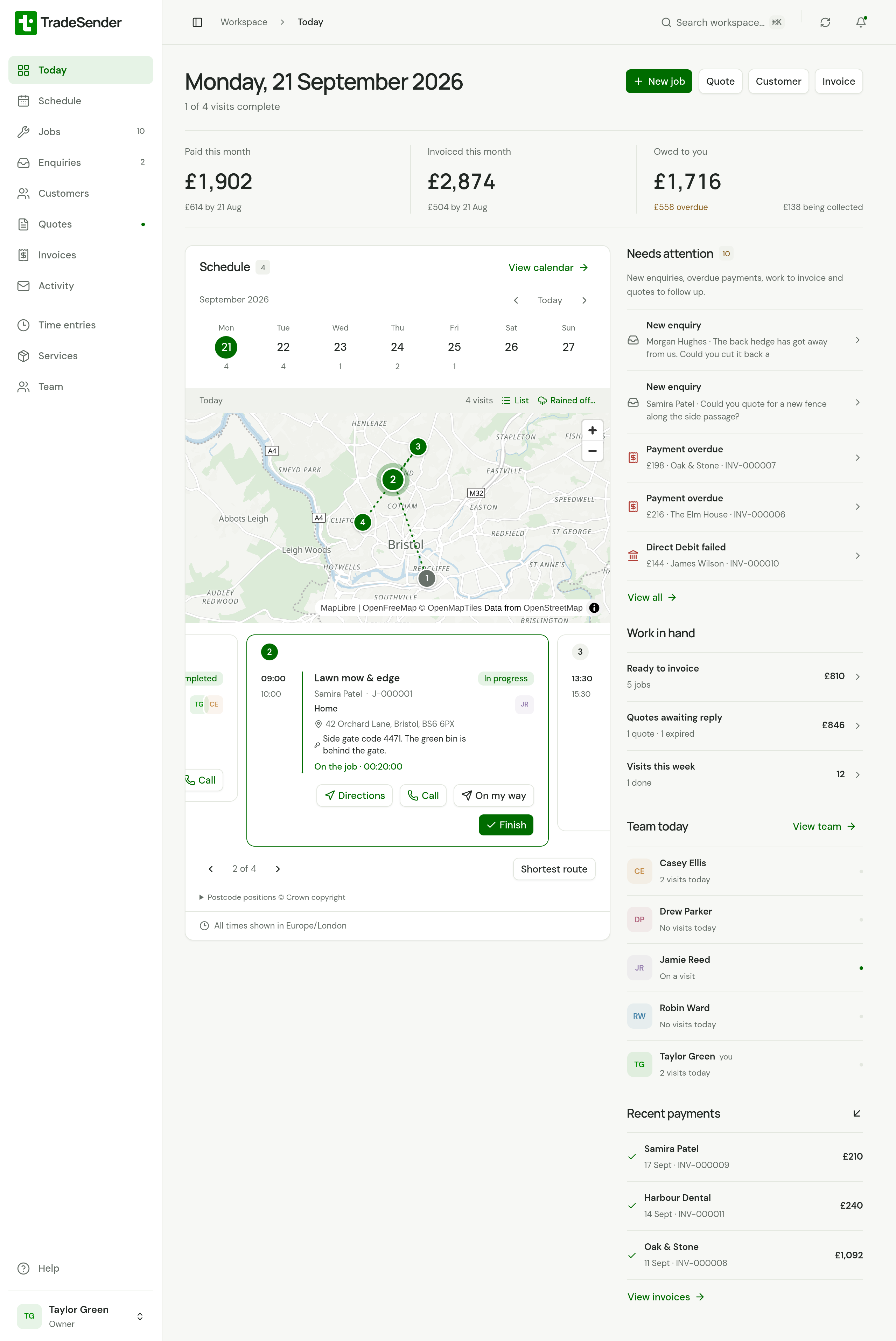
The sidebar
| Item | What it opens |
|---|---|
| Today | The day's visits, what needs attention and shortcuts to new work |
| Schedule | Visits and time off by day, week or month |
| Jobs | Every job, one-off or repeating. The number beside it counts active jobs |
| Enquiries | What people have sent through your website form. The number counts new ones |
| Customers | Your customers, with their contacts and properties |
| Quotes | Your quotes. A dot means a sent quote is waiting for an answer |
| Invoices | Your invoices, what is due and what has been paid |
| Time entries | Your own time, and your team's |
| Services | Your price list |
| Team | The people in your workspace |
Help, at the bottom above your name, is where you search these help articles, ask us a question or report a problem. The keyboard shortcuts are at its foot. Everyone has it, whatever their role: see Get help from TradeSender.
The button at the left of the top bar shrinks the sidebar to icons. On a phone the sidebar is hidden, and the same button opens it.
Today
The page is headed with the date and how many of today's visits are complete. Beside it, New job, Quote, Customer and Invoice each open a new one.
The month's money

| Figure | What it counts | Beneath it |
|---|---|---|
| Paid this month | Payments dated in this calendar month. A payment counts on its own date, which you can set when you record it. One made online counts once the money has arrived | Last month's total up to the same day, such as "£614 by 21 Aug" |
| Invoiced this month | The totals of the invoices dated in this calendar month. Drafts and void invoices are left out | The same comparison |
| Owed to you | What is still to pay on the invoices you have sent. A written-off invoice has nothing to pay | The overdue amount, or None overdue. Then what is on its way from customers' banks, such as "£138 being collected" |
The amounts include VAT and count your workspace's currency only. Choose a figure to open the invoices behind it.
The row appears once you have sent your first invoice.
The day's visits
Schedule shows the week from Monday to Sunday, with the number of visits under each day. Choose a day to see its visits. The arrows move a week at a time, Today brings you back, and View calendar opens the full schedule.
The day's visits are drawn on a map, with a numbered pin for each and the visits as cards beneath it, one in view at a time. Swipe the cards, use the arrows beside the count, such as 2 of 4, or choose a pin, and the map picks out that visit. It opens on the visit in progress, or else the next one still to do. Neighbours in one postcode share a pin that carries both their numbers, and a finished visit's pin is grey. A pin is the middle of the property's postcode, so it is right to the street and not to the house.
The map is drawn from OpenStreetMap's data, credited in its corner. A page that scrolls past it keeps scrolling: to zoom, hold Ctrl (Command on a Mac) and scroll, or use two fingers. Postcode positions © Crown copyright, under the cards, opens the credit for the postcode data. A browser that cannot draw a map shows the cards and the arrows alone.
List, beside the count of the day's visits, shows the same visits as a list, and Map brings the map back. Your browser remembers which you chose. A day is always a list when none of its properties has a position yet: a property gets one from its postcode a few minutes after it is saved, and a card for a visit that is still waiting reads No position yet.
Shortest route, beside the arrows, lists the visits still to do in an order to drive them. See The map of the day.
Rained off…, beside it, moves every visit still to do that day to another day and can email the customers. Owners and office members see it on a day with a visit that reads Scheduled. See Rained off: move a whole day.
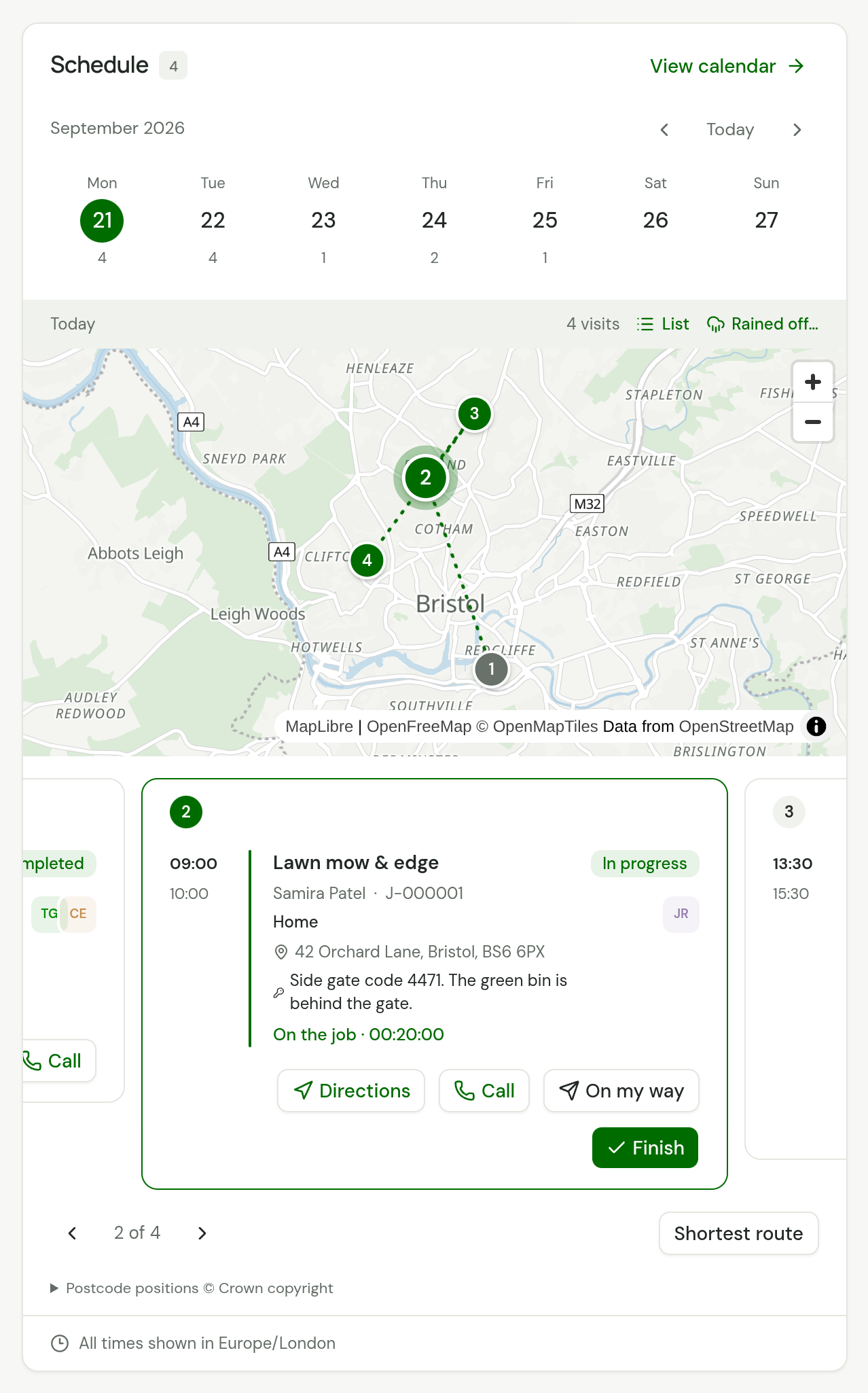
Each visit shows its times, the job, the customer, the property and its address, any access notes such as a gate code, its status and the initials of who is going. Choose a visit to open it.
| Button | What it does |
|---|---|
| Directions | Opens driving directions to the property in Google Maps |
| Call | Rings the customer. It shows when the customer has a phone number |
| On my way | Emails the customer roughly when you will arrive. It shows on a visit still to do, when the customer has an email address. See Tell the customer you are on your way |
| Start | Starts a scheduled visit |
| Finish | Finishes a visit that is in progress |
Work a visit covers what Start and Finish ask you.
A visit in progress reads On the job with how long someone has been clocked in. While your own timer runs, a bar stays at the bottom of Today with the time, the job and a Finish button.
For owners and office members, a finished visit's card carries the next step to its invoice: Create invoice, Add pricing to invoice or Open invoice. See A finished visit on Today.
Needs attention
This lists what is waiting on you. Today shows the first five, and View all opens the rest. Choose a line to open the record.
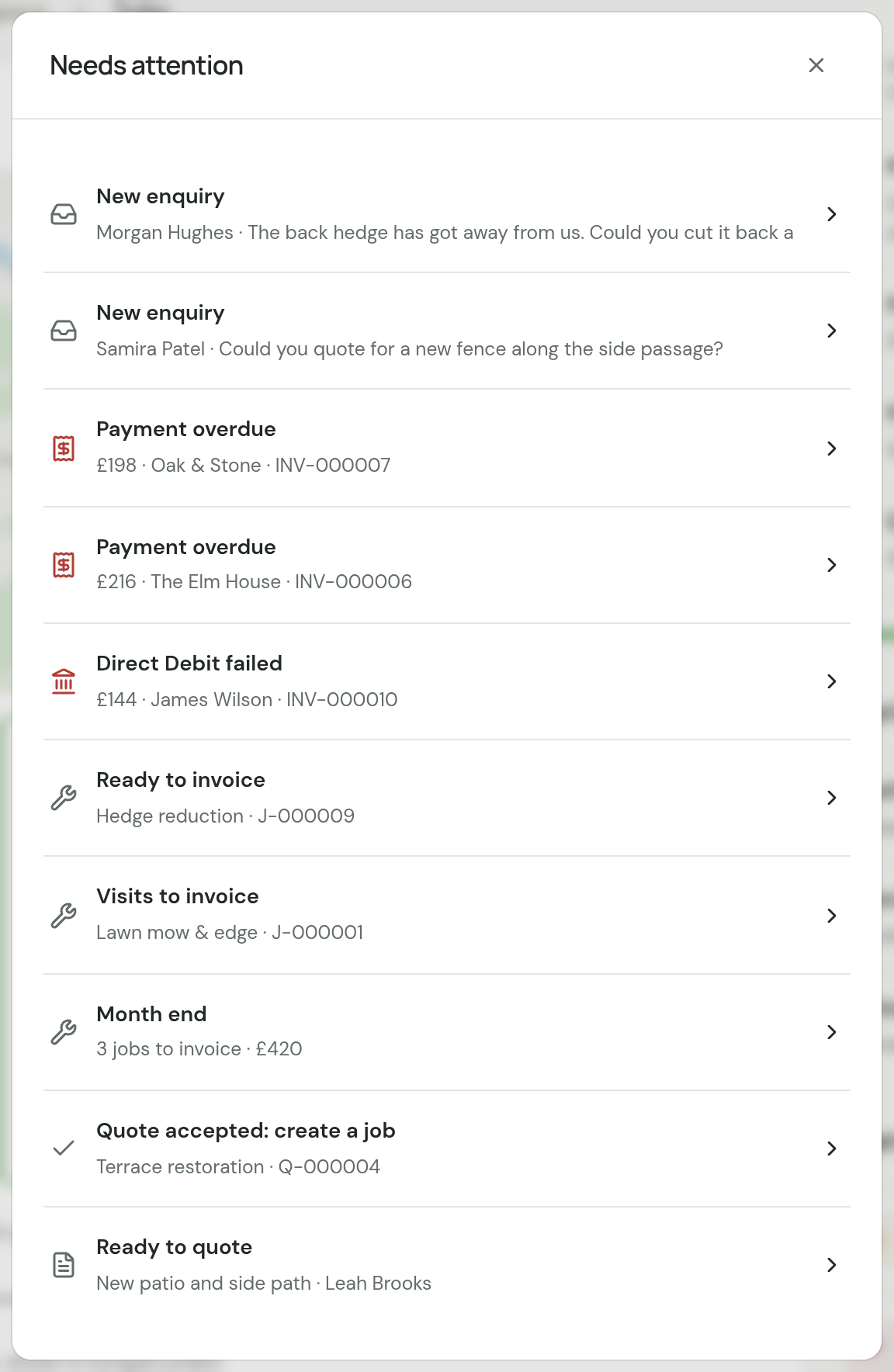
| Line | What it means |
|---|---|
| New enquiry | Someone has sent your website form and nobody has dealt with it |
| Work request | One of your customers has asked for work from their portal and nobody has picked it up |
| Payment overdue | An invoice is past its due date with money still owed. Not one whose payment is on its way, or one a Direct Debit is waiting to collect |
| Direct Debit failed | A customer's bank did not pay a collection, or Stripe would not start one. The line stays until you try again or the invoice is paid. See When a collection fails |
| Direct Debit cancelled | A customer's Direct Debit has ended. The line stays for 14 days and opens the customer |
| Ready to invoice | A completed job that you bill when it is complete has no invoice yet |
| Visits to invoice | A job you bill after each visit has completed visits that are not on an invoice |
| Month end | Jobs you bill at month end have finished visits from a month that is over. There is one line for all of them, with the number of jobs and what their invoices come to. It opens the month-end run |
| Quote accepted: create a job | An accepted quote has no job yet |
| Ready to quote | A completed quote visit has no quote yet |
Work in hand
| Line | What it counts |
|---|---|
| Ready to invoice | The jobs listed as Ready to invoice, Visits to invoice or Month end, and what their invoices would come to. "1 to price" means a job has no prices yet |
| Quotes awaiting reply | Sent quotes that have not passed their valid-until date, and their value. Expired ones are mentioned but not counted |
| Visits this week | Visits booked from Monday to Sunday, leaving out cancelled ones, and how many are done |
Each line opens its list.
Team today and Recent payments
Team today lists each active member with On a visit, how many visits they have today, or No visits today. Recent payments shows the last three payments that arrived, whether you recorded them or they were made online.
The top bar
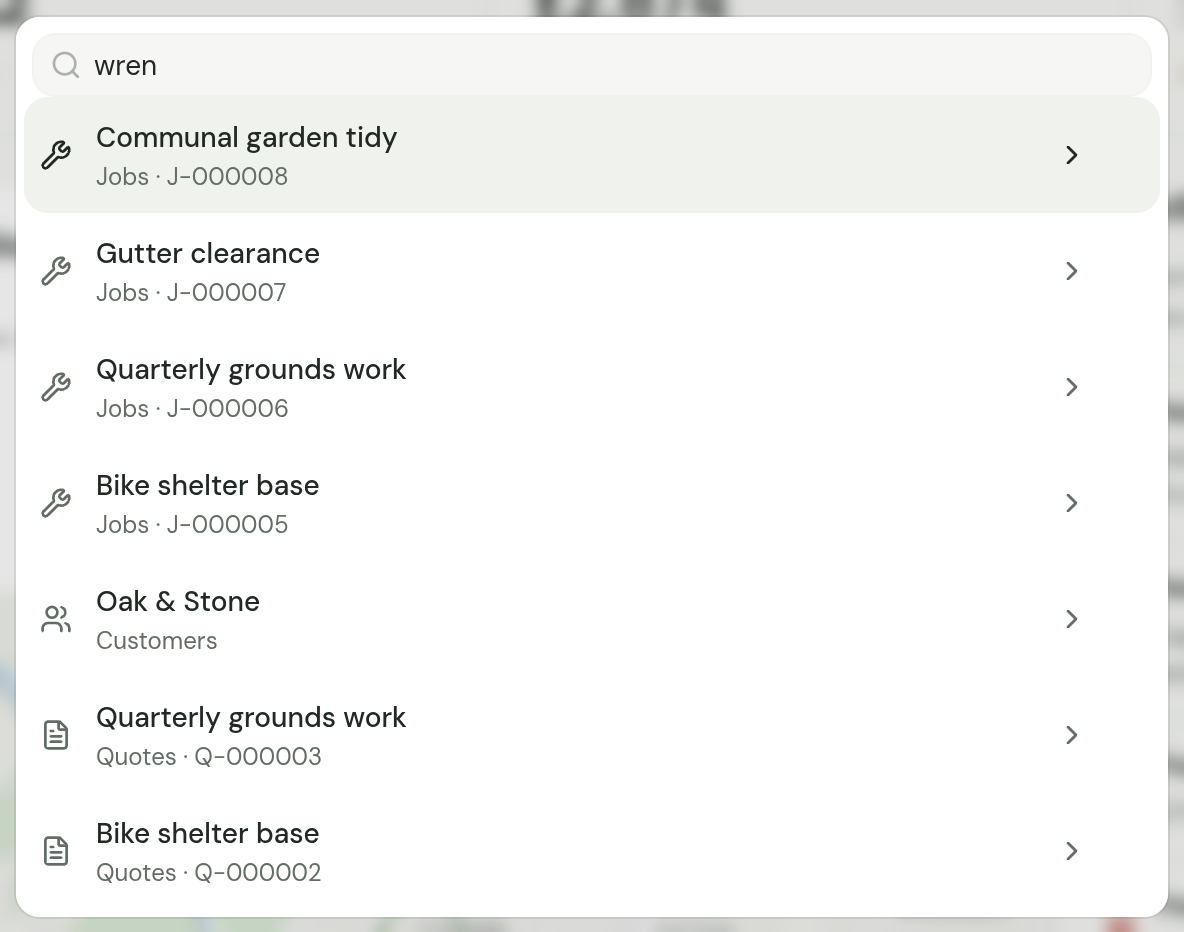
- Search workspace… finds jobs, customers, quotes, invoices and services. Search by a name or title, a number such as INV-000004, an email address, a phone number or a property's address or postcode. On a keyboard, press Ctrl and K, or Command and K on a Mac. Search does not look in enquiries or archived records.
- The two arrows reload your workspace, so you see what your team has changed. TradeSender also reloads when you come back to its tab, at most once a minute, and when your connection returns.
- The bell opens Needs attention from any page. It carries a dot when something is waiting.
The web app needs a connection to save. Without one it says "You’re offline. Reconnect to refresh records or save changes."
The menu under your name
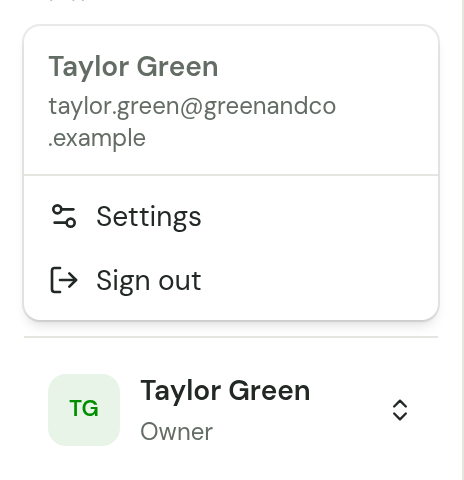
Your name and role sit at the bottom of the sidebar. Choose them to open a menu with Settings and Sign out.
Settings lists its sections down the left, under a Search settings box that finds any setting by its name and takes you to it. Your own name heads the list and opens Your account, where Appearance lets you choose a light or dark theme and put TradeSender on a phone's home screen: see The web app on an Android phone. Below it are Business details, Quotes and invoices, Getting paid, Emails, Website and portal, Connected apps, Import and export and API keys.
Owners and office members also have Plan and billing there.
A technician's list has Business details, Connected apps and API keys. Which sections each role can change is in Roles.
On a phone
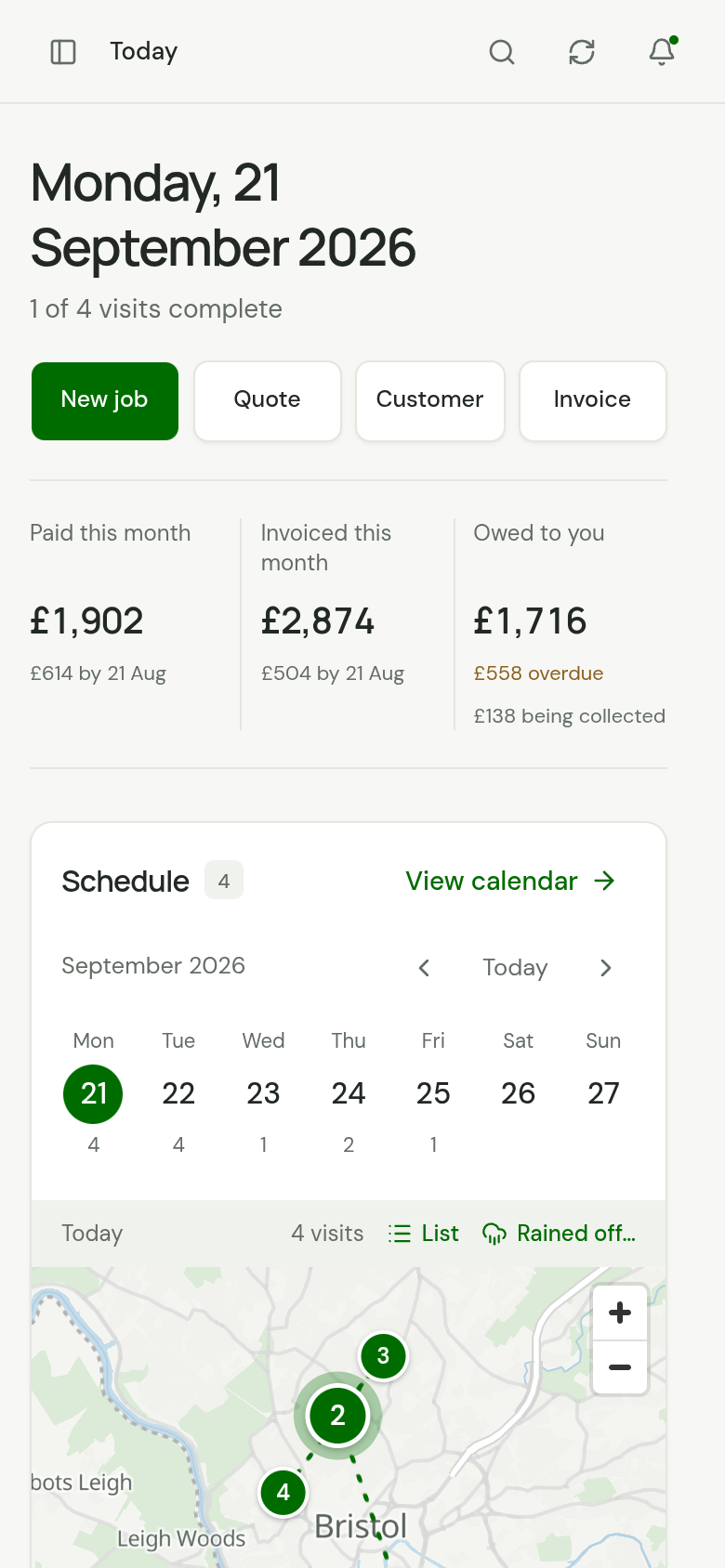
In a phone's browser the shortcuts share one row, the figures stay at the top and the visits follow. Needs attention and the rest come below the visits. The iPhone and Android apps have their own Today with the same figures and list: see Get the iPhone app and Get the Android app. In a car with Apple CarPlay, the iPhone app also puts the day's visits on the car's screen: see TradeSender in the car with CarPlay.
Today for a technician
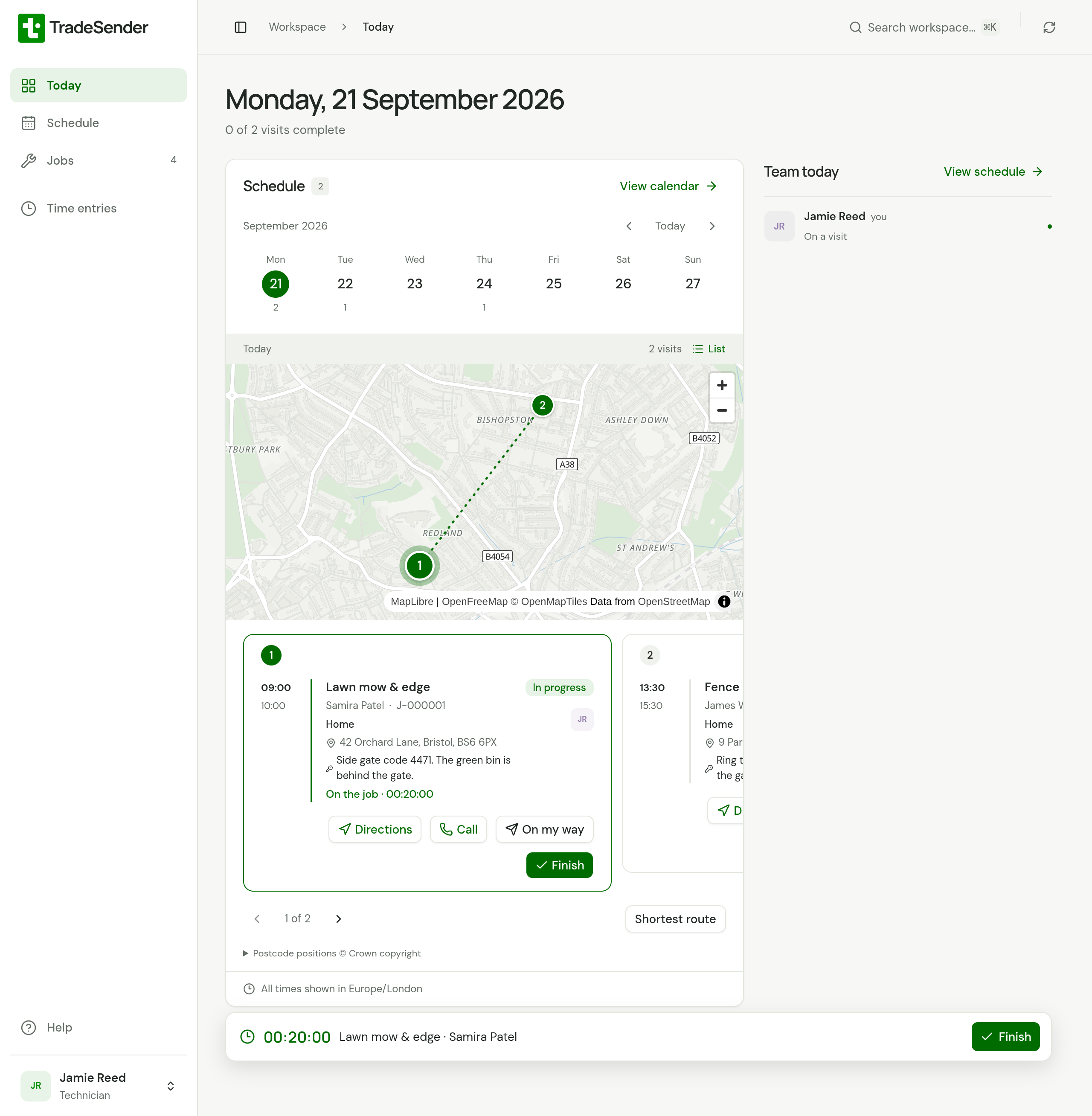
A technician's Today is about their own day:
- The sidebar has Today, Schedule, Jobs and Time entries only, with Help at the bottom.
- Schedule lists the visits they are assigned to, with Directions, Call, On my way, Start and Finish. There is no Rained off….
- There are no shortcut buttons, no money figures, no Needs attention, Work in hand or Recent payments, and no bell.
- Team today shows only themselves.
- Search finds the jobs they are on, and customers.
Roles lists what each role can see and do.
Checked against the app on 29 October 2026. Still stuck? Ask usAsk us.