API keys
Make a key in Settings, use it to sign requests to the API, and know what it can reach and what ends it.
An API key lets a script or another product work in your workspace as you. Every member can make keys, on every plan. A key has the access your role has: an owner's key reaches what an owner reaches, and a technician's key reaches what a technician does.
Make a key
Keys are made on the web. The iPhone and Android apps have no screen for them.
-
In TradeSender, open Settings, then API keys.
-
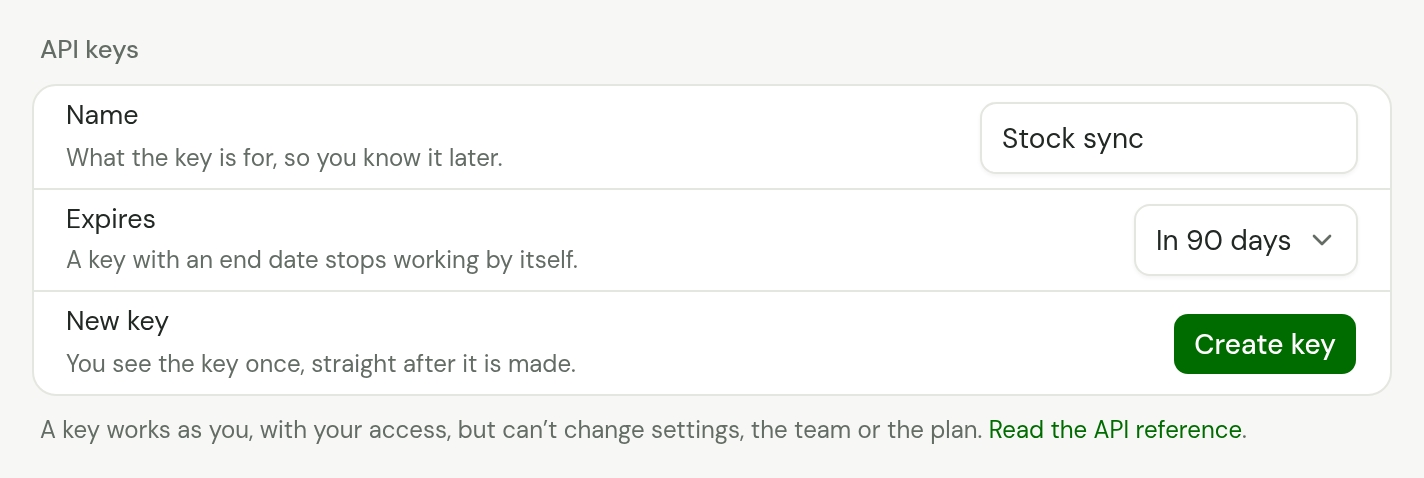
In Name, say what the key is for, such as "Monthly report". You will know it by this name later.
-
Choose when it Expires: Never, In 30 days, In 90 days or In a year. A key with an end date stops working by itself.
-
Choose Create key.
-
Under Copy your key now, choose Copy key and keep it somewhere safe, then choose Done.
TradeSender emails you each time a key is made in your name. If the email is a surprise, revoke the key and change your password.
You can hold ten keys at a time.
Use it
A key starts ts_key_. Send it in the Authorization header of each request:
curl "https://app.tradesender.co.uk/api/v1/customers" \
  -H "Authorization: Bearer $TRADESENDER_KEY"
Keep it as you would a password. Put it in your server's secrets or an environment variable. Never put it in a web page, a mobile app or a repository: anyone who reads it can act as you.
The key works only at /api/v1. It does not connect an AI assistant: /mcp answers 401 to a key.
What a key can do
A key can read and change the records your business runs on: customers, contacts, properties, services, quotes, jobs, visits, time, invoices, payments and enquiries, as far as your role allows. It can email quotes and invoices to customers. The API reference lists every operation.
A key cannot change what a person decides in the app. These answer 403 with the code forbidden:
- Workspace settings, bank details and the logo.
- The mailbox quotes and invoices are sent from.
- The team: inviting, changing a role, removing.
- The plan and billing.
- Connected AI assistants.
- Refunding a payment. It is not in the reference: refunds are made in the app.
- Replacing the enquiry form's address.
- Leaving or deleting the workspace.
- Making, listing and revoking keys.
A key can read the workspace's details and its members.
An owner's or office member's key also reads each customer's portal_url: the link that signs its holder in to that customer's portal with no password. Guard what a key reads as you guard the key.
Your keys
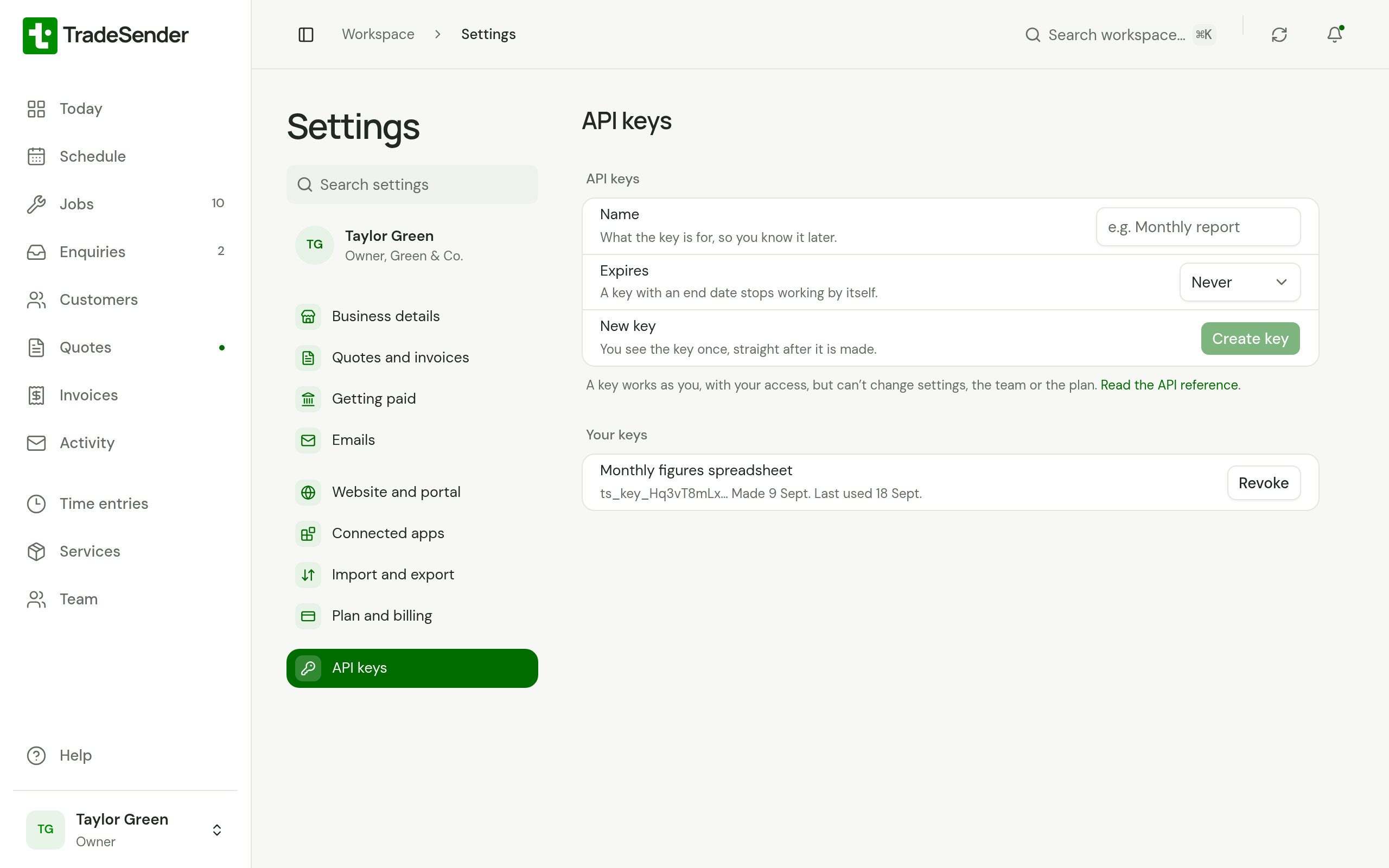
Your keys lists each key with the first characters of the key, the day it was made, the day it was last used and its end date if it has one. "Last used" is updated at most every five minutes.
Revoke a key
Beside the key, choose Revoke, then Revoke it. Anything using the key stops working at once. Keep the key backs out.
A key also stops working when:
- It reaches its end date.
- You change or reset your password. That ends every key, sign-in and connected assistant you have.
- You leave the workspace, or someone deactivates or removes you.
- The workspace is deleted.
If a key leaks
Revoke it straight away and make a new one. A key found in a log or a repository cannot be turned back into a working key by TradeSender, and we cannot tell you what it was used for. If you cannot tell which key leaked, change your password: that ends all of them.
Checked against the app on 29 October 2026. Still stuck? Ask usAsk us.