Connect your AI assistant
Let Claude, ChatGPT or Codex look things up and make changes in TradeSender for you, with your access and nothing more.
TradeSender has no AI of its own. If you already use Claude, ChatGPT or Codex, you can connect it to your workspace and ask for things in plain words:
- "What's on tomorrow?"
- "Quote Mrs Hale £180 for the hedges."
- "Who hasn't paid?"
The assistant works as you. It sees what you can see and changes what you can change, so a technician's assistant gets a technician's access. Every workspace can connect one.
How connecting works
Every app can connect in the same three steps.
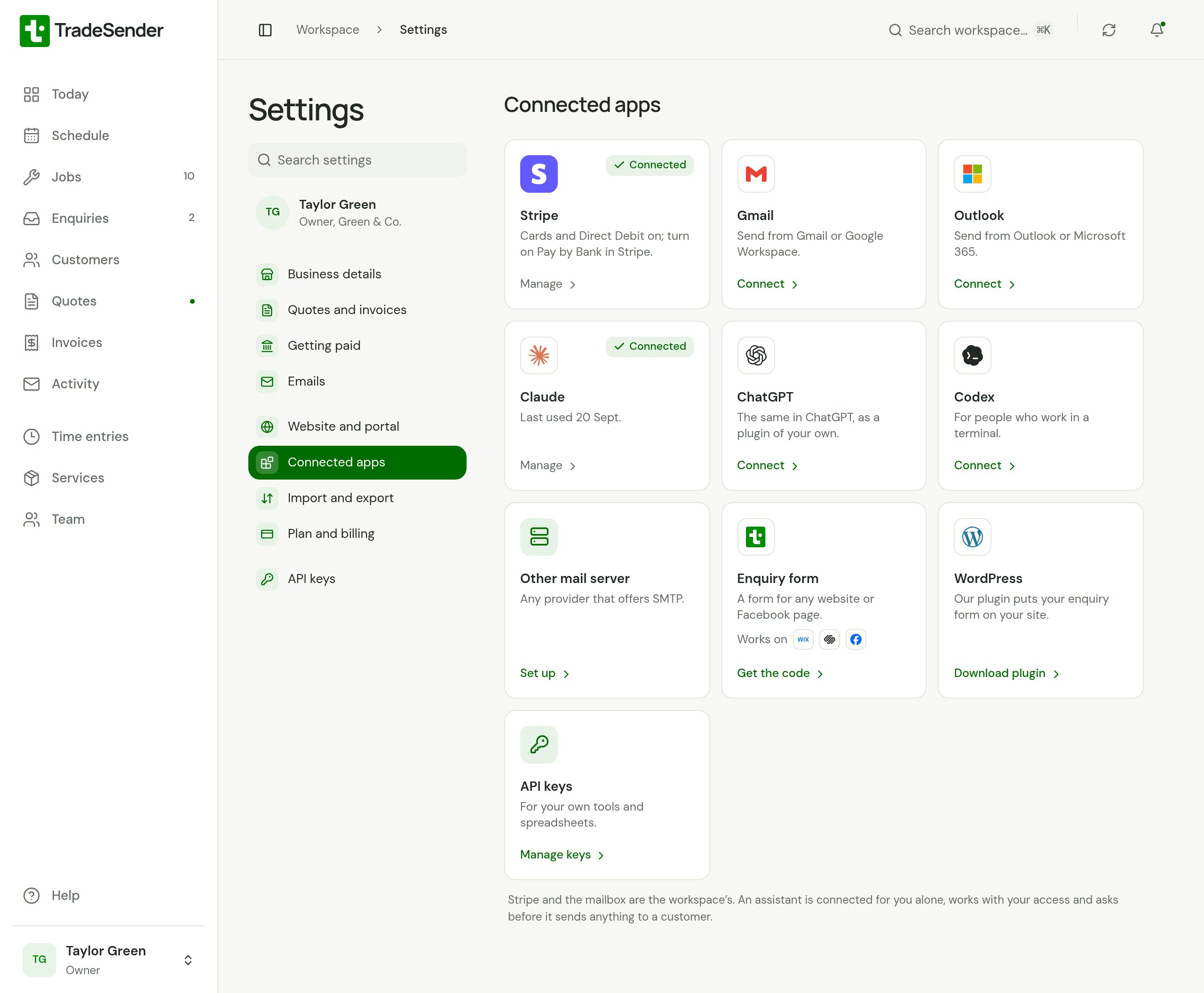
- In TradeSender, open Settings, then Connected apps, and choose your app: Claude, ChatGPT or Codex. Beside Your TradeSender address, choose Copy address. The address is the same for everyone:
https://app.tradesender.co.uk/mcp. - Paste the address into your AI app.
- The app sends you to TradeSender in your browser. Sign in if it asks, check which workspace it names, and choose Allow.
Claude has a shorter way: TradeSender is in Claude's connector directory, so you find it there and choose Connect, with nothing to paste. Follow Connect Claude.
What it can do
It can read and change the records your business runs on:
| Area | It can |
|---|---|
| Customers | Find, add and update customers, their contacts and their properties |
| Services | Read and change your price list |
| Quotes | Write a quote, email it, record a yes or a no, and turn it into a job |
| Jobs and visits | Create jobs, book and move visits, set up repeating visits, start and finish a visit |
| Time | Clock in and out, add and correct time entries, book time off |
| Invoices | Raise an invoice from a job, email it, record a payment, void it |
What it cannot do
- Change settings, bank details, the team or your password.
- Change your plan.
- Upload photos, or fetch a quote or invoice as a PDF.
- Read or act on website enquiries. Strangers write those, so assistants are kept away from them.
- Reach another workspace. A connection belongs to one member of one workspace.
Before it sends anything
TradeSender tells every assistant to say what it is about to do and wait for your yes before anything a customer will see or that records money: sending a quote, sending or finalising an invoice, recording a payment and voiding an invoice.
Emails an assistant sends count towards your workspace's limit of 100 quote and invoice emails a day.
It is your own connection
Each member connects their own assistant. An owner cannot connect one for the team.
A connection lasts until you end it. To end it, open Settings, then Connected apps, choose the assistant, and choose Disconnect beside it under Connected. A card reads Connected once you have connected that app. It also ends if you change your password, or if someone removes you from the workspace or deactivates you.
On a phone
You can connect from a phone. The Allow page opens in Safari on an iPhone, and in your browser on an Android phone. To see your connections in the iPhone or Android app, tap the account button, then Connected apps, and tap the assistant under Connected. Its page has your TradeSender address to copy, the app's steps, and each connection with Disconnect.
Checked against the app on 29 October 2026. Still stuck? Ask usAsk us.