Create and send a quote
Price the work from your own services, see your margin, email the quote to the customer and see when they say yes.
Owners and office members write quotes, on the web and in the iPhone and Android apps. Technicians do not see them. This page follows the web.
Write the quote
-
Open Quotes and choose New quote. From Today, the Quote button does the same.
-
Choose the Customer, and the Property if the work is at one of their addresses. For someone new, choose New customer… in the list and add them without leaving the quote.
-
Give it a Quote title, such as "Communal garden tidy". Valid until starts at 30 days from today; change it if your prices hold for less.
-
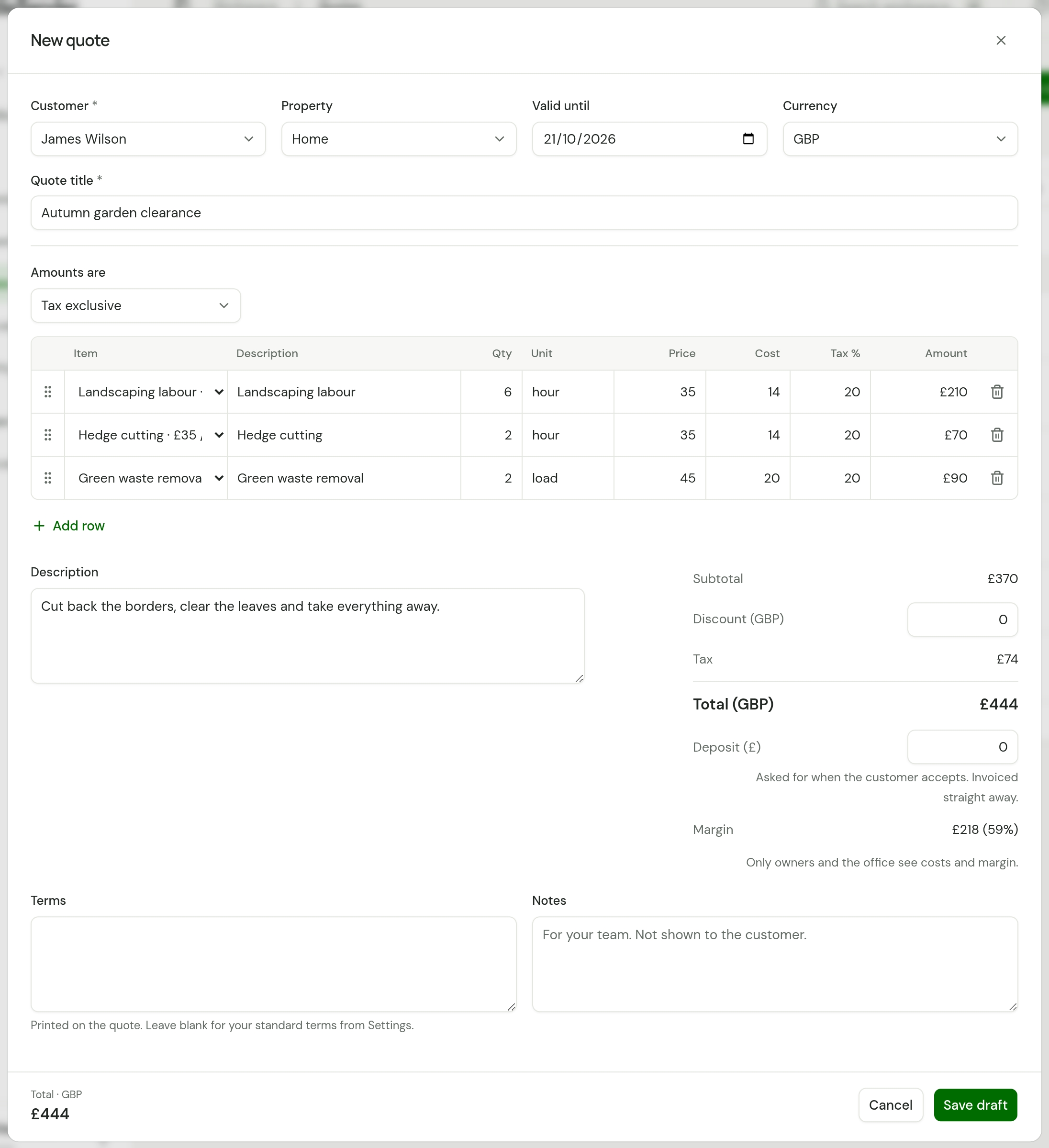
Add the work. In Item, pick one of your services to fill in its name, unit, price and cost, or type your own. Set Qty, and choose Add row for each further line.
-
Take an amount off with Discount, and use Description for the scope of work your customer reads.
-
To ask for money up front, type it in Deposit (£) under the total. See Ask for a deposit.
-
Type Terms if this quote needs its own, and Notes for anything your team should know. Your customer reads the terms and never sees the notes.
-
Choose Save draft. Nothing has gone to the customer yet.
VAT
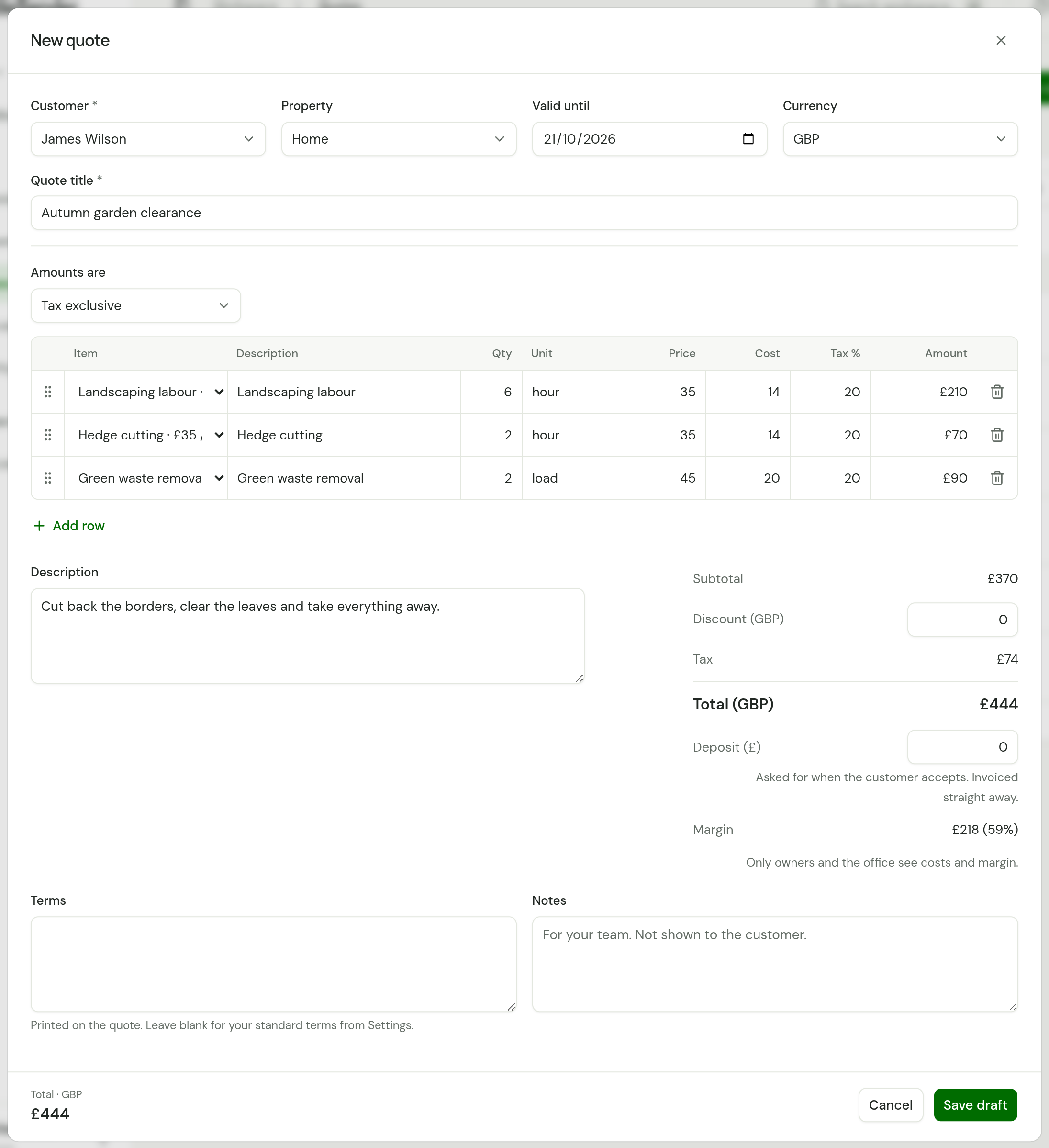
With a VAT number in Settings, each line has a Tax % that starts at 20, and Amounts are switches the whole quote between Tax exclusive and Tax inclusive. Without a VAT number, a quote shows no tax.
Cost and margin
Each line has a Cost: what one unit costs you. A line picked from your services starts with that service's Cost per unit, and you can type over it. Leave it at 0 for a line you do not cost.
Once a line has a cost, Margin shows under the total: "£218 (59%)". It is the price before VAT, less the discount, less the costs, and the percentage is its share of that price. A quote that would lose money shows the amount with a minus.
- Who sees it. Owners and office members, on the web and in the phone apps. The form says so: "Only owners and the office see costs and margin." Your customer never does: costs and margin are not on their page, the PDF or the email, and Margin is left off when you print the quote's page.
- Where it shows. In the editor as you type, and on the quote's page under Total. A job has the same column and the same row.
- What it counts. The costs you typed, and nothing else. Your team's recorded time is not counted as a cost.
- VAT. The margin is before VAT. If you are not VAT registered, type your costs with their VAT included, because you cannot claim it back.
When an accepted quote goes on to a job, its costs go with it. Invoices carry no costs.
An intro and terms on every quote
Open Settings, then Quotes and invoices. Quote intro is a line above the work on every quote. Quote terms print on any quote that has no terms of its own.
To give one quote its own terms, type them in Terms on that quote. Leave Terms blank and the quote uses your standard terms from Settings.
Send it
-
On the quote's page, choose Send quote.
-
Check Send to. It starts with the customer's email address.
-
Read the Message. It starts with your standard note, filled in for this quote, and you can change it. Leave
[Link]in: it becomes the customer's link when the email goes. -
Not sure what it will look like? Choose Send myself a preview. The email your customer would get, with your message, the link and the PDF, goes to your own address with "Preview" at the start of the subject, and the dialog says where it went. Nothing goes to the customer, and the quote stays a draft.
-
Tick Send me a copy if you want one, then choose Send.
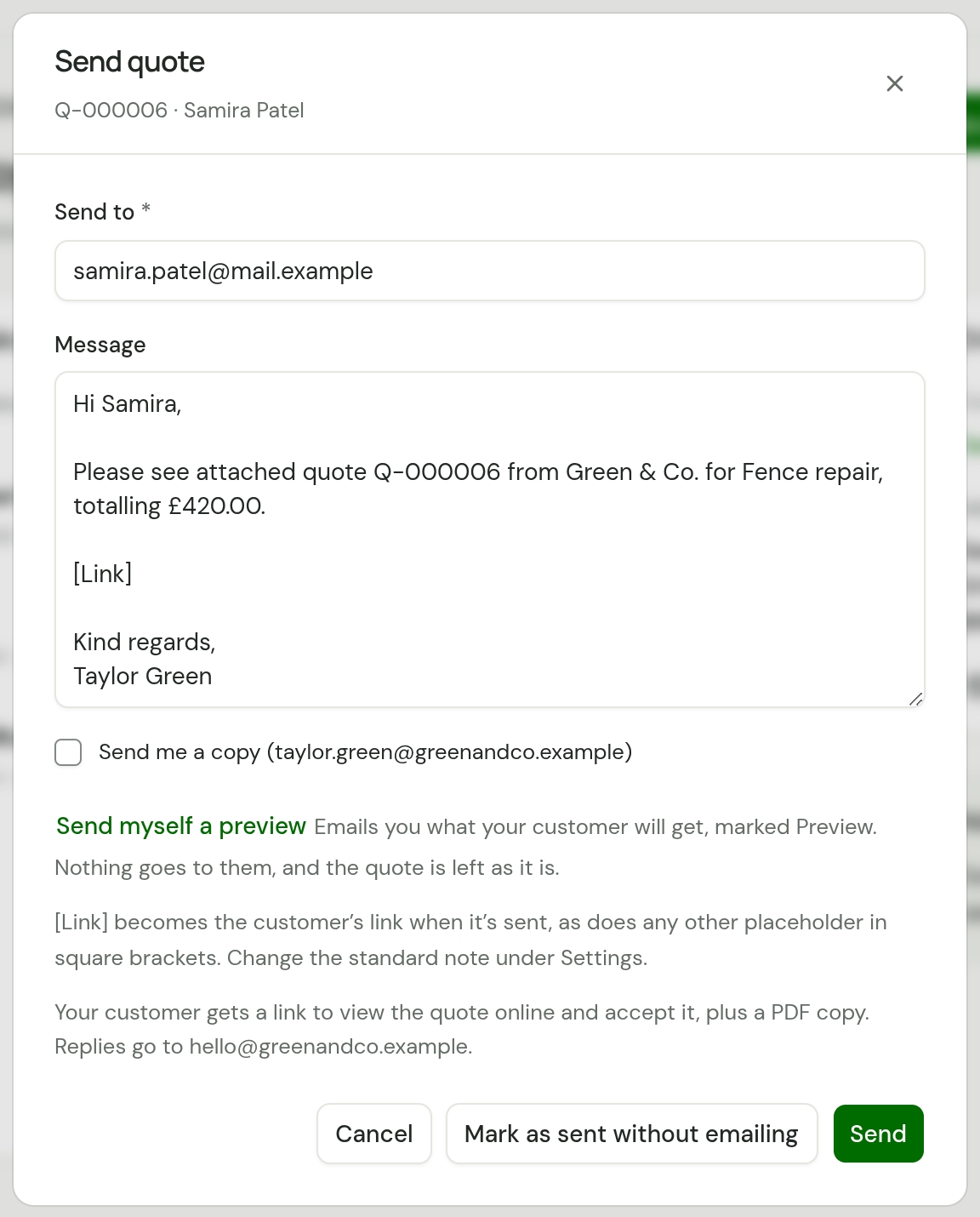
Your customer gets an email with a link to read the quote online and accept it, and a PDF copy. The link also signs them in to their customer portal. It comes from your business name at quotes@tradesender.co.uk, and their reply goes to your Business email. With your own mailbox connected, the email comes from your address and a reply goes back to that mailbox.
If you gave the customer the quote another way, choose Mark as sent without emailing.
To change the standard note for every quote, open Settings, then Emails, and choose Quote email under Email notes. See Email notes.
After it has gone
The quote reads Sent, and its page shows who it was emailed to and when. The email is listed under Sent on the customer's page.
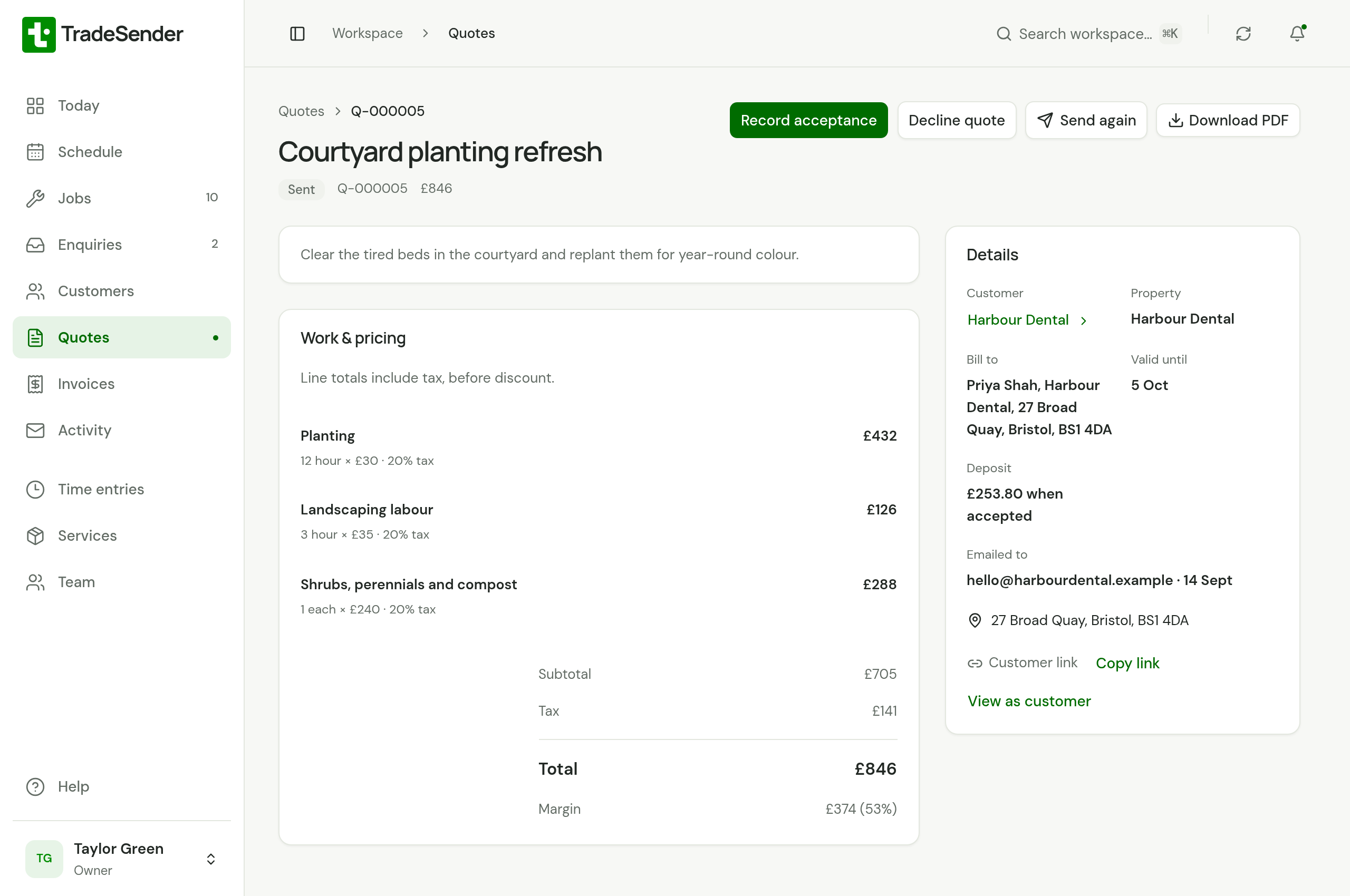
| You want to | Choose |
|---|---|
| Record a yes given by phone or in person | Record acceptance, and enter who agreed under Accepted by. On a quote with a deposit, this issues the deposit invoice |
| Record a no | Decline quote |
| Email it again | Send again |
| See what the customer sees | View as customer beside Customer link |
| Send the link yourself, by text or WhatsApp | Copy link. It opens this quote only |
| Keep a copy | Download PDF |
When the customer accepts or declines online, the quote changes by itself and TradeSender emails your business to say so. If the quote asked for a deposit, accepting it also issues the deposit invoice and emails it to the customer.
If you hear nothing, TradeSender can chase for you: with Follow up quotes awaiting an answer switched on, it emails the customer again after 3 days and after 10. See Automatic emails.
An accepted quote shows Create job. It opens a new job with the quote's customer, property, scope and lines already filled in.
A quote that has expired
From the day after its Valid until date, a sent quote reads Expired, in the Quotes list and on its page. Your customer can no longer accept it, and Record acceptance is gone.
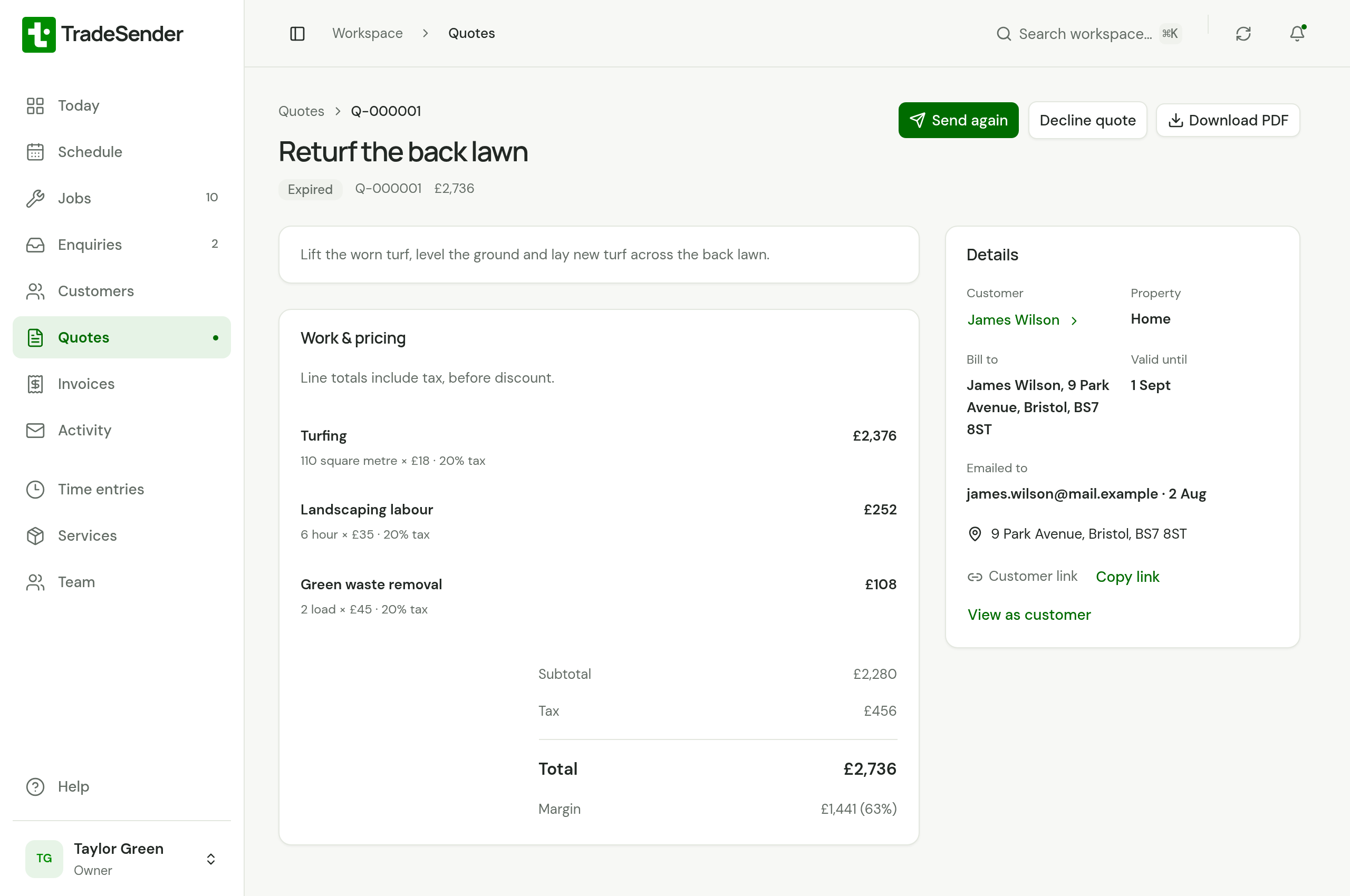
To bring it back:
-
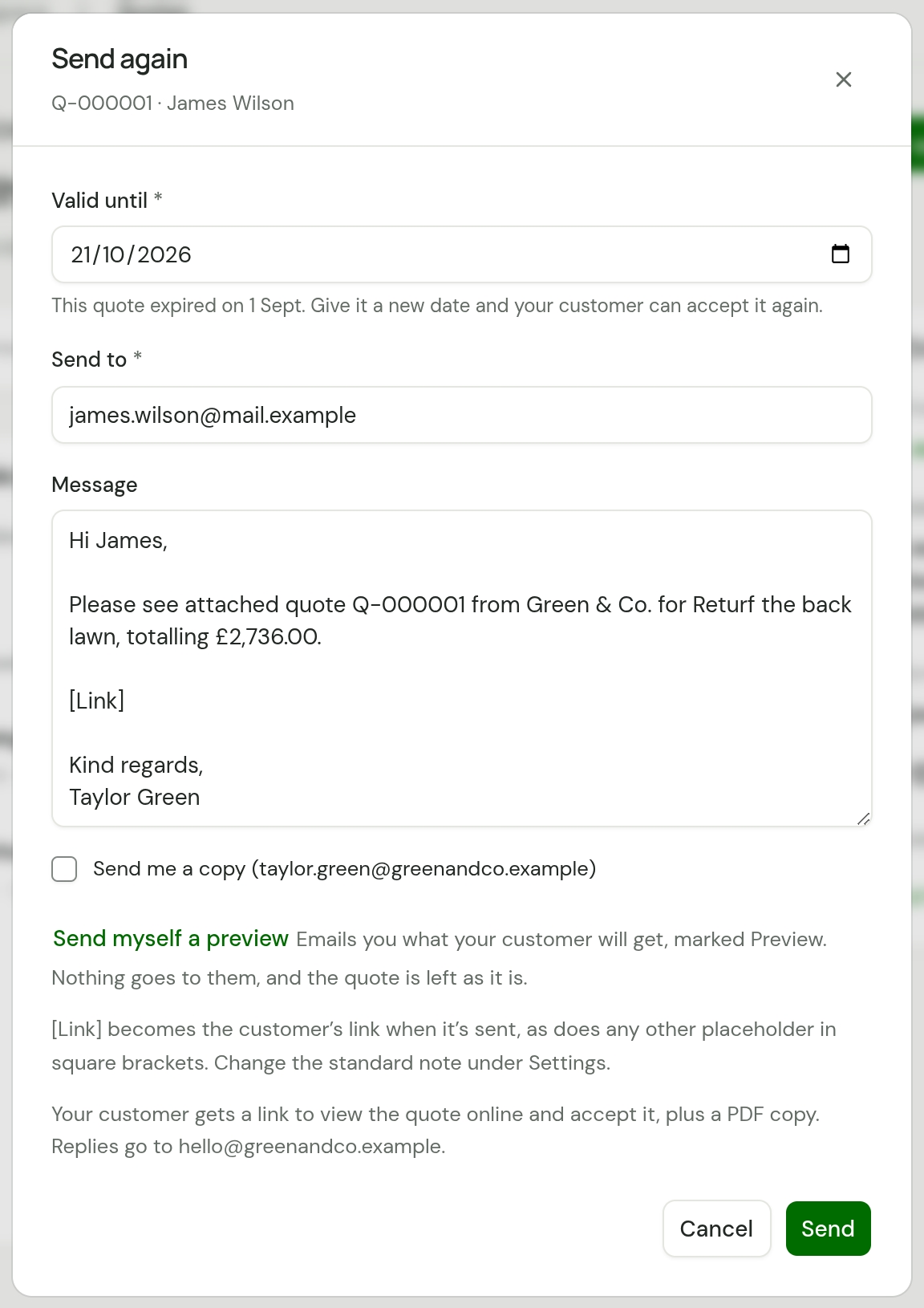
Open the quote and choose Send again.
-
Set a new Valid until. It starts 30 days from today and cannot be in the past.
-
Check Send to and the Message, then choose Send.
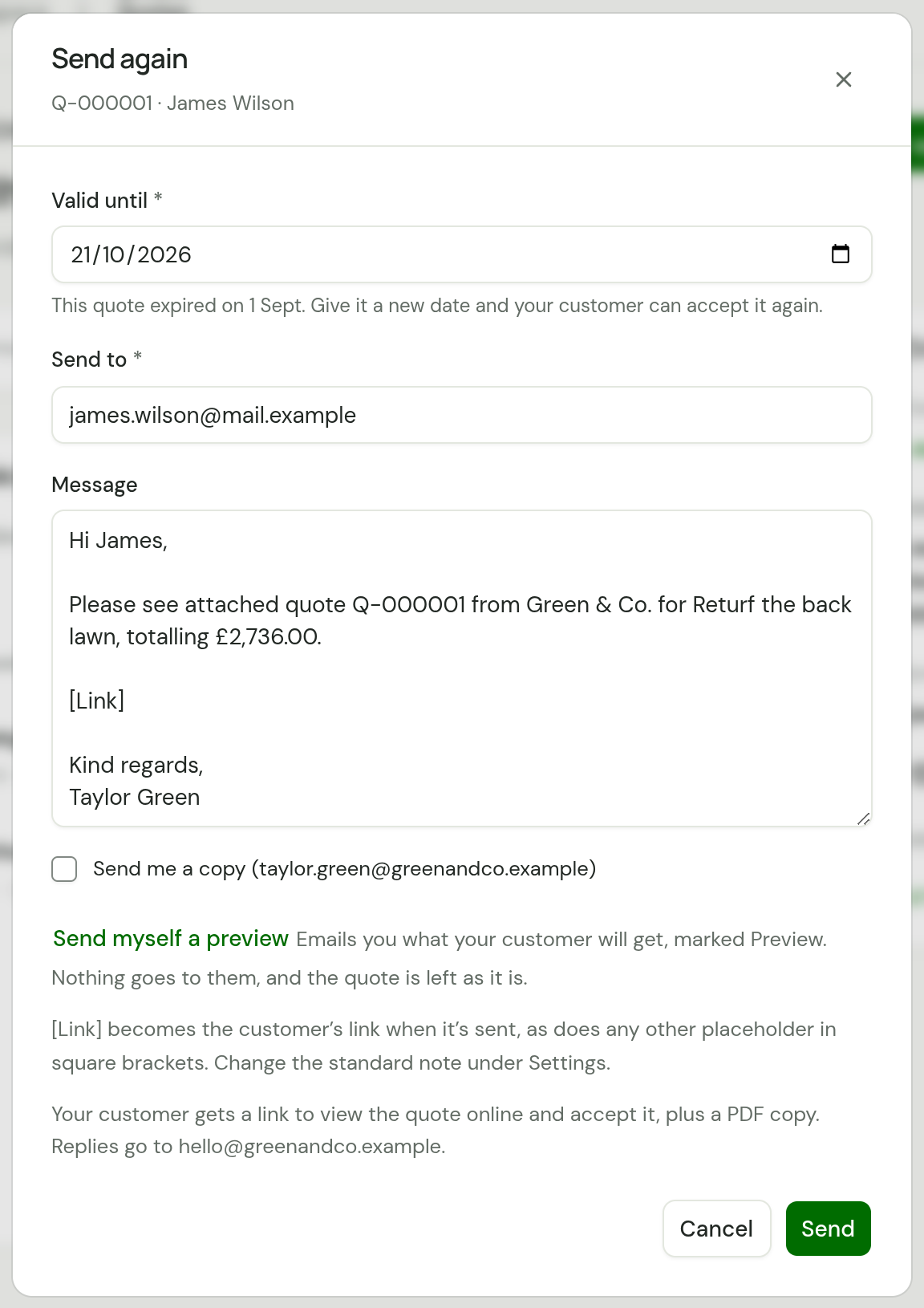
The quote reads Sent again, with its new date, and your customer can accept it from the same link as before. To change the price, write a new quote: a sent quote cannot be edited.
A quote with no Valid until date does not expire.
Good to know
- You can edit a quote while it is a draft. Once it is sent, send a new quote if the price or the deposit changes.
- A workspace can email 100 quotes and invoices a day in total.
- A customer's link does not expire.
Checked against the app on 29 October 2026. Still stuck? Ask usAsk us.