Take payment online
Connect your own Stripe account so customers can pay an invoice by card from its page, its email or their portal, and see each payment record itself.
Your customers can pay an invoice online, on a payment page run by Stripe. The money goes into a Stripe account that belongs to your business, and the payment records itself on the invoice. Only an owner can connect Stripe. This page follows the web, and the iPhone and Android apps have the same settings and show the same payments.
Every workspace can take payments online. Stripe charges its own fees for each payment, and TradeSender adds nothing to them.
What you need
- To be an owner. Office members can read the setting. They cannot change it.
- A few minutes with Stripe. TradeSender starts a Stripe account for your business, and Stripe's own page finishes it. Stripe asks what it needs to know about your business before it will take payments for you.
- Bank details in TradeSender as well, if you want customers to keep the choice of a bank transfer. See Quote and invoice settings.
The Stripe account is yours. You sign in to Stripe's dashboard yourself, Stripe pays the money out to you, and Stripe bills you its fees. TradeSender never holds the money and cannot see your balance or your payouts.
Connect Stripe
-
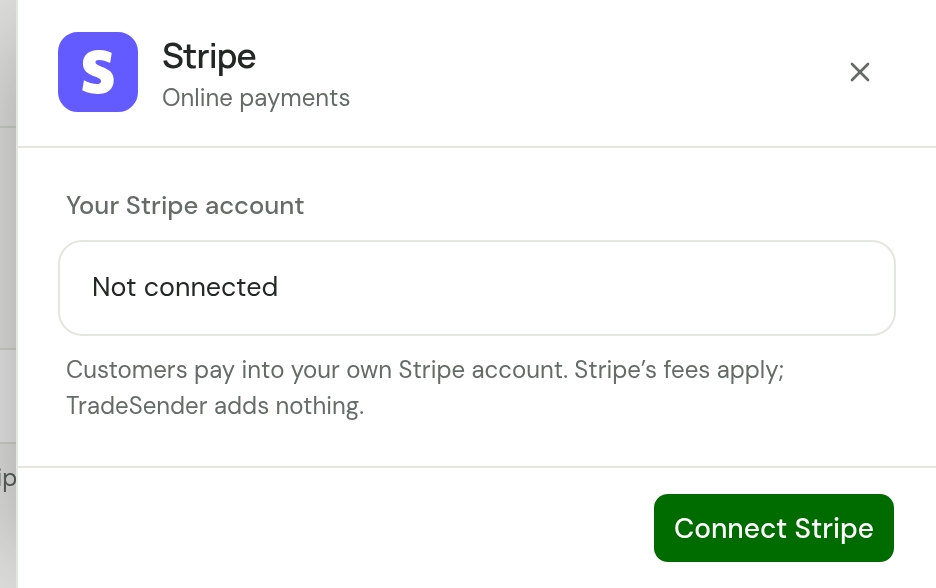
Open Settings, then Getting paid. Under Online payments, choose Stripe. Stripe's sheet opens.
-
Save anything you have changed on the page first. While the page has unsaved changes, the button is greyed out with "Save your changes first."
-
Choose Connect Stripe. The button reads "Opening Stripe…" and Stripe's page opens.
-
Answer Stripe's questions. When you finish, Stripe sends you back to Settings, Getting paid, with Stripe's sheet open.
-
Read the line under Your Stripe account. It can take a few seconds to change after you come back.
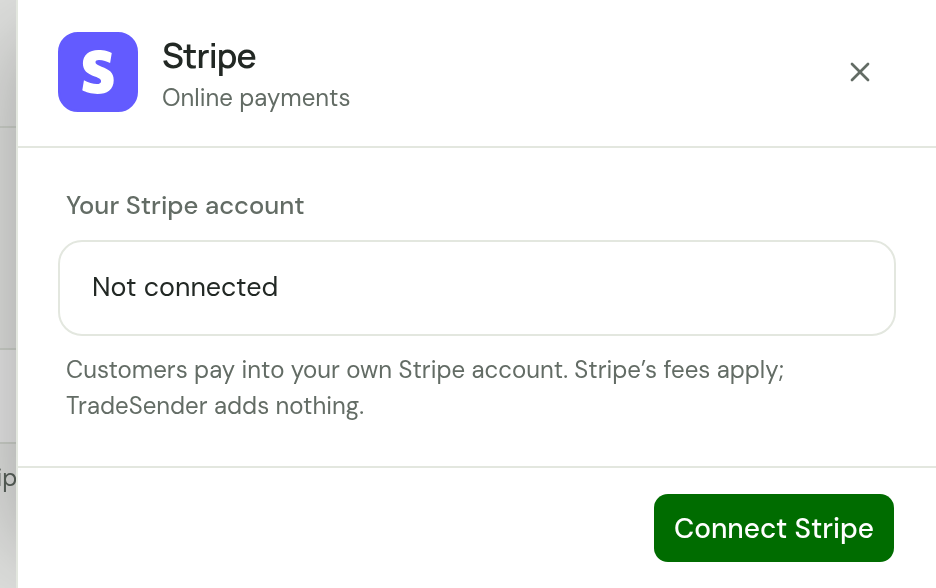
If you leave Stripe's page half way, nothing is lost. Choose Continue in Stripe to carry on where you stopped.
What Stripe's sheet says
| You see | It means |
|---|---|
| "Not connected", with Connect Stripe | No Stripe account is connected |
| "Finish setting up in Stripe", with Continue in Stripe | The account exists and Stripe has not finished with it. Your customers cannot pay online yet |
| "Connected. Cards on; turn on Pay by Bank and Direct Debit in Stripe." | Customers can pay by card. The line names each way of paying that is switched on in your Stripe account, and each that is not |
| "Stripe needs more information", with "Your customers can still pay online for now." | Stripe has asked you for something, such as a document, and has given you time to answer. Choose Continue in Stripe |
| "Stripe needs more information", with "Your customers can’t pay online until Stripe has it." | The same, and Stripe has stopped card payments until you answer |
| "That Stripe page had expired. Continue in Stripe to pick up where you left off." | Stripe's pages last a few minutes. Choose Continue in Stripe for a new one |
| "Stripe couldn’t start this. Please try again." | Stripe did not answer. Nothing was changed, so choose the button again |
The Stripe row on Getting paid says the same in short: Connected with the ways of paying that are on, Not connected, or the first line of the table.
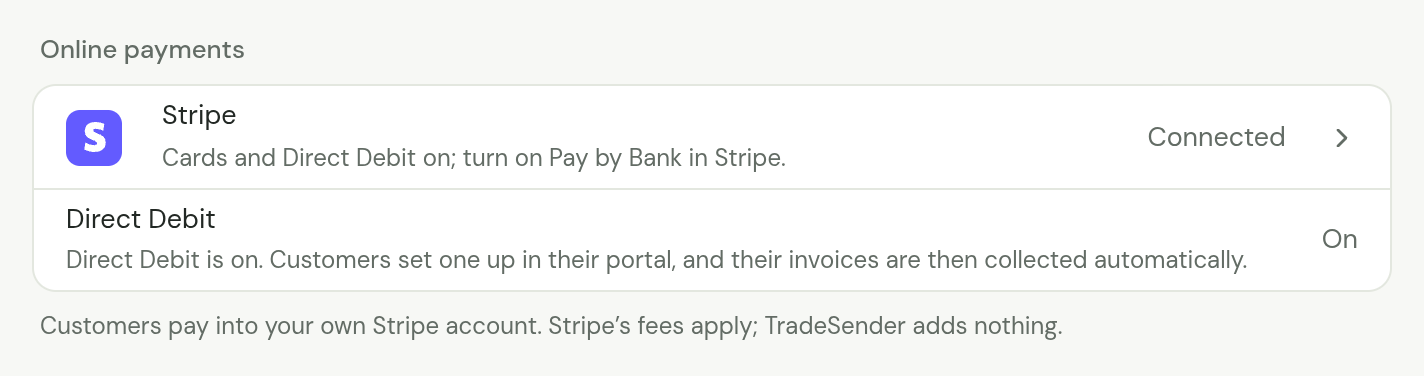
Office members see the same, without a button. Before Stripe is connected, its sheet tells them "Only the workspace owner can connect Stripe."
Which ways of paying your customer is offered
TradeSender asks Stripe for card payments when it sets your account up. Stripe's page then shows your customer the ways of paying that are switched on in your own Stripe dashboard. You switch on any others there, and Settings follows what Stripe reports. Once Stripe is connected, its sheet lists them under Ways to pay: Card, Pay by Bank and Direct Debit, each On or Off.
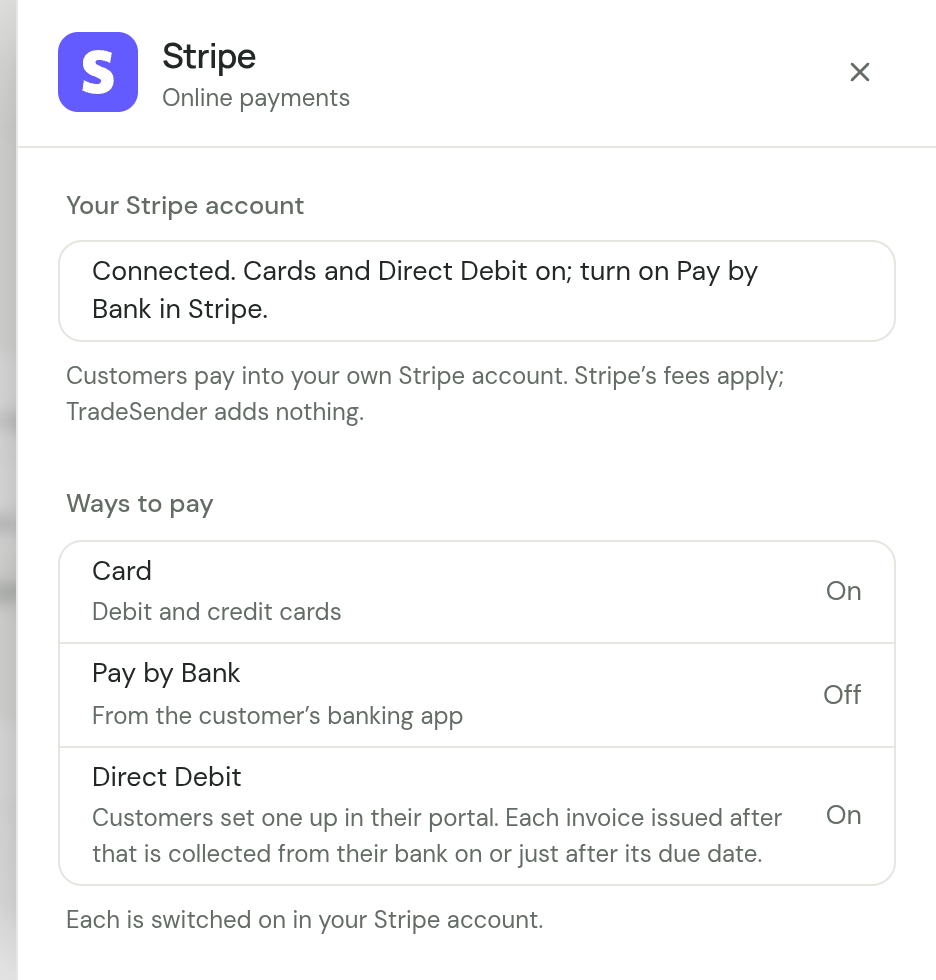
Bacs Direct Debit is the one that changes what TradeSender does. Once it is on, your customers can agree a Direct Debit and their invoices are collected for them: see Collect by Direct Debit.
What your customer sees
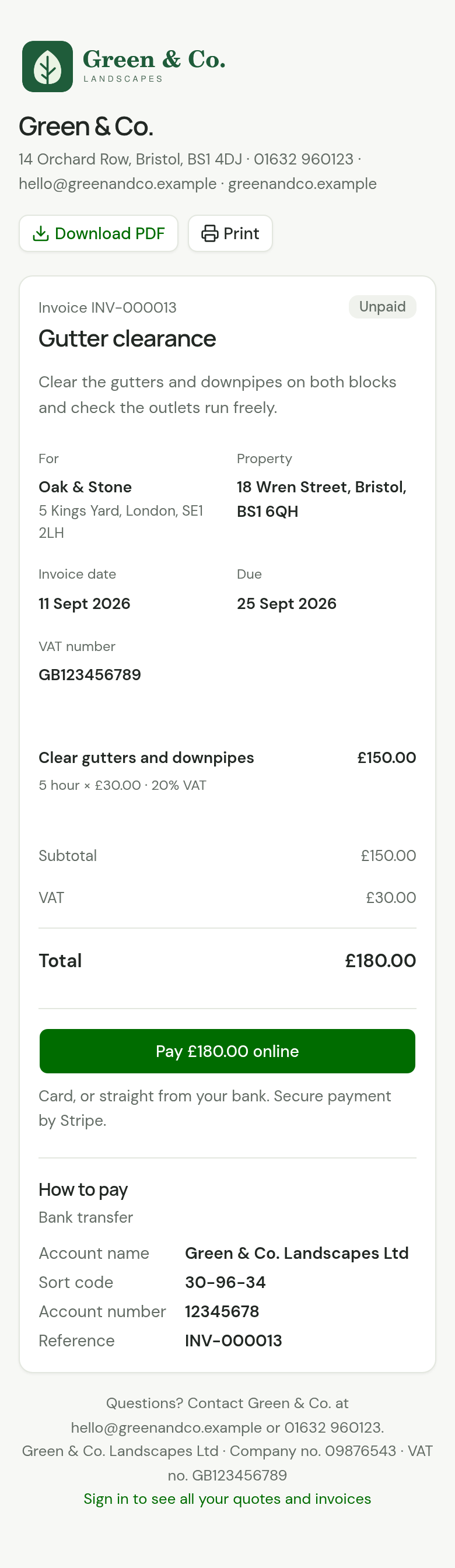
An invoice that can be paid online shows one button on its page, above How to pay: Pay £180.00 online, with the amount still owed. Under it the page says "Card, or straight from your bank. Secure payment by Stripe."
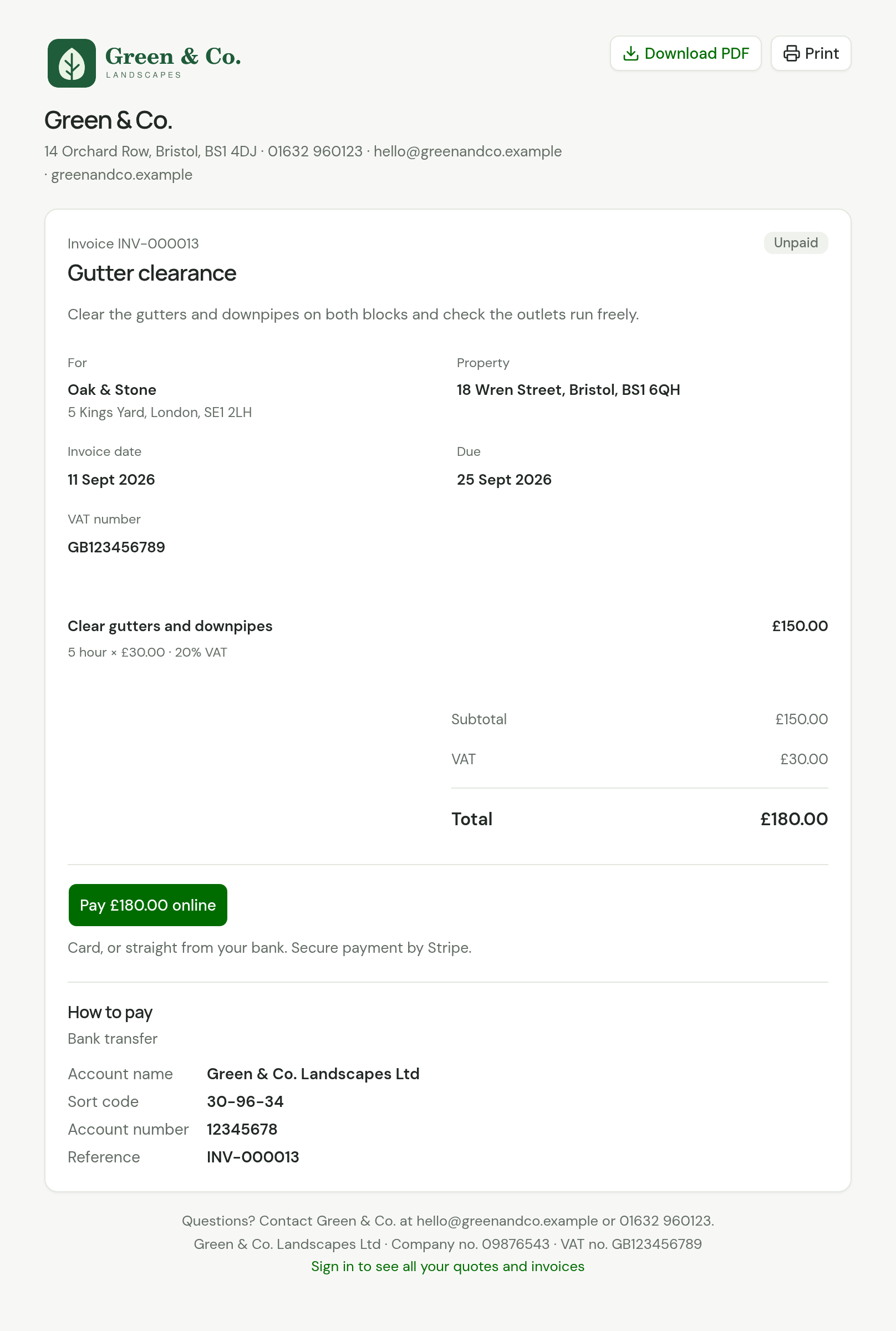
The button opens Stripe's payment page. Your customer pays there and never types card details into TradeSender.
Your customer pays on the invoice's page, and reaches it from:
- Your email, the invoice or a payment reminder, or a link you copied. The email's one link opens the page, and it has no payment button of its own.
- Their customer portal. An invoice that can be paid has a Pay button on its row, which opens the invoice's page.
Which invoices have the button
An invoice has Pay online when all of these are true:
- Your Stripe account takes card payments.
- The invoice has been emailed or marked as sent. A draft has no page to pay on.
- At least 50p is left to pay.
- No payment for it is already on its way.
- It is not going to be collected by Direct Debit.
A void invoice and a paid invoice have no button. There is no switch to leave one invoice or one customer out.
When they come back from paying
Stripe sends your customer back to the invoice's page. For a few seconds it reads "Checking your payment…", then one of these:
| The page says | It means |
|---|---|
| "Thanks. Your payment was received." | The payment has arrived and the invoice reads Paid |
| "Thanks. Your payment is on its way and usually clears in 3 working days." | They paid in a way that takes time to clear, such as from their bank. The invoice reads Being collected |
| "We’re still confirming your payment. You don’t need to pay again: this page will show it once it has gone through." | TradeSender has not heard from Stripe yet. The page keeps looking for about ten minutes |
While the page is waiting to hear, it shows no Pay button and no bank details, so nobody is asked to pay a second time.
What you see
You do not record a payment made online. It appears on the invoice by itself, under Payments, a few seconds after your customer pays.
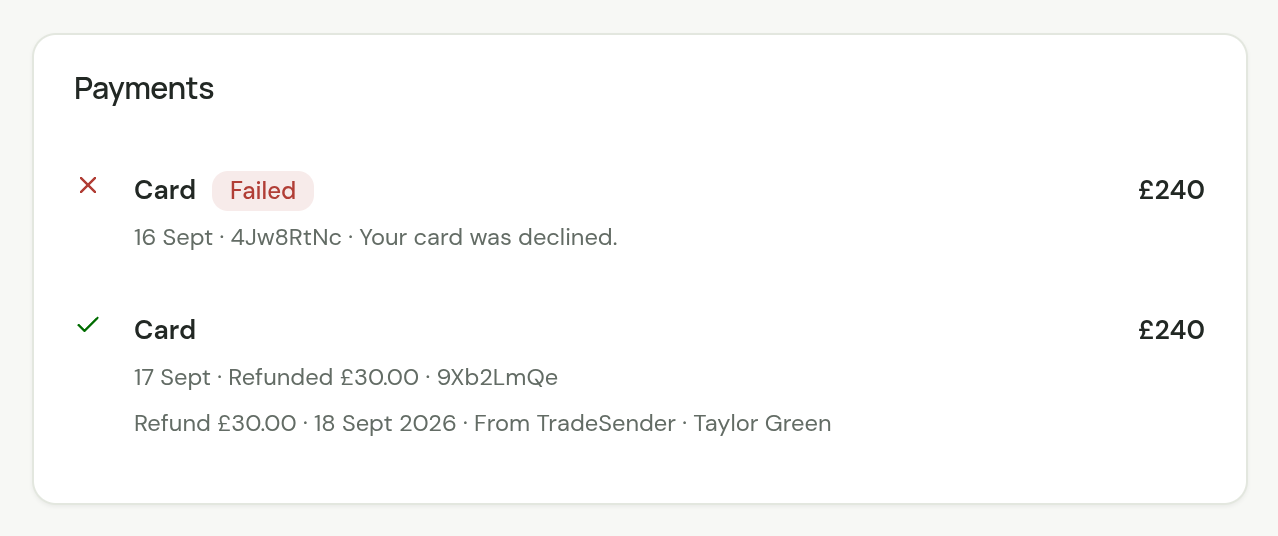
Each payment shows how it was paid, the day, a Reference and the amount. The reference is the last eight characters of Stripe's own name for the payment, so you can find it in your Stripe dashboard.
| A payment reads | It means | Does it count as paid? |
|---|---|---|
| No badge | The money has arrived | Yes |
| Pending | The money is on its way from your customer's bank | Not yet |
| Failed | The card was refused, the bank would not pay, or you lost a dispute. The reason is beside it | No |
| Disputed | Your customer has challenged the payment with their bank, which has taken the money back while it decides | Not while it is disputed |
| "Refunded £15.00" beside it | You refunded part of it, from here or in Stripe | Only what was not refunded |
| Refunded, with a grey refunded icon in place of the tick | You refunded all of it. Its amount stays, so you can see what was paid | No |
A payment that was refused stays on the invoice as a record. It takes nothing off what is owed.
A payment's refunds
Each refund is listed under its payment, the oldest first, with how much, the day, how it was made and who made it: "Refund £30.00 · 18 Sept 2026 · From TradeSender · Taylor Green".
| The line says | The refund was |
|---|---|
| From TradeSender | Made from the invoice, through Stripe. It names who made it |
| Recorded by hand | Recorded on a payment you recorded yourself. See Refund a payment you recorded |
| In Stripe | Made in your Stripe dashboard, or by Stripe. It names nobody |
A refund that Stripe could not get back to your customer reads "Refund failed £30.00 · …" in red, and no longer counts: see What you may see. The list is for you and your team. Your customer's invoice page and its PDF show what has been paid and what is due, and list no refunds.
Being collected
While a payment is Pending, the invoice reads Being collected, on its own page, in the Invoices list and to your customer. The Being collected filter in Invoices gathers them.
An invoice that is being collected:
- is not Overdue, however late it is. Your customer has paid, and the money has yet to clear.
- shows your customer no Pay button and no bank details.
- is not chased by automatic emails.
- cannot be voided.
On Today, Owed to you still counts it, and says how much of the total is on its way, such as "£138 being collected". Paid this month counts a payment once it has arrived.
TradeSender does not email you when a customer pays online. Look for Paid on the invoice, or in Recent payments on Today. Owners and office members with the iPhone or Android app also see Invoice paid when the money arrives: see Notifications on your iPhone and on Android.
Refund a payment
You give a payment back from the invoice, all of it or part. Stripe sends the money from your Stripe account to the card or bank account your customer paid with. Owners and office members refund payments, on the web and in the phone apps. A payment you recorded by hand is refunded the same way, as a record: see Refund a payment you recorded.
-
Open the invoice and choose Refund. The button is there on an invoice you have sent, or one you voided, while a payment on it has something left to give back.
-
If more than one payment can be refunded, choose which. Each reads how it was paid, the day, and what is left of it.
-
Check Amount (GBP). It starts at everything left of the payment. Enter less to give back part of it.
-
Add a Message to your customer if you want one, such as why. It goes in their email, under the line that says what was refunded. The box is there only when your customer will be emailed.
-
Read the line about your customer. It says what they will be emailed, or that they won’t be told, because they have no email address or are archived. The refund is made either way.
-
If the refund leaves money to pay, the dialog may ask what happens to it, such as "After this refund, £1.00 of the invoice will be unpaid. What happens to it?" Choose Leave it owing, Void the invoice or Write off the balance. Nothing is chosen for you. See When a refund leaves money owing.
-
Read "This can’t be undone.", then choose Refund £15.00. The button carries your amount. It stays greyed out until you have answered the question in step 6, if the dialog asks it.
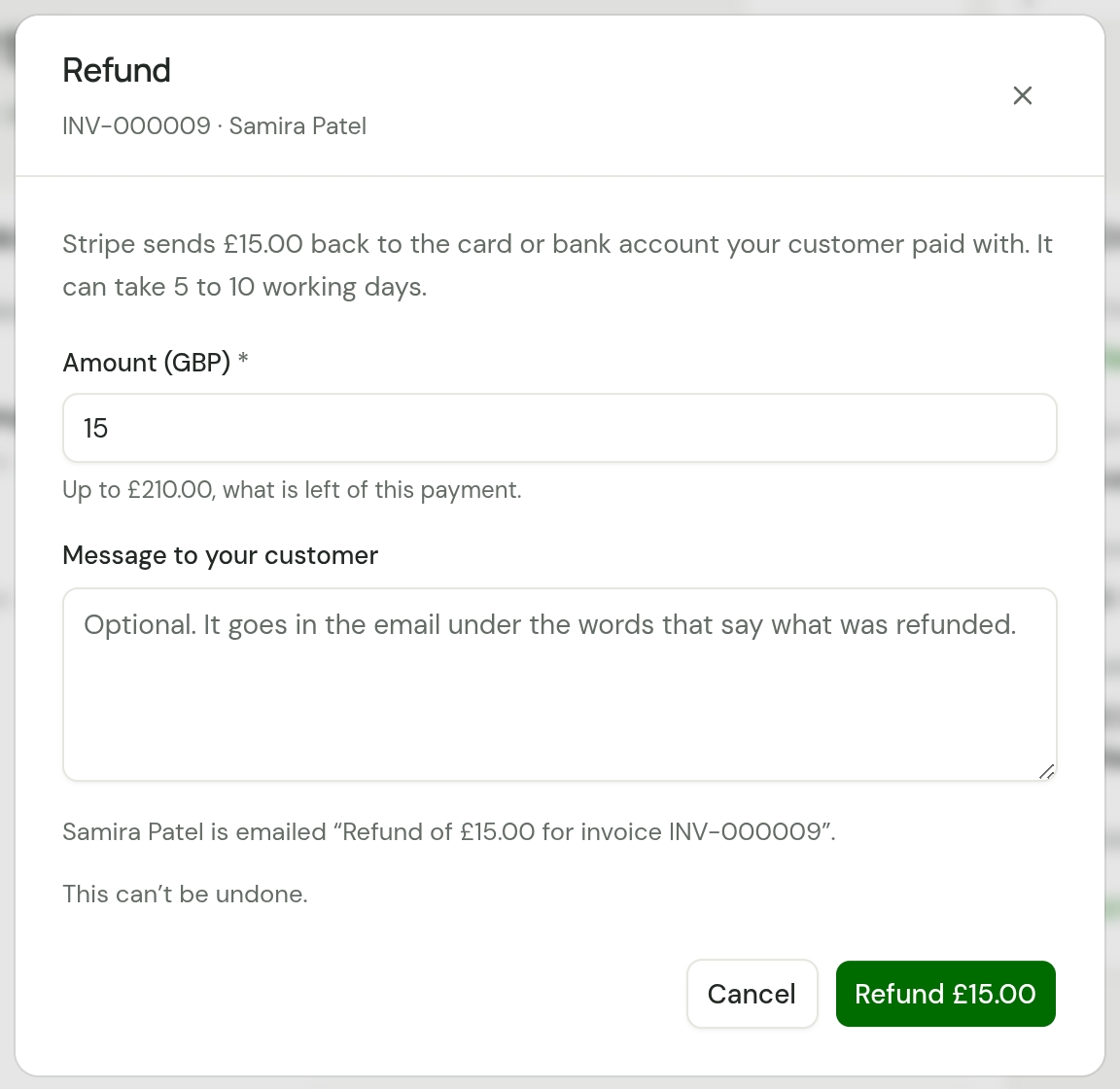
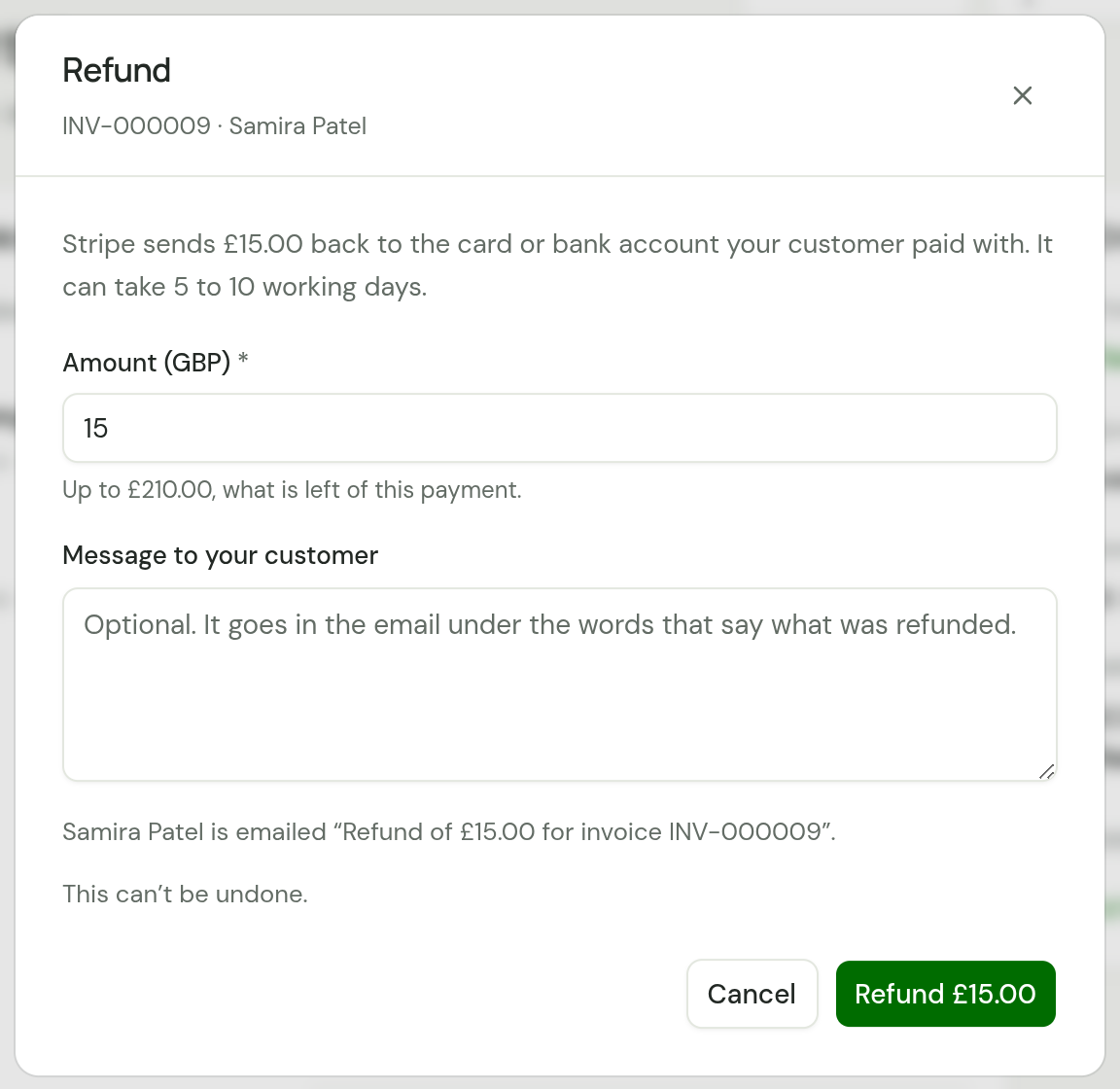
The message says "Refund made." The refund is listed under the payment at once, as "Refund £15.00 · … · From TradeSender" and your name, and the payment counts only what is left of it. Paid and Balance due on the invoice, Paid this month on Today and the payments export follow.
It can take 5 to 10 working days to reach your customer's card or bank account.
What your customer is sent
An email in your business's name, with the subject "Refund of £15.00 for invoice INV-000009 from Green & Co.". It says "We've refunded £15.00 of what you paid for invoice INV-000009. It can take 5 to 10 working days to reach your card or bank account." Then one line says how the invoice stands once the refund, and anything you chose with it, is made:
| The invoice | The line |
|---|---|
| Left owing, with £45.00 to pay | "£45.00 is still to pay on this invoice." |
| Voided | "The invoice has been voided, so there is nothing to pay." |
| Written off, or paid | "There is nothing more to pay on this invoice." |
Then come your message if you wrote one, a link to the invoice's page and "If something isn't right, reply to this email." The invoice's PDF is attached. The email has no button to pay.
It is listed as Refund under Sent on the customer and in Activity, and counts towards the 100 emails a day your team can send.
When a refund leaves money owing
A refund on an invoice that has not been voided or written off leaves that much to pay again. When there is more than one thing you could do about it, the dialog asks, with the amount the invoice will then have to pay: "After this refund, £1.00 of the invoice will be unpaid. What happens to it?" Each choice has a line under it:
| Choose | The line under it | What happens | Offered |
|---|---|---|---|
| Leave it owing | "The invoice shows £1.00 to pay. Your customer can still pay it, and reminders go if they’re on." | The invoice has a balance again, and your customer can pay it, online or by bank transfer. If it is overdue and reminders go for it, it is left alone for the First reminder days, 3 unless you changed them, before it is chased | Always |
| Void the invoice | "Nothing more is asked for. The invoice is cancelled and its record kept." | The invoice is voided as soon as the refund is made, and nobody is asked for anything | When the refund gives back all that is left of the payment, and no other payment on the invoice holds money: one that has arrived, is Pending or is Disputed |
| Write off the balance | "Nothing more is asked for. £1.00 is recorded as written off, never received." | What is left is written off as soon as the refund is made. Give a Reason, for your records. See Write off what will not be paid | When the invoice could be written off: not a deposit invoice, and nothing on its way or in dispute |
Nothing is chosen for you. Refund stays greyed out until you choose, and for a write-off until you give a reason. When leaving it owing is the only choice, the dialog asks nothing and the invoice is left owing.
The refund and what you chose are made together. The message then says "Refund made. Invoice voided." or "Refund made. Balance written off." If the refund was made and the invoice could not then be changed, the dialog says "The refund was made." followed by why. The refund stands, the invoice is left owing, and its own Void invoice and Write off are still there.
A refund on a void or written-off invoice asks nothing. Nobody is asked to pay a void invoice, and a written-off invoice stays written off: what the refund leaves is not chased.
What you may see
| You see | What happened |
|---|---|
| "Refund made." | Stripe has the refund, and the payment shows it |
| "The refund was made." and a reason | Stripe has the refund. The invoice could not then be voided or written off, so it is left owing |
| "Stripe wouldn't refund this payment: " and Stripe's reason | Stripe refused, and nothing was refunded. If it had already been refunded in your Stripe dashboard, the payment now shows that |
| "Stripe couldn't be reached, so nothing was refunded. Please try again." | Stripe did not answer. Nothing was refunded, so choose Refund again |
| "TradeSender isn't able to make refunds from Stripe yet. Refund it in your Stripe dashboard for now." | Stripe would not let TradeSender make the refund. The fault is ours, and we are told each time it happens. Nothing was refunded: refund it in your Stripe dashboard, and it shows on the payment within a few seconds |
| "Your Stripe account no longer lets TradeSender in. Refund it in your Stripe dashboard." | Your Stripe account has disconnected TradeSender. Refund it in your Stripe dashboard |
| "This workspace has no Stripe account connected, so the payment can't be refunded from here" | The payment came through Stripe and no Stripe account is connected now. Refund it in that Stripe account's dashboard |
| An email to your business, "A refund to Samira Patel failed" | Stripe made the refund and then could not send it to the card or bank account, such as one that has closed. The money is back in your Stripe account and the payment counts again, so the invoice reads paid or part paid. Under the payment the refund reads "Refund failed £15.00" in red. Your customer may be expecting it: pay them back another way |
The email about a refund that failed goes to your Business email, or to the owners if you have none. It comes for any refund that fails, made here or in your Stripe dashboard. A payment made online cannot be refunded as a record, so if you then pay your customer back by bank transfer, the invoice still counts the payment as paid.
Refund in your Stripe dashboard
A refund you make in your Stripe dashboard is recorded too. It shows under the payment within a few seconds, as "Refund £15.00 · … · In Stripe" with no name, and the invoice has a balance again. Nobody is asked what then, and TradeSender emails your customer nothing about it.
Paid twice
A customer can pay online in the same hour that you record their bank transfer by hand. Both payments are kept, and the invoice says how much is over: "Paid £45.00 more than the invoice.", followed by Refund £45.00. It opens Refund on the newest payment, for that amount. To give it back through Stripe rather than as a record of your own, choose the online payment and enter the amount again.
Disputes
You answer a dispute in your Stripe dashboard. While the bank decides, the payment reads Disputed and the invoice is unpaid. If you win, the payment counts again. If you lose, it reads Failed with the note "Dispute lost". A payment in dispute cannot be refunded.
Void an invoice that can be paid online
Void invoice is offered while no payment holds money on the invoice. A payment that failed, or one you refunded in full, does not stop you. A payment that arrived, is Pending or is Disputed does.
Voiding also closes any payment page Stripe still has open for the invoice, so nobody can pay an invoice you have withdrawn. A payment page stays open for up to a day after your customer chooses Pay online. This means voiding needs Stripe to answer:
| You see | What happened |
|---|---|
| "Invoice voided." | The invoice is void and its payment pages are closed |
| "This invoice has just been paid online. The payment will show here shortly." | Your customer finished paying a moment ago. The invoice is not voided. Wait for the payment to show |
| "Stripe couldn’t be reached to close this invoice’s payment page, so it has not been voided. Please try again." | Stripe did not answer. The invoice is not voided |
If money ever does arrive for a void invoice, it is recorded on that invoice and you are told:
- TradeSender emails your business "Taylor Reed paid invoice INV-000041, which is void", with the amount.
- The invoice's page says "This invoice is void, but £45.00 has been paid on it.", followed by Refund £45.00.
The money is in your Stripe account. Choose Refund £45.00 to give it back: see Refund a payment. The invoice stays void.
What it cannot do
- Part payment by card. The button always asks for everything still owed on the invoice. A customer who wants to pay part can do so by bank transfer, and you record it.
- Disconnect from inside TradeSender. There is no button. To stop taking payments, switch them off in your Stripe dashboard, and ask us from Help to take Pay online off your invoices.
- Take a payment for you. Nobody on your team can charge a customer's card from TradeSender. The customer pays on Stripe's page. For a card you took on your own machine, record the payment as Card.
- Show your Stripe balance or payouts. Those are in your Stripe dashboard.
- Take a payment under 50p.
- Undo a refund. Once Stripe has it, the money is on its way back to your customer.
In the iPhone and Android apps
Tap the account button, then Getting paid under Settings. Online payments has the same line and the same Connect Stripe and Continue in Stripe buttons for an owner. Stripe's page opens in Safari on an iPhone and in a browser tab on Android, and it needs a connection: without one the app says "Online payments need a connection."
When you finish or leave Stripe's page, it ends on Back from Stripe: "Go back to the TradeSender app. Getting paid, in Settings, shows where Stripe has got to." If Stripe's link has run out, the page reads This Stripe link has expired. Go back to the app and choose Continue in Stripe for a new one.
Invoices and payments read the same as on the web: Being collected, Pending, Failed, Disputed, and each payment's refunds listed under it. A payment refunded in full reads Payment refunded, with a grey refunded symbol, where one that arrived reads Payment received.
An owner or office member refunds a payment with Refund… in the invoice's menu. It asks the same questions as the web. When the refund leaves money owing and there is more than one choice, it asks "After this refund, £1 of the invoice will be unpaid. What happens to it?", with nothing chosen until you tap one. The lines about a void invoice that has been paid, or money paid over, have their own Refund £45.00 button. A refund needs a connection, and is never saved on the phone to send later: without one the app says "Refunds need a connection. Try again when you’re online."
Good to know
- Payments made online are never deleted or edited, like the ones you record by hand.
- A payment you record by hand always counts as paid. Only a payment that came through Stripe can be Pending, Failed or Disputed.
- Your AI assistant cannot connect Stripe, and nor can an API key. It decides where your money goes, so it stays with an owner in the app. Neither can refund a payment: refunds are made by people, in the app.
- If a customer says they paid and the invoice still reads Unpaid an hour later, find the payment in your Stripe dashboard and send us its reference from Help.
Checked against the app on 29 October 2026. Still stuck? Ask usAsk us.