Time off
Book holiday or other time away for yourself or your team, see it on the schedule beside the visits, and change or delete it.
Anyone in the workspace can book time off. Owners and office members book it for any active member and see everyone's. A technician books and sees only their own. This page follows the web: the iPhone and Android apps have Time off in their calendar's add menu and in Settings, under Your business.
Book time off
-
Open Schedule and choose Add time off.
-
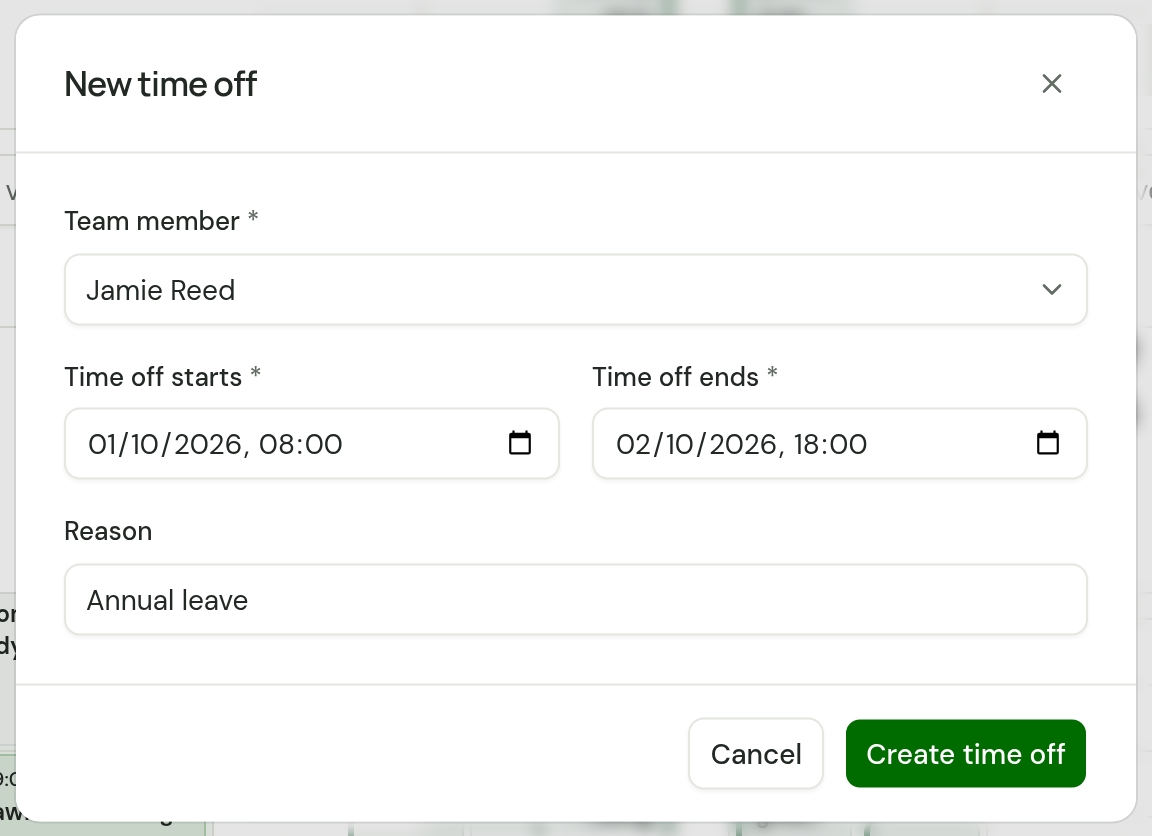
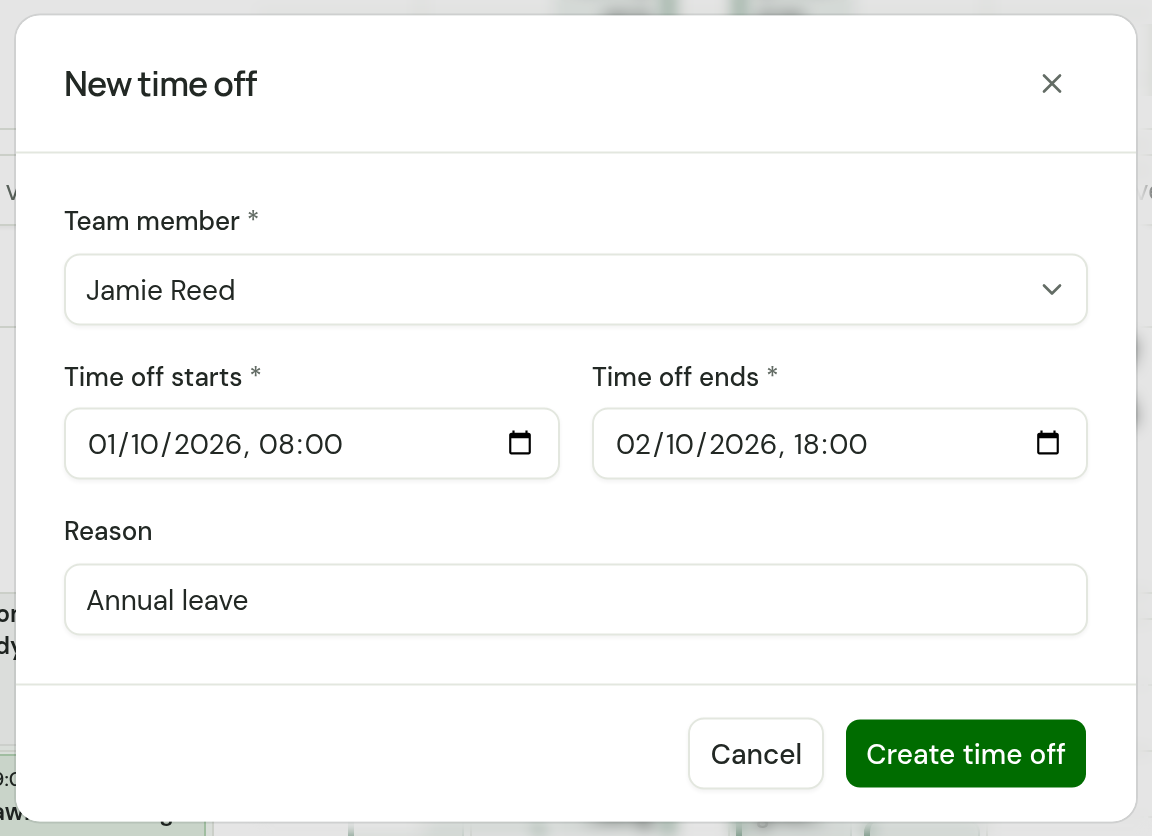
Choose the Team member. It starts as you. If you have filtered the schedule to one person, it starts as them.
-
Set Time off starts and Time off ends. They start at 9:00 and 17:00 on the day the schedule is showing. For several days away, set the end to the last day.
-
Add a Reason if you want one, such as "Annual leave". It is the name the time off carries on the schedule. Without one it reads "Time off".
-
Choose Create time off.
What it looks like on the schedule
In the Day, Week and Team views, time off sits in a Time off row above the hours, with the person's name, the reason and the times. In the Team view it is at the top of that person's own column. Month and Agenda list it among the day's visits.
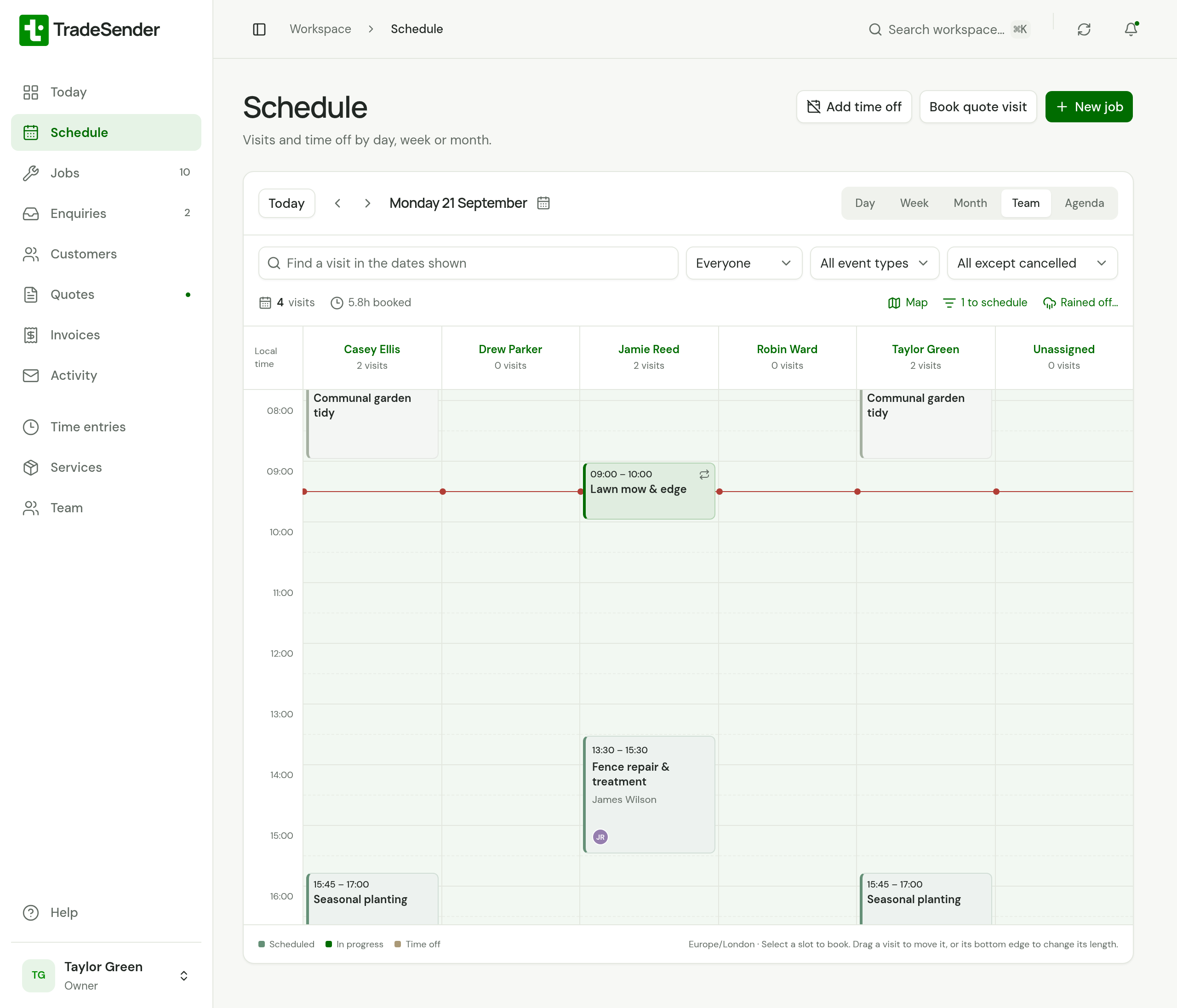
To see only time off, set the event type filter to Time off.
When time off clashes with a visit
TradeSender does not stop you booking a visit over someone's time off, or time off over a visit. It warns you:
- In the form, Check team availability names what the new booking overlaps.
- On the schedule, the visit carries a warning mark, and a count such as "1 with conflicts" appears above the calendar. Choose the count to show only the clashes.
Move the visit, or give it to someone else. See The schedule.
Change or remove time off
Choose the time off on the schedule to open Edit time off. Change the person, the times or the reason and choose Save changes.
To remove it, choose Delete time off at the foot of that form, then Delete time off again to confirm. It comes off the calendar. In the phone apps, open the time off and choose Delete time off.
Good to know
- A technician sees their own time off only. They do not see when colleagues are away.
- Only active members can be given time off.
- Time off does not count towards any plan limit.
Checked against the app on 29 October 2026. Still stuck? Ask usAsk us.