Repeating jobs and rounds
Set a job to repeat every week, fortnight or month, all year or for the mowing season, and change, skip or stop its visits without starting again.
Owners and office members plan repeating work, on the web and in the iPhone and Android apps. This page follows the web.
A round is one job with many visits. You enter the customer, the work and the price once, and TradeSender books the visits. Each one is an ordinary visit: the crew starts it, finishes it and adds photos like any other.
Repeating visits are on the Pro and Business plans. On the Free plan, Repeats is greyed out and reads "Repeating visits aren’t included on the Free plan." See Plans and limits.
Set a job to repeat
-
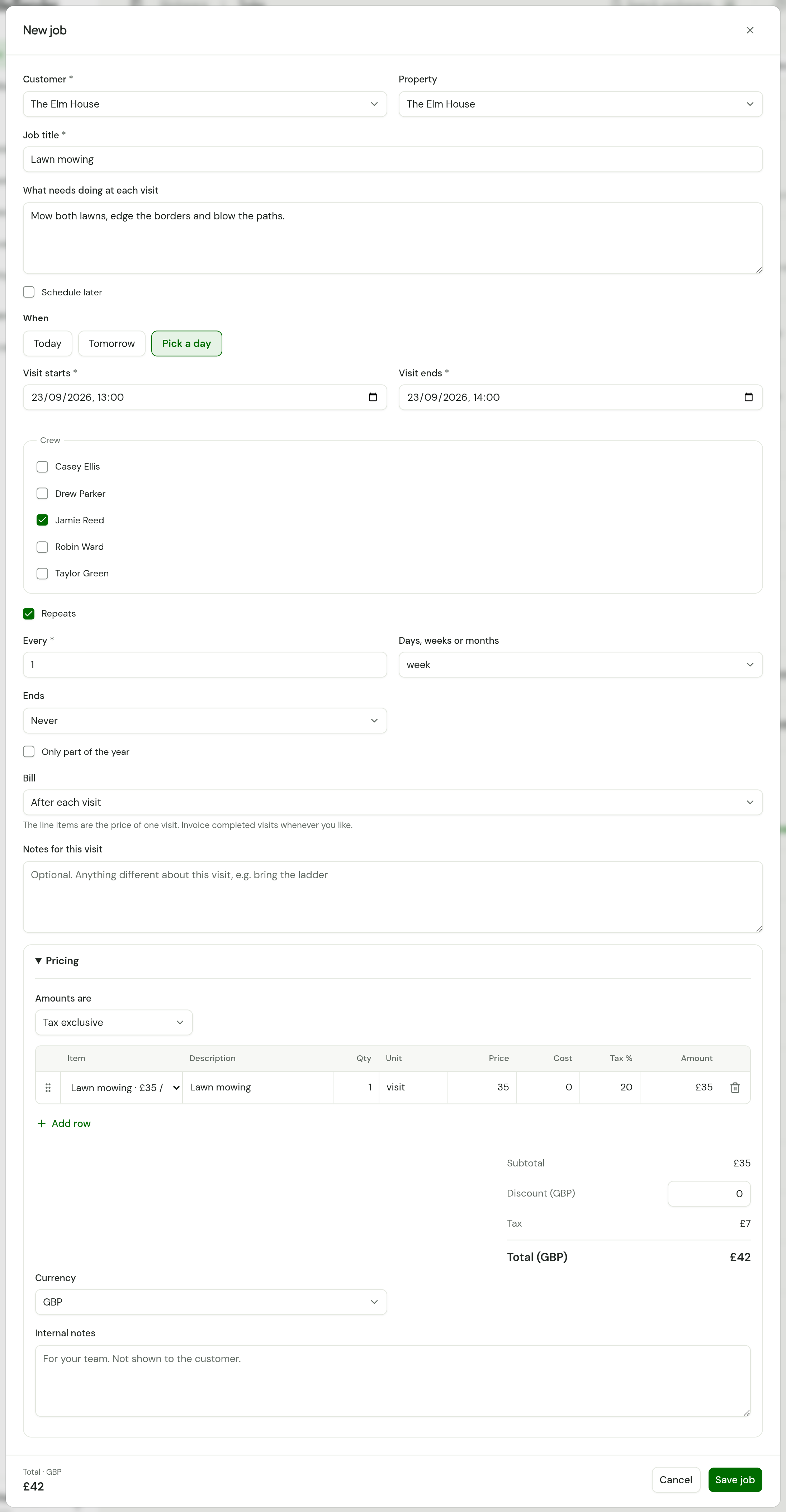
Start a new job and set the first visit under When. Its day and time are the pattern for the rest.
-
Tick Repeats.
-
In Every and Days, weeks or months, say how often. Every takes 1 to 99.
-
In Ends, choose Never, On a date or After a number of visits. On a date asks for Last visit on. After a number of visits asks for Number of visits, from 1 to 500.
-
For a round that stops for the winter, tick Only part of the year. See Part of the year.
-
Check Bill. Ticking Repeats changes it to After each visit, so the line items are the price of one visit. See Bill per visit. For a round you invoice once a month, choose At month end: see Invoice at month end.
-
Choose Save job.
| You want | Set |
|---|---|
| Every week | Every 1, week |
| Every fortnight | Every 2, weeks |
| Every four weeks | Every 4, weeks |
| Every month | Every 1, month |
| Every fortnight from March to October | Every 2, weeks, then Only part of the year from March to October |
| Several days in a row | The weekday option, Monday to Friday, with Ends on On a date |
The first visit sets the day. A weekly round that starts on a Monday falls on Mondays. A monthly round that starts on the 31st falls on the last day of a shorter month, then on the 31st again.
Visits keep the same time of day when the clocks change.
Part of the year
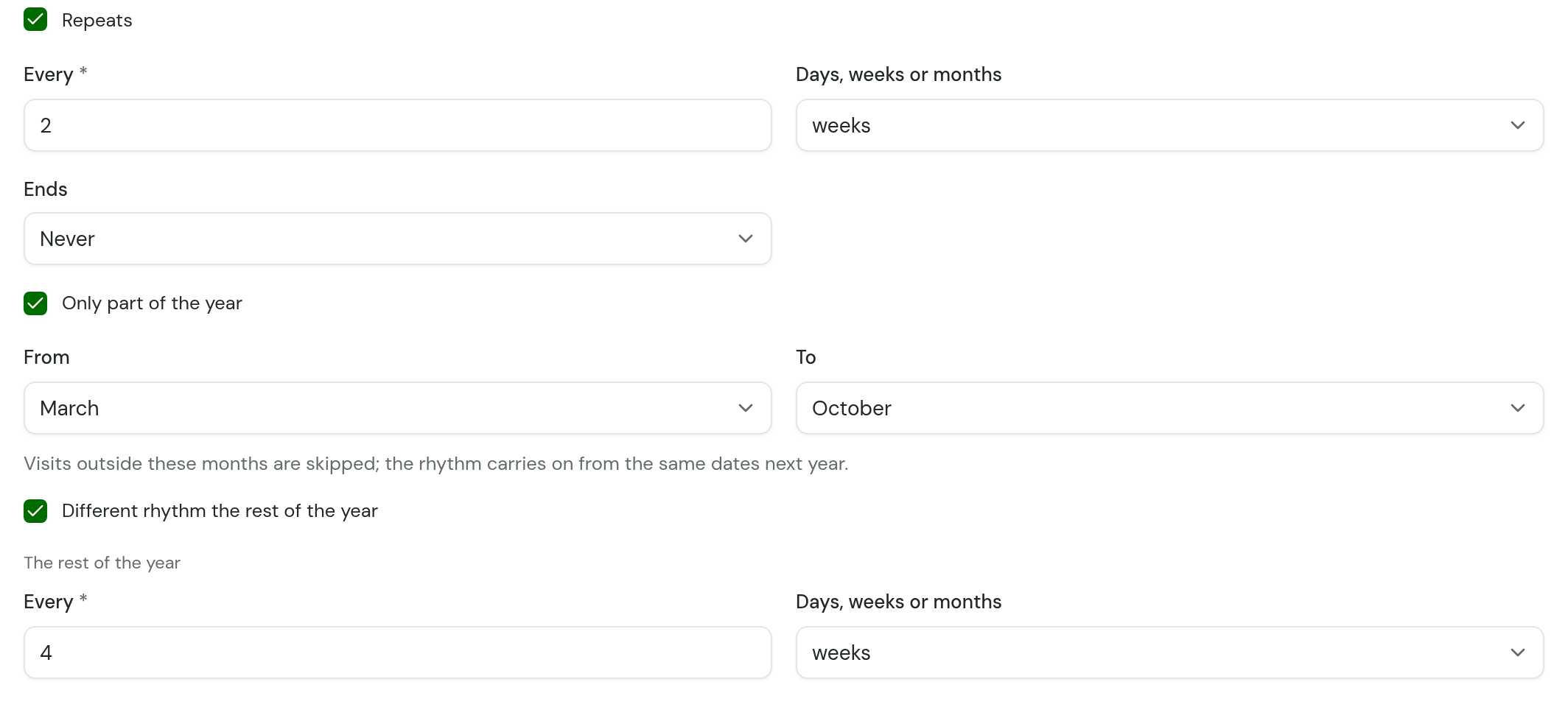
A lawn round does not run all year. Tick Only part of the year under Ends and choose the months in From and To. They start at March and October.
- Both months are included, from the first day of one to the last day of the other.
- A season can run over the new year: From November To February is the winter.
- The same month in both is that one month.
Visits outside those months are skipped. The rhythm is not started afresh each spring: TradeSender keeps counting through the months it skips, as the form says, "the rhythm carries on from the same dates next year". A fortnightly round keeps its fortnights, so its first visit next year is the first of those dates to fall in March.
If the first visit you set is itself outside the months, no visit is booked on that day. The round starts on the next date of its rhythm that is in season.
After a number of visits counts the visits that are booked. Dates that are skipped do not use one up.
A rhythm with no visit in the months you chose is refused, with "No visit falls in these months". Every 12 months from a January date never lands between March and October.
A different rhythm the rest of the year
On a new job, tick Different rhythm the rest of the year and fill in The rest of the year: every 4 weeks for a winter tidy, say. It starts at every 4 weeks.
The job then has two repeats. Both start from the same first visit, with the same time and crew. The second covers the months the first leaves out, and ends when the first does.
- The tick box is on the New job form only. To give a job you already have a winter rhythm, choose Add visit on its page, tick Repeats and Only part of the year, and choose the winter months.
- Two repeats need two seasons. If your months are the whole year, the form says "These months are the whole year, so there is no rest of the year."
- A change you make with This and future visits changes the repeat that visit belongs to, and leaves the other alone.
Add a repeat to a job you already have
On the job's page, choose Add visit, tick Repeats, fill in the same fields and choose Create visit. Then choose Edit details on the job and set Bill to After each visit. On an existing job, TradeSender does not change Bill for you.
How far ahead visits are booked
TradeSender books a round's visits eight weeks ahead. Each night it adds the next ones, so the schedule always shows about two months of the round. A round with an end books nothing after its last visit.
A round between its seasons has nothing booked. Its first visit of the new season appears once that date is within eight weeks.
If the first visit is in the past, it is booked too, so a round can start with work you did yesterday.
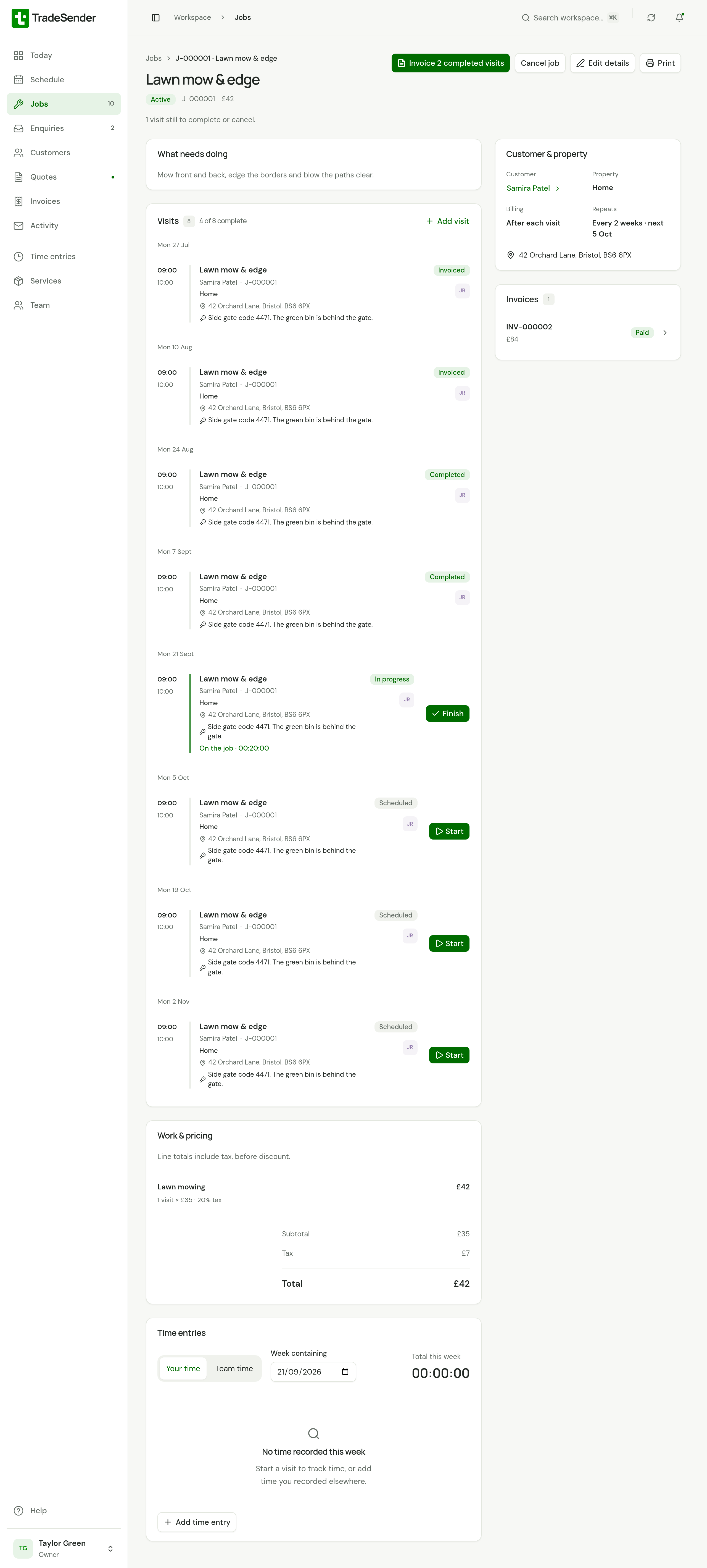
On the job's page, Repeats shows the pattern and the next visit, such as "Every 2 weeks · next 5 Oct". A round for part of the year names its months: "Every week, March to October · next 22 Sept". A job with two rhythms has a Repeats line for each. On the Schedule, a repeating visit carries a small repeat icon.
Change, move or skip one visit
| You want to | Do this |
|---|---|
| Move one visit | Drag it on the Schedule. A drag moves that visit alone, on the web and in the phone apps, and does not ask. |
| Change one visit's time, crew or notes | Open the visit, choose Edit details, make the change, choose Save changes, then Only this visit. |
| Skip one visit | Open the visit and choose Cancel visit. |
The rest of the round carries on as before. A visit you have moved stays part of the round, and a visit you have cancelled is not booked again.
Change the round from a visit onwards
-
Open the first visit you want to be different and choose Edit details.
-
Change the time, the Crew, Notes for this visit, how often it repeats, the months it runs in or when it ends.
-
Choose Save changes. Under "This visit repeats. Apply your changes to:", choose This and future visits.
TradeSender removes the round's scheduled visits from that date and books them again your new way. What it leaves alone:
- Every visit before that date.
- Any visit that has been started or finished.
- Any visit with time recorded on it.
To move the whole round to another day of the week, move that visit to the new day and choose This and future visits.
A round that ends After a number of visits shows as On a date when you open it again, with the date of its last visit.
End a repeat
Open a scheduled visit in the round. Under Schedule, choose Stop repeating from this visit, then Stop repeating.
Two other things end a repeat:
- Complete job stops it and removes the visits still to come.
- Cancel job does the same, and cancels any earlier visit that was never finished.
Stop a repeat between its seasons
A repeat that is between its seasons has no visit to open. Stop it from the job's page instead.
-
Open the job. Under Customer & property, each repeat with nothing booked has a link such as Stop repeating every 4 weeks, November to February.
-
Choose it, then Stop repeating. Keep repeating leaves it as it is.
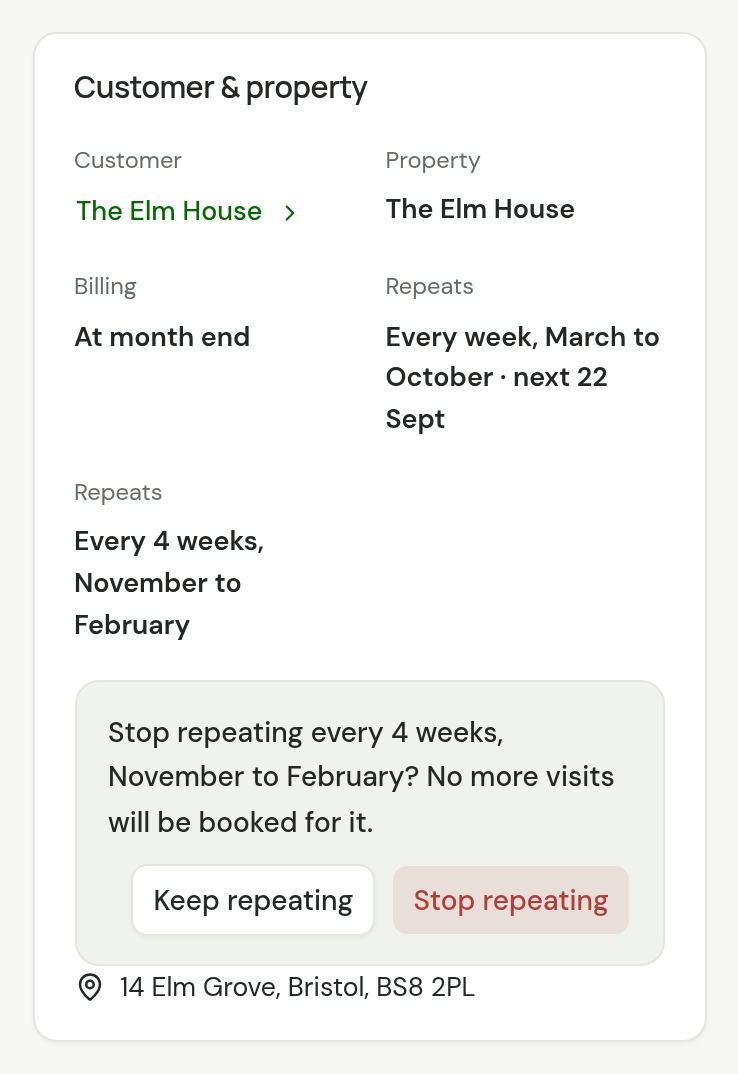
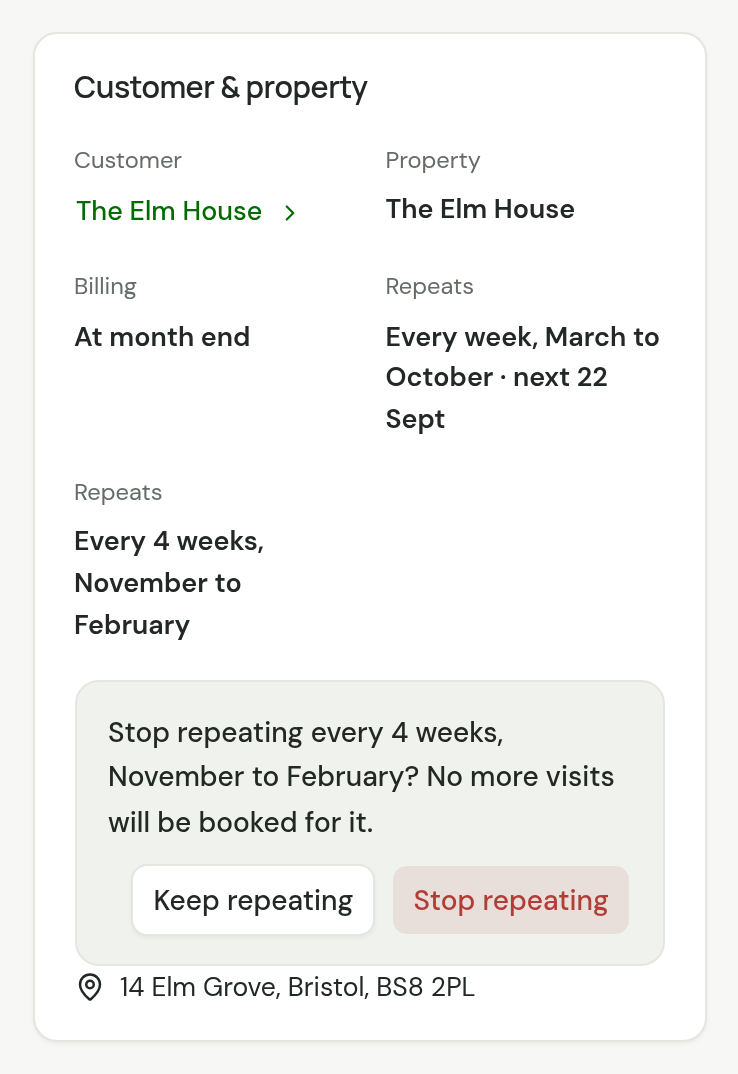
No more visits are booked for that repeat. The job's other repeat carries on.
You cannot change a repeat while it has nothing booked. Stop it, then add it again with Add visit, or wait until its first visit of the season is on the schedule and change it from there.
When a repeating job is finished
A round with no end is never finished by a visit. You end it with Complete job: see Finished jobs.
A repeat with an end is different. Once its last visit is booked and done, TradeSender takes the repeat off the job overnight. The visits stay as they were.
So a job booked over several days in a row can finish with its last day. Set its Bill back to When the job is complete. Finishing the last day's visit then asks Job done or Coming back, as it does for a one-off job: see Work a visit.
While a job's repeat still has visits to come, booked or not, the job is not waiting on you: it is not under Needs scheduling, and finishing one of its visits does not offer to complete it.
In the iPhone and Android apps
The apps have the same fields, Only part of the year and Different rhythm the rest of the year included. On a job's screen, a repeat that is between its seasons has a Stop repeating button under it.
A new repeating job saves without signal and goes up when you are back in range, with both rhythms if it has two. Changing or stopping a repeat needs a connection.
Checked against the app on 29 October 2026. Still stuck? Ask usAsk us.