Send through SMTP
Connect any mail server that supports SMTP so your quotes and invoices reach customers from your own address.
SMTP is the way for any mailbox that is not with Google or Microsoft: the email that comes with your domain or your broadband, for example. An owner sets it up, on the web or in the iPhone or Android app. This page follows the web. You need the sending details from your email provider: a server name, a port, a username and a password.
Connect
-
Open Settings, then Emails, and choose Sent from. The Your mailbox sheet opens.
-
Under Connect your mailbox, on the Other mail server row, choose Use SMTP. The form opens beneath it.
-
Fill in the five fields. Each is explained in The fields.
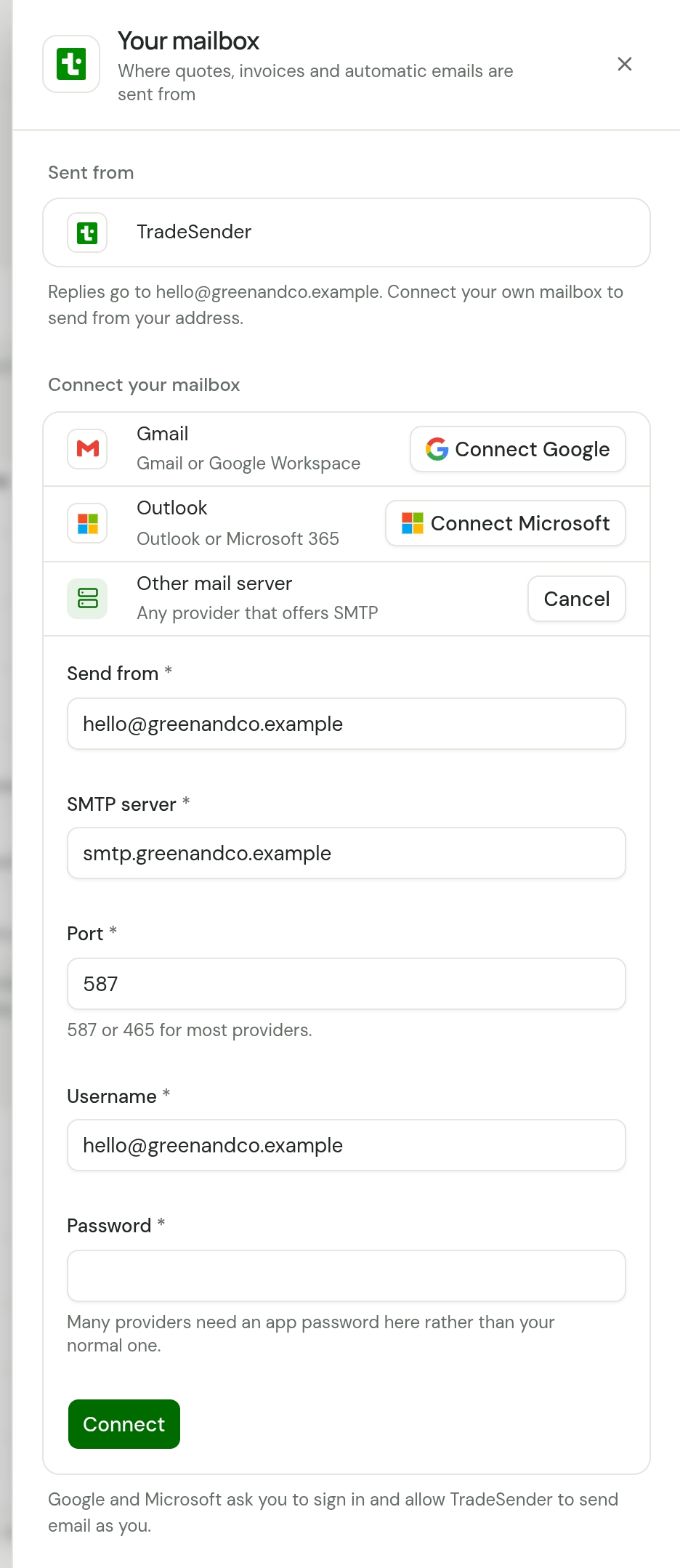
-
Choose Connect. The button reads Checking… while TradeSender signs in to your mail server once with those details. That can take up to 15 seconds.
-
If the sign-in works, TradeSender saves the details and Sent from shows your address. If it does not, the reason appears at the top of the sheet and nothing is saved.
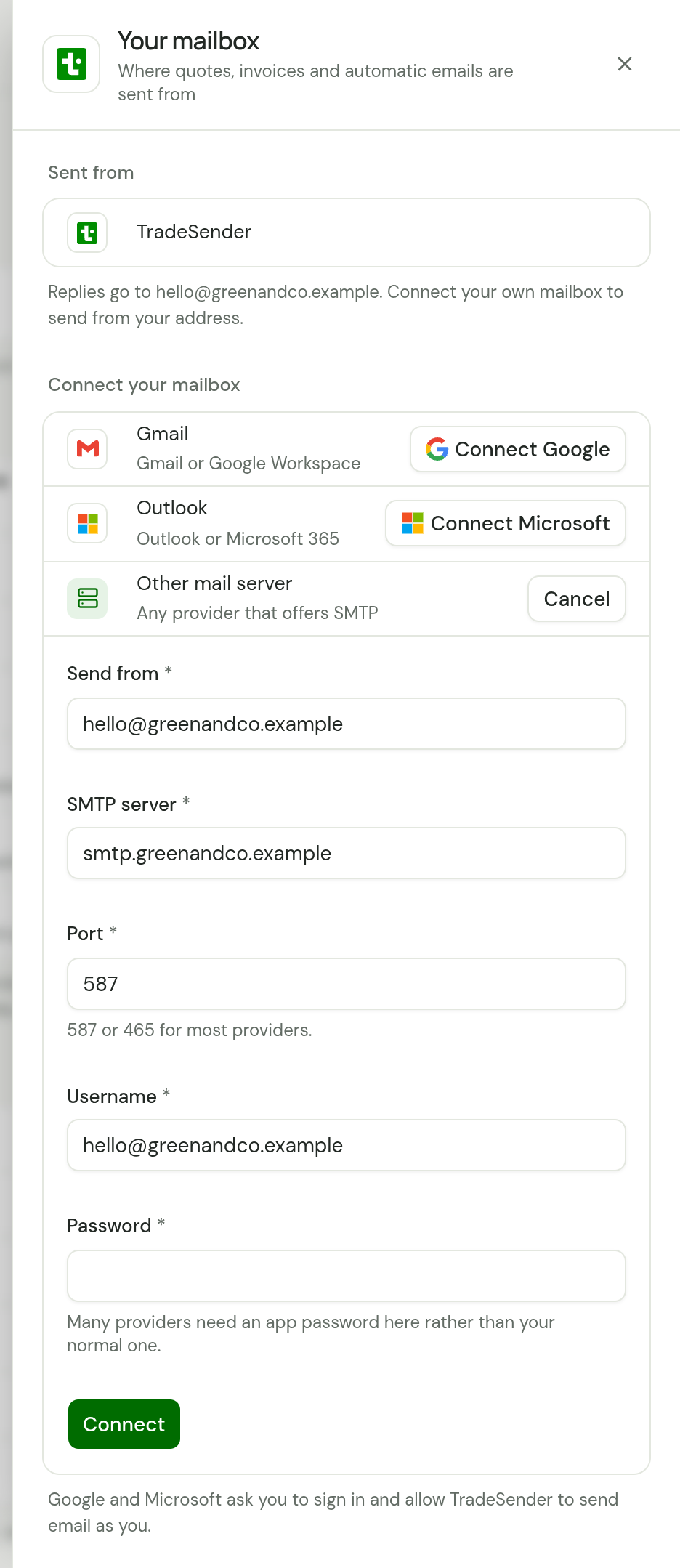
To close the form without saving, choose Cancel on the Other mail server row.
In the iPhone or Android app, tap the account button, then Emails, then the row under Sent from, and choose Use SMTP…. The fields are the same, and the button is Save.
The fields
| Field | What to enter |
|---|---|
| Send from | The email address your customers see on quotes and invoices. |
| SMTP server | The name of your provider's outgoing mail server, such as smtp.yourprovider.com. Your provider's help pages list it. |
| Port | It starts at 587. The form says "587 or 465 for most providers." TradeSender accepts 25, 465, 587 and 2525. |
| Username | The name you sign in to that mailbox with. For many providers it is the whole email address. |
| Password | The mailbox's password, or an app password. See App passwords. |
Encryption
There is nothing to choose. On port 465 TradeSender encrypts the connection from the start. On every other port it connects and then switches to an encrypted connection, and it stops if the server cannot do that. Either way, your password is not sent over an unencrypted connection.
App passwords
The form says "Many providers need an app password here rather than your normal one." An app password is a separate password your email provider makes for one app, so you do not hand over your main one. Providers that use two-step sign-in often insist on it. You make one in your email provider's account settings, and your provider's help pages have the steps.
What the check does
When you choose Connect, TradeSender signs in to your mail server and signs out again. It sends no email. A wrong password shows up straight away, before any customer is waiting for an invoice.
To see a real email, tick Send me a copy the next time you send a quote or invoice.
TradeSender hands each email to your mail server and does nothing else in your mailbox. It does not put a copy in your Sent folder. Some providers do that themselves; Send me a copy gets you one either way.
How the password is kept
TradeSender stores the server, port, username and password together, encrypted. It never shows the password again, to you or to anyone in your team. To change it, disconnect and connect again with the new one.
If it does not connect
| What you see | Why | What to do |
|---|---|---|
| "Enter the address to send from" | Send from is not an email address. | Enter the full address. |
| "Enter the server, username and password" | One of the three is empty. | Fill them all in. |
| "Use port 25, 465, 587 or 2525" | The port is not one TradeSender accepts. | Use the port your provider gives for sending. It is 587 or 465 for most. |
| The server's name, then "could not be found" | The server name does not exist. | Check SMTP server for a typing mistake. |
| The server's name, then "is not a public mail server" | The name points at a private or local address. TradeSender only connects to mail servers on the internet. | Use your provider's public server name. |
| "Couldn't sign in to", the server's name and the server's own reply | The server refused the username or password, could not encrypt the connection, or did not answer within 15 seconds. | Read the reply after the colon. Check the username, try an app password, and try the other port of 587 and 465. |
If it stops working later
If your mail server starts refusing the password, TradeSender disconnects the mailbox, sends that quote or invoice from its own address and emails you to say so. See If your mailbox stops working.
Disconnect
Open Settings, then Emails, and choose Sent from. The sheet is headed Other mail server. Choose Disconnect at its foot. Quotes and invoices go back to being sent by TradeSender, and TradeSender deletes the details it stored.
Checked against the app on 29 October 2026. Still stuck? Ask usAsk us.