Disconnect an assistant
End an AI assistant's access to your workspace from Settings, and see what else ends a connection without you asking.
Each member ends their own connections, in Settings. An owner cannot see or end another member's from there. This page follows the web. In the iPhone or Android app, tap the account button, then Connected apps, and tap the assistant under Connected: Disconnect is on its page, and the app asks you to confirm before it disconnects.
Disconnect
-
Open Settings, then Connected apps, and choose the assistant's card: Claude, ChatGPT or Codex. A card reads Connected when you have connected that app. One TradeSender does not know by name has a card of its own, Other assistants.
-
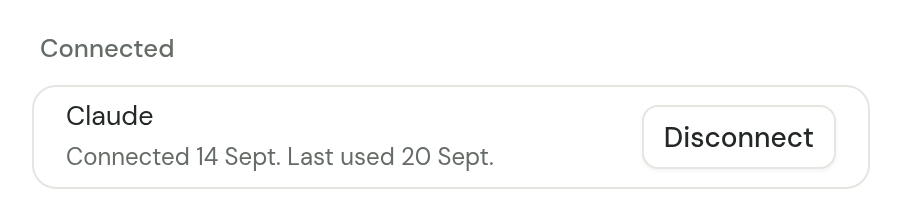
Under Connected, find the assistant. Each row has the app's name, the date you connected it and the date it was last used. When the app publishes a web address of its own, the row starts with it, such as "claude.ai". One you have never used reads "Not used yet."
-
Choose Disconnect on its row.
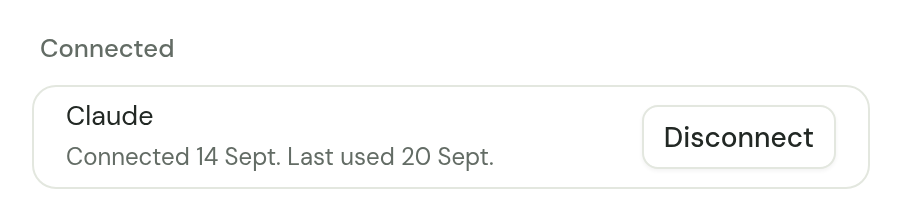
There is no second question. The row goes, and TradeSender refuses the assistant's next request. Nothing it has already done is undone.
If you connected the same app more than once, it has a row for each time. The dates, and the app's address when it has one, tell them apart. Disconnect each one.
To use the assistant again, connect it again from the AI app and choose Allow.
What else ends a connection
A connection has no end date. These end it without you choosing Disconnect:
| What happens | What ends |
|---|---|
| You choose a new password from a Forgot password? link | Every assistant you have connected, in every workspace you belong to. It also signs you out on your other devices. |
| You leave the workspace | Your connections to that workspace. |
| An owner removes you from the team or deactivates you | Your connections to that workspace, with your sign-ins and API keys there. |
| An owner deletes the workspace | Every connection to it, with everything else in it. |
A change of role does not end a connection. The assistant carries on with your new role's access.
After any of these the assistant gets no answer from TradeSender until you connect it again. Being let back into a workspace does not bring an old connection back.
Remove it from the AI app too
Disconnecting in TradeSender ends the access. The AI app may still list TradeSender, though it can no longer use it. To take it out of the app as well:
| App | Where |
|---|---|
| Claude | Customize, then Connectors. Remove TradeSender there. |
| ChatGPT | Open the plugin and choose Uninstall plugin. |
| Claude Code | claude mcp remove tradesender |
| Codex | codex mcp remove tradesender |
Doing it the other way round is less sure. Removing TradeSender from the AI app does not always tell TradeSender. Afterwards, check Connected and choose Disconnect if the row is still there.
If you did not connect it
If Connected lists an assistant you do not recognise, choose Disconnect, then choose a new password from the Forgot password? link on the sign-in page. That ends every connection, sign-in and API key in your name. Then tell us from Help.
Checked against the app on 29 October 2026. Still stuck? Ask usAsk us.