Connect ChatGPT
Add TradeSender to ChatGPT as a custom MCP server, allow it once, and ask about your work in a chat.
You need a ChatGPT account and your TradeSender sign-in. You add TradeSender in ChatGPT on the web, in a browser. OpenAI decides which ChatGPT accounts can add a custom MCP server: see If you cannot add it.
Connect
-
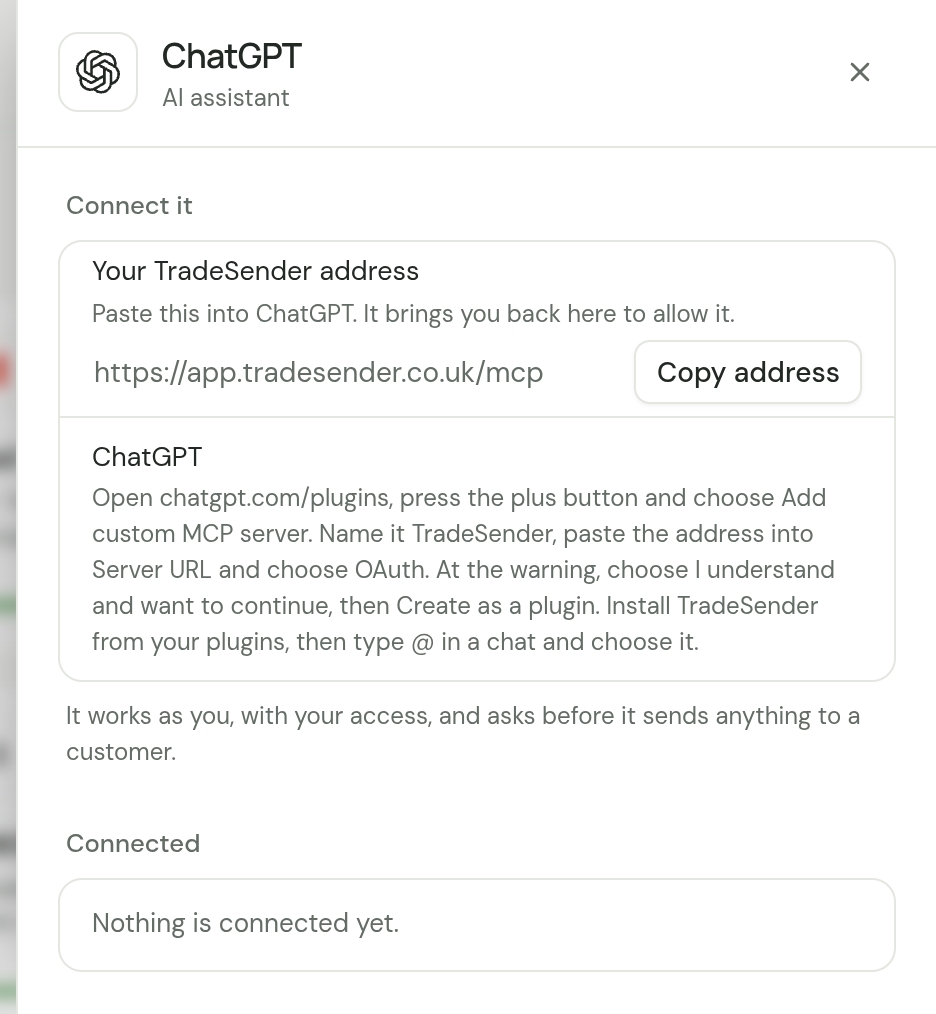
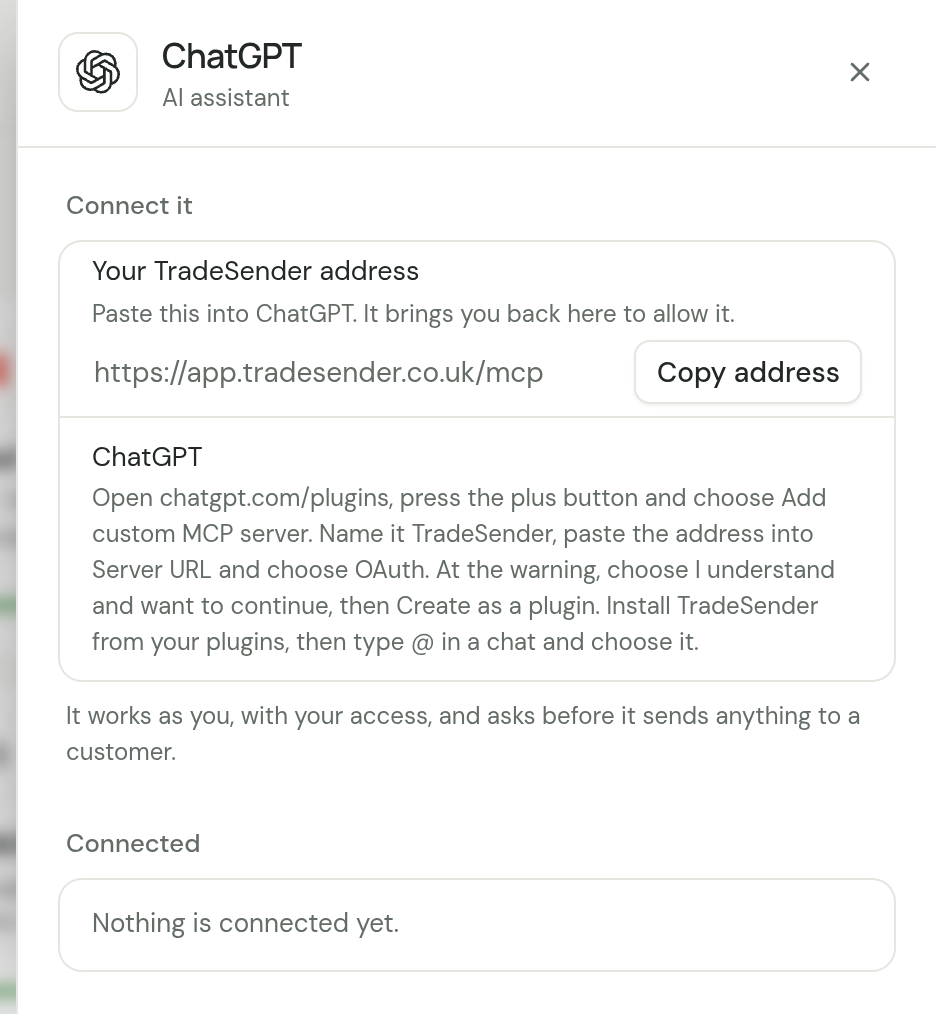
In TradeSender, open Settings, then Connected apps, and choose ChatGPT. Beside Your TradeSender address, choose Copy address.
-
In your browser, open
chatgpt.com/plugins. -
Press the plus button and choose Add custom MCP server.
-
Enter TradeSender as the name. Under Connection, paste the address into Server URL.
-
For the authentication setting, choose OAuth. TradeSender needs no client ID or secret from you.
-
Read ChatGPT's warning about custom servers and choose I understand and want to continue. Then choose Create as a plugin.
-
Find TradeSender among your personal plugins and install it.
-
When ChatGPT opens TradeSender in your browser, sign in if it asks. On the page that asks whether to connect it to TradeSender, check the workspace it names and choose Allow.
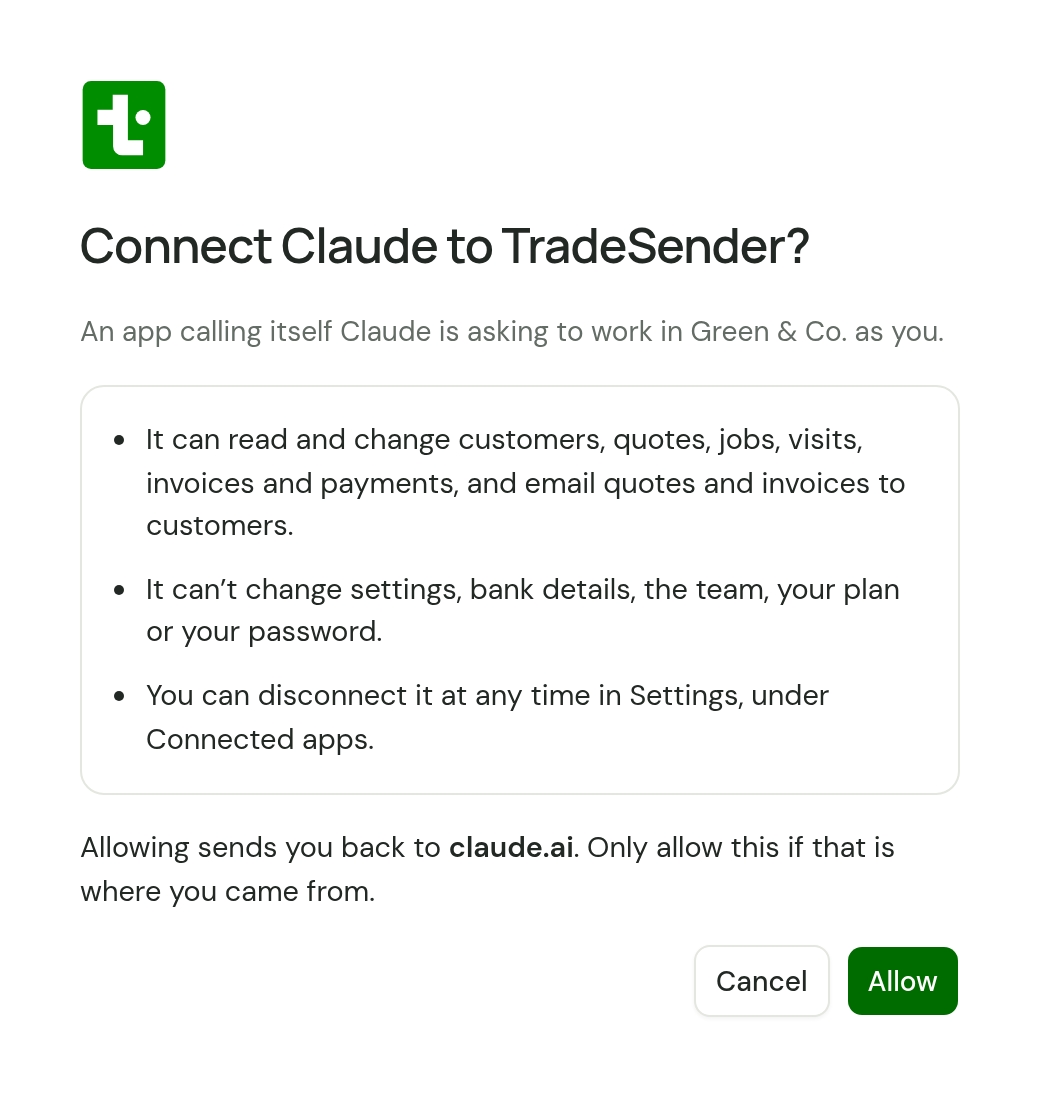
The Allow page, captured here for Claude. Yours names the app you are connecting. -
Start a chat in ChatGPT, type
@, choose TradeSender and ask "What's on tomorrow?".
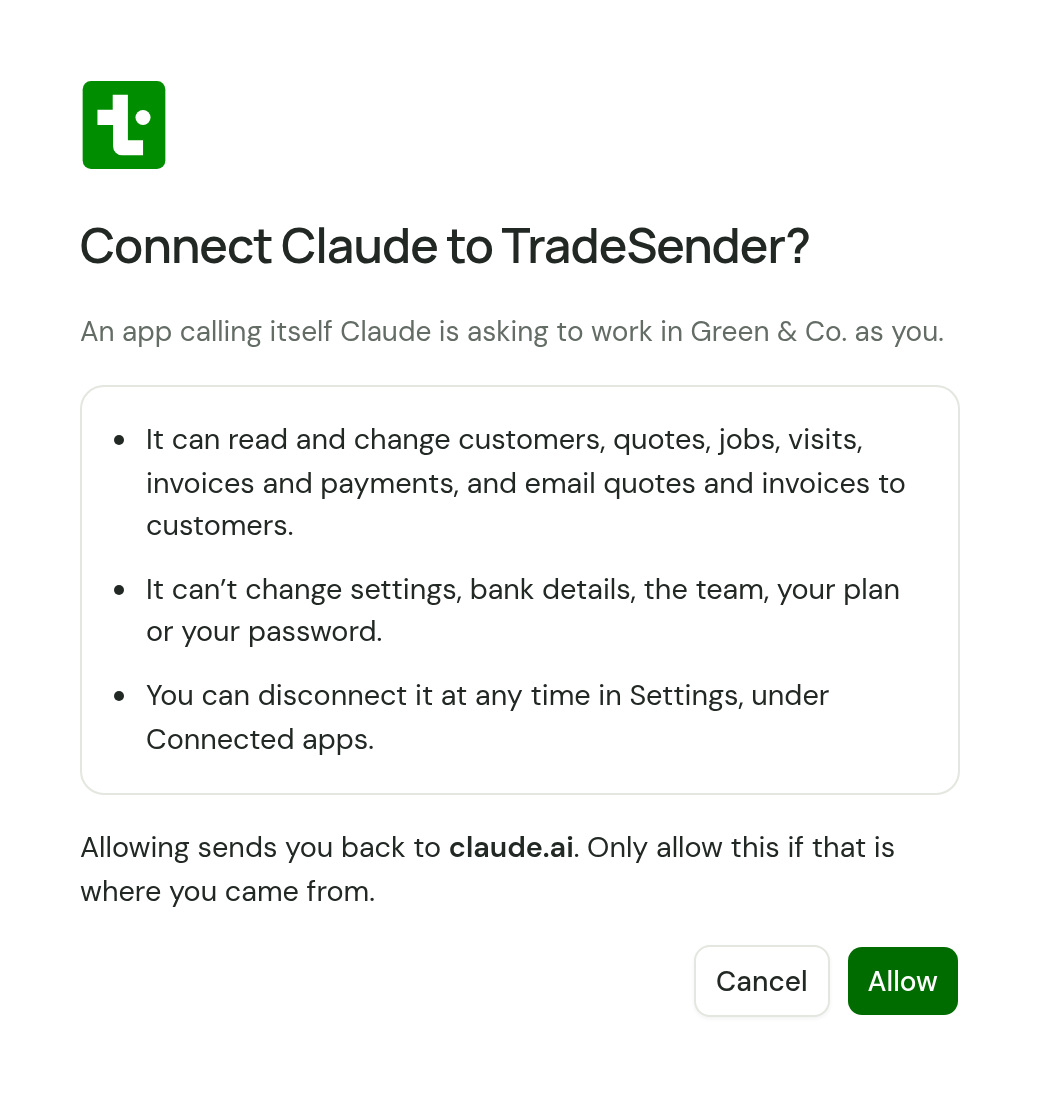
ChatGPT may open TradeSender for step 8 sooner, as you create the plugin. Allow it whenever it comes.
OpenAI has renamed this part of ChatGPT more than once, and it moves its menus. These steps follow OpenAI's own page, Add custom MCP server, as it read on 8 October 2026. If ChatGPT shows you something different, follow that page. The one thing TradeSender needs from you is the address.
Read the Allow page
The Allow page is the one moment TradeSender asks you. Before you choose Allow, check three things:
- The workspace. If you belong to more than one, it names the one you are signed in to.
- What it can do. An owner or office member sees "It can read and change customers, quotes, jobs, visits, invoices and payments, and email quotes and invoices to customers." A technician sees a shorter line.
- Where it sends you back. The page names the website you return to. It should be ChatGPT's. Only allow it if that is where you came from.
You have 30 minutes from leaving ChatGPT to choosing Allow. After that, start again from ChatGPT.
Use it in a chat
Type @ in the message box, choose TradeSender, and ask in plain words:
- "What's on tomorrow, and who is on each visit?"
- "Which invoices are overdue, and by how much?"
- "Draft a quote for Samira Patel: hedge cutting, three hours. Do not send it yet."
There are more in What to ask.
ChatGPT asks you to confirm before it makes a change, unless you have changed that. Read what it is about to do, most of all before it emails a customer. See Before it sends anything.
OpenAI's Plugins page says a plugin you have installed works in ChatGPT on the web, in the desktop app and on a phone.
If you cannot add it
| What you see | What to do |
|---|---|
| No Add custom MCP server under the plus button | Your ChatGPT plan or workspace does not offer it. OpenAI sets this and has changed it more than once, so check with OpenAI what yours includes. In a ChatGPT workspace someone else runs, ask its admin: the workspace's permissions decide who may add a custom server. |
| ChatGPT cannot connect, before any sign-in | Check the address is exactly https://app.tradesender.co.uk/mcp, with nothing after mcp. |
| "This connection request has expired." | More than 30 minutes passed. Start again from ChatGPT. |
| "TradeSender doesn't recognise this app." | Try once more. If it happens again, remove TradeSender from ChatGPT and add it again. |
| ChatGPT answers without looking at TradeSender | Type @ and choose TradeSender for that message. |
| It worked, and now ChatGPT says it is not connected | The connection ended: you disconnected it, your password changed, or you were removed from the workspace. Connect again. |
Every other message is in If an assistant will not connect.
Disconnect
In TradeSender, open Settings, then Connected apps, and choose ChatGPT. Under Connected, choose Disconnect on its row. It loses its access at once.
To take TradeSender out of ChatGPT as well, open the plugin in ChatGPT and choose Uninstall plugin.
Checked against the app on 18 October 2026. Still stuck? Ask usAsk us.