Address search
Type the start of an address or a postcode, pick the match and TradeSender fills in the street, town and postcode.
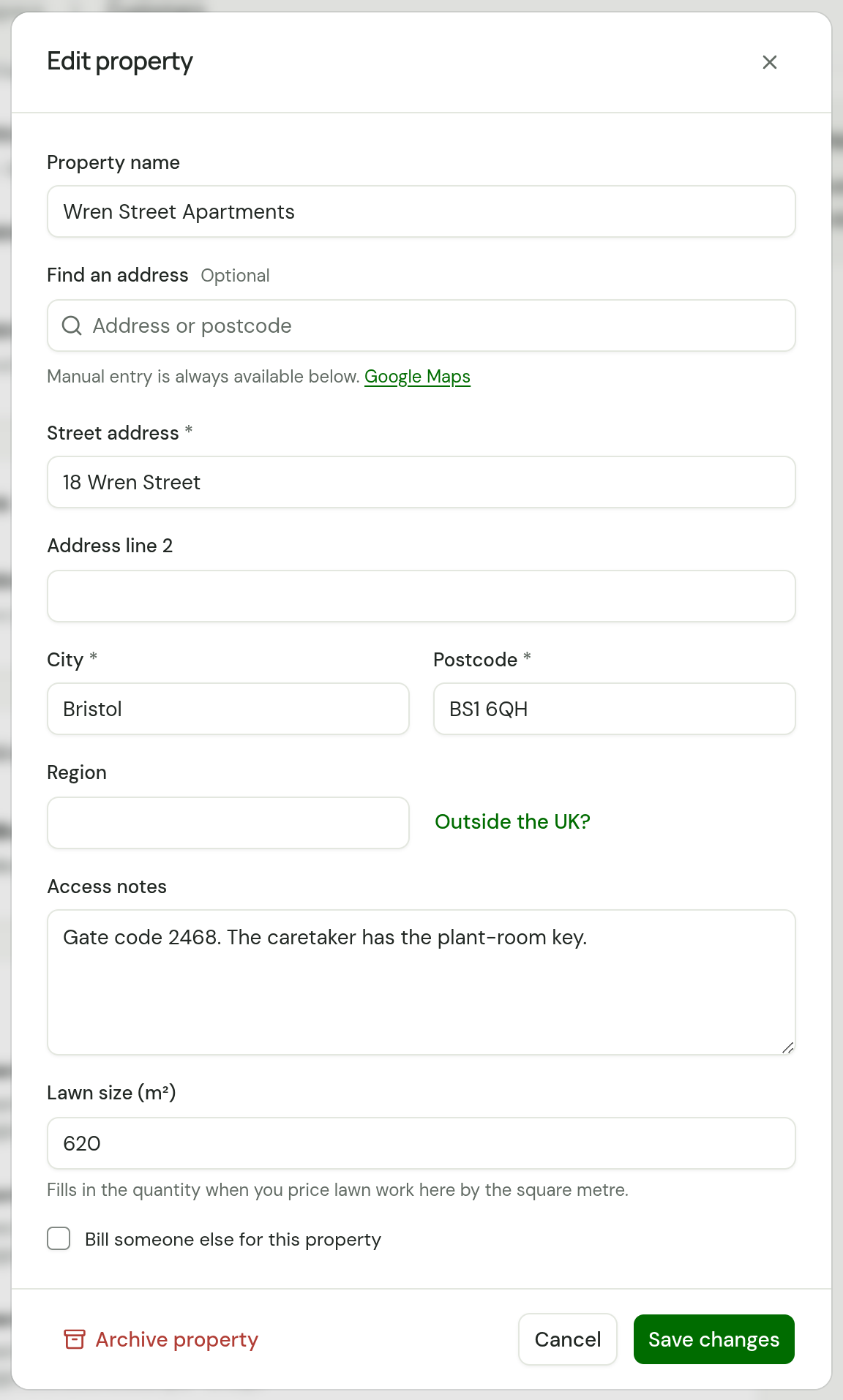
Wherever TradeSender asks for an address, a Find an address box sits above the address fields. Type an address or a postcode, pick the match, and the fields fill in. The search is optional: you can always type the address yourself. It is on the web and in the iPhone and Android apps. This page follows the web.
Find an address
-
In Find an address, start typing the address or the postcode. Suggestions appear once you have typed three characters.
-
Choose the right one from the list. With a keyboard, use the arrow keys and press Enter.
-
Read what was filled in. Every field stays open to change, so correct a flat number or add a house name if you need to.
-
Save the form as usual.
A suggestion may carry the note Partial address · check building number and postcode. Pick it anyway. TradeSender fetches the full address for the one you choose and tells you if anything is missing.
What gets filled in
| Where | What the search fills in |
|---|---|
| A property | Street address, Address line 2, City, Region and Postcode |
| A billing address | The same fields under their billing names, such as Billing street address and Billing postcode |
| Your business address | The one Business address box, as a single line |
A named house or a flat goes on the first line, and the numbered street moves to Address line 2. The county goes in Region.
After you pick, a note under the box says one of two things:
- Address selected. Check the editable fields below. The address is complete.
- Partial address selected. Check the building number and postcode below. The match had no building number or no postcode. Fill in what is missing before you save.
Where you will find it
- A property. On a customer's page, choose Add property, or choose a property to change it. See Customers, contacts and properties.
- A billing address. Tick Add a billing address on a customer, or Bill someone else for this property on a property.
- Your business address. In the questions you answer when you set up your workspace, and afterwards in Settings, then Business details, under Business address. See Set up your business.
Addresses outside the UK
The search looks in the UK. For a property or a billing address abroad, choose Outside the UK? beside the region field, pick the country, then search. For your business address, the search uses the Country code in Settings, then Business details.
Type the address yourself
Skip the search and fill in the fields. Under the box it says Manual entry is always available below. A property needs a Street address, a City and a Postcode.
If the search cannot help, it says why:
| What you see | What to do |
|---|---|
| "No matching addresses. Try adding a town or enter the address manually." | Add the town or the postcode to what you typed, or fill in the fields yourself. |
| "Address search is unavailable. Enter the address manually or try again." | The search could not be reached. Type the address. Nothing else on the form is affected. |
| "Too many address searches. Try again shortly or enter the address manually." | Wait a minute, or type the address. |
Where the suggestions come from
The Google Maps link under the box names the source. What you type in Find an address is sent to Google to find matches. The rest of the form is not. Our privacy policy lists the companies TradeSender shares data with.
Where a property's place on the map comes from
The map of the day puts a day's visits in an order to drive them, so TradeSender needs to know about where each property is. It takes that from the property's postcode. The address search plays no part in it.
- A few minutes after you save a property, TradeSender looks its postcode up in open UK postcode data, through a service called postcodes.io. The postcode is the only thing sent. No name, no street and no customer goes with it.
- The position is the middle of the postcode. That is near enough to put stops in order, and it can be a few hundred metres from the house in the country. Directions still goes by the full address.
- Change a property's postcode and TradeSender forgets the old position at once and looks up the new one.
- Your Business address is looked up the same way, from the postcode in it. A day's route starts there.
Some properties have no position: one in Northern Ireland, the Channel Islands or the Isle of Man, one outside the UK, and one whose postcode the data does not know. Their visits are still on the map of the day, listed apart under No position yet.
Your customers never see a position. Their quote, their invoice and their portal show the address and nothing more.
Checked against the app on 29 October 2026. Still stuck? Ask usAsk us.