Customers, contacts and properties
Keep who you work for, the people to ask for and the addresses you look after, and see each customer's work, money and emails on one page.
A customer is who you work for and who you bill. Contacts are the other people there. Properties are the addresses you look after. Owners and office members add and change all three, on the web and in the iPhone and Android apps. Technicians can read a customer's details from a visit or a job. This page follows the web.
Add a customer
One form takes the customer and their first property together.
-
Open Customers and choose New customer. From Today, the Customer button does the same.
-
Enter the Contact name: the person you deal with.
-
For a business, enter the Company name too. Leave it blank for a person.
-
Add an Email address and a Phone number. Quotes and invoices go to this email unless you type another when you send.
-
Payment terms (days) starts at 14. An invoice for this customer falls due that many days after its invoice date, unless you set another due date.
-
Under Automatic emails, leave Overdue invoice reminders, Quote follow-ups and Visit reminders at Workspace default for the customer to get whichever your workspace sends by itself. Choose On or Off to decide for this customer alone. See Set them for one customer, or one invoice.
-
Put anything you want to remember about them in Notes. It shows on their page.
-
Under Add their first property now, type the address into Find an address and pick the match, or fill in Street address, City and Postcode yourself. Add gate codes and parking under Access notes.
-
Choose Create customer.
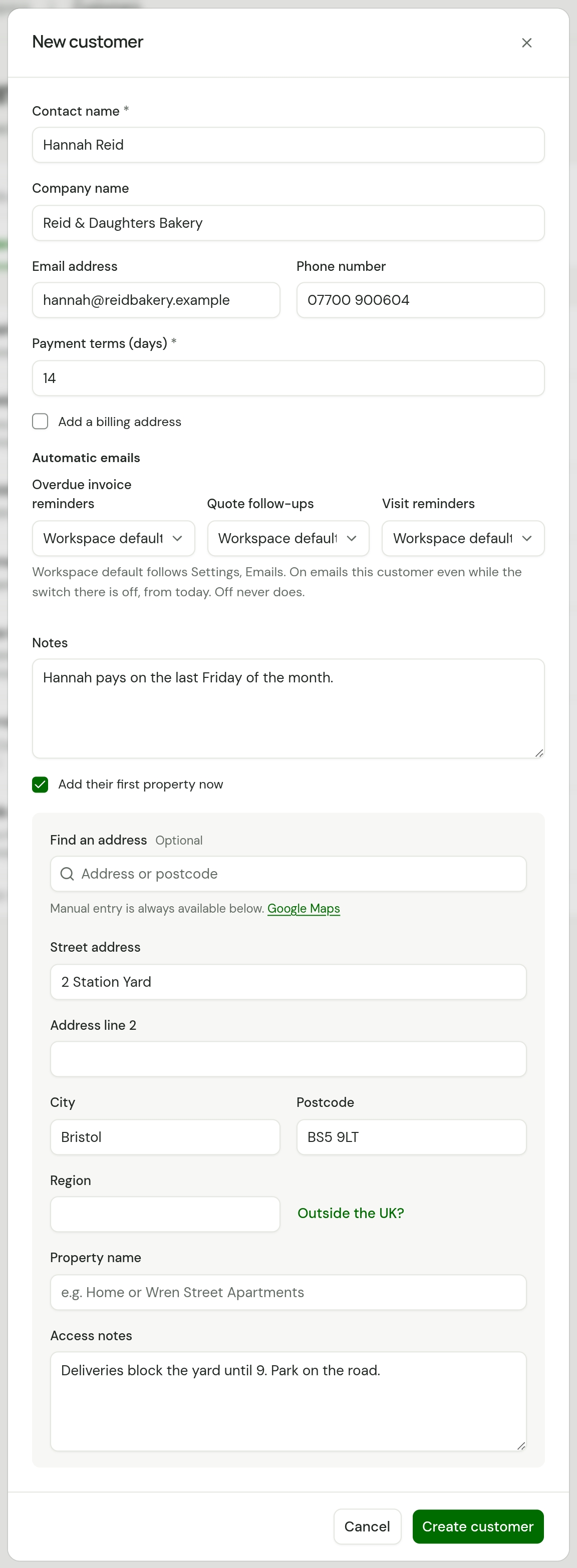
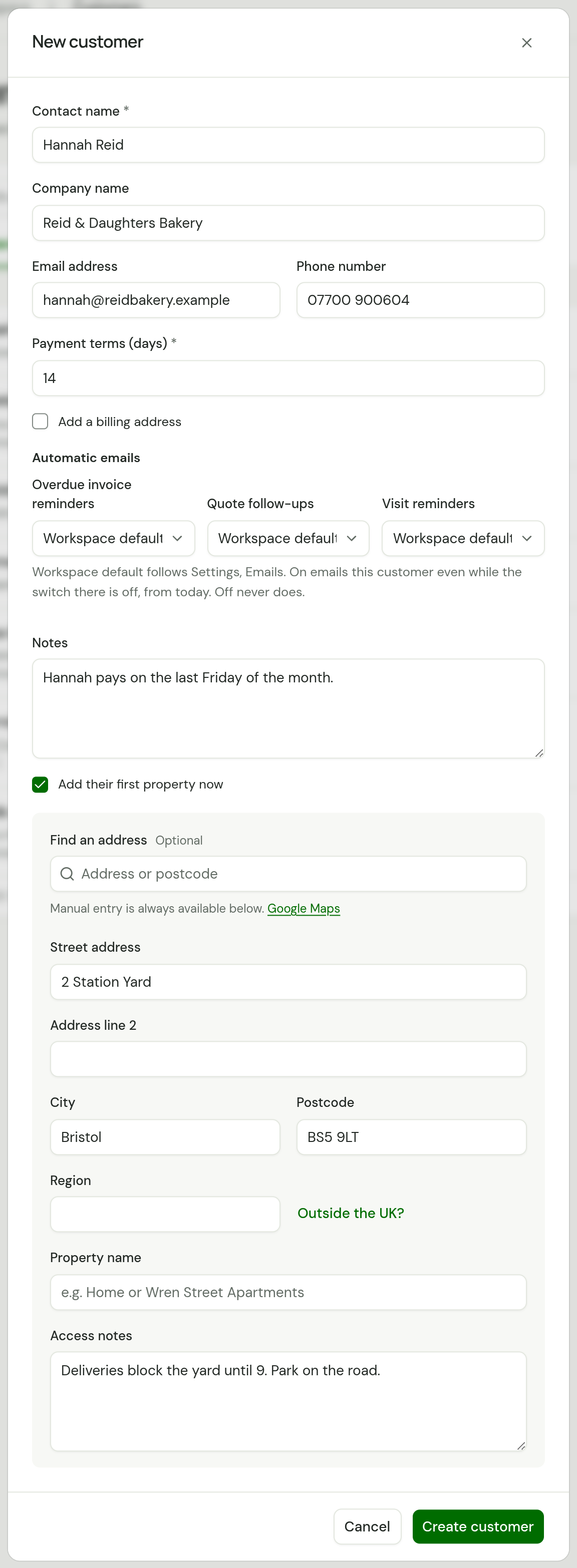
TradeSender saves both and opens the new customer's page.
Add their first property now is ticked to begin with. The street, the city and the postcode go together: with only part of an address the form says "Add the street, city and postcode, or untick the property." Leave all the address fields empty and the customer is saved alone, so you can add someone by name and fill in the address later.
You can also add a customer without leaving a quote or a job. Choose New customer… in its Customer list. The quote or job then has the new customer and their property chosen. While you have no customers at all, a new job, quote or invoice opens the New customer form first, for the same result. Someone who wrote in through your website form becomes a customer from their enquiry: see Work an enquiry. To bring in a whole list, see Import customers and export your records.
Before you have any
Until you have a customer, the Customers page reads Bring your customers and offers three ways in.
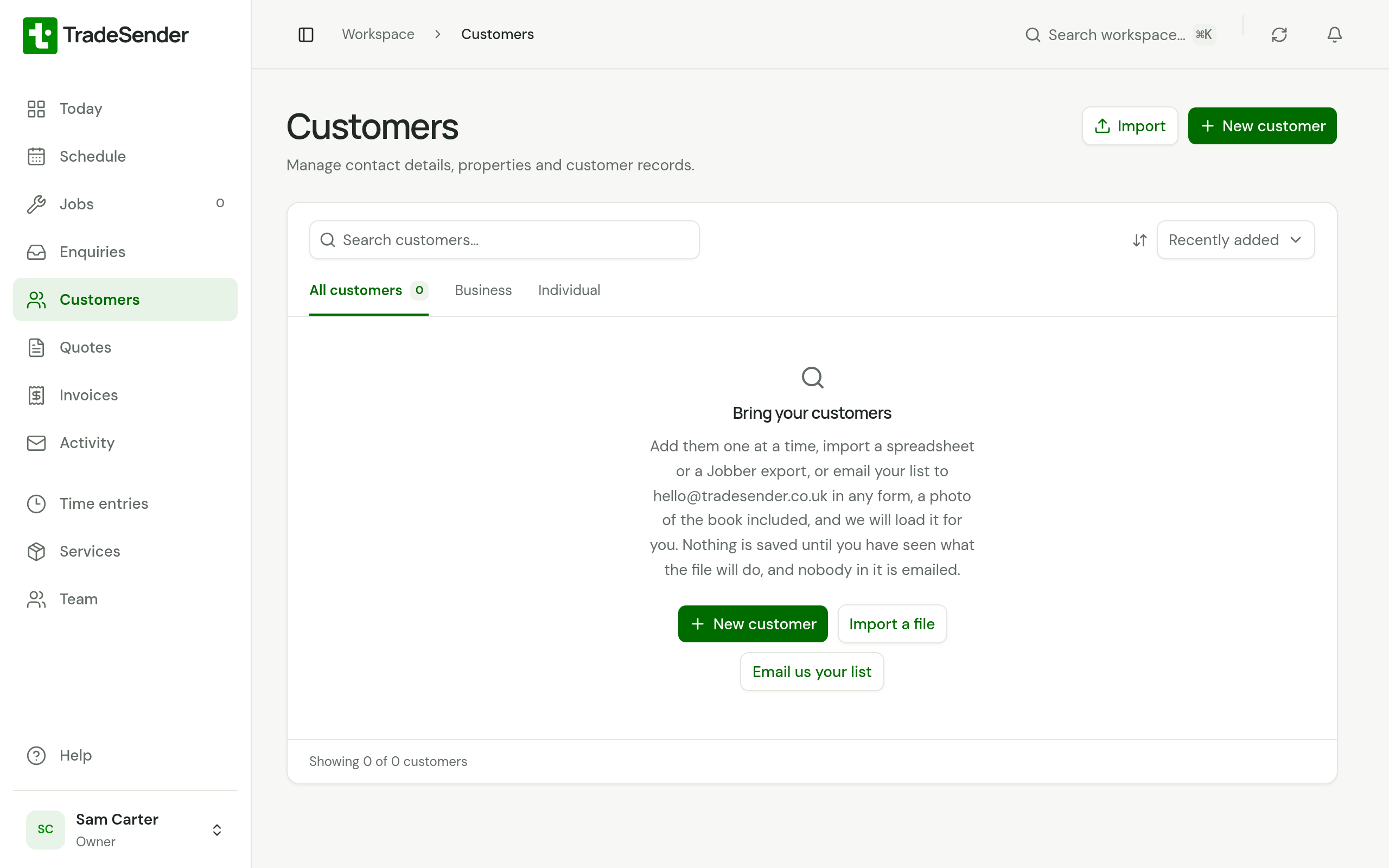
| Button | What it does |
|---|---|
| New customer | Opens the form above |
| Import a file | Opens Settings, Import and export, where a CSV file or a Jobber export is checked before anything is saved. See Import customers |
| Email us your list | Starts an email to hello@tradesender.co.uk with the subject "My customer list". Send your list in any form, a photo of the book included, and we load it for you |
Once you have customers, Import at the top of the page still opens Settings, Import and export. Owners and office members see these; an import emails nobody.
A company or a person
With a Company name, the customer is listed under the company, and the contact's name sits beneath it. Without one, they are listed under their own name. On the Customers page, the Business and Individual tabs split the two.
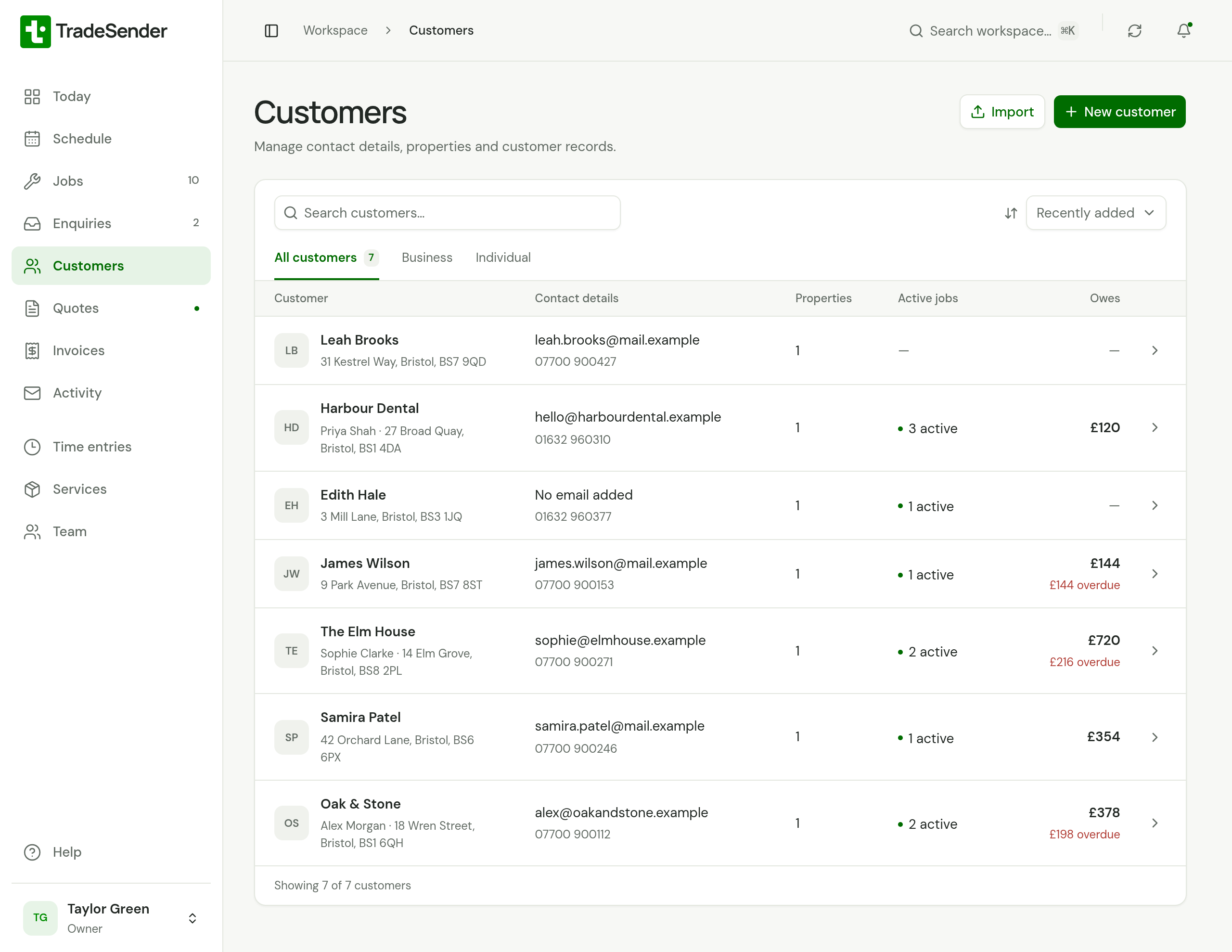
For owners and office members the list has an Owes column: what each customer still has to pay on their invoices, with the overdue part in red beneath.
Add a property
A property is an address you look after. One customer can have several: a landlord's houses, or a managing agent's blocks.
-
On the customer's page, choose Add property.
-
Give it a Property name if that helps you tell it apart, such as "Wren Street Apartments". For a house, leave it blank.
-
Type the address into Find an address and pick the match, or fill in Street address, City and Postcode yourself. See Address search.
-
Put gate codes, parking and where the key is kept in Access notes.
-
Enter the Lawn size (m²) if you have measured it.
-
Choose Create property.
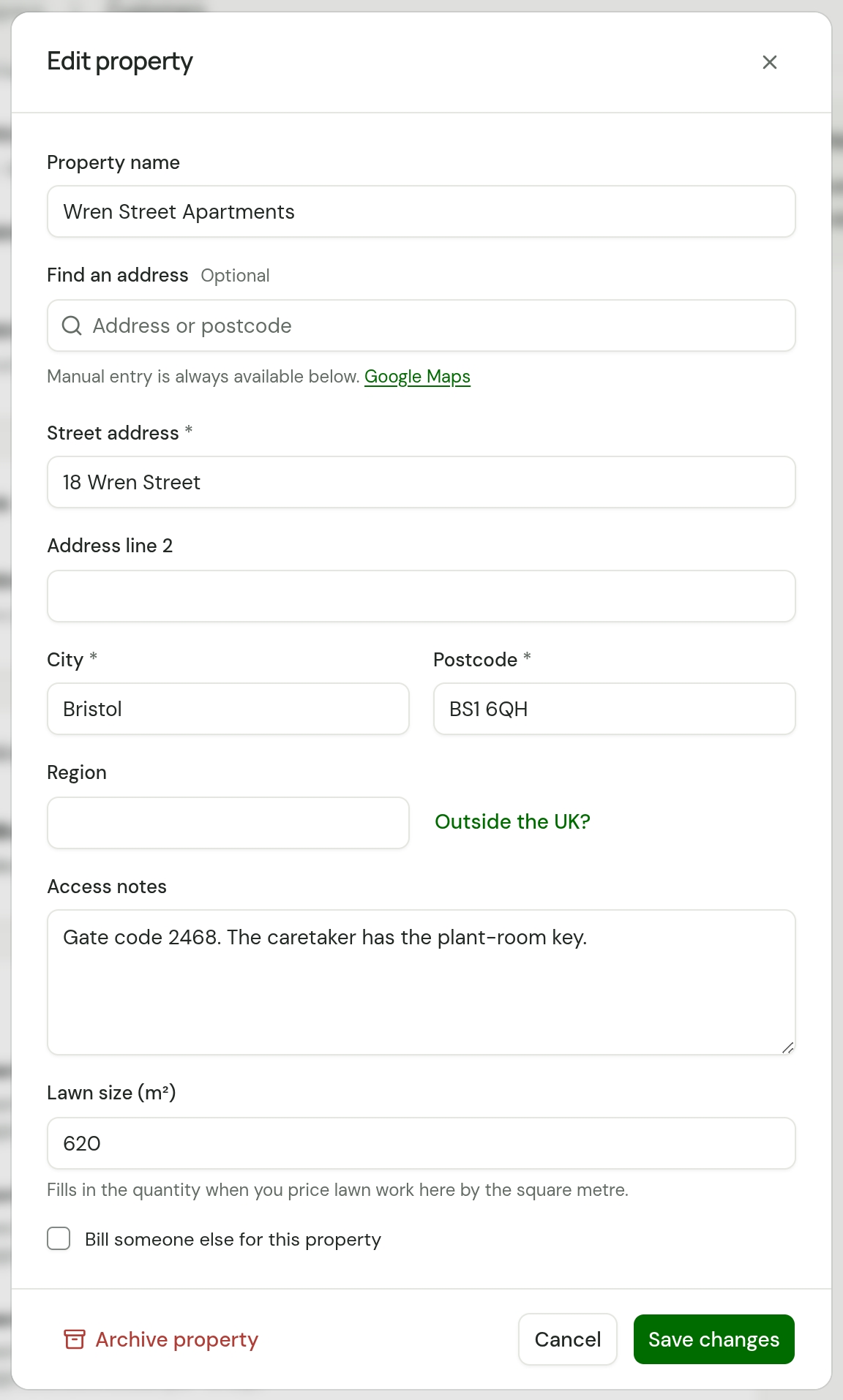
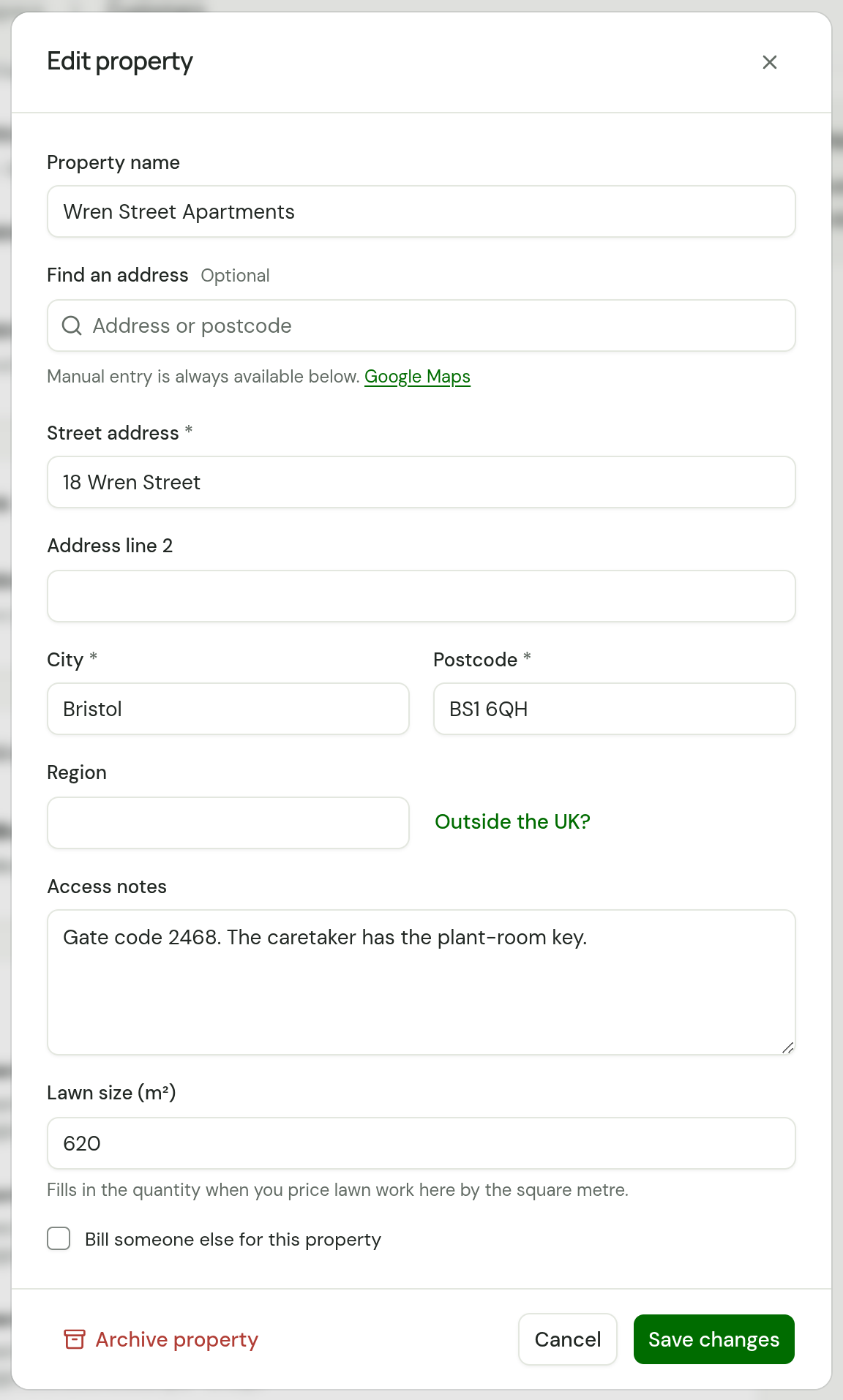
Access notes show on every visit to that property, on Today and on the visit's own page, so the crew reads them at the gate.
When a customer has one property, a new quote or job for them picks it for you.
Lawn size
Lawn size (m²) is the area of the lawn in square metres. On the customer's page the property then reads "Lawn 620 m²".
It saves you typing the quantity. When you pick a service on a quote, a job or an invoice for that property, Qty is set to the lawn size if all of these are true:
- The service's Unit is a square metre, written as "square metre", "m²", "m2" or "sq m".
- The service is lawn work by its name: it has a word such as lawn, turf, grass, mow, scarify, aerate, seed, feed, moss, weed or top dress in it.
- Qty is still the 1 the line started with.
So Turfing, priced per square metre, starts at 620. Patio and paving is priced the same way and is left at 1, because a patio is some other size. A quantity you have typed is never replaced, and a line you have saved keeps its quantity if you measure the lawn again later.
Bill someone else for a property
If a letting agent or a landlord pays for the work at one address, tick Bill someone else for this property and enter a Bill to name and their address. Quotes and invoices for work there go to that name and address. The customer's other properties are not affected.
Add a billing address
Choose Edit details on the customer's page, tick Add a billing address and fill it in. Quotes and invoices for that customer are then addressed there. Without a billing address, they are addressed to the property the work is at.
Add more contacts
The Contact name on the customer is the main contact. For anyone else, such as a caretaker or the accounts office, choose Add contact under Additional contacts. A contact has a Full name, a Job title, an Email address, a Phone number and Notes.
Additional contacts are there for you to look up. Send to on a quote or invoice still starts with the customer's own email address.
What the customer's page shows
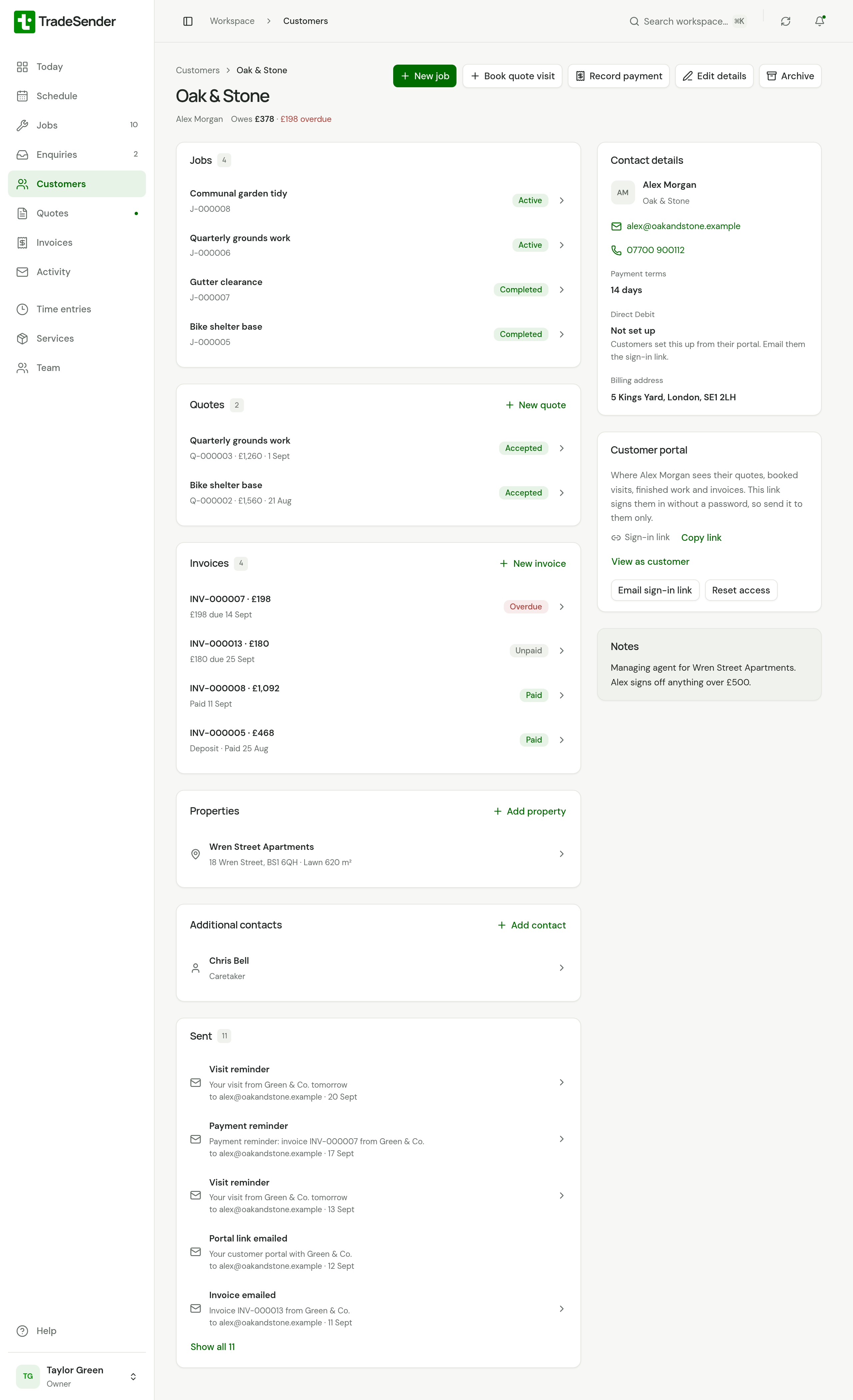
Under the customer's name, owners and office members see what they owe: "Owes £378 · £198 overdue", or "Nothing outstanding". It adds up the balance on every invoice you have sent them. Drafts and void invoices are left out.
| Part | What is there |
|---|---|
| Jobs | Their jobs with each one's status, the active ones first |
| Quotes | Their quotes, newest first, each with its number, total, date and status. New quote starts one for this customer |
| Invoices | Their invoices, each with its number, total and what is due and when. Unpaid ones come first, the longest overdue at the top. One being collected reads how much is "on its way", and the invoice for a quote's deposit reads "Deposit" before its number. New invoice starts one |
| Properties | Their addresses, each with its lawn size if it has one. Choose one to change it |
| Additional contacts | The other people there. Choose one to change it |
| Enquiries | What they sent through your website form or asked for from their portal |
| Sent | Every email TradeSender has sent them. See What has been sent |
| Contact details | The main contact, their email and phone, Payment terms and Billing address. Overdue invoice reminders, Quote follow-ups and Visit reminders each show when set to On or Off rather than Workspace default. Direct Debit says how far theirs has got: see What you see on the customer |
| Customer portal | Their sign-in link to the portal, with Email sign-in link and Reset access. See Give a customer their way in |
| Notes | What you typed in Notes on the customer |
Jobs, Quotes and Invoices each list five. When there are more, View all opens the full list for this customer alone. The customer's name sits beside the search box there: choose it to see everyone's again.
The buttons at the top:
| Button | What it does |
|---|---|
| New job | Starts a job for this customer |
| Book quote visit | Books a visit to price work for them |
| Record payment | Records one payment against their unpaid invoices. It shows while they owe something. See One payment across several invoices |
| Edit details | Changes the customer |
| Archive | Archives the customer |
A technician who opens a customer from a visit sees the contact details, the jobs they are on, the properties, the contacts and the notes. The money, the quotes, the invoices and Sent are for owners and office members.
What has been sent
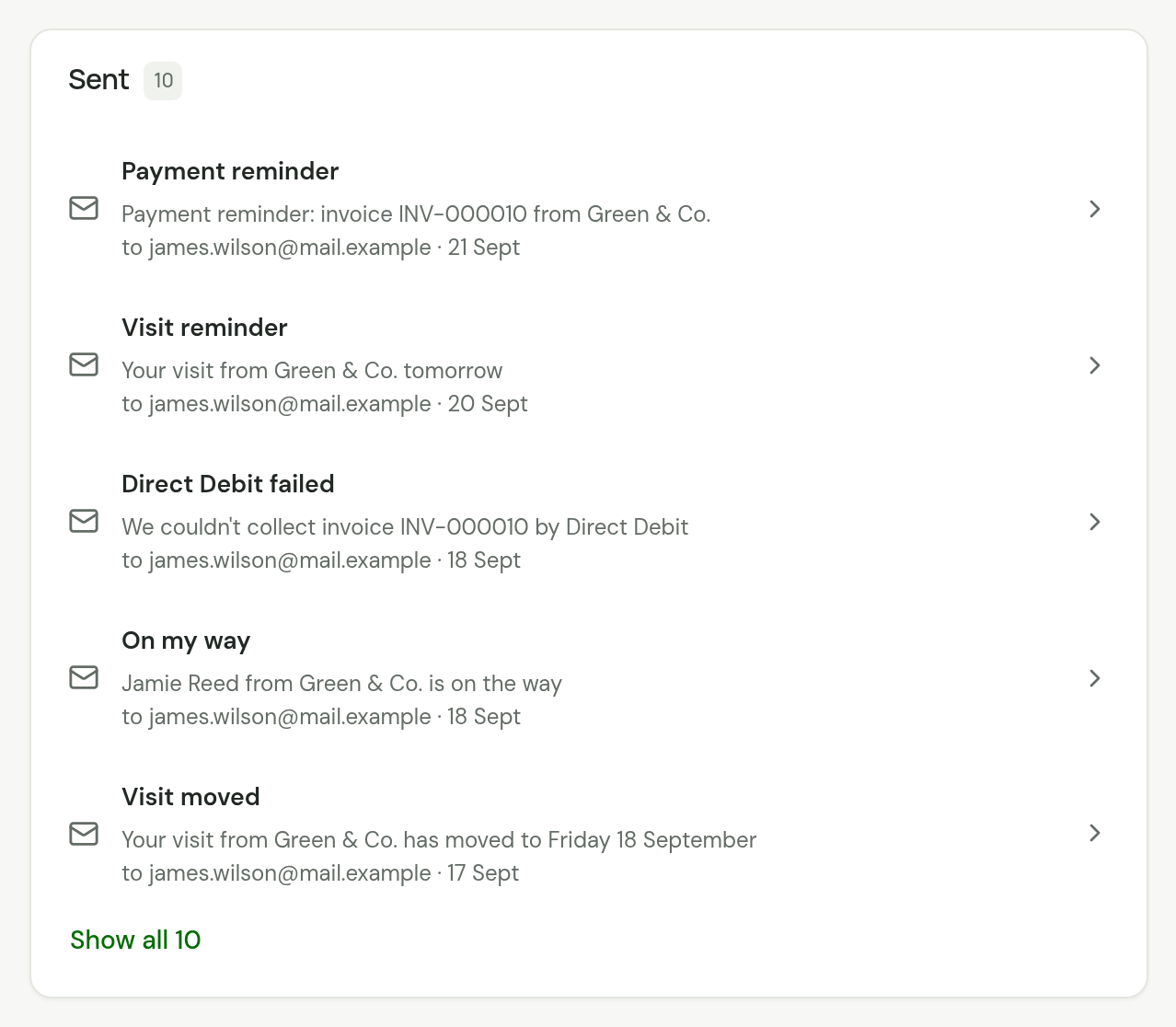
Sent lists each email to the customer, newest first, with its subject, the address it went to and the day.
| It reads | For |
|---|---|
| Quote emailed | A quote you sent with Send quote or Send again |
| Invoice emailed | An invoice you sent with Email invoice, one a month-end run sent, or a deposit invoice sent as the customer accepted a quote |
| Portal link emailed | The sign-in link you sent with Email sign-in link |
| Payment reminder, Quote follow-up, Visit reminder | An automatic email, or a reminder someone sent with Send reminder now |
| On my way | The note someone on your team sent when heading to a visit. See Tell the customer you are on your way |
| Visit moved | The email that told them their visits had moved to another day. See Rained off: move a whole day |
| Direct Debit failed | The email TradeSender sent them when a Direct Debit for their invoice failed. See When a collection fails |
| Refund | The email that told them a payment was refunded from the invoice. See Refund a payment |
Choose a row to open the quote, the invoice or the visit it was about. A Visit moved email about several visits opens the first of them. The panel shows the latest five, with a link under them to show the rest. Activity lists every customer's emails together.
Three things to know about it:
- Emails sent before this list was added, in October 2026, are not in it.
- It lists what TradeSender sent, not what arrived. An email that bounced still shows.
- The sign-in link a customer asks for themselves, on the portal's sign-in page, is not listed. Nor is the copy you get with Send me a copy.
Archive a customer, a property or a contact
A customer is archived, never deleted.
-
Open the customer and choose Archive.
-
Read what it will do, then choose Archive customer.
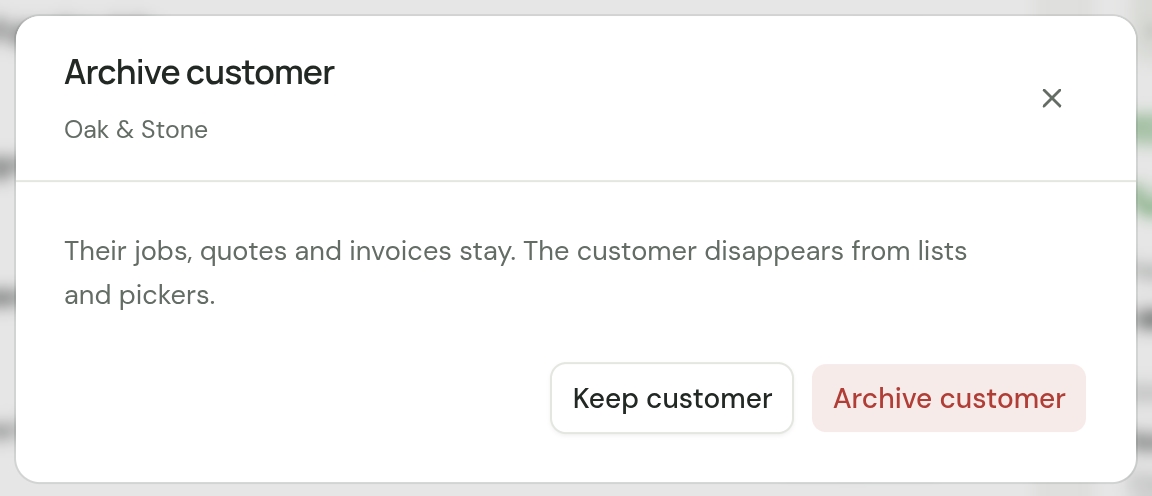
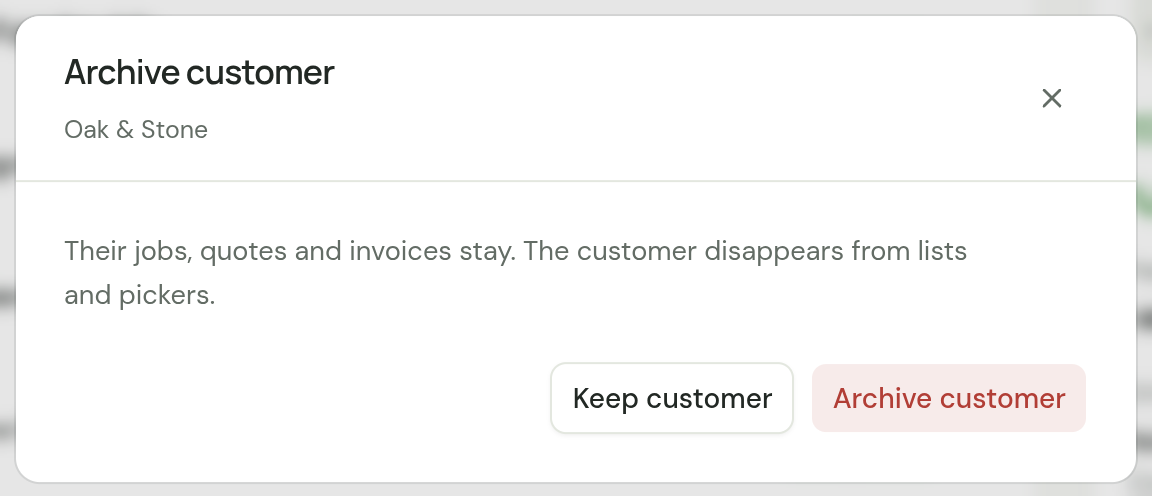
An archived customer leaves the Customers page, the workspace search and the Customer list on new quotes and jobs. Their jobs, quotes and invoices stay, with the customer's name on them. Open one and choose the name to see the customer's page, which then reads Archived. From there you can still choose Record payment while they owe something. They get no more automatic emails, and nothing more is collected from them by Direct Debit.
To archive a property or a contact, choose it on the customer's page. Archive property or Archive contact is at the foot of its form. An archived property leaves the customer's page and the Property lists. Jobs, quotes and invoices for it stay. If active jobs are still booked there, the dialog warns that their visits will no longer show the address: move those jobs to another property first.
In the phone apps, open the customer, choose the button with three dots at the top, then Archive customer. A property or a contact is archived the same way.
If you ask a connected AI assistant to delete a customer, it archives them.
Checked against the app on 29 October 2026. Still stuck? Ask usAsk us.