Stop unwanted enquiries
What the enquiry form does to hold back junk, how to clear what gets through, and how to cut off a form that is being abused.
A form anyone can fill in will collect some junk. TradeSender holds some of it back, you delete the rest, and the owner can give the form a new address if junk keeps coming.
What the form does for you
- A hidden field. The form has a field people cannot see. Programs that fill in every field fill that one too. TradeSender drops what they sent, with no enquiry and no email, and answers as if it had worked so the program learns nothing.
- A limit for each sender. One internet connection can send 10 enquiries in 15 minutes. After that the form says "Too many enquiries have been sent from here. Please try again later, or contact us another way." Forms that send through your website's server, such as Contact Form 7 or a webhook, count as one sender between them.
- A limit for your workspace. A workspace takes 100 enquiries in any 24 hours. Past that the form refuses more until earlier ones are over 24 hours old. A flood cannot bury your list or send you more than 100 emails in 24 hours.
- Repeats count once. The same name, email address, phone number, message and number of photos sent again within 10 minutes make one enquiry and one email. That covers someone choosing Send enquiry twice.
- Size limits. An enquiry holds up to 5 photos of 10 MB each. TradeSender reads each file's contents and keeps only JPEG, PNG, WebP and HEIC photos. One-line answers are cut at 255 characters and a message at 5,000. TradeSender's own form stops a message at 4,000.
The form has no captcha, so nobody is asked to solve a puzzle before they can reach you.
These limits slow junk down. They do not stop a person typing nonsense into the form, and a program that sends straight to your form address can skip the hidden field. Deleting, and replacing the address, deal with those.
Delete junk
Open the enquiry and choose Delete enquiry. It goes for good, with its photos. See Delete an enquiry.
Junk stays out of your customer list, because an enquiry becomes a customer only when you choose Create customer.
Replace the address
Replacing the address gives your form a new form key. Your form link, form code, form address and form key all change together, and the old ones stop working at once.
Only the workspace owner can do it, in Settings on the web or in the iPhone or Android app. On the web, office members see "Only the workspace owner can do this."
-
Open Settings, then Website and portal, and find Replace the address at the foot of Enquiry form.
-
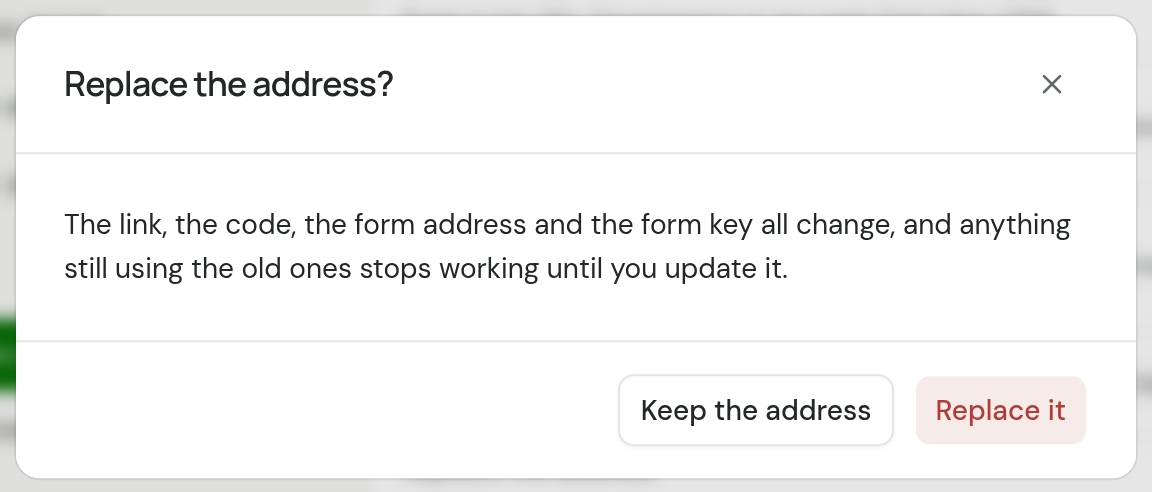
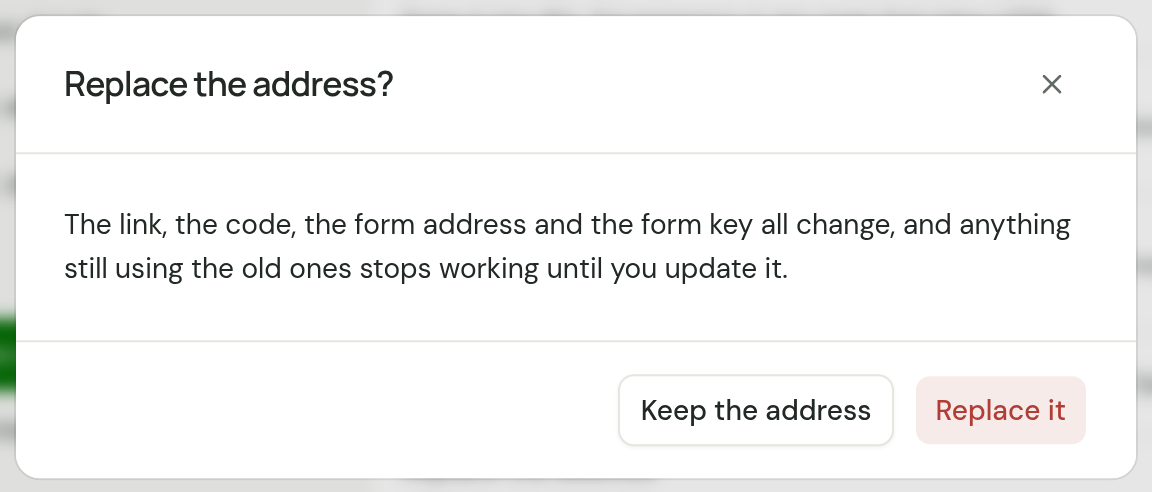
Choose Replace the address. A dialog asks Replace the address?
-
Choose Replace it to go ahead, or Keep the address to leave things as they are.
-
Copy the new link, code, address or key from the same page and put it everywhere you used the old one.
What stops, and what people see
| Where the old one is | What happens |
|---|---|
| The form link | It opens a page headed "This form isn't in use", which tells people to ask you for the new link. |
| The form code on your website | The form still appears. When someone sends it, it says "This form is no longer in use. Please contact us another way." |
| The WordPress plugin | The same as the form code, until you paste the new key into Form key in WordPress. Contact Form 7 forms stop being passed on, though Contact Form 7 still sends its own email. |
| A form of your own | TradeSender refuses what it sends. Put the new form address in the form. |
Enquiries you already have are not affected.
When to use it
- Junk keeps arriving however much you delete, or you have hit 100 enquiries in 24 hours.
- The link or the code is on a page you no longer control.
- You want to stop taking enquiries. There is no off switch: replace the address and do not give out the new one.
For the odd piece of junk, deleting it is quicker.
Checked against the app on 29 October 2026. Still stuck? Ask usAsk us.