The schedule
See visits and time off by day, week, month or person, book into a free slot, drag a visit to a new time, move a rained-off day in one go and put a day's stops in driving order.
Everyone has Schedule in the sidebar. Owners and office members see every visit and can book and move them. Technicians see the visits they are on. This page follows the web: the iPhone and Android apps have their own calendar, covered at the end.
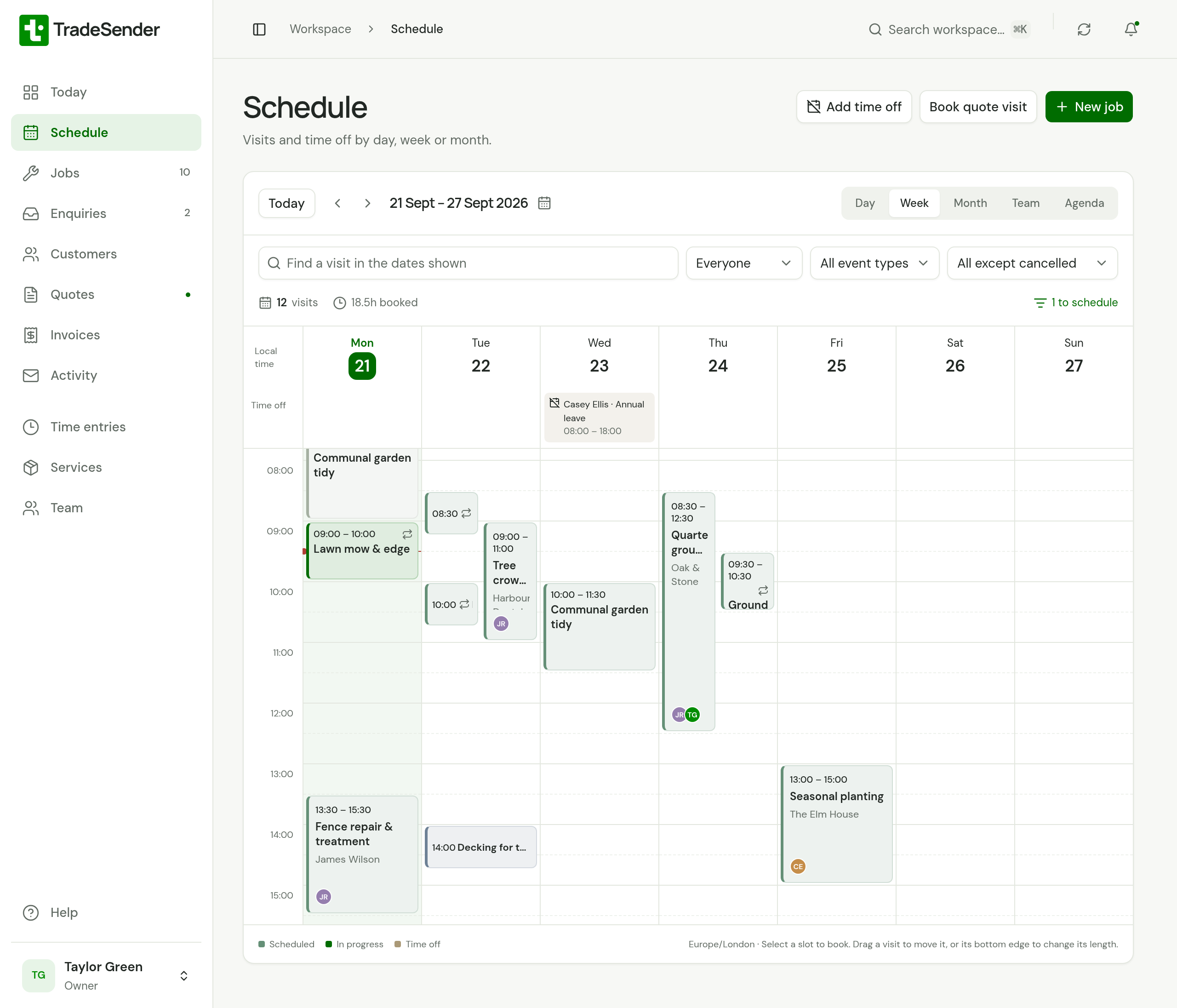
Choose a view
| View | What it shows |
|---|---|
| Day | One day, hour by hour. |
| Week | Monday to Sunday, hour by hour. |
| Month | The whole month, with up to three visits named on each day. |
| Team | One day with a column for each person, and an Unassigned column for visits with no crew. |
| Agenda | A list of the next 14 days, with the customer, address, status and crew of each visit. |
The Schedule opens on Week on a computer and Day on a phone, and then remembers the view you last used in that browser.
Move between dates
- Today returns to today.
- The arrows move one day, week or month, to suit the view. In Agenda they move 14 days.
- Choose the date in the heading to open Jump to a date, with a month to pick from and Choose any date.
- In Week or Month, choose a day's number to open that day in Day view.
Find a visit
Find a visit in the dates shown searches the job title, customer, address, visit notes and crew names. Three lists narrow what you see:
- Who: Everyone, My schedule, Unassigned or one person.
- What: All event types, Work visits, Quote visits or Time off.
- Status: All except cancelled to begin with. Include cancelled brings cancelled visits back.
The line under the filters counts the visits and hours booked in the dates shown. It also names how many visits have no crew and how many clash.
Book a visit
Owners and office members book from the Schedule.
-
In Day, Week or Team, choose an empty slot. Slots are half an hour apart. On a computer, drag down from the slot to set how long the visit lasts.
-
New job opens with that start time. In Team view the person whose column you chose is already ticked under Crew.
-
Fill in the job and choose Save job. To put the slot on a job you already have, choose it under Add to an existing job instead.
New job in the header books for 9:00 on the date shown. Book quote visit books a visit to price work for a customer: see Quote visits. The fields are covered in Create a job.
Move a visit or change its length
- Move it. Drag a visit to another time or another day. It lands on the nearest quarter of an hour and saves at once.
- Change its length. Drag its bottom edge. This needs a mouse or trackpad.
- Give it to someone else. In Team view, drag it into another person's column. Dragging it to Unassigned takes off the person whose column it left. Anyone else on the visit stays on it.
- Put it back. The message that confirms the move has Undo on it for a few seconds. Press Escape while dragging to cancel.
On a touch screen, hold a visit until it lifts, then drag it.
Only a visit that reads Scheduled can be dragged. Visits in progress, finished visits and time off stay where they are. A drag moves that one visit, even in a round, and asks nothing. To change a round from a visit onwards, see Repeating jobs and rounds.
Rained off: move a whole day
When the weather stops a day's work, Rained off… moves every visit still to do that day to another day, in one step, and can email the customers. Owners and office members can do this.
-
Open the day. Rained off… is on the line under the filters in Day and Team view, beside each day in Agenda, and on Today beside List or Map. It is there only for a day with a visit that still reads Scheduled.
-
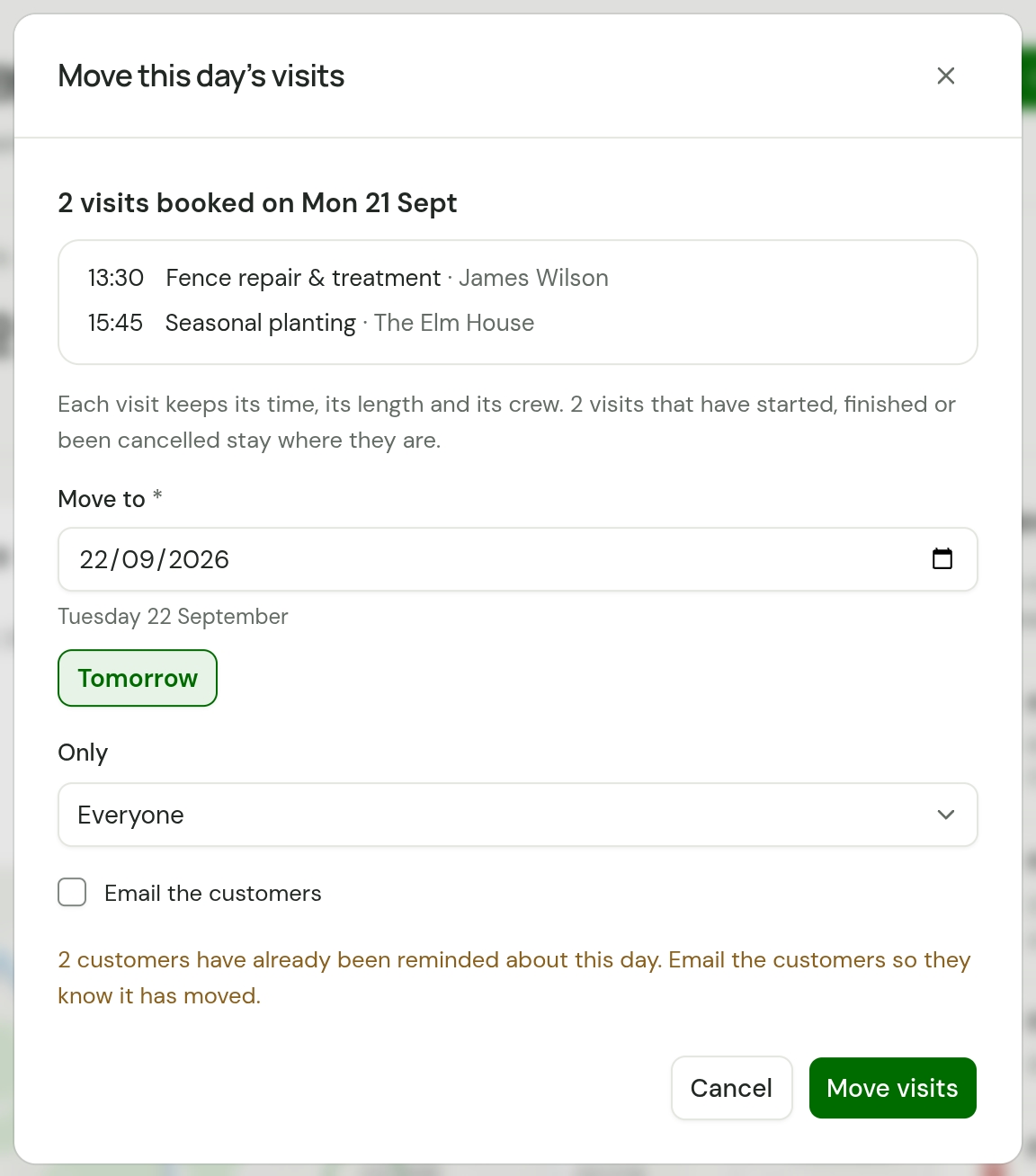
Read the list. The dialog, Move this day’s visits, counts the visits booked that day and lists each with its time, its job and its customer.
-
Set Move to. It starts at the day after, and the day of the week is written under the date. Tomorrow sets it to tomorrow.
-
To move one person's visits and leave the rest, choose them under Only. It starts at Everyone.
-
Tick Email the customers if you want them told, and read the Message. See Telling the customers.
-
Choose Move visits.
The dialog then says what it did: how many visits moved and to which day, how many customers were emailed, and how many visits stayed. Choose Done.
What moves and what stays
| What happens | |
|---|---|
| A visit that reads Scheduled | Moves. Work visits and quote visits both |
| A visit that is in progress, finished or cancelled | Stays where it is. The dialog counts them before and after |
| Its time, length, crew and notes | Kept. A 9:00 visit is at 9:00 on the new day |
| A visit in a round | Moves for this day only. The round's other visits keep their days |
| A visit shared by two people, when you chose one under Only | Moves with its whole crew |
| Time off | Not moved |
- Move to can be any other day, earlier or later. TradeSender does not look for the next working day, so check you have not chosen a Sunday.
- Nothing checks the new day. Time off and other visits there are not looked at. The clash marks on the calendar show what overlaps afterwards.
- There is no undo. To put a day back, move it back the same way.
- It is all or nothing. If one visit cannot be moved, none are, and nobody is emailed.
- A move takes up to 300 visits. With more than that on a day, move one person at a time.
- Moving visits books none, so it does not count towards the Free plan's 30 visits a month.
Telling the customers
Email the customers is unticked to begin with, because an email cannot be taken back. Tick it and the Message opens with the standard note:
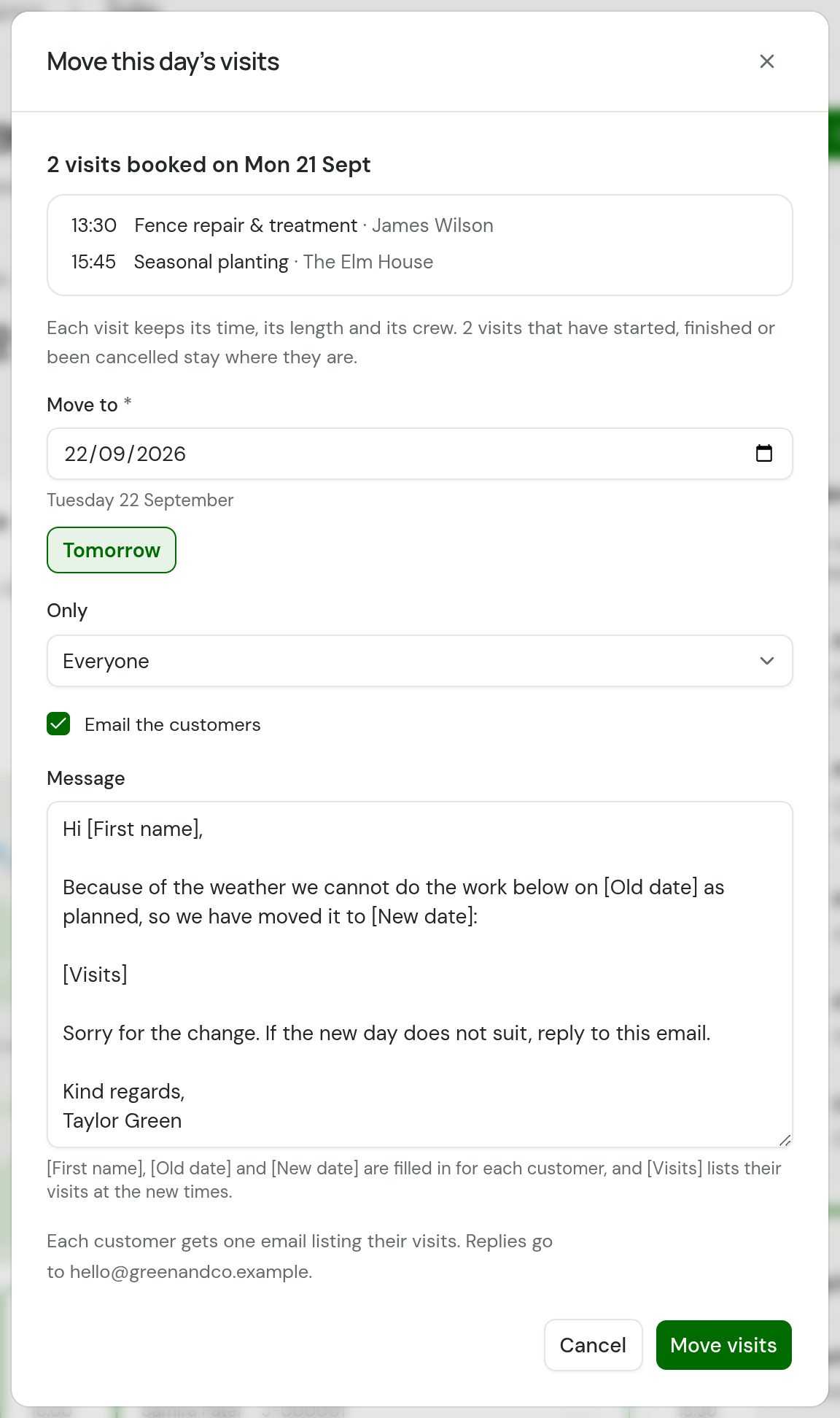
- Each customer gets one email, listing every visit of theirs that moved, with the day it was booked for and the new day and times.
- The subject is "Your visit from Green & Co. has moved to Tuesday 22 September", or "Your visits … have moved" for more than one.
- The note is yours to change for this move: what suits rain does not suit a broken van.
[First name],[Old date]and[New date]are filled in for each customer, and[Visits]becomes the list of their visits at the new times. A note without[Visits]gets the list at the end. There is no setting for this note. - It comes from
visits@tradesender.co.uk, or your own address with your mailbox connected. A reply goes to your connected mailbox. With none, it goes to your Business email, and with neither, to whoever moved the day. - A customer with no email address is moved all the same. With the box ticked, the dialog names them before you move, and afterwards lists each with their phone number under "Ring them".
- A customer's automatic emails set to Off do not stop this email. You asked for it.
- Each email is listed under Sent on the customer's page as Visit moved.
These emails do not use up the 100 a day you send by hand. They have a limit of their own: 300 in any 24 hours. A move that would go over it is refused and nothing moves, so move the day without emailing instead.
Visit reminders after a move
If you use visit reminders, a moved visit is reminded again, the evening before its new day. There is one exception: when you emailed the customer about the move and the new day is today, tomorrow or the day after, that email is the reminder and no other is sent.
When customers have already had a reminder for the day you are moving, and Email the customers is unticked, the dialog warns you: "2 customers have already been reminded about this day. Email the customers so they know it has moved."
In the iPhone and Android apps
For owners and office members, Rained off… is on Today under the date, and in the calendar's Day view in the menu that holds New job. It opens the same sheet. It needs a connection, and is never saved on the phone to send later.
The map of the day
Map puts one day's visits in an order to drive them. It is for everyone: owners and office members see the whole team's day or one person's, and a technician sees their own.
-
Open Day or Team view on the day you want and choose Map on the line under the filters. On Today, choose Shortest route beside the arrows under the day's map. On a day that Today shows only as a list, Map is beside the count of the day's visits.
-
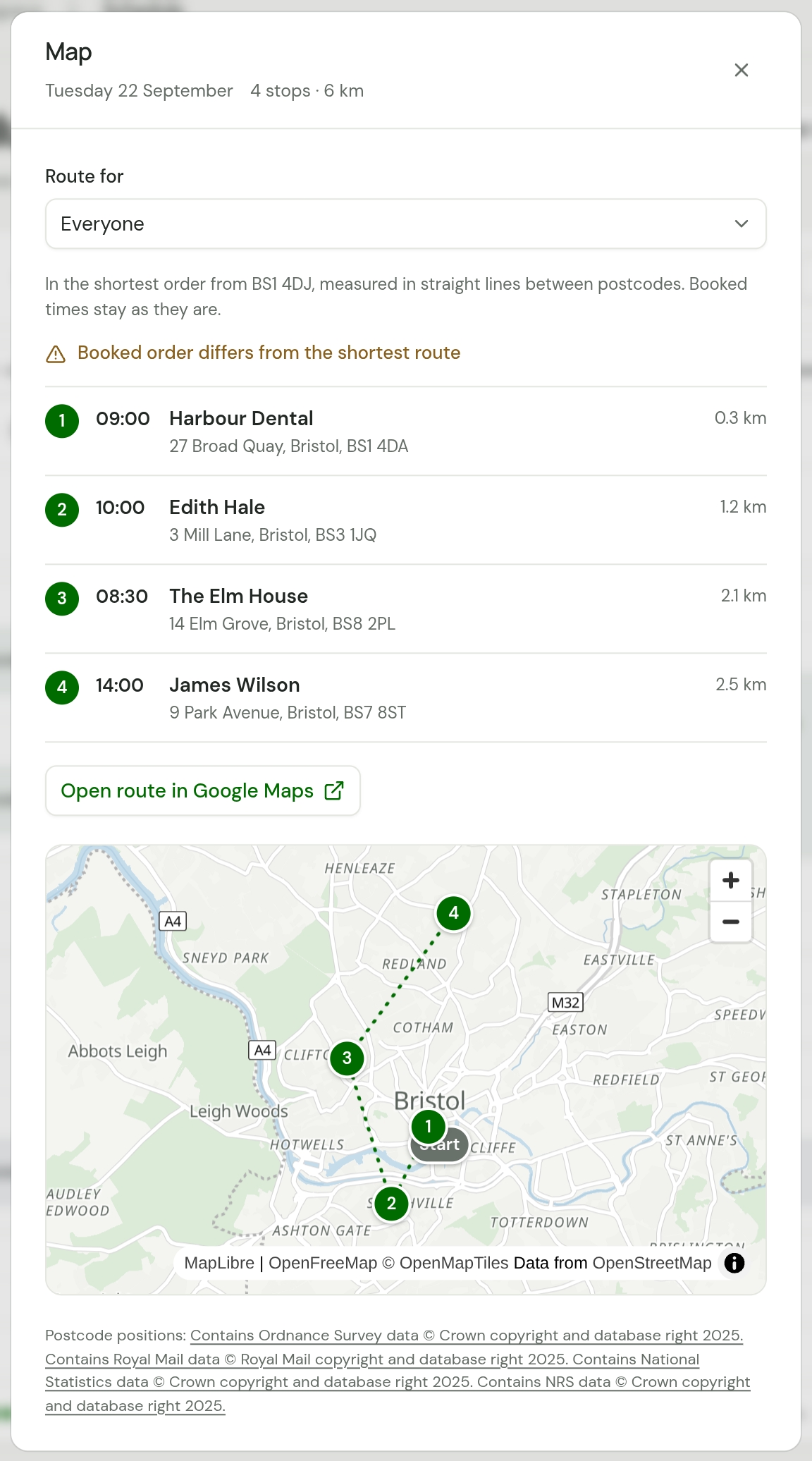
For owners and office members, Route for starts at Everyone. Choose a person to see their stops alone.
-
Read the stops from the top. Each has its number, the time it is booked for, the customer, the address and how far it is from the stop before.
-
Choose Open route in Google Maps for directions through every stop in that order.
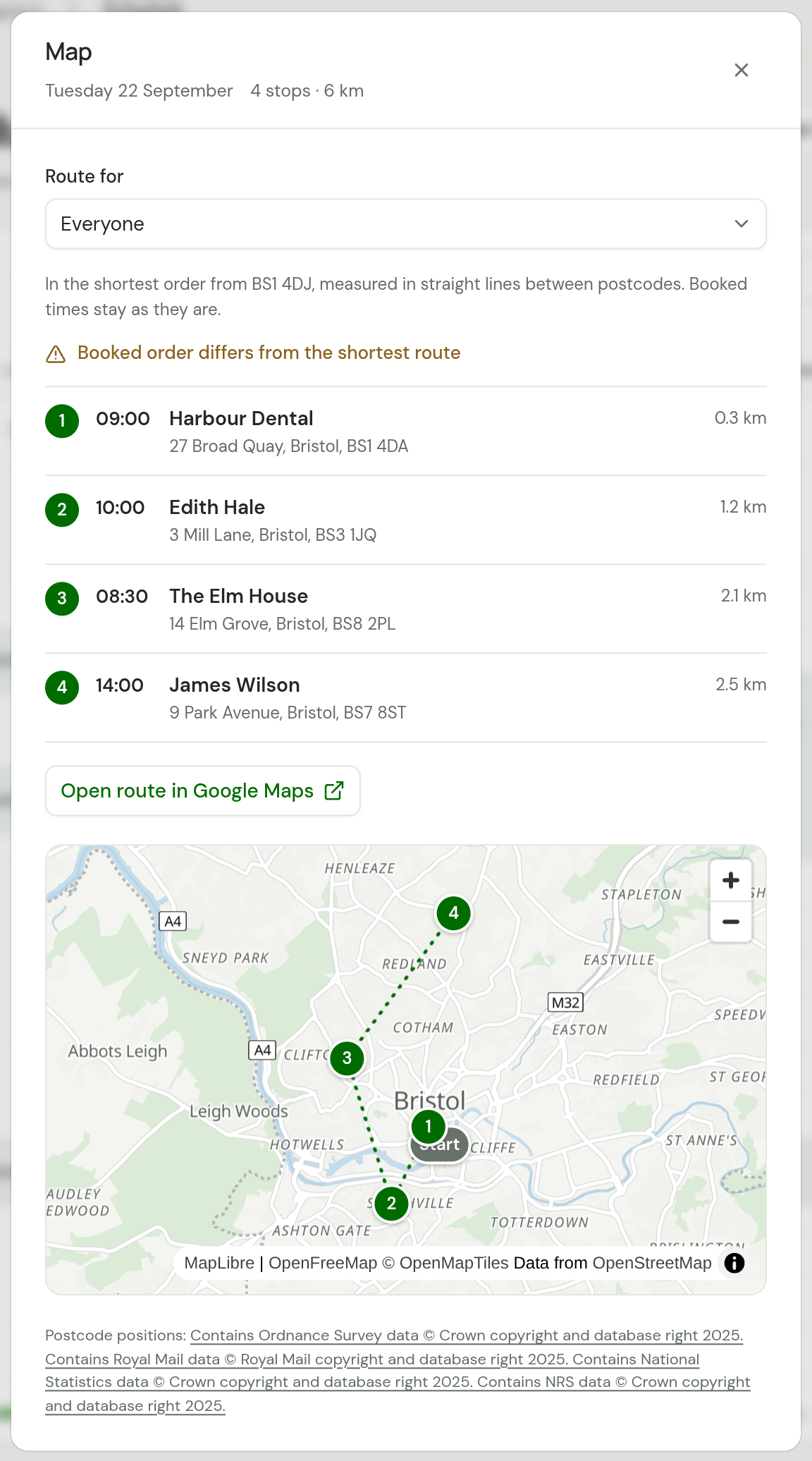
Under the link, a street map shows the route: a grey Start pin where it begins, a numbered pin for each stop and a line joining them in order. Neighbours in one postcode share a pin. Choose a pin to open its visit. The map is drawn from OpenStreetMap's data, credited in its corner, and the line at the foot of the dialog credits the postcode data.
Map shows when the day has a visit that reads Scheduled or In progress. Finished and cancelled visits are not stops.
How the order is worked out
- The route starts from the postcode in your Business address, then goes to the nearest stop, and so on, shortened where that doubles back. With no postcode in your business address, it starts from the visit booked first.
- Distances are straight lines between postcodes. Roads, rivers and one-way streets are not counted, so the drive is longer than the figure at the top.
- A property's position is the middle of its postcode. Two stops in one postcode read "Same postcode". See Where a property's place on the map comes from.
The order is a suggestion
Nothing is moved. Each visit keeps the time it was booked for, and the dialog says so: "Booked times stay as they are." When your bookings run in another order, it warns Booked order differs from the shortest route. To follow the route, close the dialog and drag the visits.
Choose a stop to open its visit.
Long routes
One Google Maps link carries 10 stops on a computer and 4 on a phone or tablet. A longer route comes as several links, such as Stops 1 to 10 and Stops 11 to 14, each starting where the one before ended.
A day with more than 250 visits is too many to put in order at once. Choose one person under Route for.
Visits with no position
A visit whose property has no position is listed apart, under No position yet, and is not in the order. That is a property saved in the last few minutes, one in Northern Ireland or outside the UK, or a visit with no property.
On the web and on a phone
On the web the map of the day is this list, the link to Google Maps and the street map under them. The iPhone and Android apps have Shortest route under the map on Today, and a map button in their calendar's Day and Team views. It draws the same stops on a map and lists them. The iPhone app has Open in Maps, which opens the route in Apple Maps, and the Android app has Open route in Google Maps.
Both need a connection, because the order is worked out on our server.
Who is on a visit
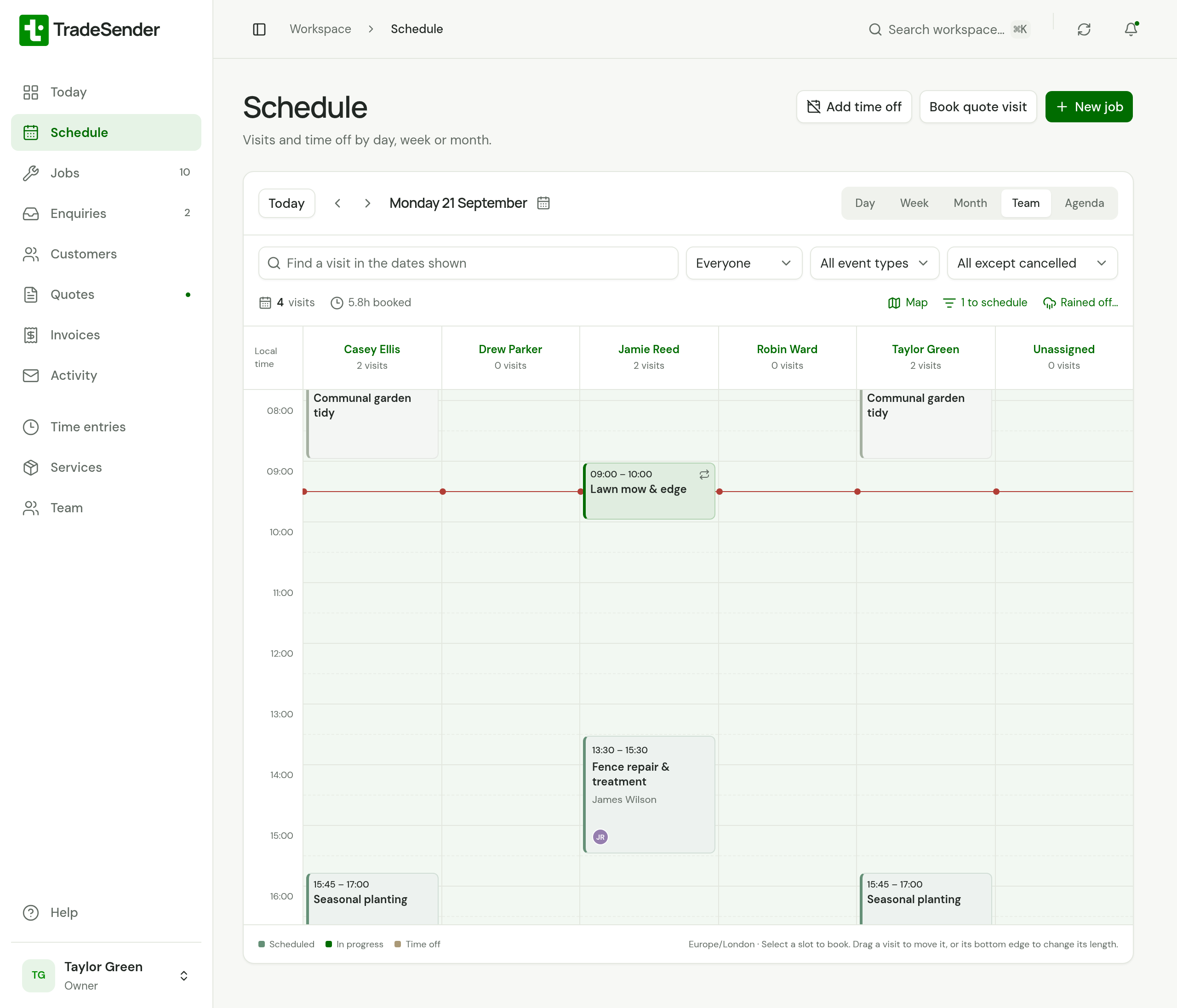
In Day, Week and Team, each visit carries the initials of its crew, in each person's own colour. A card shows up to three people, then a count of the rest. Visits of an hour and a half or less leave the initials out to make room for the title. Agenda names the crew in full.
An owner sets the colour: open Team, choose the person, choose Edit details and pick a Calendar colour.
The card's own colour is its status. The key under the calendar shows Scheduled, In progress and Time off. A small repeat icon marks a visit in a round.
Clashes
A warning icon marks a visit that overlaps another visit, or time off, for the same person. The same warning appears as Check team availability when you book or edit a visit. TradeSender warns you and still lets you save.
Time off
Anyone can choose Add time off for themselves. Owners and office members can add it for anyone. Time off sits in its own Time off row above the hours in Day, Week and Team, and among the visits in Month and Agenda. Choose it to change it. Technicians see their own time off and nobody else's. See Time off.
Jobs with no visit
A job saved with Schedule later, or one whose visits are all finished or cancelled while it is still active, has nothing on the calendar. For owners and office members, the line under the filters counts them: "1 to schedule".
A repeating job is not counted while its repeat still has visits to book, even between its seasons, when nothing of it is on the calendar. See Repeating jobs and rounds.
Choose it to open Needs scheduling, then choose a job to book its visit on the date shown. On a wide screen the same list sits beside the calendar.
Keyboard shortcuts
On a computer: T returns to today, and the left and right arrows move between dates. D, W, M, G and A switch to Day, Week, Month, Team and Agenda. The slash key goes to the search. For owners and office members, N starts a new job and Z undoes the last move.
On a phone
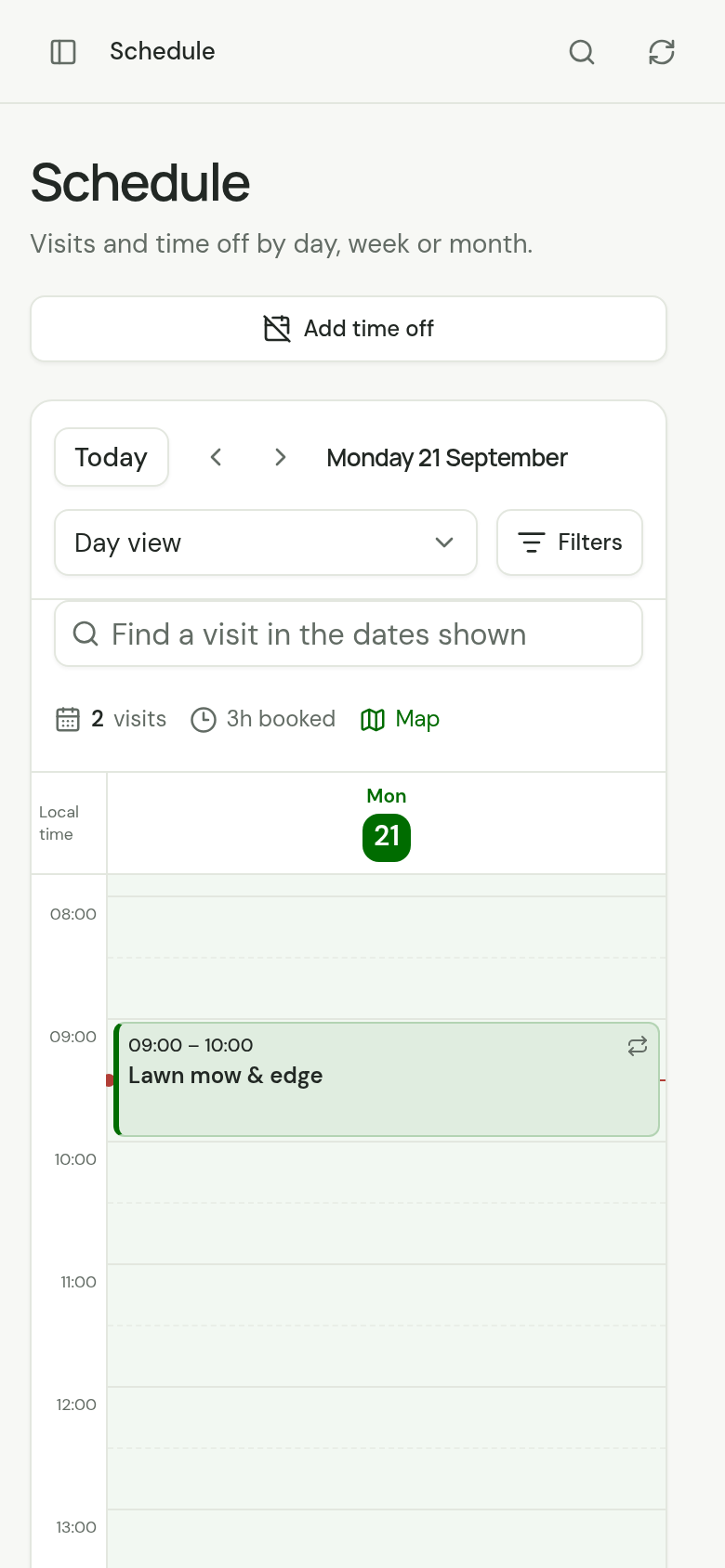
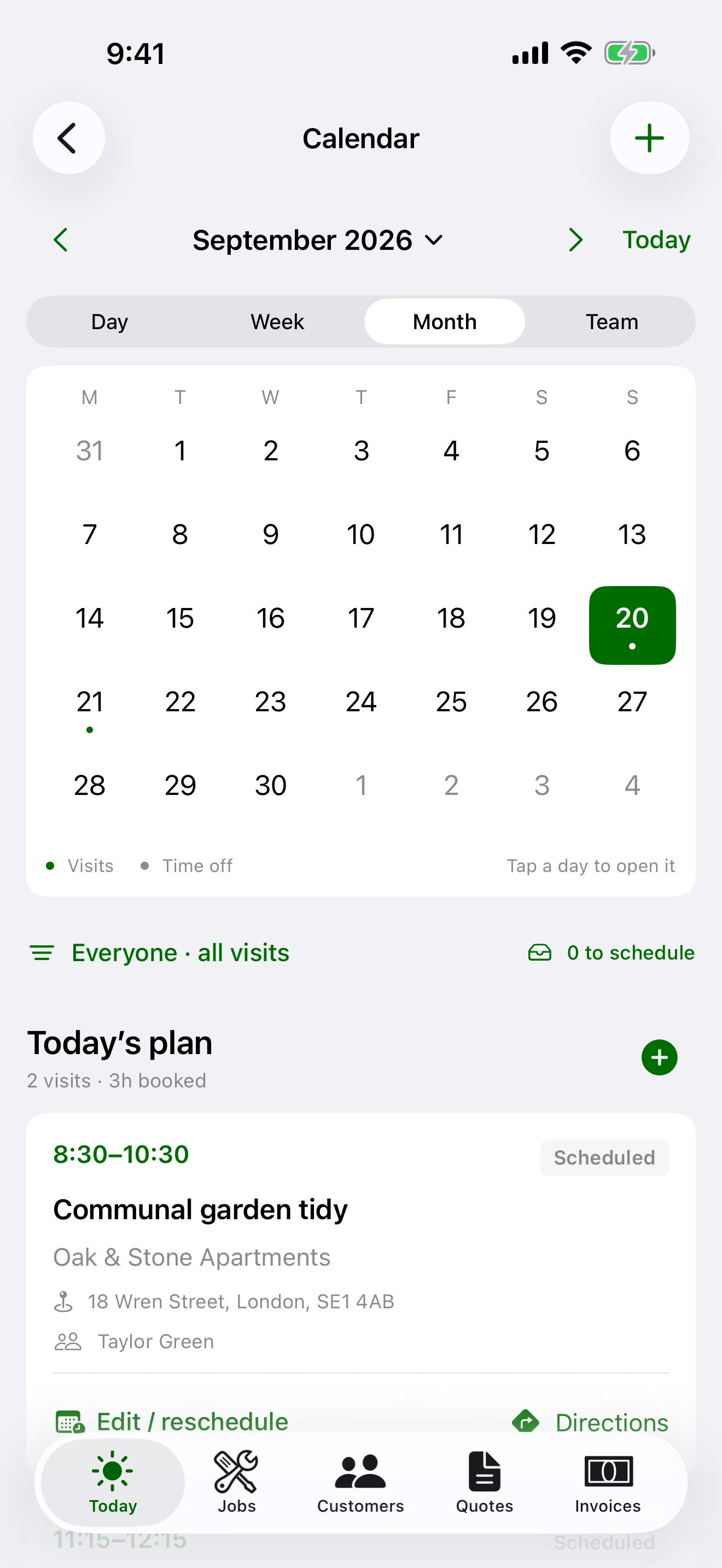
In a phone's browser the views are in a list that reads Day view, Week view and so on, and Filters opens the three lists. Month shows a count on each day: choose the day to open it.
The iPhone and Android apps open their Calendar from the calendar button on Today. It has Day, Week, Month and Team, and the same count of jobs to schedule. Owners and office members hold a scheduled visit and drag it to move it, as on the web.
Checked against the app on 29 October 2026. Still stuck? Ask usAsk us.