Add the form to your website
Paste two lines of code into a page of your website and the enquiry form appears there, in your typeface and text colour.
Paste two lines of code into a page of your website and the enquiry form appears in that spot. It works on any website that lets you add HTML to a page. Owners and office members copy the code from Settings, on the web or in the iPhone or Android app.
If your website runs on WordPress, the plugin does the same job with a shortcode.
Add the code
-
In TradeSender, open Settings, then Website and portal.
-
Under Enquiry form, choose Form code. A sheet opens with the two lines of code. Choose Copy code at its foot.
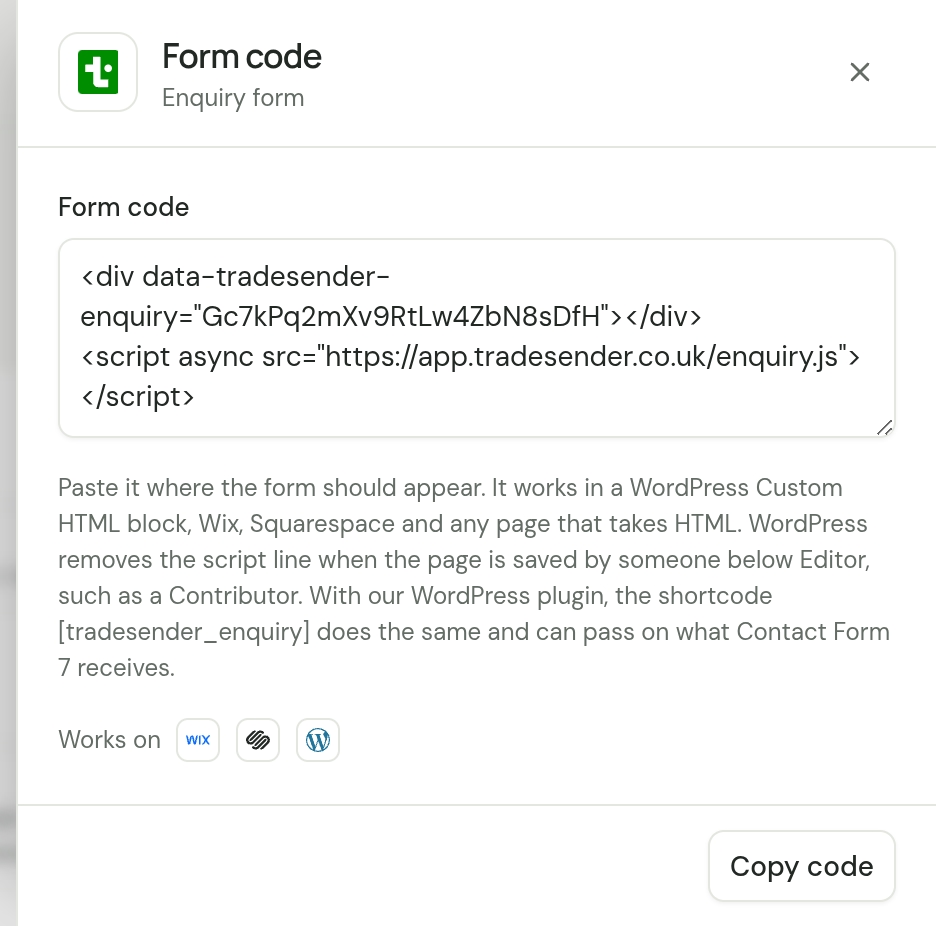
-
In your website's editor, open the page the form should be on. Where you want the form, add a block that takes HTML. Website builders call it "HTML", "Custom HTML", "Embed" or "Code".
-
Paste the code into the block, then save and publish the page.
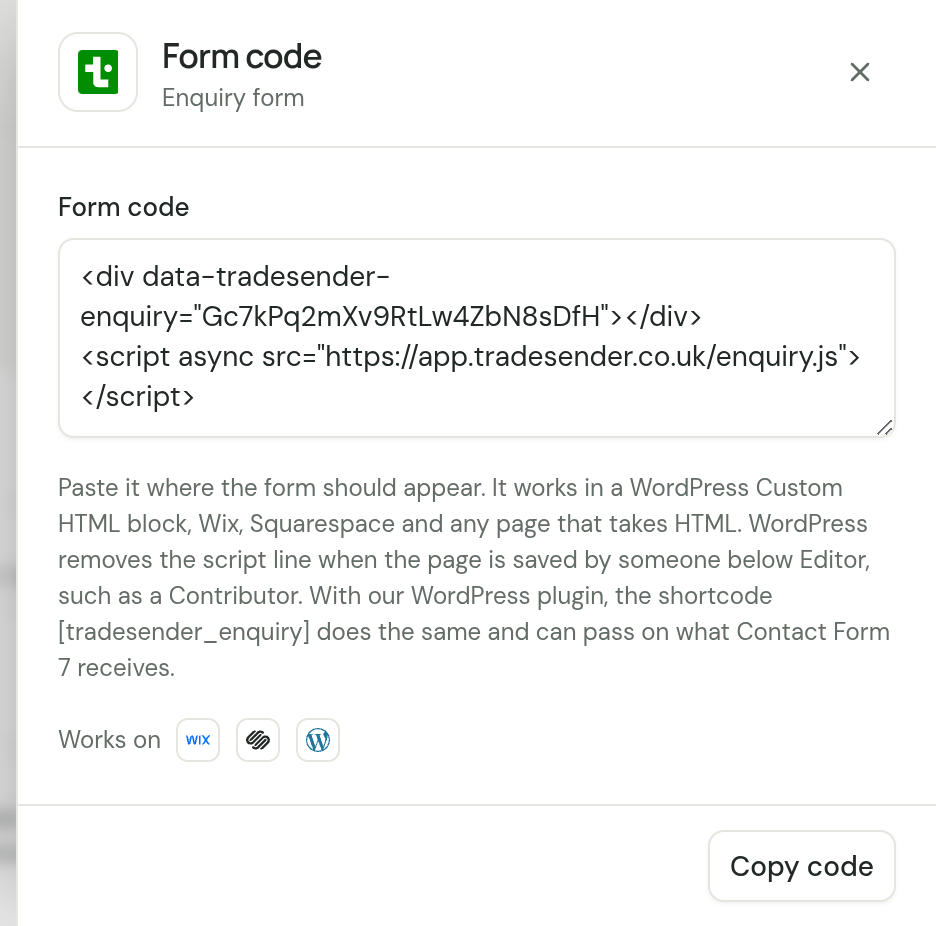
The code is two lines, with your own form key in the first:
<div data-tradesender-enquiry="YOUR_FORM_KEY"></div>
<script async src="https://app.tradesender.co.uk/enquiry.js"></script>
Copy it from Settings so that the key is yours, and paste both lines together. In the iPhone and Android apps, Form code under Website and portal copies the same two lines.
Every website builder has its own steps for adding code, so look in its help for "HTML" or "embed code". WordPress removes the <script> line when the page is saved by someone below Editor: see Without the plugin. If yours does not allow a <script> line, put a button on the page that opens your form link instead.
How it looks on your page
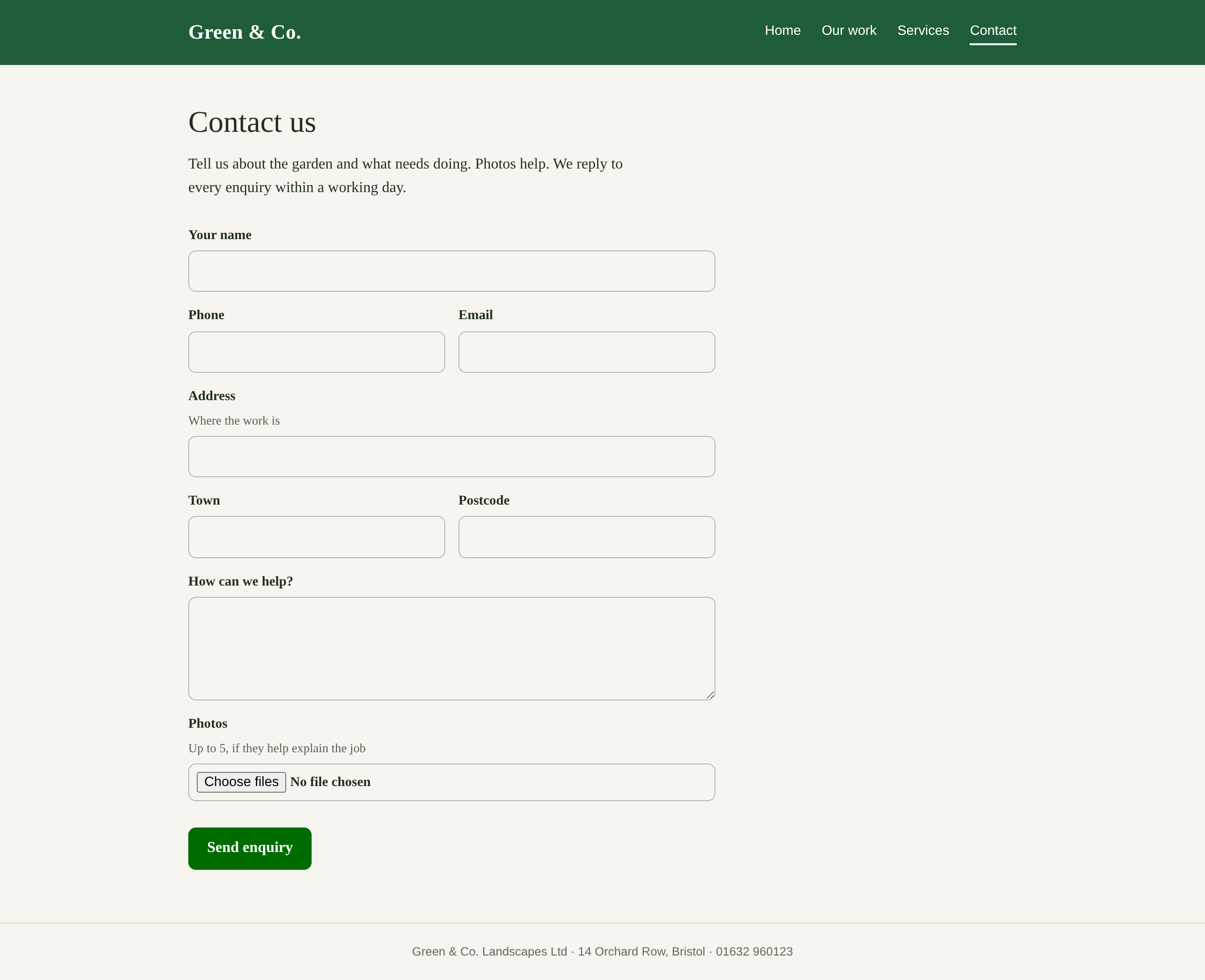
The form takes two things from the page around it:
- The typeface and text size. It uses the font of the place you paste it.
- The text colour. Labels, and what people type, are in your page's text colour. The outline of each field is a paler shade of it.
The fields have no background of their own, so your page's background shows through them.
The rest belongs to the form and is the same on every website: the fields and their order, the wording, the spacing, the rounded corners and the red box round a message such as "Add your name." Your website's styles do not reach inside the form, and the form's styles do not touch the rest of your page.
The form is as wide as the space you paste it into. Phone and Email sit side by side when there is room, as do Town and Postcode. On a narrow screen they stack.
Change the button's colour
The Send enquiry button is green. To match your website, add data-accent with a colour to the first line:
<div data-tradesender-enquiry="YOUR_FORM_KEY" data-accent="#2f6b3a"></div>
The outline round the field someone is typing in takes the same colour.
Ask your own questions
You cannot add, remove or reword the form's fields. To ask your own questions, such as the size of the garden, use a form you already have.
Check it works
-
Open the published page on your website.
-
Fill in the form as a customer would, add a photo and choose Send enquiry. The form changes to "Thanks, your enquiry has been sent."
-
In TradeSender, open Enquiries. Your test is at the top of the list, and its page names the website it came from.
-
Check that the "New enquiry from" email arrived.
-
Open the test enquiry and choose Delete enquiry.
If it does not work
| What you see | What to do |
|---|---|
| No form on the page | Check that both lines are still there after you save. If your builder has removed the <script> line, use a block meant for code. |
| "This form is no longer in use. Please contact us another way." | The form's address has been replaced. Copy the code from Settings again and paste it over the old code. |
| "Too many enquiries have been sent from here. Please try again later, or contact us another way." | More than 10 came from your connection in 15 minutes, or your workspace has had 100 in 24 hours. Wait, then try again. |
| A second test does not arrive | The same details sent twice within 10 minutes count as one enquiry. Change the message and send again. |
| "Couldn't send your enquiry. Check your connection and try again." | The browser could not reach TradeSender. Try again, then try from another connection. |
A developer will find every option in The embed script.
Checked against the app on 29 October 2026. Still stuck? Ask usAsk us.