Work an enquiry
Read what someone sent through your form, get back to them, turn them into a customer or delete the enquiry.
Owners and office members work enquiries. On the web they are under Enquiries in the sidebar. In the iPhone and Android apps, tap the account button: they are in Settings, under Your business, then Enquiries. This page follows the web.
Find the new ones
Open Enquiries. The newest is at the top. Each row shows who it is from, the first line of their message, their contact details and when it arrived.
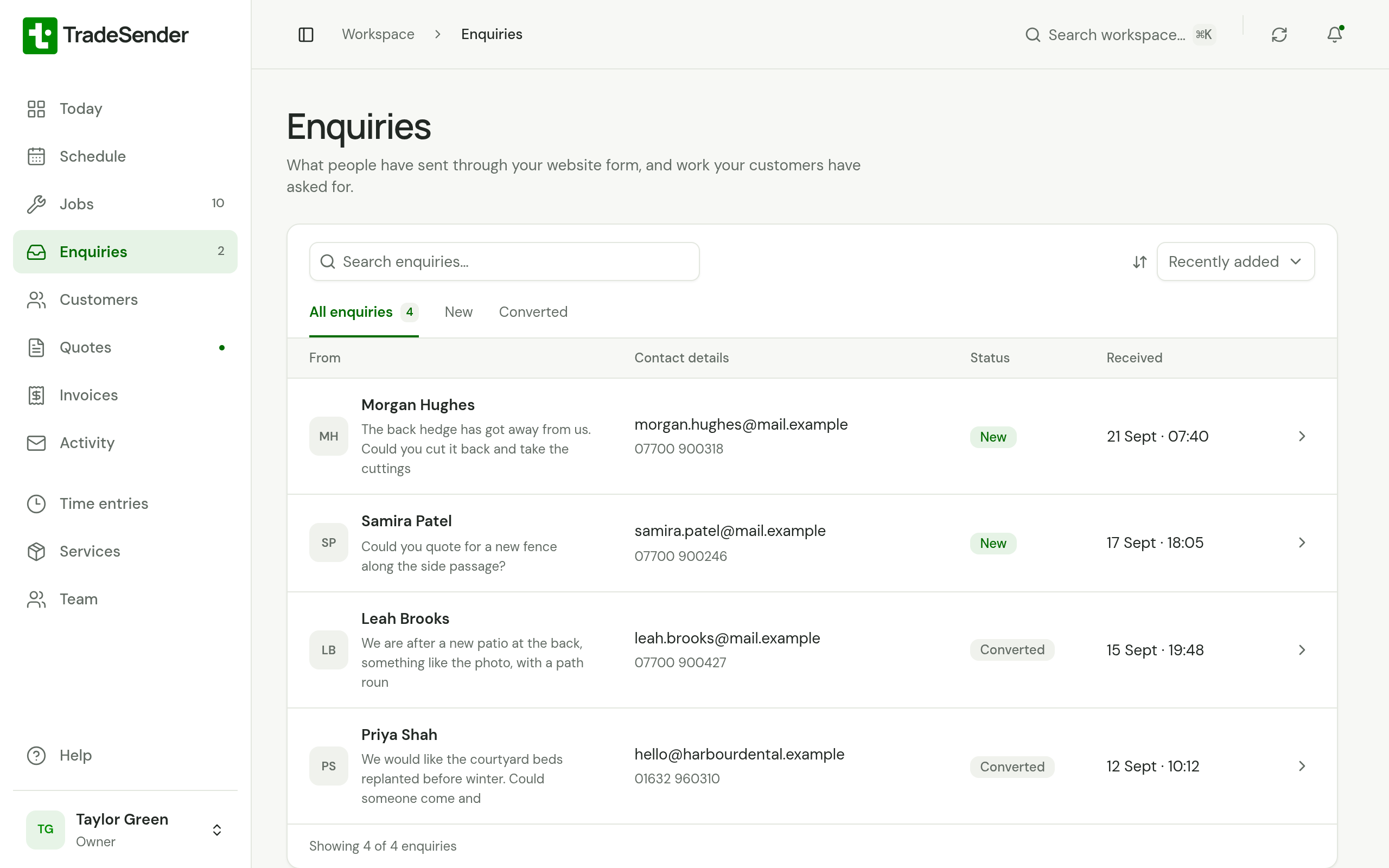
| Tab | Shows |
|---|---|
| All enquiries | Every enquiry you have not deleted |
| New | The ones that are not yet a customer |
| Converted | The ones you have made a customer |
The number beside Enquiries in the sidebar counts the new ones. They are also first under Needs attention on Today.
There is no button to add an enquiry. One arrives only through your form.
Read it
Choose an enquiry to open it.
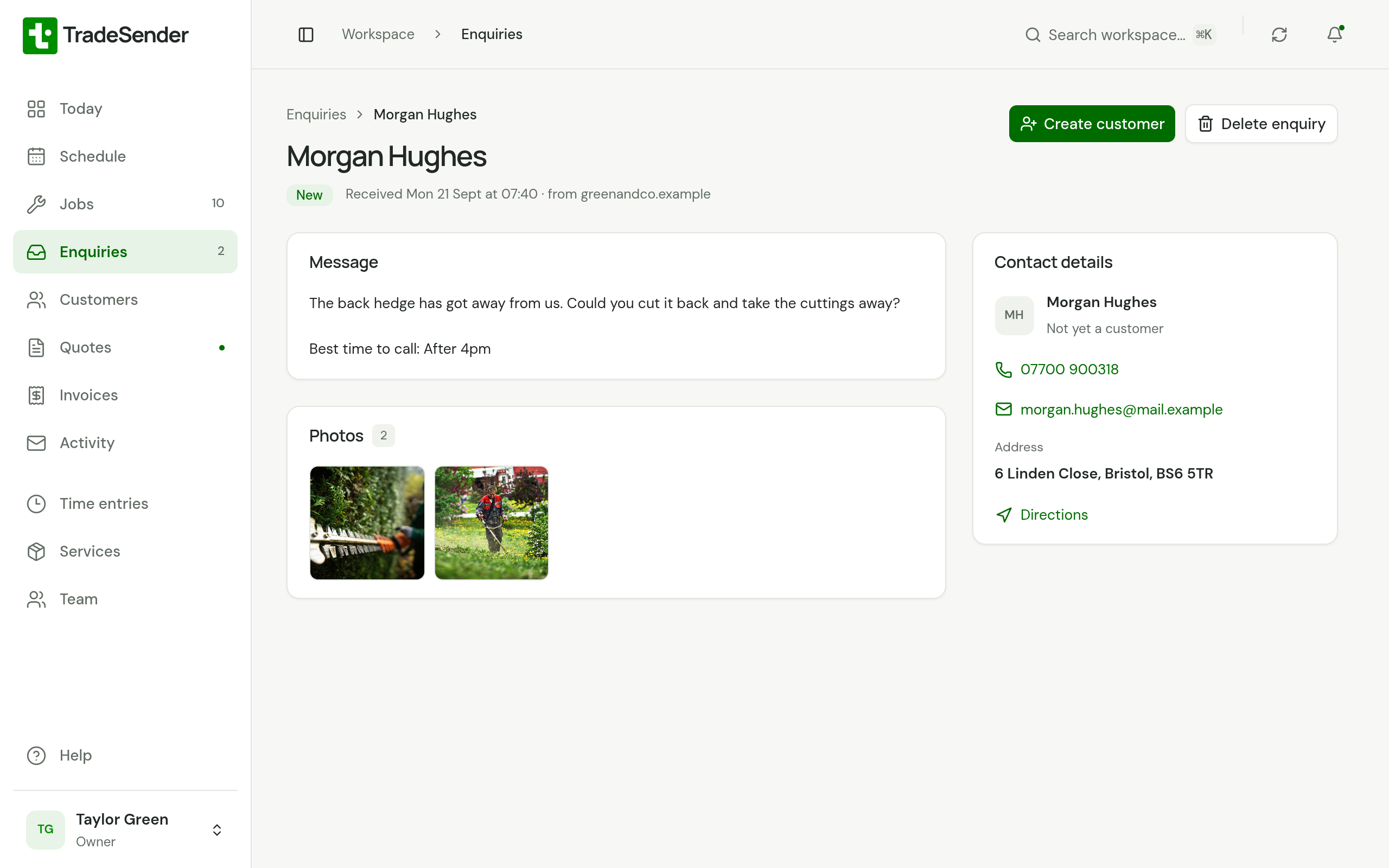
- Message is what they wrote. If your own form asked other questions, each answer is on a line of its own beneath, such as "Best time to call: After 4pm".
- Photos are the ones they attached. Choose one to see it larger.
- Contact details has their name, phone number, email address and the address where the work is.
- Under their name at the top is when it arrived and where from: the name of your website, or "your form link" for the form TradeSender hosts.
Nothing on the page can be changed. It is what the person sent.
Get back to them
TradeSender does not reply for you. From Contact details:
- choose the phone number to ring them, on a phone or a computer that makes calls
- choose the email address to write to them in your own email app
- choose Directions to open the address in Google Maps
Replying to the "New enquiry from" email also goes to them, when they gave an email address.
Create a customer
When the work is worth pricing, make the person a customer.
-
On the enquiry, choose Create customer.
-
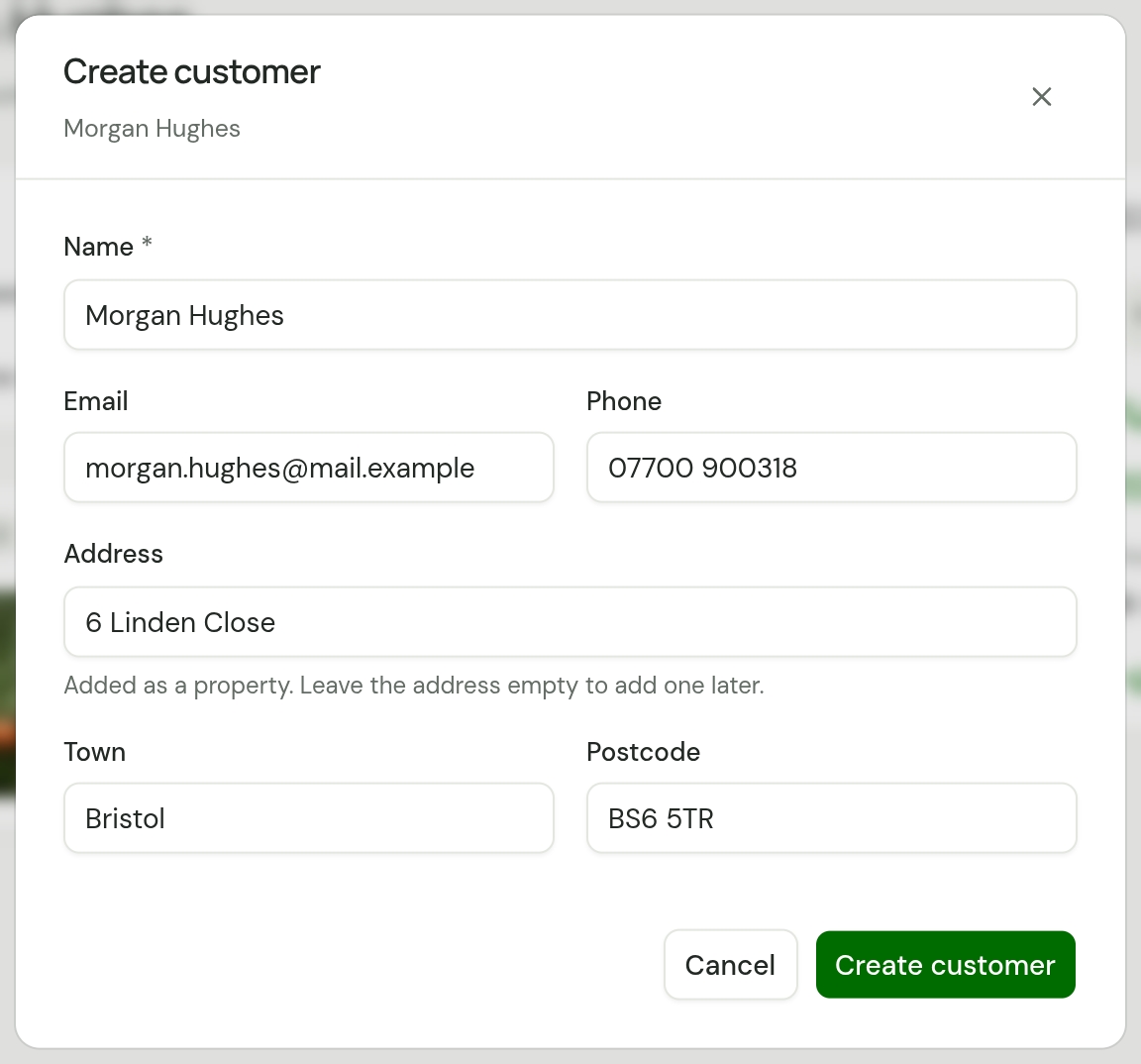
Check Name, Email and Phone, and correct anything they mistyped. Your corrections go to the customer. The enquiry keeps what they sent.
-
Check Address, Town and Postcode. The address is added as a property for the customer. Fill in all three, or clear all three to add a property later.
-
Choose Create customer.
TradeSender creates the customer and the property, and opens the customer's page.
When they may already be a customer
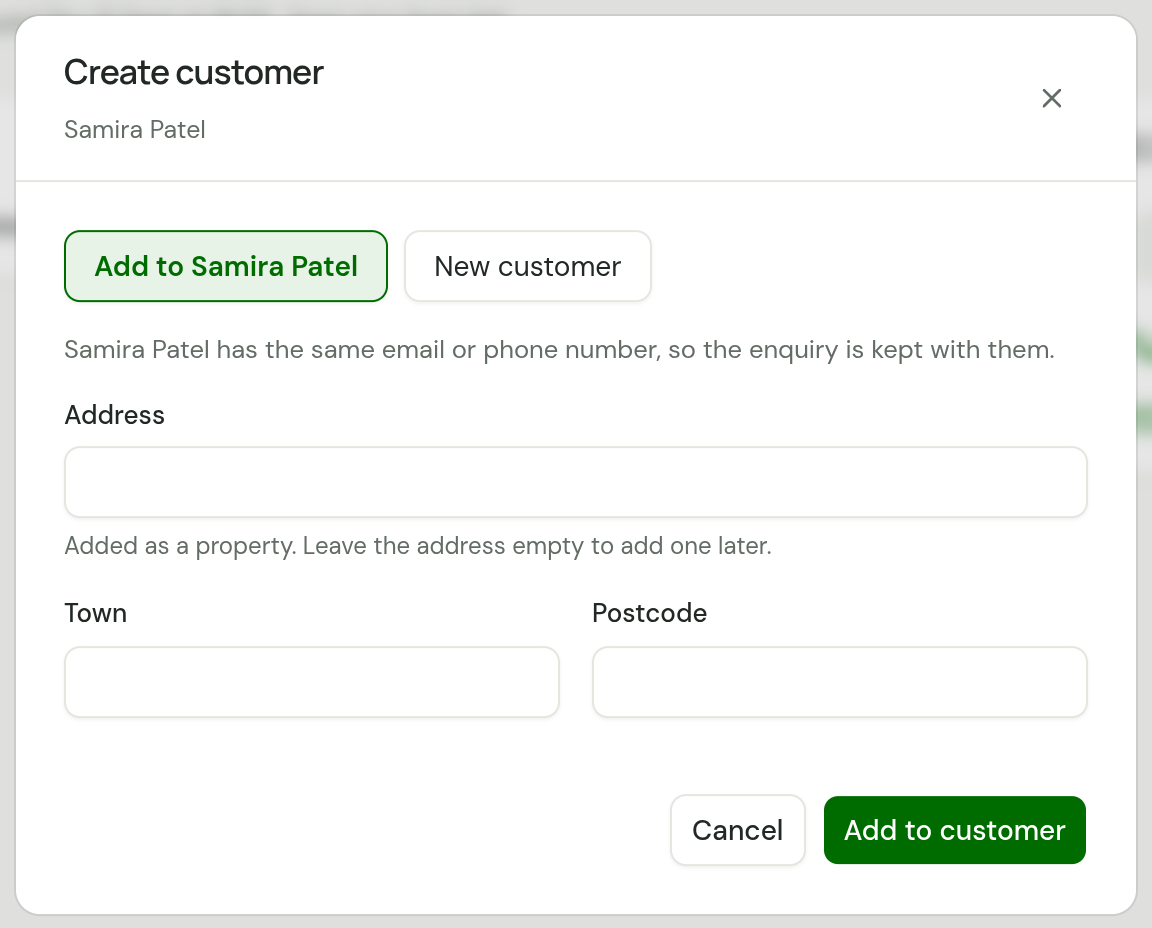
If the enquiry's email address or phone number matches a customer you have, the dialog offers two choices and starts on the first.
| Choice | What happens |
|---|---|
| Add to Samira Patel | "Samira Patel has the same email or phone number, so the enquiry is kept with them." Choose Add to customer. No new customer is made. |
| New customer | "A separate customer is created." The Name, Email and Phone fields appear. Choose Create customer. |
With either choice, an address you leave in the dialog is added to that customer as a property. Archived customers are not offered.
Once it is a customer
The enquiry now reads Converted. Open customer takes the place of Create customer, and a Customer panel links to them.
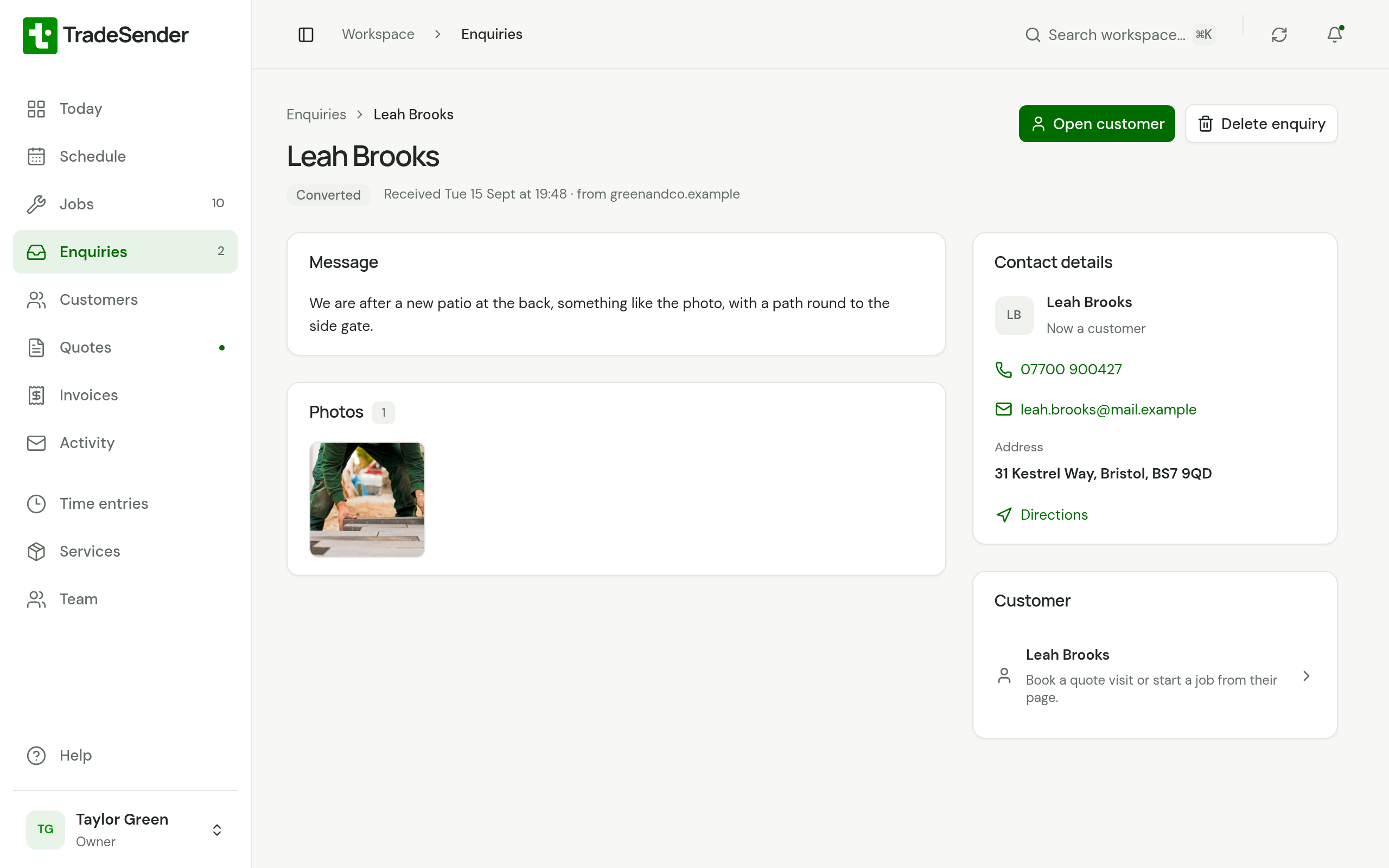
The message and photos stay with the enquiry. The customer's page lists it under Enquiries, so you can go back to what they first asked.
What you do next is the same as for any customer:
- To go and look before you price it, choose Book quote visit on the customer's page. See Quote visits.
- To price it now, see Create and send a quote.
- To book the work without a quote, choose New job on the customer's page. See Create a job.
A request from a customer
A customer who is signed in to their customer portal can choose Request work. What they send arrives here too, with a few differences.
- It is already under that customer. Nothing offers Create customer, and their name, phone number and email address are the ones on their record.
- Under What they asked for is Day asked for: the day they chose, or Any day.
- The address is the one of theirs they picked.
- It reads "from their customer portal" under their name, and the email you get is headed "Work request from" and their name.
- Under Needs attention on Today it reads Work request.
Book the visit or start the job from the customer's page, as you would for any customer. Then choose Mark as done on the request. It leaves Needs attention, reads Done, and stays on the customer's page under Enquiries. Marking it done creates nothing.
In the list, a request you have not marked done is under New, and one you have is under Converted.
Delete an enquiry
Delete junk, duplicates and work you are not taking on.
-
On the enquiry, choose Delete enquiry.
-
The dialog asks "Delete this enquiry? Its photos go with it, and it can't be brought back." Choose Delete enquiry, or Keep enquiry to leave it.
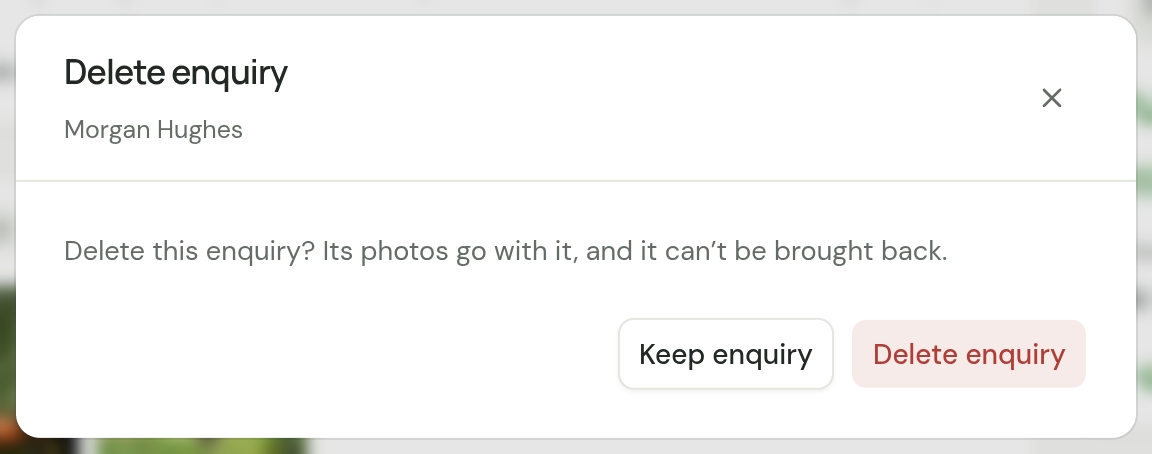
Deleting a converted enquiry leaves the customer you made from it. The dialog says so: "The customer you made from it stays."
In the iPhone and Android apps
The iPhone and Android apps have the same list, with a count of new enquiries beside Enquiries, and the same Create customer and Delete enquiry on each one.
Checked against the app on 29 October 2026. Still stuck? Ask usAsk us.