Connect Claude
Find TradeSender in Claude's connector directory, allow it once, and ask about your work from claude.ai, the desktop app or your phone.
You need a Claude account, on any plan, and your TradeSender sign-in. TradeSender is in Claude's connector directory, so there is no address to copy. On a Claude Team or Enterprise plan, an owner adds it first: see Team and Enterprise.
Connect
-
In Claude, on claude.ai or in the desktop app, open Customize, then Connectors, and press the plus button next to Connectors.
-
Search for TradeSender and choose it. You can also open TradeSender in Claude's directory straight from here.
-
Choose Connect.
-
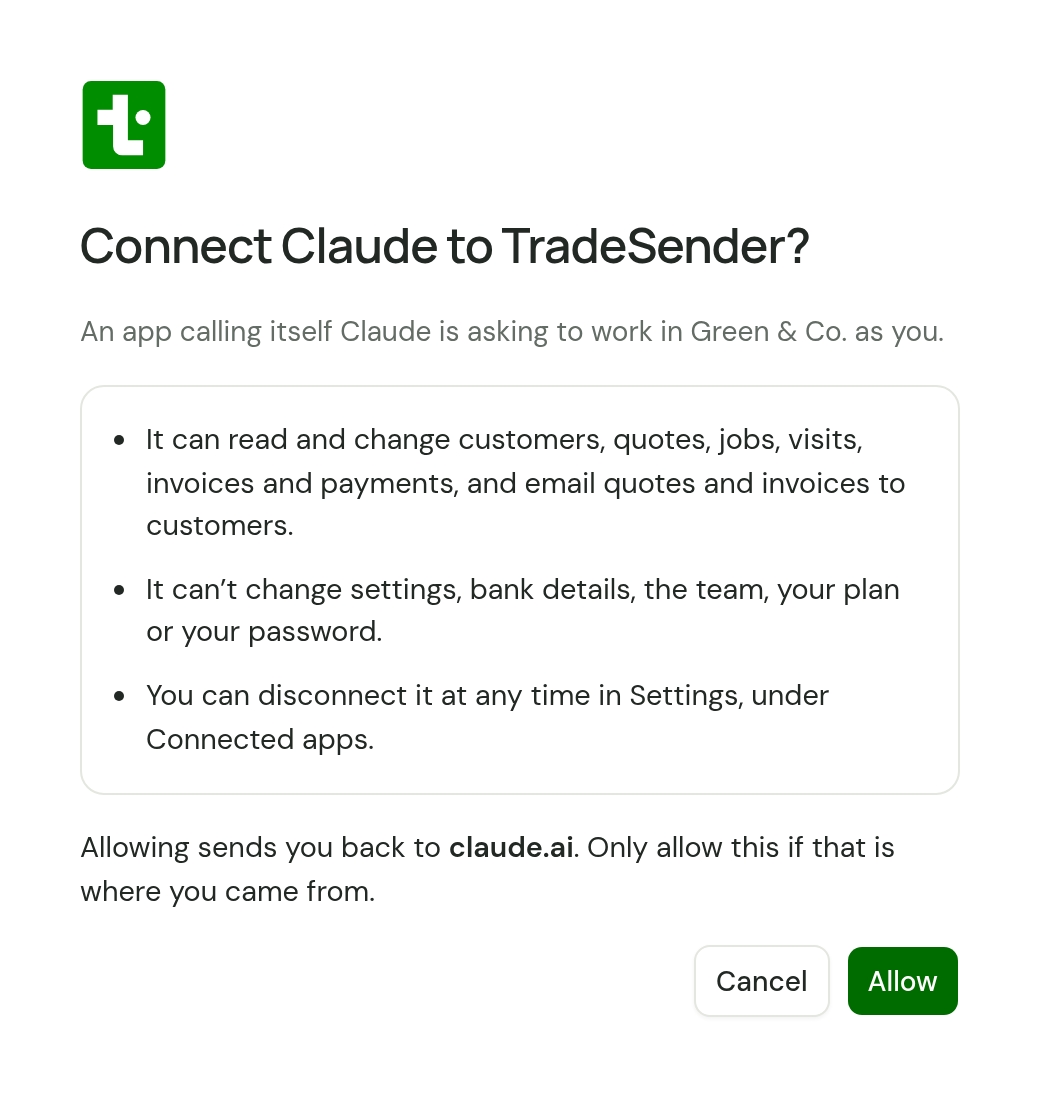
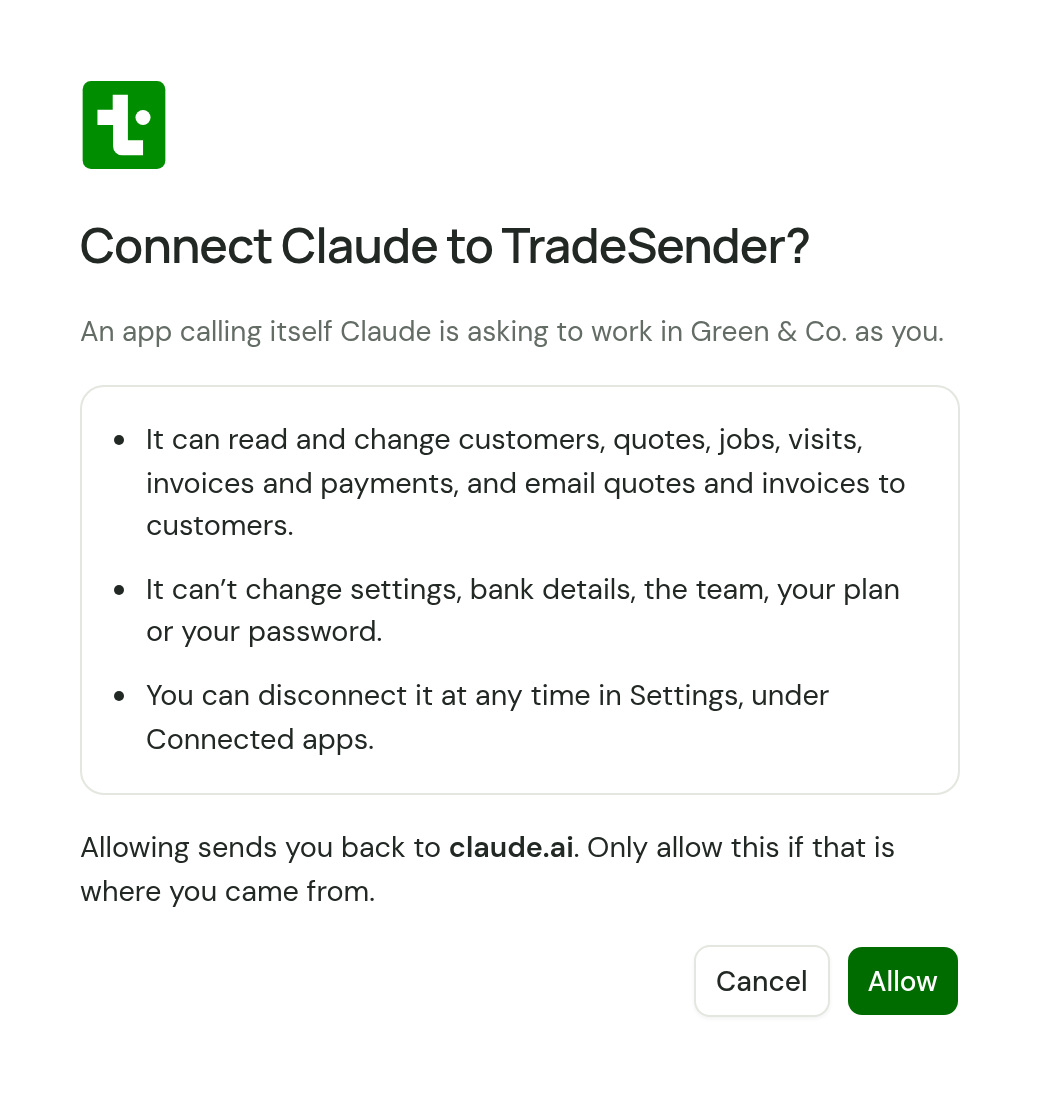
Claude opens TradeSender in your browser. Sign in if it asks. On Connect Claude to TradeSender?, check the workspace it names and choose Allow.
-
Back in Claude, start a chat and ask "What's on tomorrow?".
If Claude answers without looking at TradeSender, press the plus button under the message box, choose Connectors and switch TradeSender on for that chat.
Claude moves its menus from time to time. Anthropic keeps its own steps in Use connectors to extend Claude's capabilities.
Add it by its address instead
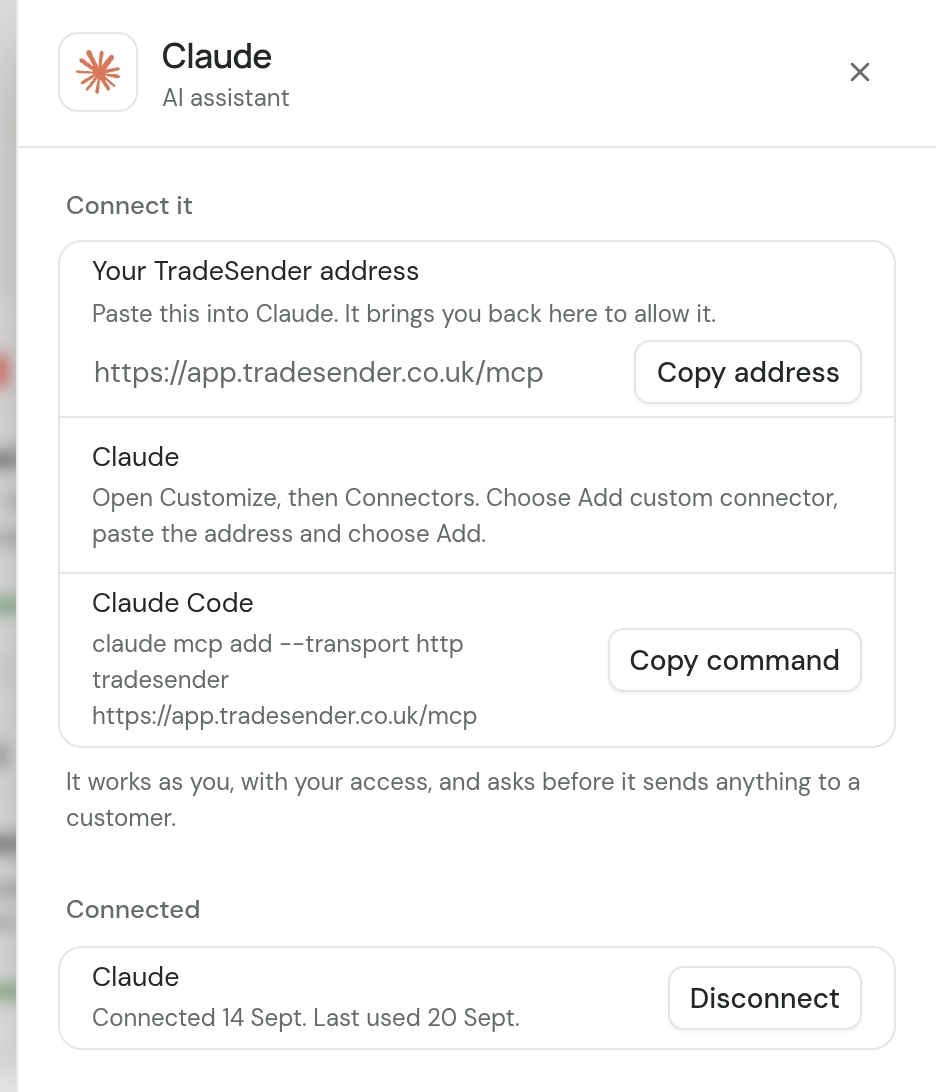
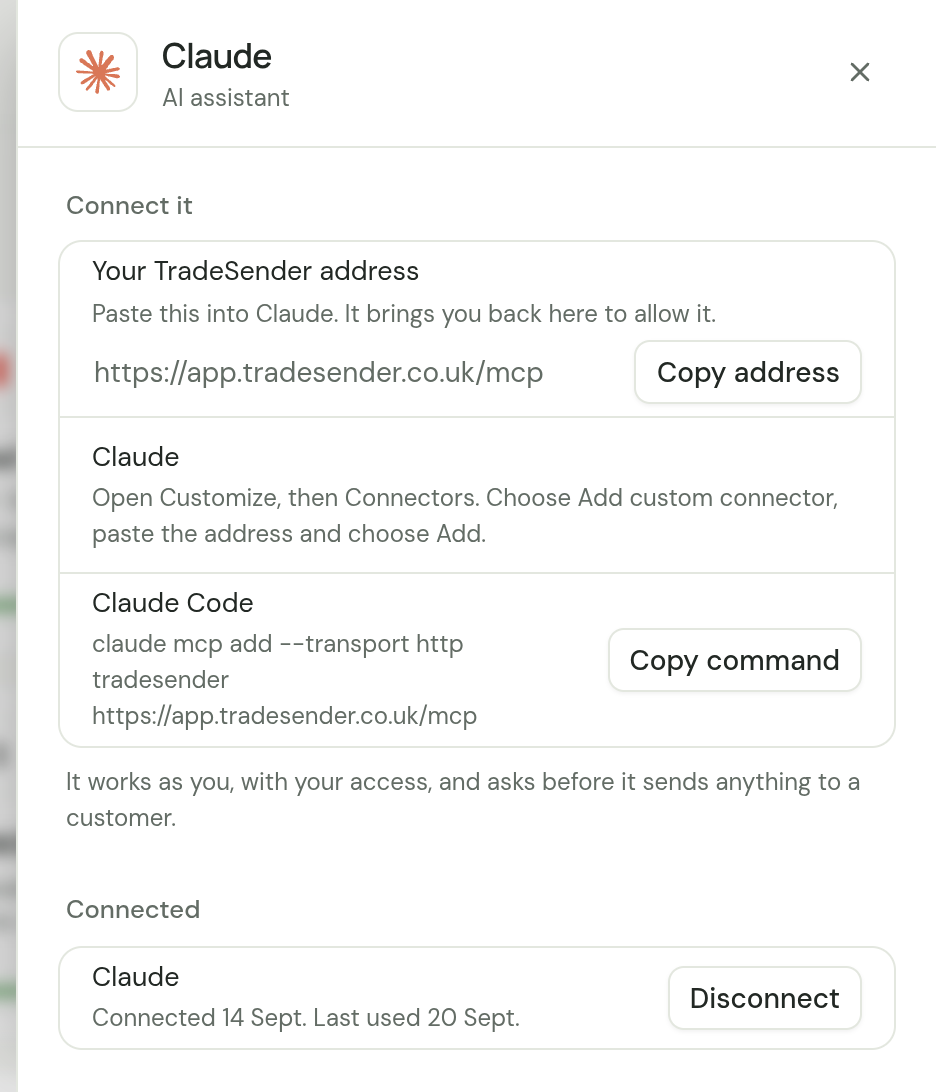
You can also add TradeSender by hand, as a custom connector. That is what the Claude card in TradeSender's Settings describes. It works the same once connected, but a free Claude account can add only one custom connector, so use the directory if you can.
-
In TradeSender, open Settings, then Connected apps, and choose Claude. Beside Your TradeSender address, choose Copy address.
-
In Claude, open Customize, then Connectors. Choose Add, then Add custom connector.
-
Name it TradeSender and paste the address. Claude works out the sign-in settings from the address, so leave them as they are and choose Add. Then allow it as in step 4 above.
Anthropic's steps for this are in Get started with custom connectors.
Read the Allow page
The Allow page is the one moment TradeSender asks you. Before you choose Allow, check four things:
- Who is asking. "Claude, from claude.ai" means the app has shown TradeSender where it comes from. "An app calling itself Claude" means it has only given a name, so the last check on this list matters more.
- The workspace. If you belong to more than one, it names the one you are signed in to.
- What it can do. An owner or office member sees "It can read and change customers, quotes, jobs, visits, invoices and payments, and email quotes and invoices to customers." A technician sees a shorter line.
- Where it sends you back. It should say claude.ai. Only allow it if that is where you came from.
You have 30 minutes from leaving Claude to choosing Allow. After that, start again from Claude.
On your phone
Connect it on claude.ai or in the desktop app. It is then in the Claude app on your phone, under the same account.
Team and Enterprise
On a Claude Team or Enterprise plan, an owner adds TradeSender once for the organisation: Organization settings, then Connectors, then Browse connectors. Choose TradeSender, then Add to your team.
Each person then opens Customize, then Connectors, finds TradeSender and chooses Connect. They allow it with their own TradeSender sign-in, so each person's Claude has that person's access.
Things to ask
- "What's on tomorrow, and who is on each visit?"
- "Which invoices are overdue, and by how much?"
- "Add a customer: Mrs Hale, 14 Orchard Lane, Ely, CB6 1AA, gate code 2580."
- "Draft a quote for Mrs Hale: hedge cutting, three hours. Do not send it yet."
- "Book the Hale hedges for Thursday at 9 for two hours."
Claude asks you to approve each change, unless you have told it to stop asking. Read what it is about to do, most of all before it emails a customer. See Before it sends anything.
If it does not connect
| What you see | What to do |
|---|---|
| Claude cannot connect, before any sign-in | Check the address is exactly https://app.tradesender.co.uk/mcp, with nothing after mcp. |
| "This connection request has expired." | More than 30 minutes passed. Start again from Claude. |
| "TradeSender doesn't recognise this app." | Remove TradeSender from Claude's connectors and add it again. |
| "Nothing to connect" | You opened the Allow page on its own. Start from Claude and it brings you back. |
| It worked, and now Claude says it is not connected | The connection ended: you disconnected it, your password changed, or you were removed from the workspace. Connect again. |
Disconnect
In TradeSender, open Settings, then Connected apps, and choose Claude. Under Connected, choose Disconnect beside it. Claude loses its access at once.
To take TradeSender out of Claude as well, open Customize, then Connectors in Claude and remove it there.
Checked against the app on 29 October 2026. Still stuck? Ask usAsk us.