Leave or delete a workspace
Leave a workspace you were invited to, or delete a workspace you own, and know what is removed, what is kept and what cannot be undone.
Both are in Settings, Your account, under Danger area. What you see there depends on your role: an owner sees Delete workspace, and an office member or technician sees Leave workspace. The iPhone and Android apps have the same two at the foot of their Settings.
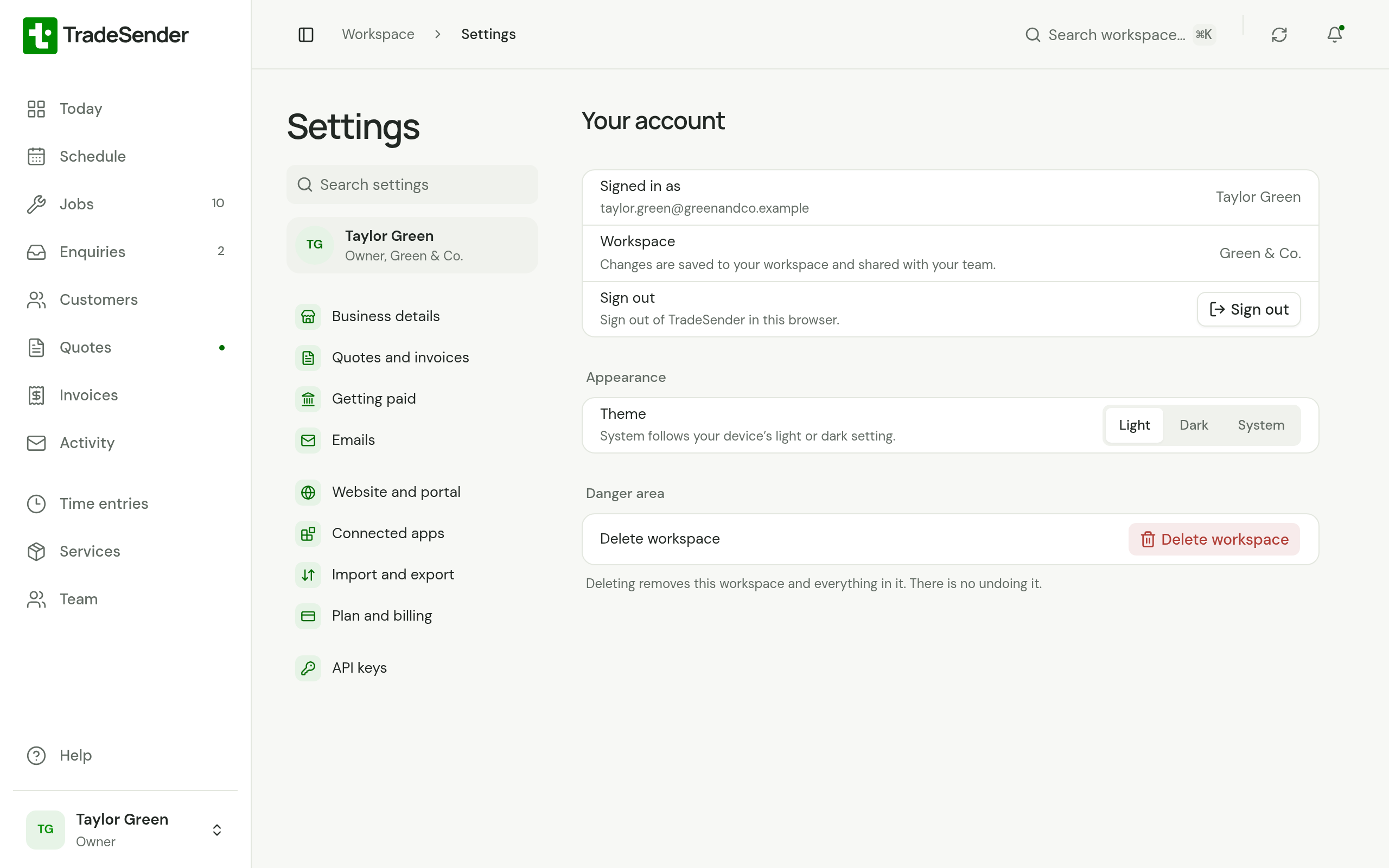
Your account
Your account shows the name and email address you are Signed in as, the Workspace you are in, and Sign out, which signs you out of TradeSender in this browser. Under Appearance, Theme chooses Light, Dark or System for this browser, and saves as soon as you choose.
TradeSender has no setting for changing your name or the email address you sign in with. To change your password, sign out and use Forgot password? on the sign-in page: see Create your account.
Leave a workspace
-
Open the menu under your name and choose Settings. At the top of its list, choose your name, which opens Your account.
-
Under Danger area, choose Leave workspace.
-
Read Leave this workspace? and choose Leave workspace again.
You are signed out, and your access to that workspace ends at once:
- You cannot sign in to it, on the web or in the phone apps.
- Your API keys and connected AI assistants for it stop working.
- You show as inactive in its team list and stop counting towards its plan.
The work you did stays with the workspace. The visits you completed and the hours you logged are its records, and it keeps them.
What happens to your sign-in
| If | Then |
|---|---|
| You belong to another workspace | Your sign-in carries on and your other workspaces are untouched |
| This was your only workspace | Your TradeSender account is closed. Your name, email address, password and any Google, Microsoft or Apple link are erased, and the workspace's records show "Former member" in your place |
Once your account is closed, the same email address can be used to sign up or be invited again straight away.
Coming back
Only an owner of the workspace can let you back in. If you still have a TradeSender account, they tick Active team member on your entry in Team. If leaving closed your account, they invite you again.
If you are an owner
An owner is offered Delete workspace in place of Leave workspace. A workspace must keep at least one active owner, so the last owner cannot leave at all.
If the workspace has another owner, change your own role first. Open yourself in Team, choose Edit details, set Role to office or technician and choose Save changes. Danger area then offers Leave workspace.
Delete a workspace
-
Open the menu under your name and choose Settings. At the top of its list, choose your name, which opens Your account.
-
Under Danger area, choose Delete workspace.
-
Confirm it is you:
- If you have a password, enter it in Your password.
- If you only sign in with Google, Microsoft or Apple, choose the Continue with button you use and sign in again. You come back to "Signed in again. Choose Delete to finish." Finish within 5 minutes, or sign in again.
-
Choose Delete workspace.
A wrong password gets "That didn't match. Try again." and nothing is deleted.
What is removed
- The workspace and everything in it: customers, contacts and properties, services, enquiries, quotes, jobs, visits, time entries, invoices and payments.
- Visit photos, enquiry photos and your logo.
- Everyone's membership, sign-ins, API keys and connected AI assistants. The whole team is signed out.
- The TradeSender account of anyone who belonged to no other workspace, yours included. Someone who is also in another workspace keeps their account.
The links your customers have to quotes and invoices stop working.
What happens to your subscription
TradeSender cancels the subscription first, so you are not charged again. If Stripe cannot cancel it, nothing is deleted and you see "We couldn't cancel the subscription, so nothing was deleted. Please try again."
Stripe keeps its own record of you as a customer and of the invoices it sent you for your subscription.
Good to know
- Any owner can delete the workspace, not only the person who created it.
- Deleting from the iPhone or Android app works the same way. The button there reads Delete account and workspace.
- To stop using TradeSender but keep your records, do not delete. Cancel your subscription: see Subscribe, change or cancel.
Checked against the app on 29 October 2026. Still stuck? Ask usAsk us.