Connect Xero
Connect your Xero organisation, choose where sales, payments and write-offs go, and see how each invoice, payment and write-off appears in Xero.
You need to be an owner of the workspace, on Pro or Business, and able to sign in to the Xero organisation. It takes a couple of minutes, in the web app.
Connect
-
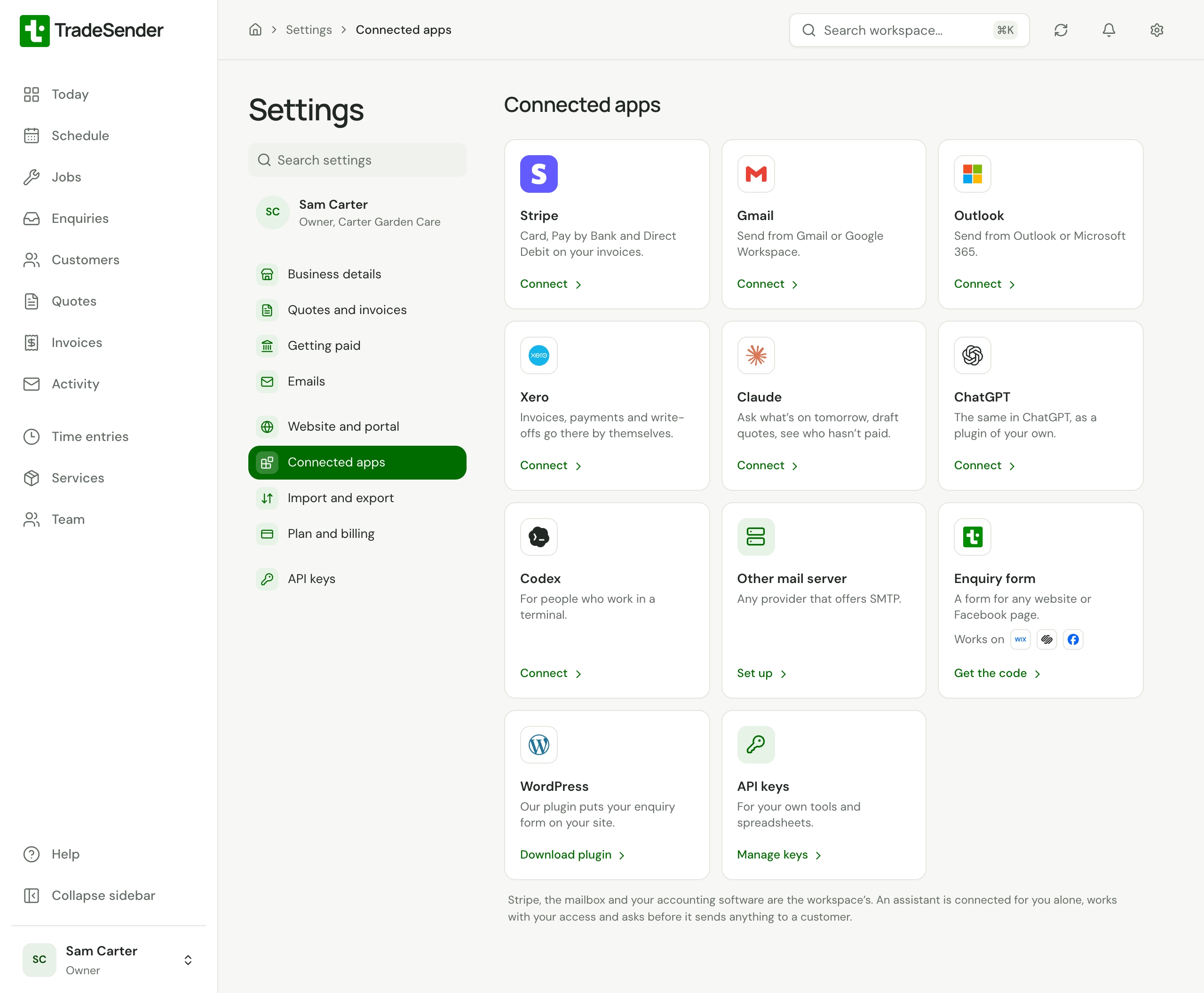
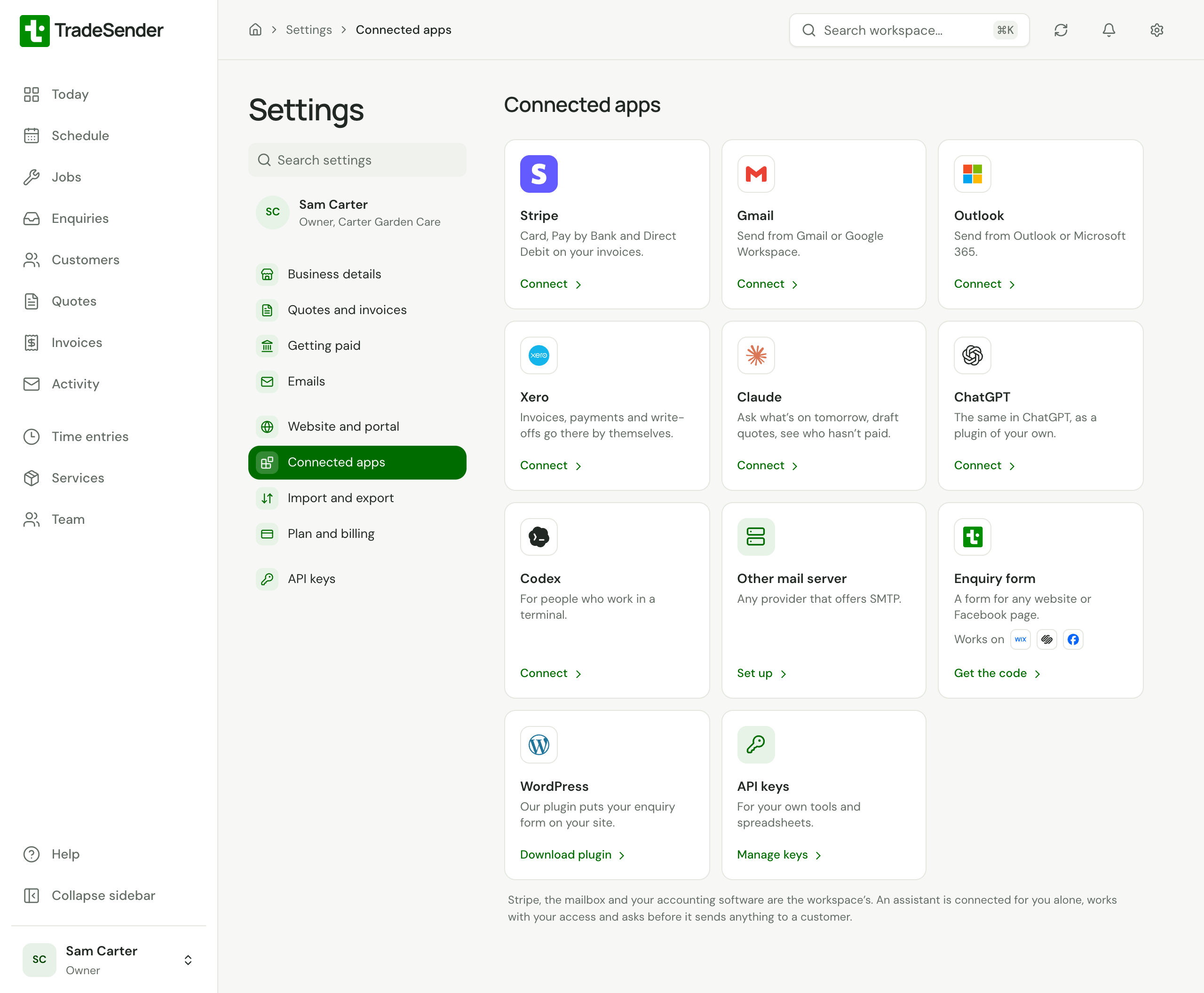
Open Settings, then Connected apps, and choose Xero. Its card reads "Invoices, payments and write-offs go there by themselves." Xero's sheet opens.
-
The sheet says "Keep Xero up to date as you work", with what goes across and what comes back. Choose Connect to Xero, under which it says "You'll sign in to Xero and choose your organisation." "Opening Xero…" shows beside it, and Xero's own page opens in the same tab. Sign in to Xero if it asks.
-
Choose the organisation to connect, and allow TradeSender access. Choose one organisation only: TradeSender connects a workspace to one.
-
Xero sends you back to Settings, Connected apps, with Xero's sheet open. Your organisation's name now heads the sheet, with Not sending yet beside it in amber, and the choices under Where things go open by themselves. Xero's card reads Connected.
If you choose more than one organisation on Xero's page and TradeSender cannot tell which you meant, it says "Choose one organisation in Xero, then connect again." Nothing is connected.
Choose where things go
Nothing goes to Xero, and nothing comes back, until you have saved Sales account and your payment accounts: Payments account, or if you take payments through Stripe, Stripe payments account and Other payments account. Until then the sheet reads Not sending yet beside your organisation's name, and an invoice you issue reads Waiting to go to Xero. Everything issued since you connected goes once you save.
-
The choices open straight after connecting. To change them later, open Xero's sheet and choose Edit, beside Where things go.
-
Pick each one from Xero's own chart of accounts. Each list shows the account's code and name, such as 200 - Sales, under the headings Xero's chart uses, such as Bank accounts and Overheads. TradeSender chooses none for you:
Choice What it is for What Xero offers Sales account Every line of every invoice Your income accounts that have a code, such as 200 - Sales Stripe payments account Payments your customers make online: card, Pay by Bank and Direct Debit. Shown only once you take payments through Stripe Your bank accounts, and any account you have set to take payments Other payments account Payments you record yourself: cash, cheques and bank transfers. Called Payments account when there is no Stripe payments account The same list Write-offs account The credit note for a balance you write off Your expense accounts that have a code, such as Bad Debts With Stripe, each payment account says under its name which payments go to it: "Card, Pay by Bank and Direct Debit" under Stripe payments account, and "Cash, cheques and bank transfers" under Other payments account.
While you choose, Use suggested accounts takes the place of Edit. It picks the account coded 200 or called Sales, an account with Stripe in its name, your first other bank account, and an account called Bad Debts, where Xero has them, in place of anything you had picked. Where it finds no match it leaves your pick alone, and an empty one it could not fill is outlined in amber and says "No match in Xero" when you point at it. Check them before you save.
-
Choose Save, or Cancel to leave them as they were.
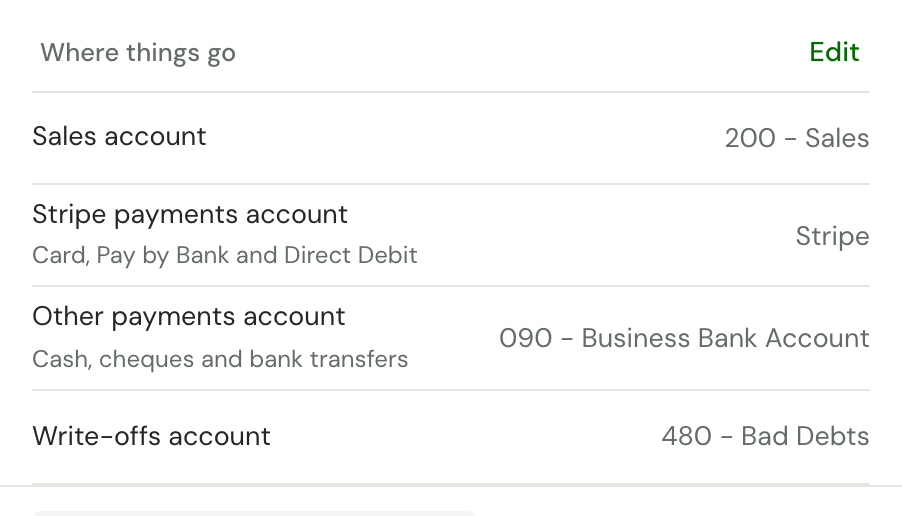
Once they are saved, Connected since 16 Oct shows in green beside your organisation's name, with "Invoices, payments and write-offs go to Xero as they happen." under the name.
Ask your accountant which accounts they want. Many businesses keep a separate Stripe clearing account in Xero, because Stripe pays out in batches less its fees, so one Stripe payout covers several invoices.
Write-offs account can wait until you first write off a balance. Until it is chosen, a write-off waits on the problems list, and goes once you choose it.
If you connect Stripe after choosing, Stripe payments account appears under Where things go reading Not chosen, and the sheet reads Not sending yet again. Nothing goes to Xero until you choose it and save. Nothing is lost meanwhile: what waited goes then.
You can change the accounts at any time. A change applies to what goes from then on; what is already in Xero stays where it is. Set the sales account or a payment account back to Not chosen and sending stops until you choose one again.
What you see in Xero
The contact. Your customer's company name, or their name when they have no company, with their email address, phone number and billing address (or the address of their first property). If Xero already has a contact with the same email address, or failing that the same name, TradeSender uses it rather than making another.
The invoice. Approved, so it sits under Awaiting Payment, not in drafts. It has:
- the same number as in TradeSender, with the same issue and due dates;
- in Reference, the job's number, and the name on the bill when a property's invoices go to somebody else;
- prices before VAT, each line's VAT as TradeSender worked it out, and the same total to the penny. See Accounts, VAT and what each invoice looks like.
A payment. On that invoice, dated the day it was paid, with its reference, in the account you chose for it. A refund or a returned Direct Debit replaces it with a payment for what is left. If you have reconciled it in Xero, Xero will not let TradeSender change it: see When something can't go across.
A write-off. A credit note for the amount written off, at No VAT, coded to Write-offs account, with the line "Write-off of INV-000041:" and your reason, set against the invoice so that it reads as paid. Choose Undo write-off in TradeSender and the credit note is taken off the invoice and voided.
A void. Voiding an invoice in TradeSender voids it in Xero. A write-off's credit note comes off it first, because Xero will not void an invoice with one set against it.
Payments recorded in Xero
When you or your bookkeeper apply a payment in Xero to an invoice that went from TradeSender, it is recorded on the invoice here within 15 minutes, as a bank transfer with Xero's reference and the note "Recorded in Xero". Reconciling a bank transfer against the invoice in Xero does this.
Payments on invoices typed straight into Xero do not come back, and neither do credit notes you make in Xero.
Reconnect
Xero can stop accepting TradeSender: someone disconnected it in Xero, or it went unused for longer than Xero allows. Xero's card in Settings, Connected apps and its sheet then say "Xero no longer accepts TradeSender's access to Green & Co Ltd. Nothing waiting is lost.", the card no longer reads Connected, and Today lists "Xero needs reconnecting". TradeSender emails your Business email, or the owners if you have none.
An owner opens Xero's sheet, chooses Reconnect Xero and picks the same organisation on Xero's page. Everything that waited goes across, from the day you first connected. Office members see "Ask the workspace owner to reconnect."
Picking a different organisation is refused: "That's a different organisation. Reconnect Green & Co Ltd, or disconnect first to connect another." To move to another organisation, disconnect and connect again.
Checked against the app on 10 November 2026. Still stuck? Ask usAsk us.